External hard drives are the storage equivalent of keeping all your money under the mattress. It works until it doesn't. If you have three, four, or five USB drives scattered across your desk, you already know the pain: duplicate files everywhere, no redundancy, no remote access, and one drop away from losing years of photos. A NAS (Network Attached Storage) replaces all of them with a single, always-on device that protects your data, shares it across every device on your network, and lets you access files remotely. All for less than most Australians expect.
For a broader overview of this topic, see our complete home backup guide.
In short: A 2-bay NAS like the Synology DS225+ ($585 at Mwave) or QNAP TS-233 ($399 at PLE) replaces a pile of external drives with redundant, networked storage. You copy your files over once, set up automatic backups, and never plug in a USB drive again. Most home users can complete the migration in an afternoon.
Why External Hard Drives Are Holding You Back
External hard drives have a place. They are cheap, portable, and dead simple to use. But once you accumulate more than one or two, the problems start compounding:
- No redundancy: If a single external drive fails, everything on it is gone. No RAID, no mirror, no second copy.
- File duplication chaos: You end up with "Photos_backup_v2_FINAL" on one drive and a different version on another. There is no single source of truth.
- Manual process: Every backup requires you to physically plug in a drive and drag files across. If you forget, you are unprotected.
- No remote access: Your files are only available when the drive is plugged into the computer in front of you.
- Physical risk: External drives sit on desks, get knocked off shelves, travel in bags, and live next to coffee cups. They are mechanically identical to internal drives but without the protection of a case.
A NAS solves every one of these problems. It sits on your network, holds multiple drives with redundancy, automates backups from every device in your house, and gives you remote access from anywhere. Including over Australia's NBN. If you are reading this and nodding along to the problems above, the transition is straightforward. For a deeper look at what a NAS actually does, see our complete NAS explainer.
What You Need Before You Start
Before you buy a NAS or start copying files, do a quick audit of your current storage situation:
- Total data volume: Add up the used space across all your external drives. This tells you how much NAS capacity you actually need. Most home users are surprised. It is usually less than they think once duplicates are removed.
- Data types: Photos, videos, documents, music, application backups? This affects which NAS features matter (Plex for media, Synology Photos for image libraries, etc.).
- Number of devices: How many computers, phones, and tablets need access? A NAS serves them all simultaneously.
- Internet connection: If you want remote access, your NBN plan matters. A typical NBN 100 plan delivers roughly 20 Mbps upload (40 Mbps on newer HFC and FTTP connections), which is enough to stream files remotely but not to transfer large volumes quickly.
For help calculating your storage needs precisely, our capacity planning guide walks through the numbers.
Step 1: Choose Your NAS
The right NAS depends on how much data you have and what you want to do with it. For replacing external hard drives, a 2-bay or 4-bay unit is the sweet spot for most Australian households. Here are the models that make sense at each price point:
Budget: Under $500
If you just want to consolidate storage and add basic redundancy, the value-tier NAS units do the job without breaking the bank.

| Model | Synology DS223 |
|---|---|
| Bays | 2 |
| CPU | Realtek RTD1619B Quad-Core |
| RAM | 2 GB DDR4 |
| Network | 1 GbE |
| AU Price (Mwave) | $489 |
| AU Price (PLE) | $479 |

| Model | QNAP TS-233 |
|---|---|
| Bays | 2 |
| CPU | ARM Quad-Core 2.0 GHz |
| RAM | 2 GB |
| Network | 1 GbE |
| AU Price (PLE) | $399 |
| AU Price (Scorptec) | $399 |
The QNAP TS-233 at $399 is the most affordable way to get proper NAS functionality in Australia. The Synology DS223 costs more but gives you access to Synology's excellent DSM software and apps like Synology Photos and Drive. Which are often the real reason people switch from external drives. For a more thorough comparison, see our Synology vs QNAP breakdown.
Mid-Range: $500-$1,000
For households with more data, multiple users, or anyone who wants to run Plex, Docker containers, or photo management alongside basic storage, step up to a Plus-series NAS.

| Model | Synology DS225+ |
|---|---|
| Bays | 2 |
| CPU | Intel Celeron (Quad-Core) |
| RAM | 2 GB DDR4 (expandable) |
| Network | 2.5 GbE + 1 GbE |
| AU Price (Mwave) | $585 |
| AU Price (Scorptec) | $549 |

| Model | Synology DS425+ |
|---|---|
| Bays | 4 |
| CPU | Intel Celeron (Quad-Core) |
| RAM | 2 GB DDR4 (expandable) |
| Network | 2.5 GbE + 1 GbE |
| AU Price (Mwave) | $899 |
| AU Price (PLE) | $999 |
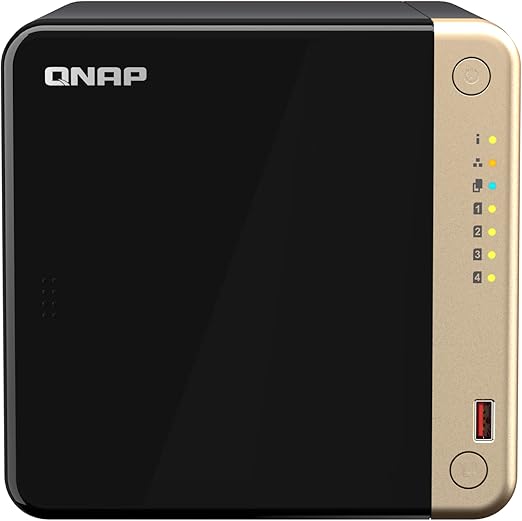
| Model | QNAP TS-464 |
|---|---|
| Bays | 4 |
| CPU | Intel Celeron N5095 Quad-Core |
| RAM | 8 GB DDR4 |
| Network | Dual 2.5 GbE |
| AU Price (PLE) | $1,099 |
| AU Price (Scorptec) | $999 |
The Synology DS225+ at $549-$585 is the standout for most people replacing external drives. The Intel CPU handles hardware transcoding for Plex and runs Synology's full app suite smoothly. The 2.5 GbE port is a genuine advantage over older models. File transfers from your computer to the NAS are noticeably faster than on 1 GbE units. If you need more than two bays, the DS425+ or QNAP TS-464 give you room to grow. For our full take, see our DS225+ review.
The Easiest Option: Synology BeeStation
If you want the absolute simplest NAS experience and do not care about drive flexibility, the Synology BeeStation comes with storage pre-installed and sets up in minutes. No drive purchasing, no RAID configuration, no technical knowledge required.

| Model | Synology BeeStation 4 TB |
|---|---|
| Storage | 4 TB (pre-installed) |
| CPU | Realtek RTD1619B |
| RAM | 1 GB |
| AU Price (Mwave) | $489 |

| Model | Synology BeeStation Plus 8 TB |
|---|---|
| Storage | 8 TB (pre-installed) |
| CPU | Intel Celeron J4125 |
| RAM | 4 GB DDR4 |
| AU Price (Mwave) | $769 |
| AU Price (Scorptec) | $749 |
The trade-off is clear: the BeeStation is a single-drive device with no redundancy. If the drive fails, you lose everything stored on it unless you have a separate backup. It suits people who want cloud-style simplicity with local storage, but it is not a proper replacement for a multi-drive NAS with RAID protection. Think of it as a stepping stone, not a destination.
Tip: Don't forget to budget for hard drives. A NAS enclosure is sold without drives ("diskless") unless you buy a BeeStation. Two NAS-grade 4 TB drives will add roughly $400-$500 to your total cost. See our NAS hard drive guide for current Australian pricing on Seagate IronWolf and WD Red drives.
Step 2: Buy NAS-Grade Hard Drives
The drives inside a NAS are not the same as the ones in your external hard drives. NAS-grade drives like the Seagate IronWolf and WD Red Plus are designed for 24/7 operation, vibration tolerance in multi-bay enclosures, and higher workload ratings. Standard desktop drives can work in a pinch, but they are not rated for continuous use and their warranties typically do not cover NAS usage.
Be aware that NAS-grade drive prices have risen significantly from early 2025 levels. Distributors are securing stock allocations further forward than usual. A signal of how constrained the global supply chain has become. In 2026, 4 TB NAS drives that sat comfortably under $160 are now consistently above $200. Shop around and do not assume the first price you see is the best one. For a detailed comparison of the major drive brands, see our Seagate IronWolf vs WD Red guide.
How Many Drives and What Capacity?
A common mistake is buying the largest drives you can afford. Here is a more practical approach:
- 2-bay NAS with RAID 1 (mirror): Buy two identical drives. Your usable capacity equals one drive. So two 4 TB drives give you 4 TB of protected storage. If either drive fails, your data survives on the other.
- 4-bay NAS with RAID 5: Buy four identical drives. Your usable capacity equals three drives. Four 4 TB drives give you 12 TB usable with one-drive fault tolerance.
If your total external drive data is under 4 TB (most home users), two 4 TB NAS drives in RAID 1 is the right starting point. You get redundancy without overspending. For a deeper dive into RAID levels and what they mean for your data, see our RAID explained guide.
Step 3: Set Up the NAS
The physical setup takes about ten minutes. The software setup takes another twenty to thirty minutes depending on the brand. Here is the process:
- Install the drives: Slide the NAS-grade drives into the drive bays. Most modern NAS units use tool-free trays. No screwdriver needed for 3.5-inch drives.
- Connect to your network: Run an Ethernet cable from the NAS to your router. Plug in the power adapter.
- Find the NAS on your network: Open a web browser and navigate to
find.synology.com(Synology) orinstall.qnap.com(QNAP). The setup wizard detects the NAS automatically. - Install the operating system: The wizard downloads and installs the latest firmware (DSM for Synology, QTS for QNAP). This takes 5-10 minutes.
- Create a storage pool and volume: Choose your RAID type (RAID 1 for 2-bay, RAID 5 or SHR for 4-bay). The system formats the drives and creates your storage volume.
- Create a shared folder: This is where your files will live. Create folders that mirror how you currently organise data. Photos, Documents, Videos, Backups, etc.
Our Synology setup guide walks through each of these steps with screenshots. QNAP's process is very similar.
NBN and remote access note: If you want to access your NAS remotely (from outside your home network), check whether your NBN connection uses CGNAT (Carrier-Grade NAT). CGNAT blocks incoming connections and prevents direct remote access. Synology's QuickConnect and QNAP's myQNAPcloud work around this in most cases, but performance may be limited. If your ISP uses CGNAT, you can request a public IP. Some ISPs offer this for free, others charge a small monthly fee. See our remote access guide for the full walkthrough.
Step 4: Migrate Your Data from External Drives
This is the part most people dread, but it is simpler than it looks. The key principle: copy first, delete later. Never move files from an external drive to the NAS. Always copy them, verify the copy, and then wipe the external drive.
Method 1: Direct USB Copy (Simplest)
Most NAS units have a USB 3.0 port on the back. Plug your external drive directly into the NAS and use the built-in file manager to copy data across. On Synology, open File Station, find the USB drive under "External Devices," and drag files to your shared folder. On QNAP, use File Station the same way.
This is the simplest method and keeps everything local. No network bottleneck. USB 3.0 transfer speeds are typically 100-150 MB/s for sequential reads from a spinning external drive, so a 2 TB drive takes roughly 4-5 hours to copy.
Method 2: Network Copy from Your Computer
Plug the external drive into your computer, map the NAS as a network drive, and copy files across your local network. This works fine but is limited by your network speed:
- 1 GbE connection: Maximum ~110 MB/s theoretical, usually 80-100 MB/s in practice. A 2 TB copy takes 5-7 hours.
- 2.5 GbE connection: Maximum ~280 MB/s theoretical. Worth it if both your NAS and computer support it. The DS225+ includes a 2.5 GbE port natively.
- Wi-Fi: Do not use Wi-Fi for large data migrations. Even Wi-Fi 6 is unreliable for sustained multi-hour transfers. Use a wired connection.
Method 3: Synology Hyper Backup / QNAP Hybrid Backup Sync
If your external drives were already part of a backup routine, both Synology and QNAP offer migration tools that can import data from external USB drives and set up ongoing backup schedules in one step. Synology's USB Copy app even supports a one-touch copy button on the front of the NAS. Plug in a drive, press the button, and it copies everything to a designated folder automatically.
Dealing with Duplicate Files
If you have been using multiple external drives, you almost certainly have duplicate files. Before or after copying to the NAS, run a duplicate finder to clean up. On Synology DSM, the Storage Analyzer package identifies duplicate files across your volumes. Third-party tools like dupeGuru (free, cross-platform) also work well when the drives are mapped to your computer. Do not skip this step. It is the whole point of consolidation.
Step 5: Set Up Automatic Backups
Once your data is on the NAS, the final step is to make sure it stays protected. RAID is not a backup. It protects against a single drive failure, but not against accidental deletion, ransomware, fire, or theft. You need a proper backup strategy.
The 3-2-1 backup strategy is the gold standard: three copies of your data, on two different types of media, with one copy offsite. Here is how that looks with a NAS:
- Copy 1: Your NAS (primary storage).
- Copy 2: An external hard drive connected to the NAS via USB, running scheduled backups through Synology Hyper Backup or QNAP Hybrid Backup Sync. This is where your old external drives get a second life.
- Copy 3: A cloud backup to a service like Backblaze B2, Synology C2, or a second NAS at another location.
Yes, you are keeping one of those external drives. The difference is that the NAS automates the backup process. You are no longer manually plugging in drives and dragging files. The backup runs on a schedule without your involvement. For software options, see our NAS backup software guide.
Step 6: Back Up Your Computers and Phones to the NAS
With the NAS running, you can retire external drives from your computer backup routine entirely:
- Mac users: Use Time Machine over the network. Synology and QNAP both support Time Machine natively. Create a dedicated shared folder with a quota and point Time Machine at it.
- Windows users: Use File History or a third-party tool like Veeam Agent (free) to back up to a network share on the NAS.
- iPhone and Android: Synology Photos and QNAP QuMagie automatically back up your phone's camera roll over Wi-Fi. This alone replaces iCloud or Google Photos storage for many users. See our iCloud replacement guide for the Synology workflow.
What to Do with Your Old External Drives
Do not throw them away. External drives still have genuine utility even after you move to a NAS:
- 3-2-1 backup target: As described above, one external drive connected to the NAS serves as your second backup copy.
- Cold storage archive: Keep a copy of critical data on an external drive stored at a family member's house or in a fireproof safe. Update it quarterly.
- Sneakernet for large transfers: If you ever need to move 2 TB or more of data to a different location, physically carrying a drive is still faster than any internet connection in Australia.
- Temporary scratch storage: Useful for video editing projects or other workflows where you need fast, local, disposable storage.
If a drive is genuinely old (5+ years), do not trust it with important data. Use it for temporary work only, or recycle it responsibly at an e-waste collection point.
How Much Does It Actually Cost?
Here is a realistic cost breakdown for an Australian buyer replacing external drives with a NAS in 2026:
Total Cost: External Drives vs NAS
| External Drives (Status Quo) | 2-Bay NAS (Budget) | 2-Bay NAS (Recommended) | 4-Bay NAS | |
|---|---|---|---|---|
| Enclosure / NAS | $0 (already own) | QNAP TS-233: $399 | Synology DS225+: $549-$585 | Synology DS425+: $899 |
| Drives | $0 (already own) | 2× 4 TB NAS drives: ~$400-$500 | 2× 4 TB NAS drives: ~$400-$500 | 4× 4 TB NAS drives: ~$800-$1,000 |
| Total | $0 | $800-$900 | $950-$1,085 | $1,700-$1,900 |
| Usable Storage | Sum of individual drives (no redundancy) | 4 TB (RAID 1) | 4 TB (RAID 1) | 12 TB (RAID 5) |
| Redundancy | None | Single drive failure protection | Single drive failure protection | Single drive failure protection |
| Remote Access | No | Yes | Yes | Yes |
| Auto Backups | Manual only | Yes | Yes | Yes |
The upfront cost is real. There is no getting around the fact that a proper NAS setup costs $800-$1,100 for a 2-bay system including drives. But consider what you are actually paying for: redundancy that external drives cannot provide, automated backups that remove human error, and a storage solution that lasts 5-10 years with drive replacements along the way. Australian Consumer Law protections apply when purchasing from Australian retailers, giving you additional coverage beyond the manufacturer warranty.
Where to Buy in Australia
Most Australian retailers operate on 3-5% NAS margin, which is why pricing is remarkably uniform across the major stores. The real difference between retailers is what happens when something goes wrong. For a NAS. A device that holds your data. That matters more than saving $20.
- Scorptec and PLE: Full-range specialists. Stock most Synology and QNAP models, offer genuine pre-sales guidance, and will work with you through warranty claims. First-time NAS buyers should buy here.
- Mwave: Good pricing, large catalogue, reliable for straightforward purchases.
- Amazon AU: Often 10-20% cheaper, excellent returns policy, but zero pre-sales advice and zero post-sales technical support. If a NAS fails with your data inside it, Amazon will not ship an advanced replacement or help you recover. Suitable for experienced buyers who know exactly what they want.
For a full rundown of retailer options, see our where to buy NAS in Australia guide.
ACL note: Australian Consumer Law protections apply when you purchase from an Australian retailer. This gives you rights to repair, replacement, or refund for products with a major failure. Protections that grey imports and international purchases do not guarantee. For a device that stores your irreplaceable data, buying locally from an authorised retailer is worth the modest price premium.
Common Mistakes to Avoid
Having helped people transition from external drives to NAS for years, these are the mistakes that come up again and again:
- Treating RAID as a backup: RAID protects against drive failure, not against accidental deletion, ransomware, or your house burning down. You still need a separate backup.
- Buying desktop drives instead of NAS drives: Standard WD Blue or Seagate Barracuda drives are cheaper, but they are not rated for 24/7 operation and their warranty does not cover NAS use. Spend the extra on IronWolf or WD Red Plus.
- Skipping the UPS: A sudden power outage during a write operation can corrupt your volume. A basic UPS costs $150-$250 and protects your NAS and data. See our UPS for NAS guide.
- Using Wi-Fi instead of Ethernet: Always connect your NAS via Ethernet cable. Wi-Fi introduces latency, drops, and dramatically lower throughput for sustained transfers.
- Not setting up remote access during initial setup: Configure Synology QuickConnect or QNAP myQNAPcloud while you are still at the setup wizard. It is much easier to do it then than to come back to it later.
Is a NAS Overkill for You?
Honest answer: for some people, yes. If you have one external drive with under 500 GB of data that you only access from one computer, a NAS is more solution than you need. A cloud backup service like Backblaze Personal ($99 USD/year) would cover you.
But if you tick any of these boxes, a NAS is the right move:
- You have two or more external drives
- You have irreplaceable files (family photos, business documents) without a proper backup
- Multiple people in your household need access to the same files
- You want to stop paying monthly cloud storage fees
- You want to run a Plex media server, home security cameras, or Docker containers
For most Australian households with 1-4 TB of accumulated data across multiple devices, a 2-bay NAS is the practical solution. Not overkill. Right-sized.
Choosing between a purpose-built NAS and an old PC running TrueNAS? Our NAS vs Repurposed PC Cost Calculator works out the break-even point using real AU electricity rates and upfront hardware costs.
Related reading: our NAS buyer's guide.
Use our free Drive Failure Risk Calculator to understand your real data loss risk.
Use our free NAS vs Cloud Migration Cost Calculator to compare the total cost of migrating from cloud to your own NAS.
Can I use the drives from my external hard drives in a NAS?
Technically yes. You can crack open an external enclosure and use the bare drive inside a NAS. However, most external drives contain standard desktop drives (WD Blue, Seagate Barracuda) that are not rated for 24/7 NAS operation. They lack vibration tolerance firmware and have lower workload ratings. You can use them temporarily while migrating data, but replace them with proper NAS-grade drives (Seagate IronWolf or WD Red Plus) as soon as practical.
How long does it take to copy all my data to a NAS?
Over USB 3.0 (plugging the external drive directly into the NAS), expect roughly 100-150 MB/s for sequential reads from a spinning drive. That means approximately 2-3 hours per terabyte. A 4 TB external drive takes around 8-12 hours. Over a 1 GbE network connection, speeds drop to 80-100 MB/s. Start the copy before bed and let it run overnight.
Do I need to leave the NAS running 24/7?
A NAS is designed to run continuously, and that is the recommended configuration. However, both Synology and QNAP support scheduled power on/off if you want to shut down overnight. The drives spin down automatically during idle periods, and power consumption is low. A typical 2-bay NAS draws 15-25 watts under load, similar to a light bulb. At Australian electricity rates, that is roughly $30-$50 per year. See our NAS power consumption guide for detailed cost calculations.
Can I access my NAS from outside my home network over NBN?
Yes. Synology QuickConnect and QNAP myQNAPcloud provide remote access without complex router configuration. However, if your NBN connection uses CGNAT (common on some ISPs), direct connections are blocked. QuickConnect works around CGNAT by routing through Synology's relay servers, but performance may be slower. A typical NBN 100 plan provides 20-40 Mbps upload, which is sufficient for browsing files and streaming media remotely but not for transferring very large files. See our remote access guide for setup instructions.
What happens if a drive in my NAS fails?
If you are running RAID 1 (2-bay mirror) or RAID 5/SHR (4+ bay), a single drive failure does not result in data loss. The NAS will alert you by email and in the admin interface. You remove the failed drive, insert a new one of equal or greater capacity, and the NAS rebuilds the array automatically. This process takes several hours to a day depending on drive size. During rebuild, your data remains accessible. This is the core advantage over external drives. A single external drive failure means total data loss, while a NAS with RAID gives you time to replace the failed drive safely.
Is a NAS cheaper than paying for cloud storage long-term?
For most Australian households, yes. A 2 TB iCloud plan costs $16.99/month ($204/year). A 2 TB Google One plan costs $13.99/month ($168/year). Over five years, that is $840-$1,020 for cloud storage alone. A Synology DS225+ with two 4 TB drives costs $950-$1,085 upfront and gives you 4 TB of redundant local storage with no ongoing fees (aside from ~$40/year in electricity). The NAS pays for itself in 4-5 years, and you own the hardware and your data outright.
Should I buy a Synology or QNAP NAS for replacing external drives?
For most people making this transition, Synology is the easier choice. DSM (Synology's operating system) is cleaner, more intuitive, and the mobile apps. Especially Synology Photos and Synology Drive. Are polished enough to replace cloud services directly. QNAP offers more hardware flexibility and often better specs per dollar (more RAM, faster CPUs at the same price), but the software has a steeper learning curve. If simplicity matters most, go Synology. If you want more power and do not mind a bit more setup, consider QNAP. Our Synology vs QNAP comparison covers this in detail.
Ready to pick the right NAS for your home? Our buying guide covers every model available in Australia with current pricing.
Read the Best NAS for Home Guide →