Running Docker containers and home automation platforms on a NAS requires more CPU and RAM than basic file storage. The entry-level ARM-based units that handle photo backups and media streaming will struggle or outright refuse to run containerised workloads. If you want to self-host Home Assistant, Node-RED, Mosquitto, Zigbee2MQTT, or any combination of smart home services alongside your regular NAS duties, you need an x86 processor with at least 4GB of RAM. And ideally 8GB or more once you start stacking containers.
For a broader overview of this topic, see our NAS buying guide hub.
In short: The QNAP TS-464 ($999 at Scorptec) is the strongest all-round NAS for Docker and home automation in Australia. 8GB RAM, dual 2.5GbE, PCIe expandability, and QNAP's Container Station makes Docker deployment straightforward. If you prefer Synology's ecosystem, the DS925+ ($995 at Scorptec) is the closest equivalent with 4GB upgradeable RAM and NVMe cache support. For budget builds, the Asustor AS5404T ($799 at Scorptec) delivers a Celeron N5105 with 4GB RAM at a lower entry price.
Why Docker on a NAS Makes Sense for Australian Smart Homes
A NAS running Docker containers replaces the need for a separate Raspberry Pi, mini PC, or always-on desktop for home automation. Instead of managing multiple devices on your network, a single NAS handles file storage, media serving, backups, and your entire smart home stack. That means one device to maintain, one power bill, and one backup strategy to worry about.
For Australian homes, there are specific advantages to running home automation on a NAS rather than cloud-dependent platforms. NBN connections with typical upload speeds of 20-40 Mbps (on NBN 100 plans) and the growing problem of CGNAT on some ISPs mean that cloud-reliant smart home setups can be slow, unreliable, or impossible to access remotely. Running Home Assistant locally on your NAS keeps automation responsive regardless of your internet connection. Your lights, sensors, and automations work even when the NBN drops out.
If you are new to NAS devices, our guide to what a NAS is covers the fundamentals. For a broader look at Docker and virtualisation capabilities across NAS brands, see our Docker and virtualisation on NAS deep dive.
What to Look for in a Docker and Home Automation NAS
CPU: x86 Is Non-Negotiable
Docker containers are built primarily for x86 (Intel/AMD) architectures. While ARM-based NAS units exist and some can technically run containers, the vast majority of Docker images. Including Home Assistant, Node-RED, Grafana, InfluxDB, and most community-maintained containers. Target x86_64. An ARM-based NAS like the Synology DS223 or QNAP TS-233 will leave you fighting compatibility issues from day one.
Look for Intel Celeron (N5095, N5105, N100-series) or AMD Ryzen embedded processors as the minimum. These provide enough single-threaded performance for a home automation stack of 10-20 containers without breaking a sweat. If you plan to run heavier workloads. Databases, media transcoding alongside your smart home stack. Step up to a Ryzen V1500B or Intel Core i3.
RAM: 4GB Is the Floor, 8GB Is Comfortable
A basic Home Assistant installation with a handful of integrations uses around 500MB-1GB of RAM. Add Mosquitto (MQTT broker), Zigbee2MQTT, Node-RED, and a database like InfluxDB or MariaDB, and you are looking at 2-3GB for the smart home stack alone. The NAS operating system (DSM, QTS, ADM) needs another 1-2GB. That puts you at 3-5GB before you have opened a single browser tab on the NAS interface.
Units shipping with 2GB of RAM. Like the Synology DS225+ and DS425+. Will need an immediate RAM upgrade if you plan to run more than a couple of containers. Factor the cost of a RAM module into your budget. Units shipping with 8GB, like the QNAP TS-464 and TS-264, are ready to go out of the box.
Networking: 2.5GbE Matters for IoT-Heavy Homes
Home automation generates constant low-bandwidth traffic. MQTT messages, Zigbee/Z-Wave state updates, API calls between containers. Gigabit Ethernet handles this without issue. However, if the same NAS also serves as your file server, Plex media server, or backup target, 2.5GbE networking prevents the home automation traffic from competing with large file transfers. Most current-generation NAS units from QNAP and Synology include at least one 2.5GbE port. For more on NAS networking in the Australian context, see our NAS networking guide.
USB for Zigbee/Z-Wave Dongles
If your home automation setup uses Zigbee or Z-Wave devices (smart lights, door sensors, motion detectors), you need a USB coordinator dongle plugged into the NAS. Such as the Sonoff Zigbee 3.0 USB Dongle Plus or the SkyConnect stick. Every NAS on this list has USB 3.0 ports, but verify that the NAS operating system can pass USB devices through to Docker containers. QNAP's Container Station and Synology's Container Manager both support USB device passthrough, though the setup process differs.
Best NAS for Docker and Home Automation. Our Picks
Best Overall: QNAP TS-464-8G
The QNAP TS-464 hits the sweet spot for Docker and home automation. It ships with 8GB of RAM. Enough to run a full smart home stack plus file storage duties without upgrading anything on day one. The Intel Celeron N5095 quad-core processor handles containerised workloads comfortably, and dual 2.5GbE ports with link aggregation support give you networking headroom as your setup grows.
QNAP's Container Station provides a Docker-compatible management interface that is more accessible than raw command-line Docker for most home users. It includes a built-in app registry, resource monitoring per container, and straightforward port mapping. For users who outgrow Container Station, SSH access to the underlying Docker engine is available for docker-compose workflows.
The TS-464 also includes two M.2 NVMe slots for SSD caching and a PCIe Gen 3 expansion slot. Useful if you later want to add a 10GbE card or additional NVMe storage. Four 3.5-inch bays provide enough raw storage for most home setups. For a full brand comparison, see our Synology vs QNAP guide or the detailed QNAP TS-464 review.
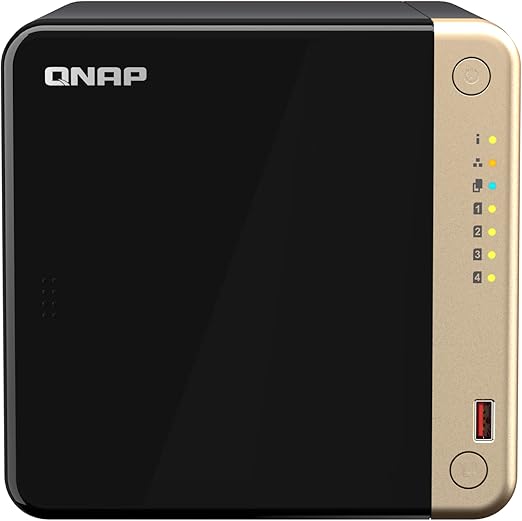
| CPU | Intel Celeron N5095 Quad-Core 2.0GHz (burst 2.9GHz) |
|---|---|
| RAM | 8GB DDR4 (expandable to 16GB) |
| Drive Bays | 4x 3.5"/2.5" SATA + 2x M.2 NVMe |
| Network | 2x 2.5GbE RJ45 |
| Expansion | 1x PCIe Gen 3 x2 slot |
| USB | 2x USB 3.2 Gen 2, 1x USB 2.0 |
| Docker Support | Container Station (Docker & LXC) |
| AU Price (Scorptec) | $999 |
| AU Price (PLE) | $1,099 |
Pros
- 8GB RAM out of the box. No immediate upgrade needed for Docker workloads
- Dual 2.5GbE with link aggregation
- PCIe slot for future 10GbE or NVMe expansion
- Container Station is beginner-friendly for Docker management
- HDMI output for direct-attached display if needed
Cons
- QTS interface is more cluttered than Synology DSM
- QNAP has had more security advisories than Synology historically. Keep firmware updated
- Fan noise under load is noticeable in quiet rooms
Best Synology Option: Synology DS925+
If you are already invested in Synology's ecosystem or prefer the polish of DSM, the DS925+ is the pick. It ships with 4GB of RAM. Tight for a heavy Docker setup, but upgradeable to 16GB. The AMD Ryzen embedded processor provides strong multi-threaded performance, and Synology's Container Manager (the rebranded Docker package) integrates cleanly with DSM's storage and permission management.
The DS925+ includes two NVMe M.2 slots for SSD caching (or as a storage pool in DSM 7.2+), dual 1GbE plus one 2.5GbE port, and supports expansion via the DX525 unit if you outgrow four bays. For home automation specifically, Synology's stability and automatic security patching give peace of mind. Your smart home stack will not go down because of an unpatched vulnerability. The trade-off is that Synology's Container Manager is slightly less feature-rich than QNAP's Container Station, and USB device passthrough for Zigbee dongles requires more manual configuration.
For a detailed look at this model, see our Synology DS925+ review. If you are deciding between the DS925+ and its 2-bay sibling, our DS925+ vs DS725+ comparison breaks down the differences.
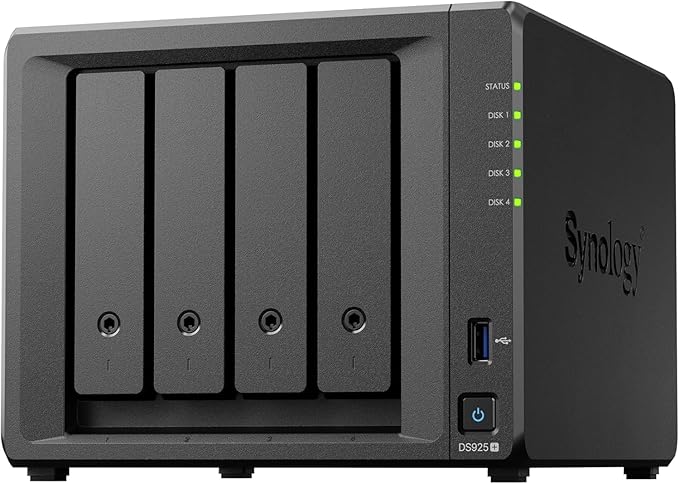
| CPU | AMD Ryzen R1600 Dual-Core (4 threads) |
|---|---|
| RAM | 4GB DDR5 (expandable to 16GB) |
| Drive Bays | 4x 3.5"/2.5" SATA + 2x M.2 NVMe |
| Network | 2x 1GbE + 1x 2.5GbE |
| USB | 2x USB 3.2 Gen 1 |
| Docker Support | Container Manager (Docker Compose support) |
| AU Price (Scorptec) | $995 |
| AU Price (Mwave) | $1,029 |
Pros
- Synology DSM is the most polished NAS operating system available
- Excellent security track record and automatic patching
- Container Manager supports Docker Compose natively
- Expandable to 9 bays with DX525 expansion unit
- Strong community support for Home Assistant on Synology
Cons
- Ships with only 4GB RAM. Budget $50-80 for a RAM upgrade
- No PCIe expansion slot
- USB passthrough for Zigbee dongles requires SSH configuration
- Slightly more expensive than QNAP for equivalent specs
Best Budget Pick: Asustor AS5404T (Nimbustor 4 Gen2)
The Asustor AS5404T delivers an Intel Celeron N5105 processor and 4GB of RAM in a 4-bay enclosure at a lower price point than both the QNAP TS-464 and Synology DS925+. It includes dual 2.5GbE ports, four M.2 NVMe slots (two for caching, two in the base), and USB 3.2 Gen 2 for fast external transfers and Zigbee dongle connectivity.
Asustor's ADM operating system supports Docker through Portainer, which is a well-known third-party Docker management interface. This is actually an advantage for users coming from a Docker background. Portainer is the same tool used on Linux servers and Raspberry Pis, so the skills transfer directly. The downside is that Asustor's overall software ecosystem is less mature than Synology or QNAP, with fewer first-party apps and a smaller community for NAS-specific troubleshooting.
For the price, the AS5404T suits home automation enthusiasts who are comfortable with Docker and do not need hand-holding from the NAS interface. It is a strong contender if your budget sits below $900 and you want four bays. See our Asustor NAS Australia guide for more on the brand's range.

| CPU | Intel Celeron N5105 Quad-Core 2.0GHz (burst 2.9GHz) |
|---|---|
| RAM | 4GB DDR4 (expandable to 16GB) |
| Drive Bays | 4x 3.5"/2.5" SATA + 4x M.2 NVMe |
| Network | 2x 2.5GbE RJ45 |
| USB | 3x USB 3.2 Gen 2 (Type-A), 1x USB 3.2 Gen 2 (Type-C) |
| Docker Support | Portainer (via App Central) |
| AU Price (Scorptec) | $799 |
| AU Price (Mwave) | $879 |
Pros
- Lowest entry price for a Celeron-based 4-bay NAS with 2.5GbE
- Dual 2.5GbE networking included
- Portainer is a familiar Docker interface for Linux users
- Four M.2 NVMe slots. More than competing models
- Generous USB 3.2 Gen 2 port selection
Cons
- ADM software ecosystem is less polished than DSM or QTS
- Smaller community means less NAS-specific Docker guidance online
- 4GB RAM needs upgrading for heavier container workloads
- Asustor's Australian distribution is through Dicker Data only. Stock can be inconsistent
Best 2-Bay Docker NAS: QNAP TS-264-8G
Not everyone needs four bays. If your use case is primarily home automation with some personal file storage, the 2-bay QNAP TS-264 provides the same Celeron N5095 processor and 8GB of RAM as its 4-bay sibling in a more compact and affordable package. Dual 2.5GbE, two M.2 NVMe slots, and a PCIe expansion slot round out a surprisingly capable 2-bay unit.
Two bays in a RAID 1 mirror give you redundancy for your Home Assistant configuration and container data, while a separate NVMe drive can hold your Docker images for faster container startup times. The 8GB of RAM means this unit is ready for a serious home automation stack on day one. At $819 from PLE, it undercuts many 4-bay options while providing the CPU and RAM that Docker workloads actually need. For more 2-bay options, see our best 2-bay NAS Australia guide.

| CPU | Intel Celeron N5095 Quad-Core 2.0GHz (burst 2.9GHz) |
|---|---|
| RAM | 8GB DDR4 (expandable to 16GB) |
| Drive Bays | 2x 3.5"/2.5" SATA + 2x M.2 NVMe |
| Network | 2x 2.5GbE RJ45 |
| Expansion | 1x PCIe Gen 3 x2 slot |
| Docker Support | Container Station (Docker & LXC) |
| AU Price (PLE) | $819 |
| AU Price (Scorptec) | $949 |
Pros
- 8GB RAM out of the box. Same as the 4-bay TS-464
- Compact footprint for a shelf or desk
- PCIe expansion slot rare in a 2-bay NAS
- Dual 2.5GbE networking
Cons
- Only 2 SATA bays limits total storage capacity
- No room for large media libraries alongside home automation data
- Same processor as the TS-464 for not much less money
Best for Heavy Workloads: Synology DS1525+
If your Docker ambitions extend beyond home automation into full self-hosted infrastructure. Reverse proxy, VPN server, monitoring stack (Grafana + Prometheus + InfluxDB), media management, and maybe a development environment. The Synology DS1525+ provides the horsepower and bay count to handle it all. The AMD Ryzen V1500B quad-core processor with 8GB of RAM (expandable to 32GB) gives genuine multitasking headroom that the Celeron-based units cannot match.
Five bays allow for a flexible storage layout. A RAID 5 array across four drives for data with a fifth drive as a hot spare, or SHR-2 for dual drive fault tolerance. Add two NVMe M.2 slots for caching and the ability to expand to 15 bays with two DX517 expansion units, and the DS1525+ is a NAS you will not outgrow quickly. At $1,285 from Mwave ($1,399 from Scorptec), it is a significant step up in price, but justified if your container list is already in double digits.

| CPU | AMD Ryzen V1500B Quad-Core 2.2GHz |
|---|---|
| RAM | 8GB DDR4 ECC (expandable to 32GB) |
| Drive Bays | 5x 3.5"/2.5" SATA + 2x M.2 NVMe |
| Network | 4x 1GbE RJ45 |
| Expansion | eSATA for DX517/DX525 expansion |
| Docker Support | Container Manager (Docker Compose support) |
| AU Price (Mwave) | $1,285 |
| AU Price (Scorptec) | $1,399 |
Pros
- ECC RAM support for data integrity under heavy workloads
- 8GB RAM standard. Expandable to 32GB
- Five bays with expansion to 15 bays
- Ryzen V1500B is a genuine step up from Celeron for multi-container workloads
- Synology DSM stability for always-on home automation
Cons
- Only 1GbE ports. No 2.5GbE without an add-in card
- No PCIe slot for 10GbE or other expansion
- Significantly more expensive than 4-bay alternatives
- Overkill if you only plan to run Home Assistant and a few containers
Value Alternative: TerraMaster F4-424 Pro
TerraMaster sits outside the big three (Synology, QNAP, Asustor), but the F4-424 Pro is worth considering purely on hardware specs per dollar. An Intel Core i3 processor with 32GB of RAM at $1,099 from Scorptec ($1,100 from Mwave) is significantly more powerful than anything from Synology or QNAP at that price point. For raw Docker performance, nothing else in this price range comes close.
The trade-off is TerraMaster's TOS operating system, which is functional but lacks the depth, app ecosystem, and community support of DSM or QTS. Docker runs via the built-in Docker Manager or Portainer, and the experience is capable but less integrated. TerraMaster's Australian distribution is through DSTech, which has limited presence. Stock availability can be patchy, and warranty support is less established than Synology or QNAP through BlueChip or Dicker Data. For more detail, see our TerraMaster NAS Australia guide.
The F4-424 Pro suits technically confident users who want maximum container performance and are comfortable troubleshooting software issues independently. Don't buy this if you want the hand-holding experience of Synology's ecosystem or the broad community support of QNAP.

| CPU | Intel Core i3-N305 8-Core |
|---|---|
| RAM | 32GB DDR5 |
| Drive Bays | 4x 3.5"/2.5" SATA |
| Network | 2x 2.5GbE RJ45 |
| Docker Support | Docker Manager / Portainer |
| AU Price (Scorptec) | $1,099 |
| AU Price (Mwave) | $1,100 |
Pros
- 32GB RAM is unmatched at this price. Run dozens of containers without thinking about memory
- Intel Core i3-N305 is significantly faster than Celeron N5095
- Dual 2.5GbE networking
- Best raw hardware value in this roundup
Cons
- TOS software is less mature than DSM or QTS
- Limited Australian distribution and support infrastructure
- Smaller user community for troubleshooting NAS-specific issues
- No M.2 NVMe slots on the standard F4-424 Pro model
Comparison Table
Best NAS for Docker and Home Automation. Key Specs Compared
|
QNAP TS-464
|
Synology DS925+
|
Asustor AS5404T
|
QNAP TS-264
|
Synology DS1525+
|
TerraMaster F4-424 Pro
|
|
|---|---|---|---|---|---|---|
| CPU | Celeron N5095 | AMD Ryzen R1600 | Celeron N5105 | Celeron N5095 | Ryzen V1500B | Core i3-N305 |
| RAM (as shipped) | 8GB | 4GB | 4GB | 8GB | 8GB | 32GB |
| Max RAM | 16GB | 16GB | 16GB | 16GB | 32GB | 32GB |
| Drive Bays | 4 + 2x M.2 | 4 + 2x M.2 | 4 + 4x M.2 | 2 + 2x M.2 | 5 + 2x M.2 | 4 |
| 2.5GbE Ports | 2 | 1 | 2 | 2 | 0 (4x 1GbE) | 2 |
| PCIe Slot | Yes | No | No | Yes | No | No |
| Docker Interface | Container Station | Container Manager | Portainer | Container Station | Container Manager | Docker Manager |
| Best AU Price | $999 | $995 | $879 (Mwave) | $819 | $1,285 | $760 (Mwave) |
Prices last verified: 27 February 2026. Always check retailer before purchasing.
Setting Up Docker for Home Automation on Your NAS
Regardless of which NAS you choose, the typical home automation Docker stack looks something like this:
Core containers:
- Home Assistant. The central home automation platform. Manages devices, automations, dashboards, and integrations.
- Mosquitto. MQTT broker for lightweight messaging between IoT devices and Home Assistant.
- Zigbee2MQTT or ZHA (Zigbee Home Automation). Bridges Zigbee devices (via USB dongle) into Home Assistant.
Common additions:
- Node-RED. Visual flow-based automation, popular for complex automation logic.
- InfluxDB + Grafana. Time-series database and dashboarding for sensor history and analytics.
- ESPHome. For managing ESP32/ESP8266 IoT devices.
- AdGuard Home or Pi-hole. Network-wide ad and tracker blocking.
- Nginx Proxy Manager. Reverse proxy for secure remote access to your services.
On Synology, you will use Container Manager with Docker Compose files. On QNAP, Container Station provides a GUI-driven approach with optional CLI access. On Asustor, Portainer gives you a web interface that closely mirrors a standard Docker server. All three approaches work. The differences are in how much the NAS OS integrates with container management versus treating Docker as a standalone service.
Pro tip: Store your Docker container configurations and Home Assistant data on an SSD (M.2 NVMe if available) rather than your spinning hard drives. Home Assistant writes frequently to its database, and running it on an HDD will noticeably slow down the interface and automation response times. Use the HDDs for media, backups, and bulk file storage.
NBN and Remote Access Considerations
Running home automation on a NAS means your smart home dashboard and automations live on your local network. Accessing them remotely. From your phone at work, or while travelling. Requires either a VPN connection back to your home network or a reverse proxy setup with a domain name and SSL certificate.
On most NBN connections, the upload speed on a standard NBN 100 plan sits around 20-40 Mbps. This is more than sufficient for accessing Home Assistant dashboards remotely (the data is mostly text and small images). However, if you are also streaming media from Plex or transferring files via your NAS while away from home, the upload bandwidth becomes the bottleneck.
A bigger concern is CGNAT (Carrier-Grade NAT), which is increasingly common on NBN connections. Particularly on Starlink, some 5G fixed wireless providers, and budget RSPs. CGNAT means you do not have a public IP address, making it impossible to connect directly to your NAS from outside your home network. Solutions include Tailscale (a WireGuard-based mesh VPN that works behind CGNAT), Cloudflare Tunnels, or Synology's QuickConnect service. Our NAS remote access and VPN guide covers all the options in detail.
Warranty, Support, and Where to Buy
For a device running your home automation 24/7, where you buy matters. NAS vendors do not operate service centres in Australia. Warranty claims go through the retailer, up through the distributor (BlueChip for Synology and QNAP, Dicker Data for Asustor and QNAP), and back to the vendor in Taiwan. The full process typically takes 2-3 weeks.
Buying from specialist retailers like Scorptec or PLE gives you access to genuine pre-sales advice and an established warranty process. Amazon AU often undercuts these retailers by 10-20%, but if your NAS fails, Amazon may push a credit or refund rather than sourcing a direct replacement. Problematic when you have drives full of data and a home automation setup that depends on the specific unit. For first-time NAS buyers running home automation, the support safety net of a specialist retailer is worth the small price premium.
Australian Consumer Law note: All NAS purchases from Australian retailers are covered by ACL consumer guarantees. Your warranty claim goes to the place of purchase, not the manufacturer. Before buying, ask your retailer about their warranty process and whether advanced replacements are available. The answer tells you more about the value of buying from that store than the price on the website. For official information on your consumer rights, visit accc.gov.au.
For a full comparison of where to buy NAS in Australia, see our where to buy NAS Australia guide.
Backup Your Home Automation Data
A NAS running your smart home is only one copy of your data. Home Assistant configurations, automation YAML files, Zigbee device databases, and Node-RED flows represent potentially hundreds of hours of setup work. If the NAS fails. And hardware failure is a matter of when, not if. You need a recovery plan.
At minimum, configure automatic backups of your Home Assistant instance (Home Assistant has built-in snapshot functionality) to a cloud service like Google Drive, Dropbox, or a second NAS. Synology's Hyper Backup and QNAP's Hybrid Backup Sync can automate this. Following a 3-2-1 backup strategy. Three copies of data, on two different media types, with one copy offsite. Protects your smart home investment as much as it protects your family photos.
What About UGREEN NAS for Docker?
UGREEN's NASync range (DXP2800, DXP4800, DXP4800 Plus) has generated significant interest in the home automation community due to competitive hardware specs and Docker support. However, there are two important caveats for Australian buyers in 2026.
First, UGREEN does not yet have an official Australian distributor. Units are available through Amazon AU and some marketplace sellers, but warranty claims currently go through international channels. This is expected to change in 2026, but until an official AU distribution deal is in place, the warranty support risk is real. Especially for a device intended to run 24/7 as a home automation hub.
Second, UGREEN's NAS software (UGOS) is still maturing. Docker support is functional but less refined than what Synology, QNAP, and even Asustor offer. The enthusiast community is growing fast, but you will find significantly fewer guides, troubleshooting resources, and integration-specific documentation compared to the established NAS brands. If you are comfortable being an early adopter and can handle the warranty uncertainty, the UGREEN NASync range offers exceptional hardware value. For everyone else, the established brands remain the safer choice for a production home automation setup. See our UGREEN NAS Australia guide and Synology vs UGREEN comparison for more detail.
NAS Units to Avoid for Docker
Not every NAS can run Docker, and some that technically can will deliver a poor experience. Avoid these for home automation workloads:
ARM-based NAS units: The Synology DS223 ($489), DS124 (~$445), QNAP TS-233 ($399), and Asustor Drivestor 2 (~$445) use ARM processors that either cannot run Docker at all or are limited to a tiny selection of ARM-compatible containers. Home Assistant's recommended installation method requires an x86 processor.
1GB RAM units: Any NAS with 1GB of RAM (such as the Synology DS124 or Asustor AS1104T at $475) is physically incapable of running Docker containers alongside the NAS operating system. These units are designed for basic file storage only.
2GB RAM units without upgrade path: The Synology DS225+ ($549 at Scorptec) and DS425+ ($819 at Scorptec) ship with only 2GB of RAM but support RAM upgrades. They can work for Docker, but only if you upgrade the RAM immediately. Do not attempt to run containers on 2GB. Budget an additional $50-80 for a compatible RAM module when pricing these units.
Final Verdict
For most Australian home automation enthusiasts, the decision comes down to the QNAP TS-464 versus the Synology DS925+. The TS-464 wins on out-of-the-box readiness. 8GB RAM, dual 2.5GbE, and a PCIe slot give you everything you need without spending extra on upgrades. The DS925+ wins on software polish, security reputation, and long-term ecosystem investment.
If budget is the priority, the Asustor AS5404T at $799 delivers strong Docker hardware at the lowest price in this roundup. If you want maximum performance per dollar and are comfortable with a less mature software ecosystem, the TerraMaster F4-424 Pro at $1,099 gives you 32GB of RAM and an 8-core processor that nothing else in this price range can match.
Whatever you choose, remember that a NAS running your home automation is a single point of failure. Back up your configurations, plan for hardware failure, and buy from a retailer that will support you when. Not if. Something goes wrong. For broader buying guidance, see our best NAS Australia roundup or explore our best 4-bay NAS guide for more options.
Our NAS Sizing Wizard helps size storage and RAM for Docker workloads, and our RAID Calculator shows usable capacity for your drive configuration.
Can I run Home Assistant on any NAS?
No. Home Assistant's recommended Docker-based installation requires an x86 (Intel or AMD) processor and at least 2GB of free RAM after the NAS operating system is running. ARM-based NAS units like the Synology DS223, QNAP TS-233, and most entry-level models from any brand cannot run Home Assistant reliably. Check that your NAS has an Intel Celeron, AMD Ryzen, or Intel Core processor before purchasing specifically for home automation use.
How much RAM do I need for Docker on a NAS?
A lightweight setup with Home Assistant and a couple of supporting containers (Mosquitto, Zigbee2MQTT) can manage on 4GB total system RAM, but you will feel the limits quickly. For a comfortable experience with 5-10 containers, 8GB is the practical minimum. If you plan to run 15+ containers including databases and monitoring tools, look for 16GB or more. Many NAS units support RAM upgrades, so check the maximum supported RAM before purchasing.
Is QNAP or Synology better for Docker?
Both are capable. QNAP ships more RAM by default (8GB on the TS-464 and TS-264) and Container Station offers a slightly more feature-rich GUI for Docker management, including LXC container support. Synology's Container Manager is more streamlined and integrates tightly with DSM's storage and permission system, and Synology has a stronger security track record. QNAP suits users who want everything ready out of the box; Synology suits users who value software polish and are willing to upgrade RAM separately. See our Synology vs QNAP comparison for a full breakdown.
Can I use a Zigbee USB dongle with a NAS running Docker?
Yes, but the process varies by NAS brand. On QNAP, Container Station supports USB device passthrough through the GUI. On Synology, you need to configure USB passthrough via SSH by adding the device path to your Docker Compose file. On Asustor, Portainer supports device mapping similarly to a standard Linux Docker setup. Popular Zigbee coordinators like the Sonoff Zigbee 3.0 USB Dongle Plus and SkyConnect work with all three platforms, but test the passthrough before committing to a complex Zigbee network.
Will running Docker containers void my NAS warranty?
No. Docker and container functionality are officially supported features on Synology (Container Manager), QNAP (Container Station), and Asustor (Portainer via App Central). Running containers within these supported tools does not void your warranty. However, if you modify the underlying Linux OS beyond what the manufacturer supports (such as custom kernel modules or firmware modifications), that could potentially complicate a warranty claim. Stick to the official Docker tools and you are covered.
Do I need an SSD for running Docker on a NAS?
Not strictly required, but strongly recommended. Home Assistant and databases like InfluxDB write frequently to disk, and spinning hard drives introduce noticeable latency to the Home Assistant interface and automation response times. Most current NAS models include M.2 NVMe slots. Using a small NVMe SSD (250GB-500GB) as your Docker storage volume while keeping HDDs for bulk file storage is the best approach. The difference in Home Assistant dashboard responsiveness between HDD and SSD is significant.
Can I access my NAS home automation setup remotely on an NBN connection?
Yes, with some caveats. If your NBN connection has a public IP address (most FTTP and HFC connections do), you can set up a VPN (WireGuard or OpenVPN) or reverse proxy (Nginx Proxy Manager) for remote access. If your ISP uses CGNAT. Common with Starlink, some 5G fixed wireless, and budget RSPs. You will not have a public IP, which blocks direct inbound connections. In this case, use Tailscale (a WireGuard-based mesh VPN that works behind CGNAT), Cloudflare Tunnels, or Synology's QuickConnect service. See our remote access guide for setup instructions.
Looking for more NAS buying advice? Browse our complete guide to the best NAS devices available in Australia, covering every use case and budget.
Read the Best NAS Australia Guide