Setting up a Synology NAS takes about 30 minutes from unboxing to working file server, and you don't need any IT experience to do it. Synology's DiskStation Manager (DSM) is designed to walk you through the process step by step. This guide covers everything Australian buyers need to know. From installing drives and connecting to your NBN router, to configuring remote access that actually works with Australian internet connections. Whether you've bought a DS225+, a DS425+, or any other Synology DiskStation, the setup process is essentially the same.
For a broader overview of this topic, see our complete Synology ecosystem guide.
In short: Plug in drives, connect Ethernet to your router, power on, visit find.synology.com in a browser, and follow the DSM installer. The whole process takes around 30 minutes. The only decision that matters at setup time is your storage pool type. Use SHR (Synology Hybrid RAID) for home use, which gives you one-drive fault tolerance without wasting capacity.
What You Need Before You Start
Before powering on your Synology NAS, gather everything you need. Nothing is worse than getting halfway through setup and realising you're missing a cable or need to order drives.
Hardware Checklist
Your Synology NAS unit. It ships diskless, meaning no hard drives are included in the box. You need to purchase drives separately. This is standard for all Synology DiskStation models sold in Australia, from the entry-level DS124 ($269 at Scorptec, $279 at Mwave) to the DS925+ ($995 at Scorptec, $1,029 at Mwave).
NAS-rated hard drives. You need at least one drive, but ideally two for redundancy. Use NAS-specific drives like the Seagate IronWolf or WD Red Plus. Standard desktop drives lack the firmware optimisations for 24/7 NAS operation and will fail sooner. Synology's own HAT3300 Plus Series drives are also available: 4TB for $299, 6TB for $429, 8TB for $499, and 12TB for $599 at Scorptec. See our best NAS hard drive guide for a full comparison with current AU pricing.
Drive compatibility note: Following the 2025 drive compatibility controversy, Synology reversed third-party drive restrictions with DSM 7.3 in October 2025. Desktop Plus series models (DS225+, DS425+, DS925+, etc.) now fully support Seagate IronWolf and WD Red drives for storage pool creation and health monitoring. However, M.2 NVMe SSDs still require drives from Synology's official Hardware Compatibility List. Check synology.com/compatibility before buying M.2 drives.
An Ethernet cable. One is included in the box. Your NAS must be connected via Ethernet to your router or switch. Wi-Fi is not an option for the NAS itself (your devices can access it over Wi-Fi, but the NAS needs a wired connection).
A computer or phone on the same network. You'll use a web browser to complete the setup. Any device connected to the same router will work.
A Phillips-head screwdriver. Most 2-bay and 4-bay Synology models use tool-free drive trays for 3.5-inch drives, but you'll need a screwdriver if you're installing 2.5-inch SSDs or securing drives in some older tray designs.
Step 1. Install Your Hard Drives
Synology's drive installation is straightforward, and most current models use tool-free trays for 3.5-inch drives.
1. Remove the drive trays. Press the release tab on the front of the NAS and slide out the tray. On models like the DS225+ and DS425+, the trays pull straight out.
2. Seat the drive in the tray. For 3.5-inch drives, remove the side clips from the tray, place the drive into the tray with the SATA connector facing the back, and snap the side clips back into place. No screws required. For 2.5-inch drives, flip the tray over and use the screw holes on the bottom to secure the drive with the included screws.
3. Slide the tray back in. Push the tray firmly into the bay until you hear it click. The drive will automatically connect to the internal SATA backplane.
4. Repeat for additional drives. If you're setting up a multi-bay NAS, install all drives before powering on. It's much easier to create a storage pool with all drives present from the start than to add drives later.
Handle drives carefully. Hard drives are fragile precision instruments. Don't drop them, bump them against the case, or touch the exposed circuit board on the bottom. Static discharge can damage the controller. Hold drives by the sides only.
Step 2. Connect to Your Network and Power On
Connect the Ethernet cable from the LAN port on the back of the NAS to a spare port on your NBN router or network switch. If your Synology has multiple LAN ports (the DS225+ has one 2.5GbE and one 1GbE port), use the faster port for your primary connection.
Connect the power cable and press the power button on the front panel. The NAS will boot up. You'll hear the drives spin up and see the status LEDs begin flashing. First boot takes 1-2 minutes as the system initialises the hardware.
Placement matters. Put your NAS somewhere with decent airflow. Not inside a closed cupboard. Hard drives generate heat under sustained operation, and the NAS fans need room to exhaust warm air. A shelf near your router is ideal. Keep it away from direct sunlight and heat sources. The NAS will produce a low hum from the fans and drives. It's not silent, so avoid putting it in a bedroom if you're a light sleeper.
Step 3. Find Your NAS and Install DSM
Once the NAS has booted (the status LED will turn solid green or orange), open a web browser on any device connected to the same network and go to:
find.synology.com
This Synology Web Assistant will scan your local network and find the NAS automatically. If it doesn't appear, try diskstation:5000 in your browser's address bar, or check that both your computer and the NAS are connected to the same router.
The Web Assistant will prompt you to install DSM (DiskStation Manager). This is Synology's operating system. Click Install Now and the latest version of DSM will be downloaded and installed automatically. This takes 5-10 minutes depending on your internet speed. The NAS will restart once installation is complete.
Do not disconnect power during DSM installation. Interrupting the install can corrupt the system partition. Let the process complete fully. The NAS will restart on its own when it's ready.
Step 4. Create Your Admin Account
After DSM installs and the NAS restarts, your browser will load the DSM setup wizard. You'll be prompted to:
1. Set a device name. This is how the NAS appears on your network. Keep it simple. Something like "SynologyNAS" or "HomeNAS". Avoid spaces and special characters.
2. Create an administrator account. Choose a username (not "admin". Synology disables the default admin account for security reasons) and a strong password. This is the master account for your NAS. Write the credentials down and store them somewhere safe.
3. Choose your update policy. Select "Automatically install important updates only" for the best balance of security and stability. This ensures critical security patches are applied without risking feature changes that might disrupt your setup.
4. Create a Synology Account. You'll be asked to sign in or create a Synology account. This is required for QuickConnect (remote access) and push notifications. It's worth creating one. Without it, you lose access to several useful features including the ability to access your NAS remotely.
Step 5. Create a Storage Pool and Volume
This is the most important step in setup, and the one where first-time NAS users most often get confused. Don't worry. Synology's Storage Manager walks you through it, and the default options are sensible for most people.
After the initial DSM setup, the Storage Manager will open automatically (or you can find it in the main menu). Click Create Now to start creating your storage pool.
Understanding RAID Types
You'll be asked to choose a RAID type. Here's what matters for home and small business users:
SHR (Synology Hybrid RAID). The recommended default for almost everyone. SHR provides one-drive fault tolerance (one drive can fail without data loss) while maximising usable capacity, especially when mixing different drive sizes. If you have two 4TB drives, SHR gives you approximately 4TB of usable storage with protection against a single drive failure.
SHR-2. Provides two-drive fault tolerance. Only available with 4+ drives. Use this if you have a large array and want extra safety, but it costs more usable capacity.
RAID 1 (Mirror). Traditional mirroring. Two drives, one copy of data on each. Gives you the same protection as SHR with two identical drives, but SHR handles mixed drive sizes better.
JBOD or Basic. No redundancy. If a drive fails, you lose everything on it. Only use this if you have a separate backup strategy and want maximum capacity. Not recommended for most users.
For most Australian home users: Choose SHR with Btrfs file system. SHR handles mixed-size drives gracefully (useful when you upgrade to larger drives later), and Btrfs provides data checksumming, snapshots, and self-healing capabilities that ext4 lacks. There's no performance penalty for choosing Btrfs on modern Synology hardware.
After selecting your RAID type, select the drives to include, choose the Btrfs file system, and click through to create the volume. The process takes a few minutes to initialise, but your NAS is usable immediately. The background synchronisation happens while you continue setting up.
Step 6. Create Shared Folders
Shared folders are how you organise files on your NAS. Think of them as the top-level folders that appear when you access the NAS from your computer. Go to Control Panel > Shared Folder > Create.
A practical starting structure for most households:
- Documents. Important files, scanned documents, tax records
- Photos. Family photos and videos (or use Synology Photos, covered below)
- Media. Movies, music, TV shows for streaming via Plex or similar
- Backups. Time Machine backups (Mac) or computer backups (PC)
For each shared folder, you can enable data checksumming (if using Btrfs) and set permissions to control who can access what. For a single-user home NAS, the default permissions are fine. For a household with multiple users or a small business, create individual user accounts (Control Panel > User & Group) and assign folder-level permissions.
Step 7. Set Up Remote Access (QuickConnect and DDNS)
Accessing your NAS remotely. From outside your home network. Is one of the most useful features, but it's also where Australian internet connections create specific challenges. If you want to access files, stream media, or manage your NAS while away from home, you need to configure remote access.
QuickConnect (Easiest Option)
QuickConnect is Synology's relay-based remote access. It works by routing your connection through Synology's servers, which means it bypasses most network restrictions including CGNAT (more on that below). Enable it in Control Panel > External Access > QuickConnect. Choose a QuickConnect ID (this becomes your personal URL: quickconnect.to/YourID).
Pros: Works immediately, no router configuration needed, bypasses CGNAT.
Cons: Slower than direct access because traffic is relayed through Synology's servers. Upload and download speeds are limited by your NBN connection's upload speed. On a typical NBN 100 plan, that's around 20Mbps upload (some plans offer 40Mbps or even the 100/40 profile). For large file transfers or media streaming, this can be a bottleneck.
DDNS with Port Forwarding (Faster, More Technical)
For faster remote access, you can set up DDNS (Dynamic DNS) with port forwarding. This creates a direct connection to your NAS without Synology's relay servers.
1. Set up DDNS in Control Panel > External Access > DDNS. Synology offers a free DDNS hostname (yourname.synology.me). This gives your NAS a consistent address even when your ISP changes your IP.
2. Forward ports on your router. Forward ports 5000 (HTTP) and 5001 (HTTPS) to your NAS's local IP address. The exact steps depend on your router. Search for your router model plus "port forwarding" for instructions. Better yet, only forward port 5001 and enforce HTTPS-only access for security.
3. Set up a Let's Encrypt SSL certificate in Control Panel > Security > Certificate. Synology can automatically obtain and renew a free HTTPS certificate for your DDNS address, so your remote connection is encrypted.
CGNAT warning for Australian NBN users: Many NBN connections. Particularly those on fixed wireless, satellite, and some fibre-to-the-node plans. Use CGNAT (Carrier-Grade NAT). CGNAT means your router doesn't have a public IP address, which makes port forwarding impossible. If you can't get port forwarding to work, contact your ISP and ask if you're behind CGNAT. Some ISPs (like Aussie Broadband) will assign a static public IPv4 address on request for a small monthly fee. Others (like Telstra) may not offer this on all plans. If CGNAT is unavoidable, QuickConnect or a Tailscale/WireGuard VPN tunnel are your best alternatives.
NBN Upload Speed Reality
Remote NAS access performance is limited by your upload speed, not download. Most Australian NBN plans are asymmetric. The upload speed is a fraction of the download speed. On a typical NBN 100 plan, expect around 20Mbps upload (about 2.5MB/s real-world transfer speed). An NBN 100/40 plan gives you approximately 40Mbps upload. For remote photo browsing and document access this is adequate, but streaming full-quality video or transferring large files will feel slow. Plan your expectations around these numbers.
Step 8. Essential First-Day Settings
Once your NAS is running and accessible, take 15 minutes to configure these important settings. They're easy to overlook during the excitement of first setup, but they'll save you headaches later.
Enable Two-Factor Authentication (2FA)
Go to Personal Settings > Account > 2-Factor Authentication and enable it for your admin account. Use an authenticator app like Google Authenticator, Microsoft Authenticator, or Authy. A NAS connected to the internet without 2FA is a target for brute-force attacks. This is especially critical if you've enabled any form of remote access.
Enable Auto-Block and Firewall
Go to Control Panel > Security > Protection and enable auto-block. The default setting blocks an IP address after 10 failed login attempts in 5 minutes. Tighten this to 5 attempts in 5 minutes. This stops automated brute-force attacks from hammering your login page. Also configure the firewall under Control Panel > Security > Firewall and enable it with the default rules as a starting point.
Set Up Email Notifications
Go to Control Panel > Notification > Email and configure email alerts. This ensures you get notified immediately if a drive fails, a security event occurs, or the system needs attention. Use a Gmail account with an app password, or any SMTP service. This is a critical safety net. A failed drive that goes unnoticed can turn a recoverable situation into permanent data loss when a second drive fails.
Enable Snapshots (Btrfs Only)
If you chose Btrfs (as recommended), open Snapshot Replication from the package centre and set up scheduled snapshots for your shared folders. Snapshots let you roll back files to a previous version if they're accidentally deleted, overwritten, or encrypted by ransomware. Set daily snapshots with a 30-day retention as a sensible starting point.
Disable Default Admin Account
Synology disables the default "admin" account by default on new DSM installations, but verify this under Control Panel > User & Group. Make sure the "admin" account shows as disabled. Automated attacks always try common usernames first. "admin" being the most targeted.
Step 9. Install Essential Packages
Synology's Package Centre is like an app store for your NAS. While DSM handles the core operating system, packages add specific functionality. Open Package Centre from the main menu and consider installing these based on your use case:
For Everyone
Hyper Backup. Synology's backup tool. This is essential for implementing a 3-2-1 backup strategy. It can back up your NAS data to an external USB drive, another NAS, or cloud storage (Backblaze B2, AWS S3, Azure). Your NAS protects against drive failure with RAID, but RAID is not backup. A fire, theft, ransomware, or accidental deletion can still destroy data on a RAID array. Hyper Backup is your safety net.
Synology Drive Server. Turns your NAS into a private Dropbox-like sync server. Install the Synology Drive client on your computers and phones, and selected folders will sync automatically to your NAS. This is a genuine replacement for cloud storage services like Google Drive or Dropbox, with no monthly fees and no storage limits beyond your physical drives.
For Photo Storage
Synology Photos. A Google Photos or iCloud Photos alternative that stores everything locally on your NAS. Includes AI-powered face recognition, automatic album creation, timeline browsing, and mobile apps for iOS and Android that can auto-upload your phone's camera roll. For Australian households paying for iCloud or Google One storage, this eliminates the monthly subscription while giving you complete control over your photos.
For Media Streaming
Plex Media Server (or Jellyfin via Docker). Turns your NAS into a media server for streaming movies, TV shows, and music to your TV, phone, or tablet. Available from Package Centre (Plex) or via the Container Manager package (Jellyfin). Note that hardware transcoding on Synology requires an Intel-powered model (DS225+, DS425+, DS925+). The ARM-based value models (DS223, DS124) can only direct-play. See our Plex NAS guide for detailed hardware requirements.
For Computer Backups
Active Backup for Business. A free (included with Synology) backup solution for Windows PCs and servers, Linux servers, and virtual machines. It provides full system image backups with bare-metal restore capability. For small businesses, this single package replaces paid backup software that can cost hundreds per year.
Mac users: Enable Time Machine support on your shared folders via Control Panel > File Services > Advanced > SMB > Enable Bonjour Time Machine. Your Mac will then see the NAS as a Time Machine destination automatically.
Step 10. Access Your NAS from Computers and Phones
With your NAS configured, here's how to actually access it from your devices.
From a Windows PC
Open File Explorer, type \\YourNASName (or \\192.168.x.x using your NAS's IP address) in the address bar, and press Enter. You'll be prompted for your NAS credentials. To make this permanent, right-click a shared folder and select Map network drive. Assign a drive letter and tick "Reconnect at sign-in."
From a Mac
Open Finder and look for your NAS under Locations in the sidebar. If it doesn't appear, press Cmd+K and type smb://YourNASName to connect manually. Enter your credentials and the shared folders will mount as network drives on your desktop.
From a Phone or Tablet
Download the DS file app (iOS/Android) for general file browsing, Synology Photos for photo management, and Synology Drive for synced folders. All apps connect via QuickConnect or your DDNS address for remote access, and via local IP when you're on the same network.
Which Synology NAS Should You Buy for Your First Setup?
If you haven't purchased your NAS yet, here's a quick breakdown of the most popular Synology models for first-time buyers in Australia. For a comprehensive comparison, see our full Synology NAS ranking and best home NAS guide.
Popular Synology Models for First-Time Buyers
 DS225+
|
 DS425+
|
 DS223
DS223
|
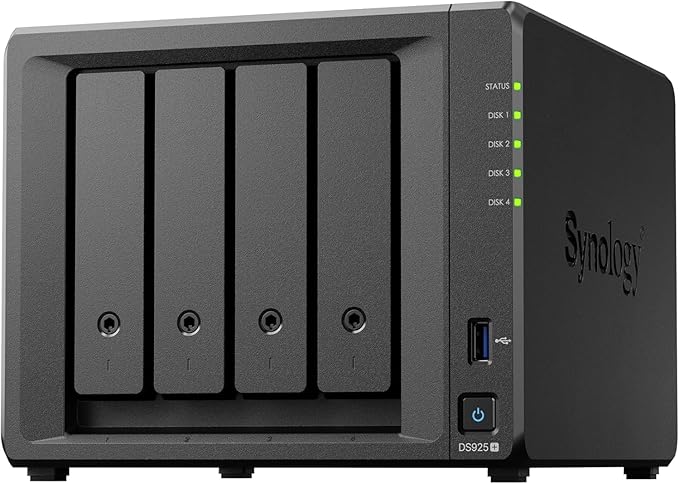 DS925+/DS925+
|
|
|---|---|---|---|---|
| Bays | 2 | 4 | 2 | 4 |
| CPU | Intel Celeron | Intel Celeron | Realtek ARM | AMD Ryzen |
| RAM | 2GB | 2GB | 2GB | 4GB |
| 2.5GbE | Yes | Yes | No | Yes (x2) |
| Docker/Plex Transcoding | Yes | Yes | No | Yes |
| AU Price (From) | $599 (PLE Computers) | $819 (Scorptec) | $479 (PLE Computers) | $995 (Scorptec) |
| Best For | Couples, small homes | Families, Plex users | Budget file storage | Power users, SMB |
Prices last verified: 16 March 2026. Always check retailer before purchasing.
The DS225+ at $549 from Scorptec ($585 at Mwave, $599 at PLE) is the best starting point for most Australian households. It has enough processing power for Plex transcoding, Docker containers, Synology Photos with AI face recognition, and future upgrades. The DS223 at $489 (Mwave and Scorptec) or DS223j at$445-$489 suits buyers who purely want file storage and backup without the advanced software features.
Australian Consumer Law note: When purchasing from Australian retailers like Scorptec, PLE, or Mwave, you're covered by ACL protections including the right to a repair, replacement, or refund for products with a major fault. This protection doesn't apply to grey imports or international purchases. For a device that stores your data, buying locally from an authorised retailer is worth the peace of mind.
Where to Buy in Australia
If you're buying your first NAS, buy from a specialist retailer where you can get genuine pre-sales guidance. Not from Amazon where the price might be better but the support is nonexistent. Scorptec and PLE are full-range Synology specialists with staff who understand NAS products. Mwave carries a solid range at competitive prices. All three are Australian-authorised resellers with full ACL coverage.
Most Australian retailers operate on 3-5% NAS margin, which is why pricing is remarkably uniform across the major stores. The real difference between retailers is what happens when something goes wrong. For a product that holds your irreplaceable data, that after-sales support matters more than saving $20.
Troubleshooting Common Setup Issues
"find.synology.com" Can't Find My NAS
Check that the Ethernet cable is firmly connected at both ends (NAS and router). Verify the NAS has powered on (status LED should be solid, not off). Try accessing directly via diskstation:5000 in your browser. If using a mesh Wi-Fi system, ensure your computer is on the same network segment as the NAS. Some mesh systems isolate wired and wireless clients by default. Check your mesh settings for an "AP isolation" or "client isolation" option and disable it.
Storage Pool Creation Failed
If DSM refuses to create a storage pool, the drives may have existing partitions from a previous system. Go to Storage Manager > HDD/SSD, select each drive, and check for existing partitions. DSM will offer to erase them during pool creation, but sometimes you need to manually wipe the drives first. Also verify your drives appear on Synology's compatibility list if you're using a 2025 or newer Plus-series model.
Remote Access Not Working
If QuickConnect works but DDNS/port forwarding doesn't, you're almost certainly behind CGNAT. Contact your ISP and ask for a public IPv4 address. Aussie Broadband, Superloop, and several other ISPs can provide this on request (sometimes for a small fee). If your ISP cannot provide a public IP, stick with QuickConnect or set up a Tailscale VPN (available in Package Centre) which creates a direct encrypted tunnel that bypasses CGNAT entirely.
NAS Is Slow on My Network
If file transfers over your local network are slow (under 100MB/s), check your network chain. The NAS, your router, and your computer all need to support Gigabit Ethernet (or faster) for full-speed transfers. Wi-Fi connections will always be slower than wired. A Wi-Fi 6 connection typically delivers 300-500Mbps real-world versus 1,000Mbps+ over Ethernet. For bulk file transfers, always use a wired connection. If you have a 2.5GbE-capable NAS (DS225+, DS425+, DS925+), you'll need a 2.5GbE switch and network adapter on your computer to take advantage of the faster port.
Next Steps After Setup
Your NAS is now running, accessible, and secured. Here's what to focus on in the days after setup:
- Start moving data. Copy your most important files first. Documents, photos, and anything that exists only on one device.
- Set up Hyper Backup to an external USB drive or cloud destination. RAID protects you from a drive failure, but a proper backup strategy protects you from everything else.
- Install Synology Photos and configure mobile upload on your phone. Every photo you take will automatically sync to your NAS.
- Configure Time Machine (Mac) or Active Backup for Business (PC) so your computers are backed up nightly.
- Run a S.M.A.R.T. test on your drives (Storage Manager > HDD/SSD > Health Info > S.M.A.R.T. Test). This checks the physical health of your new drives and establishes a baseline.
Neither Synology nor any NAS vendor has a phone number or office in Australia. If you need technical help beyond what this guide covers, you're relying on Synology's online support tickets, community forums, or working it out yourself. That support gap is exactly why guides like this exist. To give you the practical, Australian-specific guidance that retail staff and vendor support can't or won't provide.
Use our free NAS Sizing Wizard to get a personalised NAS recommendation.
Related reading: our NAS buyer's guide, our Synology brand guide, and our NAS explainer.
How long does it take to set up a Synology NAS from scratch?
About 30 minutes from unboxing to a working file server. Installing drives takes 5 minutes, DSM installation takes 5-10 minutes, and the initial configuration wizard takes another 10-15 minutes. Background tasks like storage pool synchronisation continue after setup but don't prevent you from using the NAS immediately.
Can I use any hard drive in a Synology NAS?
For desktop Plus series models (DS225+, DS425+, DS925+, etc.) running DSM 7.3 or later, yes. Standard NAS drives from Seagate (IronWolf) and WD (Red Plus/Red Pro) work with full functionality including health monitoring. Synology reversed their earlier drive restrictions in October 2025. However, M.2 NVMe SSDs still require drives from Synology's official Hardware Compatibility List. Enterprise and rackmount models also maintain stricter compatibility requirements. Always use NAS-rated drives rather than standard desktop drives. They're built for 24/7 operation and handle vibration better in multi-bay enclosures.
Do I need a Synology account to use my NAS?
You can use a Synology NAS on your local network without a Synology account. However, creating one is strongly recommended because it enables QuickConnect (remote access), push notifications, and access to certain Synology services. Without a Synology account, you lose the ability to access your NAS remotely unless you configure DDNS and port forwarding manually.
Will my NAS work on NBN fixed wireless or satellite?
Yes, but with limitations. NBN fixed wireless and satellite connections frequently use CGNAT, which blocks port forwarding and DDNS-based remote access. QuickConnect will still work as it routes through Synology's relay servers. Upload speeds on fixed wireless are typically 5-10Mbps, and satellite connections have high latency (600ms+). For local network use (file sharing, backups, media streaming within your home), the internet connection type doesn't matter. Your NAS communicates directly with your devices over Ethernet.
Should I buy SHR or RAID 1 for a 2-bay Synology?
SHR (Synology Hybrid RAID). With two identical drives, SHR and RAID 1 provide the same protection and usable capacity. But SHR has an advantage if you ever upgrade to a larger drive. After replacing both drives one at a time with larger ones, SHR automatically expands to use the additional capacity. RAID 1 does not. Since drive upgrades are common over a NAS's 5-10 year lifespan, SHR gives you flexibility at no cost.
Can I access my Synology NAS from outside Australia?
Yes. QuickConnect and DDNS-based access work from anywhere in the world. Performance depends on the internet connection at both ends. If you're travelling overseas, expect slower access due to higher latency and the limitation of your home NBN upload speed. Synology's mobile apps (DS file, Synology Photos, Synology Drive) all support remote access and will automatically use QuickConnect when you're away from your home network.
Is a NAS a replacement for cloud backup?
A NAS replaces cloud storage (Google Drive, Dropbox, iCloud Drive) very effectively. You get the same file sync and access features without ongoing subscription fees. But a NAS should not be your only backup. It protects against drive failure with RAID, but not against fire, theft, ransomware, or accidental deletion. Use Hyper Backup to maintain a copy on an external USB drive and ideally a cloud backup destination like Backblaze B2. See our 3-2-1 backup strategy guide for the full setup.
Not sure which Synology model to buy? Our complete ranking covers every current model with live AU pricing.
See All Synology NAS Models Ranked →