Any modern NAS with an Intel Celeron CPU and at least 4 GB of RAM can run Plex Media Server well enough for 1-2 simultaneous streams, and hardware transcoding via Intel Quick Sync is what separates a smooth experience from constant buffering. Plex on a NAS is one of the most popular reasons Australians buy a NAS in the first place. It turns your local media library into a Netflix-like streaming service accessible from every device in the house and, with the right setup, remotely over the internet. But getting it right requires understanding which NAS hardware actually handles transcoding, how Plex Pass unlocks the features that matter, and why Australia's NBN upload speeds and CGNAT create real limitations for remote streaming. This guide covers everything from choosing hardware to configuring remote access, with current AU pricing from Australian retailers.
In short: Get a NAS with an Intel Celeron CPU (N5095, N5105, or newer) for hardware transcoding, a Plex Pass subscription ($6.49/month or $159.99 lifetime) to unlock hardware-accelerated transcoding, and at least 4 GB of RAM. The Synology DS225+ ($549 at Scorptec), QNAP TS-464 ($999 at Scorptec), and Asustor AS5402T ($639 at Scorptec) are the top picks. Install Plex as a native package on Synology or QNAP, or via Docker on any platform. NBN upload speeds will limit remote streaming to one 720p-1080p stream on most plans. Plan accordingly.
Why a NAS Is the Best Plex Server for Most Australians
A dedicated NAS running Plex beats a repurposed PC, a Shield TV, or a Raspberry Pi for one simple reason: it is designed to run 24/7 with proper storage, thermal management, and low power draw. A typical 2-4 bay NAS draws 15-35 watts under load. Roughly $30-70 per year on Australian electricity rates. Compare that to a desktop PC pulling 100-200 watts just to serve video files, and the running cost difference is significant over the life of the device.
More importantly, a NAS gives you proper RAID storage for your media library. If a drive fails, your library survives. A NAS also handles backups, file sharing, Docker containers, and surveillance duties alongside Plex. One box, one electricity bill, multiple workloads. For a deeper dive into which specific models suit Plex best, see our best NAS for Plex Australia buying guide.
Hardware Requirements for Plex on a NAS
Plex's hardware requirements depend entirely on whether your clients can direct play your media or whether the server needs to transcode it. Direct play means the client device plays the file as-is. No server processing needed. Transcoding means the server converts the video in real time to a format or resolution the client can handle. Transcoding is the bottleneck that catches most NAS buyers off guard.
Direct Play vs Transcoding
Direct play is always the goal. When a client (Apple TV, Chromecast, smart TV, phone) supports the codec, resolution, and container of your media file, Plex simply streams the file without touching it. The NAS barely notices. It is just reading data from disk and sending it over the network. Even an ARM-based NAS can handle multiple direct play streams without breaking a sweat.
Transcoding happens when there is a mismatch. The most common triggers are: the client does not support the video codec (HEVC/H.265 to older devices), subtitles are burned in rather than displayed as an overlay, the remote connection bandwidth is lower than the file bitrate, or the resolution exceeds what the client supports. When transcoding kicks in, the NAS CPU has to decode the video and re-encode it in real time. This is where underpowered NAS hardware fails.
Intel Quick Sync. The Key to Hardware Transcoding
Software transcoding (using the CPU alone) is painfully slow on NAS-grade Celeron processors. A single 1080p transcode can peg a Celeron at 100% CPU, and 4K transcoding is essentially impossible via software on any consumer NAS. This is where Intel Quick Sync changes the equation entirely.
Intel Quick Sync Video is a dedicated hardware encoder/decoder built into Intel CPUs with integrated graphics. It offloads transcoding from the CPU cores to the GPU silicon, allowing even a low-power Celeron to transcode multiple 1080p streams or a single 4K stream with minimal CPU load. The Celeron N5095 and N5105 found in most current NAS models support Quick Sync with HEVC (H.265) decode and encode, making them surprisingly capable Plex servers.
Hardware transcoding requires Plex Pass. The free version of Plex only uses software transcoding, which is too slow for real-time use on NAS hardware. Plex Pass ($6.49 AUD/month, $49.99 AUD/year, or $159.99 AUD lifetime) unlocks hardware-accelerated transcoding via Intel Quick Sync. Without it, a NAS will struggle with even a single transcode stream. The lifetime pass pays for itself if you plan to use Plex long-term.
| CPU | Intel x86 with Quick Sync (Celeron N5095/N5105 or newer) |
|---|---|
| RAM (minimum) | 4 GB (2 GB technically works but will limit concurrent operations) |
| RAM (recommended) | 8 GB if running Plex alongside other containers |
| Storage | Depends on library size. 2-20+ TB typical for media collections |
| Network | Gigabit Ethernet minimum, 2.5GbE preferred for multiple streams |
| Plex Pass | Required for hardware transcoding (Intel Quick Sync) |
| 1080p transcodes (Quick Sync) | 3-5 simultaneous streams on Celeron N5095/N5105 |
| 4K transcodes (Quick Sync) | 1-2 simultaneous streams on Celeron N5095/N5105 |
ARM NAS Models. Why They Fall Short for Plex
ARM-based NAS models. The Synology DS124 ($269 at Scorptec), DS223 ($489 at Scorptec), QNAP TS-233 ($399 at Scorptec), and Asustor Drivestor 2 Lite (~$445 at Scorptec). Lack Intel Quick Sync. They have no hardware transcoding capability at all. These models work for Plex only if every client in your household can direct play every file in your library. The moment a client requests a transcode. Wrong subtitle format, unsupported codec, remote stream at reduced quality. The ARM CPU will choke. For Plex specifically, spending the extra money on an Intel-based NAS is not optional, it is essential.
Best NAS Models for Plex in Australia. With Current Prices
Every model below has an Intel CPU with Quick Sync, Docker support, and dual network ports. Prices are from Australian retailers as of February 2026. For in-depth comparisons, see our best NAS for Plex Australia guide.
Recommended NAS Models for Plex. AU Pricing (Feb 2026)
 Synology DS225+
|
 Synology DS425+
|
 Synology DS925+
|
 QNAP TS-464
|
 QNAP TS-264
|
 Asustor AS5402T
|
 Asustor AS5404T
|
|
|---|---|---|---|---|---|---|---|
| CPU | Intel Celeron (new gen) | Intel Celeron (new gen) | AMD Ryzen R1600 | Intel Celeron N5095 | Intel Celeron N5095 | Intel Celeron N5105 | Intel Celeron N5105 |
| RAM | 2 GB (expandable) | 2 GB (expandable) | 4 GB (expandable) | 8 GB | 8 GB | 4 GB | 4 GB |
| Bays | 2 | 4 | 4 | 4 | 2 | 2 | 4 |
| Network | 2.5GbE + 1GbE | 2.5GbE + 1GbE | Dual 2.5GbE | Dual 2.5GbE | Dual 2.5GbE | Dual 2.5GbE | Dual 2.5GbE |
| Quick Sync | Yes | Yes | No (AMD) | Yes | Yes | Yes | Yes |
| Native Plex Package | Yes | Yes | Yes | Yes | Yes | Yes (via Docker) | Yes (via Docker) |
| AU Price (Scorptec) | $599 (PLE Computers) | $819 | $995 | $989 (Scorptec) | $819 (PLE Computers) | $789 (Mwave) | $879 (Mwave) |
Prices last verified: 16 March 2026. Always check retailer before purchasing.
Synology DS225+. Best Entry Point
The Synology DS225+ at $549 (Scorptec) is the most popular NAS for Plex in Australia, and for good reason. Synology offers a native Plex Media Server package directly in DSM's Package Center. Install it in two clicks, no Docker knowledge required. The Intel Celeron CPU with Quick Sync handles 3-4 simultaneous 1080p transcodes comfortably. The 2 GB base RAM is workable for Plex alone, but upgrade to 4-8 GB ($30-60 for a SODIMM) if you plan to run anything else alongside it.
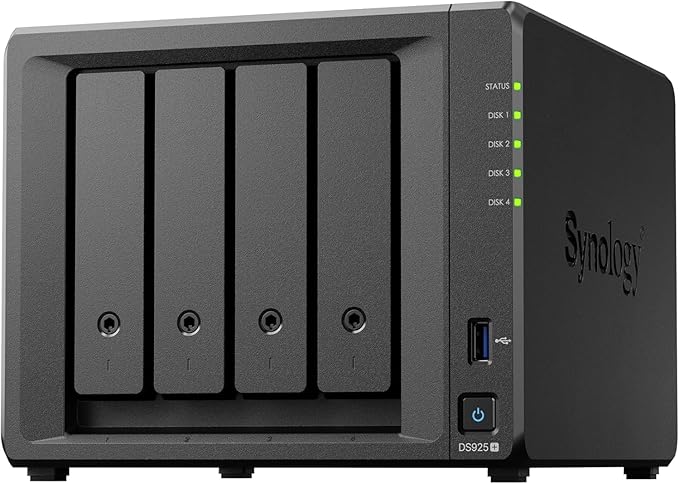
The DS225+ is limited to two bays, which means a maximum raw capacity of around 44 TB with two 22 TB drives in RAID 1, or 44 TB in JBOD with no redundancy. For most home Plex libraries (2-20 TB), two bays is sufficient. If your library is larger or growing fast, step up to the DS425+ at $819 (Scorptec) for four bays, or the DS925+ at $995 (Scorptec) if you want AMD Ryzen power and dual 2.5GbE. Though note the DS925+ uses AMD, which means no Intel Quick Sync. It relies on software transcoding or the AMD GPU equivalent, which is less efficient for Plex.
QNAP TS-464. Best for Power Users
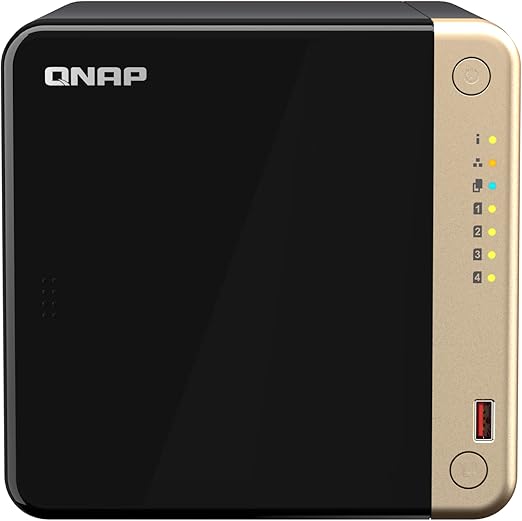
The QNAP TS-464 at $999 (Scorptec) ships with 8 GB of RAM, an Intel Celeron N5095 with Quick Sync, four bays, and dual 2.5GbE ports. It is the most capable Plex NAS in the sub-$1,000 bracket without needing any upgrades out of the box. QNAP offers a native Plex package through their App Center, and you can also run Plex in a Docker container via Container Station or even inside a full virtual machine via Virtualisation Station.
The 2-bay QNAP TS-264 at $949 (Scorptec) shares the same CPU and 8 GB RAM but with only two bays. At $949 for two bays versus $999 for four bays (TS-464), the TS-464 is clearly the better value unless physical space is a hard constraint. Both models handle Quick Sync transcoding identically.
Asustor AS5402T and AS5404T. Best Value for Plex
The Asustor AS5402T (Nimbustor 2 Gen2) at $639 (Scorptec) and AS5404T (Nimbustor 4 Gen2) at $799 (Scorptec) use the Intel Celeron N5105 with Quick Sync and 4 GB of RAM. They offer the lowest entry price for a Quick Sync-equipped NAS in Australia. Asustor does not have a native Plex package. You install Plex via Docker using Portainer, which is pre-installed in ADM. The Docker install method works just as well as native packages, but requires a few more configuration steps during initial setup.
The AS5404T at $799 for four bays with Quick Sync is particularly compelling. At $799, it offers equivalent Plex performance with a lower price point than the TS-464. The trade-off is Asustor's smaller community and less polished software compared to Synology and QNAP. If Plex performance per dollar is the priority, Asustor is hard to beat.
AU buying tip: Most Australian NAS retailers operate on 3-5% margin, so prices are remarkably uniform across stores. The real difference between retailers is stock availability and what happens if something goes wrong. Buy from a specialist like Scorptec or PLE where you can get genuine pre-sales guidance and proper warranty support. Australian Consumer Law protections apply when purchasing from Australian retailers. An important consideration for a device that will store your media library long-term.
Installing Plex on a NAS. Native Package vs Docker
There are two ways to install Plex Media Server on a NAS: as a native package through your NAS vendor's app store, or as a Docker container. Both work, and the end result is the same. A running Plex server accessible at your NAS IP on port 32400. The difference is in how you manage updates, permissions, and hardware access.
Option 1: Native Plex Package (Synology and QNAP)
Synology and QNAP both offer official Plex Media Server packages in their app stores. Installation is straightforward:
Synology DSM:
1. Open Package Center and search for "Plex Media Server"
2. Click Install. DSM handles all dependencies
3. Open Plex at http://[NAS-IP]:32400/web
4. Sign in with your Plex account and claim the server
5. Add media libraries by pointing to shared folders on your NAS
QNAP QTS:
1. Open App Center and search for "Plex Media Server"
2. Click Install (or download the .qpkg from plex.tv if a newer version is available)
3. Open Plex at http://[NAS-IP]:32400/web
4. Sign in and claim the server
5. Add media libraries. QNAP uses /share/ as the base path for shared folders
The native package method is simpler to manage and integrates with the NAS vendor's update mechanism. However, Plex updates through vendor package stores sometimes lag behind the latest release by days or weeks. If staying on the absolute latest Plex version matters to you, Docker gives you more control.
Option 2: Docker Container (All NAS Brands)
Running Plex in Docker works on Synology (Container Manager), QNAP (Container Station), and Asustor (Portainer/Docker CE). The official Plex Docker image is plexinc/pms-docker and is well-maintained. Docker gives you precise control over Plex versions, resource limits, and network configuration. For a full guide on Docker and virtualisation on NAS, see our dedicated article.
The critical Docker configuration for Plex involves three things:
1. Device passthrough for hardware transcoding: You need to pass /dev/dri into the container so Plex can access the Intel GPU for Quick Sync. In Docker Compose, add devices: - /dev/dri:/dev/dri to your service definition. Without this, Plex falls back to software transcoding even with Plex Pass enabled.
2. Volume mounts for media: Map your NAS media shared folders into the container. Example: /volume1/media:/data/media on Synology or /share/media:/data/media on QNAP.
3. Network mode: Use host network mode for simplest setup, or bridge mode with port 32400 mapped if you need network isolation. Host mode avoids DLNA discovery issues and simplifies remote access configuration.
Pros
- Update Plex independently of NAS firmware. Pull latest image anytime
- Consistent behaviour across all NAS brands. Same Docker image everywhere
- Easy to back up and migrate. Container config is portable
- Resource limits prevent Plex from consuming all NAS resources
- Run multiple Plex instances or Plex alongside other media containers
Cons
- Requires Docker knowledge for initial setup and troubleshooting
- Hardware transcoding device passthrough must be configured manually
- File permissions between NAS users and container users can cause headaches
- NAS GUI-based Docker tools (Container Manager, Container Station) vary in quality
Enabling Hardware Transcoding with Intel Quick Sync
Hardware transcoding is the single most important Plex configuration step on a NAS. Without it, transcoding performance is unacceptable. With it, a $549 Synology DS225+ can handle what would otherwise require a dedicated PC with a modern CPU.
Prerequisites:
1. An Intel-based NAS with Quick Sync support (all Celeron N5095/N5105/newer models)
2. An active Plex Pass subscription (free Plex does not support hardware transcoding)
3. Plex Media Server version 1.15.1 or later (any current version qualifies)
Enabling it:
1. Open Plex Web at http://[NAS-IP]:32400/web
2. Go to Settings > Transcoder
3. Check "Use hardware acceleration when available"
4. Check "Use hardware-accelerated video encoding" (this encodes the output via Quick Sync, not just decodes)
5. Save and play a video that triggers a transcode to verify
If using Docker: You must also ensure /dev/dri is passed through to the container (see Docker section above). The most common failure mode is hardware transcoding appearing enabled in the Plex settings but not actually working because the GPU device is not accessible inside the container. Check the Plex dashboard during a transcode. It should show "(hw)" next to the transcode type if hardware acceleration is active.
Quick Sync performance benchmark: The Intel Celeron N5095/N5105 in current NAS models handles approximately 3-5 simultaneous 1080p transcodes or 1-2 4K-to-1080p transcodes using Quick Sync. For a typical Australian household streaming to 2-3 devices, this is more than sufficient. You will hit your network bandwidth limits before you hit the transcoding ceiling.
Plex Pass. What You Get and Whether It Is Worth It
Plex Pass is effectively mandatory if you are running Plex on a NAS. The free version works for basic media serving with direct play only, but the moment you need transcoding. And you will. Plex Pass is the only way to get usable performance on NAS hardware.
| Monthly | $6.49 AUD/month |
|---|---|
| Annual | $49.99 AUD/year |
| Lifetime | $159.99 AUD (one-time) |
| Hardware transcoding | Plex Pass only. Essential for NAS |
| Plex Discover / Watchlist | Cross-service search and universal watchlist |
| Skip Intro / Credits | Automatic detection for TV episodes |
| Live TV & DVR | With compatible tuner hardware |
| Plex Sonic Analysis | Audio fingerprinting for lyrics and music matching |
| Mobile sync (downloads) | Download media to mobile devices for offline viewing |
The lifetime pass at $159.99 AUD is the strongest value proposition. If you plan to run Plex for more than three years (and most NAS buyers do), it is cheaper than the annual plan. The lifetime pass also protects you against future price increases. Plex has raised subscription prices several times over the years. Hardware transcoding alone justifies the cost on NAS hardware.
Library Setup and Media Organisation
Plex relies on a specific folder structure and file naming convention to correctly identify and match your media. Getting this right from the start saves hours of manual corrections later.
Recommended folder structure on your NAS:
/volume1/media/movies/. One folder per movie, named Movie Title (Year)/volume1/media/tv/. One folder per show, with season subfolders/volume1/media/music/. One folder per artist, album subfolders/volume1/media/photos/. Optional, for Plex photo library
File naming matters. Plex matches your files against online databases (TMDB, TVDB) based on file and folder names. Movies should be named Movie Title (2024).mkv and TV episodes should follow Show Name - S01E01 - Episode Title.mkv. Misnamed files result in incorrect matches, missing artwork, and broken metadata. Tools like Filebot ($6 USD one-time) or the free TinyMediaManager can bulk-rename your library before importing.
Create separate libraries in Plex for movies, TV shows, and music. Do not dump everything into one library. Plex uses different metadata agents for each type and will misidentify content in mixed libraries. Point each library to the corresponding folder on your NAS.
Remote Access. NBN Upload Speeds and the CGNAT Problem
Running Plex at home on your local network is straightforward. Streaming remotely. From work, while travelling, or sharing with family in another city. Is where Australian internet infrastructure creates real friction. Two issues dominate: NBN upload speeds and CGNAT.
NBN Upload Speed Limits
Most Australian NBN plans have asymmetric speeds. Fast download, slow upload. When you stream Plex remotely, your NAS is uploading the video to the viewer, so your upload speed is the bottleneck. Here is the reality for common NBN tiers:
| NBN 50 (typical upload) | 18-20 Mbps. One 720p-1080p stream |
|---|---|
| NBN 100 (typical upload) | 18-40 Mbps. One 1080p stream, tight for two |
| NBN 250 (typical upload) | 25 Mbps. One 1080p stream (upload barely changes) |
| NBN 1000 (typical upload) | 50 Mbps. One comfortable 1080p or one reduced 4K stream |
| FTTP with upgraded upload | Up to 200-400 Mbps. Multiple streams possible |
| 1080p stream requirement | 8-20 Mbps depending on bitrate and transcoding settings |
| 4K stream requirement | 25-80 Mbps depending on bitrate. Impractical on most NBN |
The critical insight is that NBN 250 and NBN 1000 plans on HFC and FTTC connections often have upload speeds barely faster than NBN 100. Only FTTP (Fibre to the Premises) connections offer genuinely high upload speeds. And even then, only if you specifically purchase an upgraded upload tier from your RSP. Most Australians on NBN should plan for a single remote 1080p stream at reduced quality (8-10 Mbps target bitrate in Plex remote streaming settings). Sharing your Plex library with multiple remote users simultaneously is impractical on most NBN connections.
CGNAT. Why Remote Access Might Not Work at All
Carrier-Grade NAT (CGNAT) is a bigger problem than upload speed for many Australians. CGNAT means your ISP shares a single public IP address across multiple customers, which means inbound connections to your NAS are blocked entirely. Plex's automatic remote access setup relies on establishing an inbound connection. If your ISP uses CGNAT, this will fail silently. Plex will show "Not available outside your network" and remote streaming will not work.
How to check if you have CGNAT: Log into your router and find your WAN IP address. Then visit a site like whatismyip.com. If the two IP addresses are different, you are behind CGNAT. If they match, you have a public IP and Plex remote access should work with port forwarding.
CGNAT workarounds for Plex:
1. Request a static public IP from your ISP. Some ISPs (Aussie Broadband, Superloop, Launtel) will provide one for free on request. Others charge a small monthly fee. This is the cleanest solution.
2. Tailscale or ZeroTier. Free mesh VPN tools that create a tunnel between your devices. Install the Tailscale client on your NAS and on every device that needs remote Plex access. Works behind CGNAT with no port forwarding needed. See our NAS remote access and VPN guide for setup details.
3. Cloudflare Tunnel. Routes traffic through Cloudflare's network. Free tier available but technically against Cloudflare's terms of service for streaming video. Use at your own risk.
4. Plex Relay. Plex's built-in fallback that routes through Plex's servers. It works behind CGNAT automatically but is limited to 2 Mbps on the free tier (720p at best) and 8 Mbps with Plex Pass. Quality is poor for anything above standard definition.
Australian ISP tip: Aussie Broadband and Superloop both provide public IPv4 addresses on request at no extra cost for most plans. If remote Plex access is important to you, choose an ISP that supports it. Switching ISPs on NBN is straightforward and usually takes 1-2 business days with no truck roll required on FTTP, HFC, or FTTC connections.
Setting Up Port Forwarding for Plex Remote Access
If you have a public IP (not behind CGNAT), Plex needs port 32400 (TCP) forwarded from your router to your NAS. Most routers support this through their admin interface:
1. Log into your router (typically 192.168.1.1 or 192.168.0.1)
2. Find the port forwarding section (sometimes called "virtual server" or "NAT rules")
3. Create a rule: external port 32400 → internal IP of your NAS, port 32400, TCP
4. Save and restart the router if prompted
5. In Plex Settings > Remote Access, click "Enable Remote Access". It should show a green checkmark
For a comprehensive guide to NAS networking including VLANs, link aggregation, and 2.5GbE setup, see our dedicated networking article. A well-configured network is the foundation of a smooth Plex experience, especially with multiple simultaneous streams.
Optimising Plex Performance on a NAS
Once Plex is installed and your libraries are scanning, there are several configuration tweaks that improve performance specifically on NAS hardware.
Move the Plex transcoding directory to an SSD or NVMe cache. By default, Plex writes temporary transcode files to the same volume as your media. On a spinning disk array, this creates I/O contention. The drives are simultaneously reading media files and writing transcode buffers. If your NAS has M.2 NVMe slots (DS225+, DS425+, TS-464, TS-264, AS5402T, AS5404T all do), set up an SSD cache or dedicate an NVMe drive as the transcode temporary directory. In Plex Settings > Transcoder, set the "Transcoder temporary directory" to a path on the SSD.
Set remote streaming quality defaults. In Plex Settings > Remote Access, configure the default remote streaming quality. Setting this to 720p 4 Mbps or 1080p 8 Mbps prevents remote clients from attempting to stream at original quality, which would saturate your NBN upload. Individual users can override this in their client apps, but the server-side default catches the common case.
Schedule library scans outside peak viewing hours. A full library scan. Especially the initial one. Is CPU and disk intensive. Plex generates thumbnails, analyses audio, and downloads metadata for every item. Schedule scans for early morning (2-4 AM) to avoid competing with active streams. In Plex Settings > Library, set the scan interval and preferred maintenance window.
Prefer direct play wherever possible. The best transcode is one that never happens. Use Plex clients that support direct play of your most common formats. Apple TV 4K, Nvidia Shield, and modern smart TVs handle H.264, H.265, and most audio codecs natively. Avoid the web browser Plex player for regular viewing. It forces transcoding for many codecs that dedicated apps handle natively.
Common Failure Modes and How to Avoid Them
Plex on a NAS is generally reliable once configured, but these are the issues that trip up most Australian users:
1. "Server is not powerful enough" error during playback. This almost always means hardware transcoding is not working. Check: Is Plex Pass active? Is "Use hardware acceleration" enabled in Plex Settings > Transcoder? If using Docker, is /dev/dri passed through? The Plex dashboard shows "(hw)" during hardware transcodes. If you see "(sw)", Quick Sync is not engaged.
2. Remote access drops intermittently. If your ISP rotates your public IP address (common on dynamic IP allocations), Plex loses remote access until it re-establishes the connection. This can take 5-30 minutes. Setting up a dynamic DNS service (DDNS) through your NAS or router helps, but Tailscale is a more robust solution that works regardless of IP changes.
3. NAS CPU at 100% during library scan. This is normal during the first scan of a large library. Plex analyses every file, generates thumbnails, and downloads metadata. A 10 TB library can take 12-24 hours to fully process on a Celeron NAS. Do not run the initial scan during hours when you want to stream. Let it complete overnight.
4. Subtitle transcoding killing performance. Image-based subtitles (PGS, VOBSUB) force a video transcode because they must be "burned in" to the video stream. Text-based subtitles (SRT, ASS) can be overlaid by the client without transcoding. If you notice unexpected transcoding, check whether subtitles are the trigger. Converting PGS subtitles to SRT using Bazarr or SubtitleEdit eliminates this problem.
5. Plex update breaks Docker container. If you run Plex in Docker and pull a new image version, sometimes the Plex database needs migration. Always back up the Plex config directory (/config in the container) before updating. On Synology and QNAP native packages, the NAS handles this automatically, which is one advantage of the native install method.
Plex Alternatives on NAS. Jellyfin and Emby
Plex is not the only media server that runs on a NAS. Jellyfin is a fully open-source, free alternative that supports hardware transcoding without a subscription. Emby is a paid alternative with a similar feature set to Plex. Both run as Docker containers on any NAS with Docker support.
Jellyfin deserves a serious look if the Plex Pass cost is a sticking point. It supports Intel Quick Sync hardware transcoding for free, has an active development community, and does not phone home to external servers. The trade-offs are: fewer polished client apps (especially on smart TVs and streaming sticks), no equivalent to Plex Discover/Watchlist, and a less intuitive interface. For local-only streaming, Jellyfin is excellent. For remote streaming with broad device support, Plex with Plex Pass remains the most reliable option in 2026.
Free tools: Plex Media Planner and NAS Sizing Wizard. No signup required.
Related reading: our NAS buyer's guide, our Synology vs QNAP comparison, and our NAS explainer.
Can I run Plex on an ARM-based NAS like the Synology DS223 or QNAP TS-233?
Technically yes, but it is not recommended. ARM-based NAS models lack Intel Quick Sync hardware transcoding, which means any stream that requires transcoding will use software-only processing. Even a single 1080p software transcode will max out an ARM NAS CPU. ARM models are only viable for Plex if every client in your household can direct play every file in your library. No codec mismatches, no subtitle burns, no remote quality adjustments. For a reliable Plex experience, an Intel-based NAS with Quick Sync is the minimum.
Is Plex Pass worth the cost for NAS users in Australia?
Yes, particularly the lifetime pass at $159.99 AUD. Hardware transcoding via Intel Quick Sync is the single feature that makes Plex usable on NAS hardware. Without Plex Pass, you are limited to software transcoding, which is too slow for real-time use on Celeron-based NAS models. The lifetime pass also includes mobile downloads, Skip Intro, and Live TV/DVR support. If you are investing $549-$999 in a NAS, the $159.99 lifetime Plex Pass is a modest addition that dramatically improves the experience.
How many simultaneous Plex streams can a NAS handle?
With hardware transcoding enabled (Plex Pass + Intel Quick Sync), a Celeron N5095/N5105-based NAS handles 3-5 simultaneous 1080p transcodes or 1-2 4K-to-1080p transcodes. Direct play streams use negligible resources. A NAS can handle 10+ simultaneous direct play streams limited only by disk throughput and network bandwidth. For most Australian households with 2-4 concurrent viewers, any of the recommended Intel-based NAS models have more than enough capacity.
Can I stream Plex remotely on NBN from Australia?
Yes, but with limitations. Most NBN plans offer 18-50 Mbps upload speed, which supports one remote 1080p stream at reduced bitrate (8-10 Mbps). 4K remote streaming is impractical on all but the highest-tier FTTP plans with upgraded upload. You also need a public IP address. If your ISP uses CGNAT (common on NBN), remote access will fail unless you use a workaround like Tailscale, request a public IP from your ISP (free from Aussie Broadband and Superloop), or rely on Plex Relay (capped at 2-8 Mbps).
Should I install Plex as a native package or in Docker on my NAS?
For most users, the native Plex package (available on Synology and QNAP) is simpler to install, update, and maintain. It integrates with the NAS operating system and requires no Docker knowledge. Choose Docker if you want to control Plex update timing independently, run multiple media server instances, or are already running other containers. On Asustor, Docker is the only option as there is no native Plex package. Both methods deliver identical streaming performance. The difference is purely in management and setup complexity.
Do I need an SSD or NVMe drive for Plex on a NAS?
Not strictly required, but strongly recommended for the Plex transcoding temp directory. When Plex transcodes a stream, it writes temporary files to disk at high speed. On spinning hard drives, this competes with media file reads and can cause buffering. Most current NAS models (DS225+, DS425+, TS-464, AS5402T, AS5404T) have M.2 NVMe slots. A small 256-500 GB NVMe drive ($40-70 AUD) dedicated to Plex transcoding and metadata dramatically improves responsiveness, especially during multiple simultaneous streams.
What happens to my Plex server if my NAS loses power?
Plex will stop immediately and restart automatically when the NAS boots back up. The main risk is database corruption if the NAS loses power during a library scan or metadata write. Pairing your NAS with a UPS (uninterruptible power supply) protects against this. The UPS provides battery power during outages and signals the NAS to shut down gracefully. A basic UPS suitable for a 2-4 bay NAS costs $150-$250 AUD and is strongly recommended for any always-on NAS deployment, Plex or otherwise.
Looking for the best NAS for Plex in Australia? Our buying guide compares every Intel-based NAS with current AU pricing, Quick Sync benchmarks, and retailer recommendations.
Read the Best NAS for Plex Guide →