If you're a video editor, drone pilot, or photographer in Australia and your storage situation is a shelf of external drives you only half-remember the contents of, you've already outgrown that setup. A NAS (Network Attached Storage) is the solution that working creative professionals converge on. A centralised storage device that connects to your studio network, holds tens of terabytes, protects your footage against drive failure, and can serve multiple editors simultaneously. This guide explains exactly what to buy, how much you need, and what it costs in Australia. Without jargon and without sitting on the fence.
For a full overview covering hardware, setup, and workflow planning, see our complete NAS video editing guide.
In short: For a sole Mac editor cutting ProRes or high-bitrate footage → QNAP Thunderbolt NAS ($2,200-$2,500 AUD for 4-bay). For a collaborative studio of two or more editors → any 10GbE-capable NAS ($700-$2,600 AUD) plus a 10GbE switch ($300-$500 AUD). Fill with IronWolf or WD Red Pro NAS-rated drives. Don't use consumer desktop drives. Read the rest of this guide to understand why. The differences matter more than the price.
Who this guide is for
This guide is written for three types of Australian creative professionals who all arrive at the same problem from slightly different directions:
Video editors. Solo operators and small studios (2-5 people) working in Final Cut Pro, DaVinci Resolve, or Premiere Pro. Mac-based, professional workflows, often shooting ProRes or BRAW. The drive graveyard is real: a shelf of WD My Passports, LaCie SSDs, and Seagate portables that once made sense and now represent a chaotic archive nobody wants to manage. The trigger is usually bringing in a second editor. Suddenly you need shared access to footage, and passing drives around is not a workflow.
Drone pilots turned business owners. Commercial drone operators who discovered a monetisable skill and now find themselves drowning in footage they have no infrastructure to manage. DJI or Blackmagic Pocket Cinema Camera footage in multi-terabyte quantities, often with government or council clients who are starting to include data retention clauses in contracts. One government aerial contract can generate 20TB of raw footage with no plan for storage, no RAID, and no backup. The gap becomes catastrophic very quickly.
Photographers scaling up. High-res RAW shooters transitioning from portable SSDs to something permanent. Similar storage volume to video (high-resolution RAW files at scale add up), similar redundancy problem, often working solo from a home studio.
If you're in any of those categories, the NAS story is the same: a centralised device that holds your footage, protects it against a single drive failure, and gives everyone on your team access without passing drives around. For a broader guide covering all creative disciplines. Designers, photographers, and multimedia professionals alongside video editors. See Best NAS for Creatives Australia.
The storage problem every AU creative professional hits
It starts with one external drive. Then a second for backup. Then a job that generates so much footage the first drive fills up and you need a third. Within a year or two, most working editors have a shelf of drives they only half-remember the contents of. They sort of know what's on each one from muscle memory, but finding a specific job from 18 months ago means plugging in three drives and searching. The drives aren't labelled systematically. It works. Barely. Until it doesn't.
Two things typically break the drive graveyard system:
Scale. File sizes grow. 4K RAW, 6K, 8K, high-bitrate drone footage. To the point where SSD portables aren't practical capacity-wise and desktop externals aren't fast enough for editing. A single government aerial contract can generate 20TB of raw footage with no plan for what to do with it. A young drone pilot this exact scenario happened to described the experience as going from zero to overwhelmed in a single job. He had footage, a client, a delivery deadline, and no infrastructure. The NAS conversation that followed covered storage capacity, RAID, hot vs cold storage, and data retention requirements. And resulted in a system he could set up and not think about again for years.
Collaboration. The moment a second editor joins the studio, the drive system collapses. The workaround. Sitting next to each other, working on different parts of a project on separate drives, physically handing drives across and stitching work together. Is not professional and does not scale. Three people makes it untenable. A NAS solves this: one shared storage device on the network, multiple editors accessing footage simultaneously as if it were a local drive.
Both scenarios end in the same place: a NAS. And both scenarios benefit from buying once and buying correctly, rather than trying to extend a drive system that has already run its course. If you're wondering whether you're at that point, the why editors outgrow external drives guide covers the full journey.
What a NAS actually does for your workflow
A NAS is a small dedicated computer whose only job is to manage storage. It holds multiple hard drives in a RAID array. A configuration where data is spread across drives so that if one drive fails, you lose nothing. It connects to your studio network (or directly to your Mac via Thunderbolt), serves files to every connected device, and runs 24/7 in the background without requiring you to manage it day-to-day.
From an editor's perspective, a properly configured NAS looks like a very large, very fast drive attached to your Mac. Footage lives there. Every editor in the studio connects to it simultaneously. When you finish a job, it goes into the NAS archive. When a client needs footage from three years ago, you find it in seconds because it's organised, indexed, and not on a drive you can't locate.
The NAS also handles your backup. A two-drive NAS in RAID 1 (mirror) protects against one drive failing. The other has a complete copy. A four-bay NAS in RAID 5 tolerates one drive failure with better storage efficiency. This is not the same as a backup. RAID protects against hardware failure, not accidental deletion or ransomware. But it's a critical foundation that the drive graveyard system never provides.
The three storage tiers: how a NAS is actually organised
Most NAS guides explain RAID configurations at length but skip the storage architecture that determines day-to-day editing performance. For creative professionals, the three-tier model is the concept to understand:
Hot storage. NVMe SSD cache. Small, fast NVMe SSDs installed in the NAS serve as a write buffer and read cache. When you save footage to the NAS, it lands on the NVMe cache first. Instantly, with SSD speed. The NAS then copies it to the slower HDD RAID in the background. For active projects, frequently-accessed footage is served from the NVMe cache, delivering read speeds of 1,500-2,000 MB/s. This is what replaces the Thunderbolt SSD speed your Mac is used to from direct-attached portable SSDs. When editors say NAS editing "feels like a local drive," NVMe caching is why.
Warm storage. SATA SSD. Some builds include a SATA SSD tier for active current-project footage: faster than HDDs for random access, cheaper per GB than NVMe. Many editors skip this tier and let the NVMe cache handle active-project performance, reserving HDD capacity for everything else.
Cold storage. NAS-grade HDD. The bulk of your NAS capacity: IronWolf (Seagate) or WD Red Pro drives rated for 24/7 operation. Completed projects, raw footage archives, client deliverables retained under contract. Capacity is the priority here. 8TB, 12TB, 16TB per drive in a multi-bay enclosure. Slower than SSD but the cost per terabyte makes HDD the only practical choice for bulk video storage at Australian retail prices.
The NVMe cache is what makes this architecture work for editing. Without it, a HDD-based NAS is fast enough for H.264 and H.265 workflows but may struggle with sustained ProRes 4K HQ playback. With NVMe cache, it handles ProRes comfortably. The hot vs cold storage guide covers this architecture in depth, including how to configure cache tiers in QTS and DSM.
How much storage do you actually need?
This is the question most editors get wrong. Usually by underestimating. The calculation depends on three variables: what codec you shoot, how much footage you generate per week, and how long you're required to retain it.
Rough codec benchmarks per hour of footage:
- H.264 / H.265 4K (DJI drones, Sony mirrorless): 10-30 GB/hour
- BRAW 4K Q3 (Blackmagic Pocket Cinema Camera): 50-120 GB/hour
- ProRes 422 4K: 200-300 GB/hour
- ProRes 422 HQ 4K: 300-400 GB/hour
- ProRes RAW 4K: 150-350 GB/hour depending on camera
An editor shooting 40 hours of ProRes 422 footage per month, retaining completed jobs for 12 months under client contracts, needs 40 hours × 250 GB × 12 months = approximately 120 TB of raw storage before RAID overhead. A RAID 5 array loses roughly 25% of capacity to parity. So that 120 TB of footage requires around 160 TB of raw drive capacity. That's ten 16TB drives in RAID 5 or eight 20TB drives.
Most editors find their initial estimate is too small. A 4-bay NAS with 8TB drives gives 24TB of usable storage in RAID 5. Enough for many sole editors starting out, but smaller studios will grow into it within 18 months. Build in runway: buy one size larger than you need today. The storage capacity planning guide has a full codec-by-codec calculator and worked examples for different shooting volumes.
The connection decision: Thunderbolt, 10GbE, or 2.5GbE
The storage capacity and drive selection are only half the decision. The connection between your Mac and the NAS determines whether it actually performs for editing. This is where most buyers make their most expensive mistake.
Thunderbolt (QNAP only). Direct-attach from your Mac to the NAS via Thunderbolt cable. No router, no switch, no network involved. The NAS shows up in Finder as a directly-connected drive. Real-world throughput is limited by the NAS drives. 400-600 MB/s from HDD RAID, 1,500+ MB/s from NVMe cache. This is the right connection for sole Mac editors who need SSD-comparable editing speed. It's also the right answer for any editor who came from Drobo, which offered Thunderbolt before the company ceased operations in 2023.
10GbE Ethernet. Network connection delivering 850-950 MB/s of real-world throughput. The right answer for studios with two or more editors who need simultaneous NAS access. All editors connect their Macs to a 10GbE switch; the NAS connects to the same switch; everyone accesses footage over the network as if it were a shared drive. Requires a 10GbE switch ($300-$500 AUD) and potentially a 10GbE adapter for each Mac that doesn't have the port built in. Modern Mac Studios and Mac Pros (M1 Pro and above) include 10GbE as a built-in option.
2.5GbE. Built into most current NAS units and many home routers. Delivers 250-280 MB/s. Sufficient for sole editors working with H.264, H.265, or compressed BRAW. Not sufficient for sustained ProRes 4K HQ from a single editor, and clearly not for multi-editor simultaneous access. Often the right starting point for editors who aren't yet cutting high-bitrate ProRes and aren't ready for the 10GbE infrastructure cost.
The full decision tree. Including codec-by-codec bandwidth requirements, team-size thresholds, and AU pricing for switches and adapters. Is in the Thunderbolt vs 10GbE guide.
Which NAS for Mac video editors in Australia?
For Mac editors, the brand shortlist is short. The Thunderbolt question narrows it immediately.
QNAP is the right choice for sole Mac editors who need direct-attach speed. No other NAS brand offers Thunderbolt. QNAP's relevant models for Australian buyers:
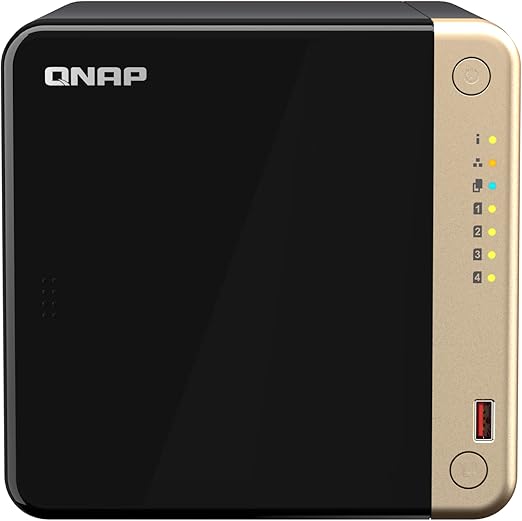
| QNAP TVS-h674T (4-bay, Thunderbolt 4, 10GbE) | ~$2,200-$2,500 AUD. Scorptec, PLE. Best single-editor Mac NAS available. |
|---|---|
| QNAP TVS-h874T (8-bay, Thunderbolt 4, 10GbE) | ~$3,500-$4,500 AUD. Scorptec, PLE. For studios with large archive capacity needs. |
| QNAP TS-464 (4-bay, 2.5GbE, no Thunderbolt) | ~$700-$850 AUD. Scorptec, Mwave, Umart. For editors who don't need Thunderbolt and are budget-conscious. |
| QNAP TS-h886 (8-bay, dual 10GbE, no Thunderbolt) | ~$1,500-$1,900 AUD. Scorptec, PLE. For collaborative studios on 10GbE. |
Synology is competitive in collaborative studio scenarios where Thunderbolt isn't required. DSM (Synology's operating system) is widely praised for its cleaner, more intuitive interface compared to QNAP's QTS. Which matters when multiple people in a studio occasionally need to manage the NAS. Synology's Hybrid RAID (SHR) is also the closest equivalent to Drobo's BeyondRAID for editors who valued that flexibility. The key Synology models for collaborative studios:

| Synology DS925+ (4-bay, optional 10GbE expansion card) | ~$700-$850 AUD. Scorptec, Mwave, PLE. Add the E10G22-T1-Mini card (~$130 AUD) for 10GbE. |
|---|---|
| Synology DS1525+ (5-bay, optional 10GbE expansion) | ~$900-$1,100 AUD. Scorptec, Mwave, PLE. |
| Synology DS1823xs+ (8-bay, 10GbE built-in) | ~$2,200-$2,600 AUD. Scorptec, PLE. Full 10GbE studio NAS with headroom for growth. |
The full QNAP vs Synology breakdown. Including macOS SMB compatibility, AU distributor availability, and a decision guide for every scenario. Is in the QNAP vs Synology for Mac video editing guide.
Once your NAS is configured, the step-by-step application setup guides cover the three main NLEs used by Australian creative professionals: DaVinci Resolve on NAS (PostgreSQL collaboration, file map, path mapping), Premiere Pro on NAS (Productions setup, cache rules, fixing Media Pending), and Final Cut Pro on NAS (safe storage patterns, SMB configuration, sparse disk image workaround).
Which drives to buy. And which to avoid
The NAS enclosure is only part of the purchase. The drives you install determine reliability, performance, and whether your warranty claim is accepted.
Buy: Seagate IronWolf or IronWolf Pro, WD Red Plus or WD Red Pro. These are NAS-rated drives designed for 24/7 operation, vibration compensation in multi-drive enclosures, and compatibility with NAS firmware. IronWolf Pro and WD Red Pro are the professional tier. Higher workload ratings, longer warranty (5 years vs 3 years), better suited for business-critical footage archives.
Do not buy: Consumer desktop drives (WD Blue, Seagate Barracuda), surveillance drives (optimised for sequential write, not random access editing), old mixed-capacity drives from previous builds, and SAS drives in SATA bays. Incompatible drives cause performance degradation, instability, potential data corruption, and may void your NAS warranty.
The specific mistake that stings the most is SMR (Shingled Magnetic Recording) drives in a RAID array. Several WD Red models were quietly shipped with SMR technology. Which performs poorly in the random read/write patterns of NAS use and degrades severely during RAID rebuild operations. Always verify CMR (Conventional Magnetic Recording) before purchasing. The NAS drive compatibility guide covers exactly which models to buy at current AU prices, the CMR/SMR distinction, and IronWolf Pro vs WD Red Pro for different workloads.
The three mistakes that sink AU NAS builds
Mistake 1. Wrong drives. Installing consumer desktop drives (WD Blue, Seagate Barracuda) in a NAS. These aren't rated for 24/7 operation, lack vibration compensation, and degrade severely during RAID rebuild. RAID rebuilds can take 12-48 hours on large arrays. A desktop drive under that sustained load often fails mid-rebuild, taking the array from degraded to unrecoverable. Buy IronWolf or WD Red Pro. Nothing else.
Mistake 2. Wrong connection. Buying a Thunderbolt NAS then connecting it over Ethernet, or buying a 2.5GbE NAS assuming it's fast enough for ProRes 4K HQ. The NAS hardware spec and the connection are two separate decisions. Confirm the full path. NAS port → cable → switch → Mac. Before buying. The connection speed guide covers every scenario with codec-level bandwidth requirements.
Mistake 3. Underestimating capacity. Buying a 4-bay NAS with 4TB drives because "that's 16TB, surely enough." After RAID 5 overhead it's 12TB usable. After six months of 4K footage it's full. NAS expansion mid-life is expensive and disruptive. Use the RAID capacity calculator and build in at least 12 months of runway beyond your current shooting volume.
Remote access and client delivery from your NAS
Both QNAP and Synology include remote access tools that let you share footage previews and deliverables with clients directly from your NAS. Without uploading to Frame.io, Dropbox, or WeTransfer. QNAP uses myQNAPcloud; Synology uses QuickConnect. Both give your NAS a stable internet address and handle the connection even if you're behind CGNAT (common on Australian NBN connections).
The honest caveat: Australian NBN upload speeds (typically 20-80 Mbps on residential connections) make live remote editing over the internet impractical for high-bitrate footage. ProRes 4K HQ requires 186 MB/s; a typical NBN 100 connection delivers 7-10 MB/s upload. The gap is large. Remote access via NAS works well for compressed H.264 client review files, downloading final deliverables, and remote file management. Not for live streaming ProRes timelines. For a full setup guide covering myQNAPcloud, Tailscale, and how to handle CGNAT, see the QNAP remote access setup guide.
The data retention angle: turning storage cost into client revenue
Client contracts increasingly include data retention clauses. Requirements to store delivered footage for defined periods (commonly 12 months, sometimes longer for government and corporate clients). For editors, this is a storage cost that most absorb silently. It doesn't have to be.
Editors who understand their own infrastructure costs can build a data retention service offering into their client quotes. The NAS that holds 100TB costs a fixed amount. The incremental cost of holding a client's 5TB archive for 12 months is calculable. And billable. Editors who have implemented this model report that clients respond the way they respond to other professional costs: "That's just the cost of doing business." The NAS infrastructure converts from a business expense into a revenue-generating service.
This framing is covered in detail. Including how to structure contract clauses, price the service, and reference the Australian Privacy Act 1988 (not GDPR) correctly. In the data retention guide for video production. It's the most unique business-model insight in this cluster and the article most likely to get shared in AU freelancer communities.
If you came from Drobo
Drobo was the NAS brand of choice for Mac-based creative professionals through the 2010s. Thunderbolt connectivity, simple BeyondRAID management, and the ability to mix drive sizes in a redundant pool made it the obvious choice for non-technical editors. Drobo ceased operations in 2023. If you're running a Drobo that's ageing or already failing, you need a migration plan now. Not when it fails with your footage on it.
QNAP is the natural replacement for Drobo users who depended on Thunderbolt. Synology's Hybrid RAID (SHR) is the closest operational equivalent to BeyondRAID for editors who valued flexible drive pool management over Thunderbolt specifically. Both paths have been taken by the Australian editing community; both have well-documented migration procedures. The Drobo alternatives guide covers the full replacement decision, including how to recover data from a failing Drobo before migrating.
What this costs in Australia: realistic budgets
A fully configured NAS setup for an Australian video editor or drone pilot typically falls in the $3,000-$10,000 AUD range when drives and networking are included. Editors who come from the editing forums expecting this number aren't surprised. It's comparable to what they paid for their editing machine or camera body, and it's a decision they expect to last 5-7 years.

| Entry level. Sole editor, 2.5GbE, H.264 workflow | QNAP TS-464 ($750) + 4× IronWolf 8TB ($400) = ~$1,150 AUD total |
|---|---|
| Mid-range. Sole Mac editor, Thunderbolt, ProRes workflow | QNAP TVS-h674T ($2,300) + 4× IronWolf Pro 12TB ($700) + NVMe cache 2TB ($250) = ~$3,250 AUD total |
| Collaborative. Two editors, 10GbE studio | QNAP TS-h886 ($1,700) + 6× IronWolf Pro 16TB ($1,500) + QSW-308S switch ($300) + 2× 10GbE adapters ($500) = ~$4,000 AUD total |
| Growth path. Start Thunderbolt, scale to 10GbE later | QNAP TVS-h674T ($2,300) + drives ($700) now. Add switch ($300) + adapters ($500) when second editor joins. No NAS replacement needed. |
All prices are approximate AUD from Scorptec, PLE, and Mwave. Last verified February 2026. Check retailer before purchasing as NAS pricing shifts with AUD/USD exchange rates. NAS hardware prices in Australia are fairly consistent across retailers. The meaningful differences are stock depth, pre-sales knowledge, and after-sales support, not price. For a $2,000+ purchase, buying from a specialist (Scorptec, PLE, DeviceDeal) over a marketplace seller provides meaningfully better recourse if something goes wrong. Australian Consumer Law protections apply to all purchases from Australian retailers and extend beyond manufacturer warranty periods where appropriate.
Use the RAID capacity calculator to model different bay count and drive size combinations before committing to a configuration.
Related reading: our NAS buyer's guide.
Architecture and engineering studios with large CAD or BIM workflows have similar NAS requirements to video editors. Our NAS for Architects and Engineers guide covers the right hardware and network setup for that use case.
Use our free Transfer Speed Estimator to estimate how long large transfers will take over your connection.
Is a NAS worth it for a solo video editor in Australia?
Yes, once you're regularly generating more than 2-3TB of footage per month or working with clients who expect footage retention. The economics work because the NAS replaces multiple expenses: the ongoing cost of external drives (which accumulate), subscription costs for cloud storage (impractical for large video files on AU NBN), and the productivity cost of managing a disorganised drive collection. A well-configured NAS is a one-time hardware investment that lasts 5-7 years and solves the storage problem permanently. The question isn't whether it's worth it. It's whether you're at the point where the drive system is already costing you time and reliability.
Can I edit ProRes 4K directly from a NAS?
Yes, with the right connection. ProRes 4K HQ requires approximately 186 MB/s of sustained read throughput. A QNAP Thunderbolt NAS with NVMe cache delivers well over 1,000 MB/s from cache. ProRes 4K HQ plays back comfortably, and multiple streams are possible. Over 10GbE Ethernet (850-950 MB/s real-world), ProRes 4K HQ from a single editor is fine with bandwidth to spare. Over 2.5GbE (250-280 MB/s), ProRes 4K HQ is borderline. A single stream fits within the ceiling, but background activity can cause dropped frames. For ProRes workflows, Thunderbolt or 10GbE is the right investment.
What's the difference between RAID and backup?
RAID (Redundant Array of Independent Disks) protects against hardware failure. If one drive dies, the array keeps running and you replace the failed drive. RAID does not protect against accidental deletion, ransomware, file corruption, or theft. Backup is a separate copy of your data stored elsewhere. Ideally offsite or on a separate device. The rule widely used in professional storage is 3-2-1: three copies of data, on two different media types, with one offsite. A NAS in RAID 5 gives you one of those copies. A second NAS, an external drive kept offsite, or a cloud backup service for critical masters gives you the others. RAID and backup are complementary, not alternatives.
Does a NAS work with Final Cut Pro libraries?
Yes, with important caveats. Final Cut Pro libraries can be stored on and accessed from a NAS, but the FCP library architecture benefits from NVMe-cached access for active project performance. FCP stores project assets, renders, and proxy media in a single library package. For large projects on slower connections, this can cause sluggish library loading and proxy generation. Best practice for NAS-based FCP workflows: keep the active library's footage and media on the NAS (where the NVMe cache handles active reads), but consider keeping render files and scratch on a local SSD to avoid network saturation during export. For ProRes-native workflows where render files are minimal, NAS-based libraries work well over Thunderbolt or 10GbE.
Can my NAS also handle Time Machine backups for the studio Macs?
Yes. Both QNAP and Synology support Time Machine over SMB or AFP, allowing multiple Macs to back up to a shared folder on the NAS. Create a dedicated Time Machine shared folder with a storage quota (to prevent Time Machine from consuming all available NAS space) and enable the Time Machine service in QTS or DSM. The NAS appears as a Time Machine destination in macOS System Settings. This is a useful secondary function but not a substitute for offsite backup of your footage archives. Time Machine to the NAS protects Mac system files and documents; your footage protection relies on the NAS's own RAID redundancy.
How long does a NAS last? When should I replace it?
The NAS enclosure typically lasts 5-8 years. The drives inside are the more likely failure point and should be considered consumable: NAS-rated drives like IronWolf and WD Red Pro are rated for 300TB/year workload and carry 5-year warranties, but real-world lifespan varies by usage intensity and operating temperature. Replace drives individually as they age or fail (RAID tolerates one failed drive while you source a replacement); replace the enclosure when firmware support ends or your capacity requirements exceed what the enclosure can hold. Buying an 8-bay NAS when you need 4 bays gives you 4 empty slots to grow into before you need to replace anything. Often a better investment than a smaller unit you'll outgrow in 2 years.
The drives you put in your NAS matter as much as the enclosure. IronWolf vs WD Red Pro, CMR vs SMR, NAS-grade vs consumer. Get this wrong and performance and reliability both suffer.
NAS Drive Compatibility Guide →