Medical and dental practices in Australia are legally required to retain patient records for a minimum of seven years from the last date of service. And for minors, until they turn 25. Making secure, reliable local storage not optional but a regulatory necessity. A network-attached storage (NAS) device gives your practice physical control over patient data, practice management backups, dental imaging, and financial records. Unlike cloud-only solutions where your data lives on someone else's infrastructure, a NAS keeps everything on-premises under your direct control. Critical when you are handling health information governed by the Privacy Act 1988, the My Health Records Act 2012, and state-based health records legislation.
In short: A 4-bay NAS from Synology or QNAP in the $800-$1,500 range (diskless) is the practical sweet spot for most Australian medical and dental practices. Pair it with NAS-grade drives, configure RAID 5 or SHR for redundancy, set up encrypted offsite backups using the 3-2-1 backup strategy, and enable access logging to satisfy audit requirements. Budget approximately $2,000-$4,000 total including drives for a system that will last 5-7 years.
Why Healthcare Practices Need a NAS
Every medical and dental practice in Australia generates data that must be stored securely and retained for defined periods. This includes patient clinical records, referral letters, pathology results, dental imaging (X-rays, OPGs, CBCT scans), appointment histories, Medicare billing records, and staff HR files. Most practice management software. Including Best Practice, Medical Director, Dental4Windows, and EXACT. Stores data locally or on a local server. A NAS replaces or supplements that local server with purpose-built storage hardware designed for always-on operation, data redundancy, and automated backups.
The shift matters because practices that rely on a single desktop PC or an ageing tower server are one hardware failure away from a catastrophic data loss event. A NAS with RAID redundancy means a single drive can fail without losing data, giving you time to replace the failed drive and rebuild. For a practice with thousands of patient records and years of imaging data, this level of protection is not a luxury. It is baseline responsible data management.
Australian Regulatory Requirements for Healthcare Data
Healthcare data retention in Australia is governed by multiple overlapping regulations. Understanding what applies to your practice determines how you configure your NAS and how long you need to retain data.
Privacy Act 1988 and Australian Privacy Principles
Any practice with an annual turnover exceeding $3 million, or any practice that provides a health service (regardless of turnover), is bound by the Australian Privacy Principles (APPs). APP 11 requires you to take reasonable steps to protect personal information from misuse, interference, loss, and unauthorised access. A NAS supports this through user-level access controls, encrypted volumes, and access audit logging. APP 8 restricts cross-border disclosure of personal information. This is directly relevant if you are considering cloud storage hosted overseas. A local NAS keeps your data in Australia by default.
My Health Records Act 2012
If your practice participates in the My Health Record system, you have obligations around the security of data that interfaces with that system. While My Health Records themselves are stored centrally, your practice management system's connection to the system and any locally cached data must be secured according to the Digital Health Agency's conformance requirements. A NAS with proper access controls and encrypted storage supports these requirements.
State and Territory Health Records Acts
Victoria's Health Records Act 2001 and NSW's Health Records and Information Privacy Act 2002 impose additional obligations on health service providers in those states. Other states rely on the federal Privacy Act. The retention periods vary, but the baseline is seven years from the last date of service for adult patients. For children, records must be retained until the patient turns 25 or for seven years after the last service. Whichever is longer. Some specialists may have longer retention requirements depending on their discipline.
Retention periods are minimums, not maximums. Many practices choose to retain records indefinitely because the cost of storage is trivial compared to the legal and clinical risk of destroying records prematurely. A 4-bay NAS with 16TB of usable storage can hold decades of practice data including imaging files. If in doubt, keep it.
AHPRA and Professional Board Requirements
AHPRA-registered practitioners have professional obligations around record-keeping that go beyond what the Privacy Act requires. The Medical Board of Australia and the Dental Board of Australia both mandate that clinical records be accurate, complete, and securely stored. In the event of a complaint or investigation, AHPRA can request access to patient records. And if those records have been lost due to inadequate storage or backup practices, that itself becomes a professional conduct issue. A properly configured NAS with automated backups and access logging provides an auditable trail that demonstrates you have taken reasonable steps to protect patient data.
What Data Your Practice Actually Needs to Store
Before choosing a NAS, understand the volume and type of data your practice generates. This directly determines how much storage capacity you need and which RAID configuration suits your situation.
| Data Type | Typical Size | Retention Period | Storage Notes |
| Patient clinical records (text-based) | 1–5 MB per patient | 7 years minimum (25 years for minors) | Small individually but adds up across thousands of patients |
| Dental X-rays (periapical, bitewing) | 1–3 MB per image | 7 years minimum | Moderate — a busy practice generates 20–50 images per day |
| OPG panoramic images | 5–15 MB per image | 7 years minimum | Larger files, typically 2–5 per day in a general dental practice |
| CBCT 3D scans | 50–200 MB per scan | 7 years minimum | Largest files — specialist practices may generate 5–10 per day |
| Practice management database | 500 MB–10 GB | Ongoing | Backup daily — this is your most critical data asset |
| Medicare/billing records | Varies | 5 years (ATO) / 7 years (best practice) | Often within the practice management database |
| Staff and HR records | Small | 7 years after employment ends | Separate access controls recommended |
| Correspondence and referrals | 1–5 MB per document | 7 years minimum | PDFs, scanned letters, email exports |
A general dental practice with three chairs generating moderate imaging will typically need 2-4 TB of active storage over a five-year period. A medical practice without heavy imaging may need 1-2 TB. Practices with CBCT scanners or high-volume imaging should plan for 8-16 TB. Always provision more than you think you need. storage capacity planning is easier to get right upfront than to fix later.
Which NAS to Buy for a Healthcare Practice
For Australian medical and dental practices, the decision typically comes down to Synology or QNAP. Both offer mature, business-grade NAS platforms with the features healthcare practices need: user access controls, encrypted shared folders, automated backup scheduling, Active Directory integration, and access audit logging. The choice between them often depends on your IT provider's familiarity and your specific workflow needs. For a detailed comparison, see our Synology vs QNAP breakdown.
Small Practice (1-3 Practitioners, Light Imaging)
The Synology DS423+ or QNAP TS-464 are both solid 4-bay options for smaller practices. Four bays allow you to run RAID 5 (or Synology's SHR) with one drive of redundancy while retaining approximately 75% of your raw capacity as usable storage. With 4 x 8TB NAS-grade drives, you get roughly 24TB usable. More than enough for a small practice's needs over a 5-7 year lifecycle.
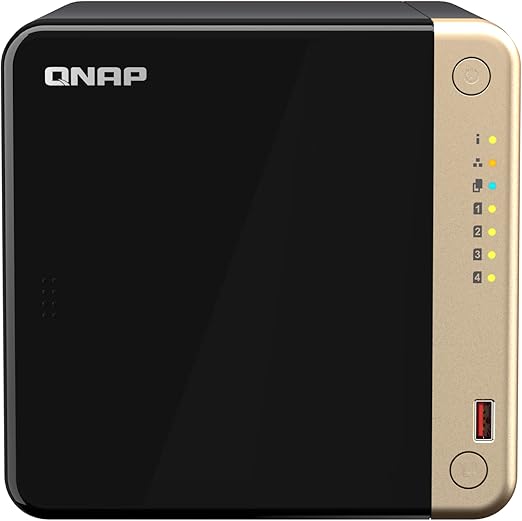
| Recommended For | 1-3 practitioner medical/dental practice |
|---|---|
| NAS Unit (approx.) | $800-$1,200 AUD (diskless) |
| Drives (4 x 8TB NAS) | $1,200-$1,600 AUD |
| Total System Cost | Approx. $2,000-$2,800 AUD |
| Usable Capacity (RAID 5/SHR) | ~24 TB |
| RAID Configuration | RAID 5 or SHR (one-drive redundancy) |
The Synology DS423+ runs on DSM 7, which includes Synology's built-in snapshot and backup tools. Useful for maintaining versioned copies of your practice management database. The QNAP TS-464 offers an Intel Celeron N5095 processor with dual M.2 SSD slots for caching, which benefits practices where multiple users access files simultaneously. Both are available from Australian retailers like Scorptec, PLE, and DeviceDeal.
Medium Practice (4-8 Practitioners, Moderate to Heavy Imaging)
Practices with CBCT scanners, multiple imaging stations, or higher patient volumes should consider a 6-bay NAS such as the Synology DS1825+ or QNAP TS-673A. Six bays give you the option of RAID 6 (two-drive redundancy) while still retaining roughly 66% of raw capacity as usable storage. For a dental practice generating hundreds of megabytes of CBCT data daily, this headroom matters.

| Recommended For | 4-8 practitioner practice with imaging |
|---|---|
| NAS Unit (approx.) | $1,500-$2,500 AUD (diskless) |
| Drives (6 x 12TB NAS) | $2,400-$3,600 AUD |
| Total System Cost | Approx. $4,000-$6,000 AUD |
| Usable Capacity (RAID 6) | ~48 TB |
| RAID Configuration | RAID 6 or SHR-2 (two-drive redundancy) |
At this tier, 10GbE networking becomes relevant if your imaging workstations need to push large CBCT files to storage quickly. Both the DS1825+ and TS-673A support 10GbE expansion cards. Pair with a 10GbE switch connecting your imaging equipment and the NAS for a meaningful performance upgrade. See our NAS networking guide for details.
Multi-Site or Large Practice
Practices operating across multiple locations or large group practices should engage a managed IT provider to design a solution. At this scale, you are likely looking at rackmount NAS units (Synology RS series or QNAP rackmount models), site-to-site VPN replication, and potentially a hybrid on-premises and cloud backup strategy. Business-grade rackmount NAS units are rarely held in retailer stock. Even when listed as available, expect 2-3 days for the retailer to process through their distributor's dropship process. Request a formal quote rather than buying at listed retail price; resellers can request pricing support from distributors and vendors for business deals.
Choosing the Right Drives
The NAS unit itself is only half the equation. The drives you install determine your capacity, performance, and long-term reliability. For healthcare practices, use NAS-grade drives rated for 24/7 operation. Specifically the Seagate IronWolf or WD Red Plus product lines. Desktop drives (Seagate Barracuda, WD Blue) are not designed for the continuous read/write patterns of a multi-user NAS and will fail sooner.
NAS-grade drive prices have risen significantly from early 2025 levels. Drives that were comfortably under $160 are now consistently above $200 for 4TB models. Budget accordingly and factor drive costs into your total system cost. For a 4-bay system, buying all four drives at the same time from the same retailer is standard practice. Avoid mixing drive brands or capacities in a RAID array where possible.
SSD caching for imaging-heavy practices: If your practice frequently accesses recent imaging files, adding M.2 NVMe SSDs as a read cache can significantly speed up file retrieval. Both Synology and QNAP support SSD caching on their 4-bay and 6-bay business models. This is particularly valuable for dental practices where clinicians pull up recent X-rays and OPGs during patient consultations. See our SSD cache guide for details.
Essential NAS Configuration for Healthcare
A NAS out of the box is storage hardware. To meet healthcare compliance requirements, you need to configure it properly. These settings should be part of your initial setup. Ideally done by your IT provider or following a structured NAS setup guide.
User Access Controls and Permissions
Create individual user accounts for every staff member who accesses the NAS. Do not share accounts. Set folder-level permissions so that clinical staff can access patient records, administrative staff can access billing and HR files, and no one has access to data they do not need. Both Synology DSM and QNAP QTS support granular folder permissions and can integrate with Active Directory if your practice uses a Windows domain. This is not just good practice. APP 11 under the Privacy Act requires you to restrict access to personal information to authorised personnel only.
Encryption
Enable shared folder encryption on any folder containing patient data. Both Synology and QNAP support AES-256 encryption at the folder level. This protects data at rest. If the NAS or its drives are physically stolen, the data is unreadable without the encryption key. For a medical practice in a shared building or a dental practice in a retail strip, physical theft is a real risk. Store your encryption keys separately from the NAS itself, ideally in a password manager or a secure offsite location.
Access Logging and Audit Trails
Enable access logging on your NAS. Synology DSM provides Log Center, and QNAP QTS provides System Logs, both of which record who accessed what files and when. In the event of a privacy complaint, data breach investigation, or AHPRA inquiry, these logs demonstrate that you maintained appropriate oversight of patient data. Retain logs for at least as long as your record retention period. Configure your NAS to archive logs rather than overwriting them.
Automated Backups
A NAS with RAID is not a backup. It is redundant storage. RAID protects against drive failure, not against ransomware, accidental deletion, fire, flood, or theft. Every healthcare practice needs a proper backup strategy. The 3-2-1 approach is the standard: three copies of your data, on two different media types, with one copy offsite. In practice, this means your NAS holds the primary copy, an external drive or second NAS holds a local backup, and a cloud backup or offsite NAS replication provides the third copy.
Synology offers Hyper Backup for local and cloud backup targets, and Active Backup for Business for pulling backups from workstations and servers onto the NAS. QNAP offers Hybrid Backup Sync with similar capabilities. Schedule backups to run overnight when the practice is closed, and verify restores quarterly. A backup you have never tested is a backup you cannot trust.
Ransomware Protection
Healthcare practices are prime ransomware targets. Patient data is high-value, practices are often under-resourced on IT security, and the pressure to pay ransoms is enormous when patient care depends on accessing records. A NAS configured with proper security hardening and ransomware protection significantly reduces your attack surface.
Key protections include: enabling immutable snapshots (both Synology and QNAP support this. Snapshots that cannot be modified or deleted for a defined retention period), disabling unnecessary services and ports, keeping firmware updated, using strong unique passwords with two-factor authentication, and segmenting your NAS on a separate VLAN from your general office network. If your practice uses remote access for telehealth or after-hours work, configure a proper VPN rather than exposing your NAS directly to the internet. See our remote access and VPN guide for Australian-specific advice including NBN and CGNAT considerations.
Never expose your NAS directly to the internet. QNAP devices have been targeted in multiple high-profile ransomware campaigns (Deadbolt, QLocker). Synology devices are not immune. If you need remote access, use the vendor's relay service (Synology QuickConnect or QNAP myQNAPcloud Link) or, better yet, a dedicated VPN. If your NBN connection uses CGNAT (common on fixed wireless and some fibre-to-the-node plans), direct VPN hosting is not possible without requesting a static IP from your ISP. Which typically costs $10-$20 per month.
NAS vs Cloud Storage for Healthcare
Many practice managers ask whether they should use cloud storage instead of a NAS. The short answer is that cloud and NAS serve different purposes, and most practices benefit from both. For a detailed comparison, see our NAS vs cloud storage analysis.
NAS vs Cloud Storage for Healthcare Practices
| On-Premises NAS | Cloud Storage (e.g. AWS, Azure, Google) | |
|---|---|---|
| Data sovereignty | Data stays in your practice. Full control | May be stored offshore unless you specify AU region |
| Recurring cost | Nil after purchase (power only) | $50-$500/month depending on volume |
| 5-year total cost (4TB) | $2,000-$3,000 (one-off) | $3,000-$15,000 (subscription) |
| Access speed (local) | 1 Gbps+ on local network | Limited by NBN upload (typically 20-50 Mbps) |
| Access speed (remote) | Limited by NBN upload | Fast from anywhere |
| Privacy Act APP 8 compliance | Simple. Data is local | Must verify AU data residency |
| Backup target | Excellent local backup target | Excellent offsite backup target |
| Physical theft risk | Yes. Mitigate with encryption | No |
| Vendor lock-in | Low. Standard file shares | Medium to high. Migration costs |
The practical recommendation for most healthcare practices: use a NAS as your primary local storage and backup target, and use a cloud service as your offsite backup destination. This gives you fast local access during business hours, full data sovereignty for privacy compliance, and offsite disaster recovery protection. Synology C2 and QNAP's cloud backup integrations make this straightforward to configure. Just be aware that your NBN upload speed limits how quickly offsite backups complete. On a typical NBN 100 plan, upload is capped at around 20 Mbps (real-world), which means a 1TB initial backup takes roughly 4-5 days to complete.
Practice Management Software and NAS Integration
Most Australian practice management systems can be configured to store their database and files on a NAS-hosted network share. However, the approach varies by software.
Best Practice and Medical Director (medical). Both use SQL Server databases. The database server typically runs on a dedicated PC or server, with the NAS serving as the backup target rather than the primary database host. Running a SQL database directly on a NAS is possible but not recommended for performance-critical practice management. Instead, schedule nightly database backups to the NAS using the software's built-in backup tools, and let the NAS handle replication and offsite backup from there.
Dental4Windows and EXACT (dental). These systems also use SQL Server databases with similar considerations. Dental imaging files (DICOM, JPEG) can often be stored on a NAS-hosted network share, reducing the storage burden on your practice server. Check with your software vendor for supported configurations. Storing imaging on a network share is standard practice, but the database itself should remain on a local or dedicated server for performance.
Cloud-based practice management (e.g., Cliniko, Halaxy). If your practice management is fully cloud-hosted, your NAS role shifts to backing up exported data, storing local imaging files, and providing file shares for documents that do not live in the cloud system. You still need local storage. Cloud practice management does not cover imaging archives, scanned documents, or local file sharing needs.
Networking Considerations for Healthcare NAS
Place your NAS on a wired Gigabit Ethernet connection to your practice network switch. Never on Wi-Fi. For practices with imaging workstations pushing large files, a 10GbE connection between the imaging station and the NAS eliminates bottlenecks. Most practices can achieve this with a simple 10GbE switch and compatible NAS expansion card for under $500 in additional hardware.
If your practice has multiple VLANs (separating clinical, administrative, and guest networks. Which it should), ensure the NAS is accessible from the appropriate VLANs only. Your IT provider can configure firewall rules so that clinical workstations can access patient data shares, administrative workstations can access billing shares, and guest Wi-Fi cannot reach the NAS at all. Network segmentation is a baseline security requirement for practices handling health information.
Physical Placement and Environment
A NAS should be placed in a secure, ventilated location. Not under a reception desk or in a patient-accessible area. Ideal placement is a locked server cupboard or utility room with adequate airflow. Healthcare practices often run in older buildings with limited IT infrastructure, so consider a small wall-mounted network cabinet that houses your NAS, switch, and UPS together. Keep the NAS away from dental suction motors, autoclaves, and other equipment that generates heat or vibration. For more on placement, see our NAS noise and placement guide.
A UPS (uninterruptible power supply) is not optional for a healthcare NAS. Power interruptions cause unclean shutdowns, which can corrupt RAID arrays and database files. Both Synology and QNAP support USB-connected UPS units for automatic safe shutdown when battery runs low. A basic UPS providing 10-15 minutes of runtime costs $150-$300 and is essential insurance for a device holding your practice data. NAS power consumption is low enough that even a modest UPS provides adequate runtime.
Buying a NAS for Your Practice in Australia
For a healthcare practice, buy from an Australian authorised retailer. Not from Amazon AU or international sellers. Australian Consumer Law protections apply when purchasing from Australian retailers, which matters when you are buying infrastructure that stores patient data. If the NAS fails within a reasonable lifespan, you have clear consumer rights regarding repair, replacement, or refund. Specialist retailers like Scorptec, PLE, and DeviceDeal stock the full Synology and QNAP range and can provide pre-sales advice that generalist retailers cannot.
For practice NAS purchases, always request a formal quote rather than buying at listed retail price. Resellers can request pricing support from distributors and vendors. Discounts that never appear on the website but are routinely available for quoted business deals. Mention that you are purchasing for a healthcare practice and buying the NAS plus drives as a bundle. Most Australian retailers operate on 3-5% NAS margin, but they will sharpen pricing to win a business sale, especially if you are also purchasing a UPS, drives, and networking equipment.
Australian Consumer Law note: ACL protections apply to all NAS purchases from Australian retailers regardless of whether the product is used for personal or business purposes. If a NAS fails within what a reasonable consumer would consider an acceptable lifespan (3-5 years for a business NAS), you are entitled to a remedy even after the manufacturer's warranty period expires. This is a significant advantage over buying internationally.
What Not to Do
Common mistakes healthcare practices make with NAS storage:
Do not treat RAID as a backup. RAID protects against drive failure. It does not protect against ransomware encrypting your files, accidental deletion, fire destroying your practice, or theft. You need separate backups in addition to RAID.
Do not use consumer-grade drives. A desktop drive rated for 8 hours per day of operation will fail sooner in a NAS running 24/7. The cost difference between a desktop drive and a NAS-grade drive is $20-$40 per drive. Trivial insurance for a device holding patient records.
Do not skip firmware updates. NAS devices are network-accessible appliances and need regular security patches. Enable automatic update notifications and apply critical updates promptly. The Deadbolt and QLocker ransomware campaigns exploited known vulnerabilities that had patches available. Practices that delayed updates were the ones affected.
Do not share user accounts. Every staff member needs their own login. Shared accounts make audit logging meaningless. You cannot demonstrate who accessed patient records if everyone logs in as "admin" or "reception."
Do not buy a 2-bay NAS for a practice. A 2-bay NAS in RAID 1 (mirroring) gives you only 50% of your raw capacity and limited expandability. For the modest additional cost, a 4-bay unit gives you more usable capacity, better RAID options, and room to grow. The 2-bay form factor suits home users, not businesses.
Sample Budget for a Dental Practice NAS System
Here is a realistic 2026 budget for a three-chair dental practice setting up a NAS for the first time. All prices are approximate Australian retail pricing.

| NAS Unit | Synology DS423+ or QNAP TS-464. Approx. $900-$1,200 |
|---|---|
| Drives | 4 x Seagate IronWolf 8TB. Approx. $1,200-$1,400 |
| UPS | CyberPower or APC 650VA-1000VA. Approx. $150-$300 |
| Cat6 Ethernet Cable | $10-$30 |
| M.2 NVMe SSD Cache (optional) | 2 x 500GB. Approx. $120-$180 |
| Total (without SSD cache) | Approx. $2,300-$2,900 |
| Total (with SSD cache) | Approx. $2,500-$3,100 |
| Ongoing costs | Power only. Approx. $30-$50/year |
Compare this to cloud storage for an equivalent volume: 4TB on a business cloud plan runs approximately $100-$200 per month, or $6,000-$12,000 over five years. The NAS pays for itself within 18-24 months and continues providing value for another 3-5 years. The cloud backup component (for offsite protection) adds approximately $10-$30 per month, but this is in addition to your NAS. Not a replacement for it.
Getting Professional Help
If your practice does not have an IT provider, getting a NAS properly configured for healthcare compliance is a good reason to engage one. A qualified managed service provider (MSP) can set up your NAS with correct permissions, encryption, backup schedules, network segmentation, and monitoring in a few hours. Expect to pay $500-$1,500 for initial setup depending on complexity. Many MSPs offer ongoing monitoring and maintenance packages that include NAS health checks, firmware updates, and backup verification. Typically $100-$300 per month for a small practice.
When choosing an MSP, ask specifically about their experience with healthcare data and NAS platforms. An MSP that primarily supports retail or hospitality may not understand the specific compliance requirements around health information. Ask whether they have other medical or dental practice clients and whether they are familiar with your practice management software.
Related reading: our NAS buyer's guide.
Education providers face similar compliance and data retention obligations to healthcare. Our NAS for Schools and Education guide covers privacy requirements, recommended hardware, and setups sized for IT-budget-constrained environments.
Our NAS Sizing Wizard helps size storage for clinical workloads, and our Backup Storage Calculator estimates the backup capacity needed to meet the Australian Privacy Act retention requirements.
How long must medical and dental records be retained in Australia?
The baseline is seven years from the last date of service for adult patients. For patients who were minors at the time of treatment, records must be retained until they turn 25 or for seven years after the last service. Whichever is longer. Some state legislation (Victoria, NSW) has specific provisions. In practice, many healthcare practitioners retain records indefinitely because the storage cost is minimal compared to the legal risk of premature destruction. Check with your professional association and state health department for discipline-specific requirements.
Is a NAS compliant with the Australian Privacy Principles for storing patient data?
A NAS is a storage device. Compliance depends on how you configure and manage it. A properly configured NAS with individual user accounts, folder-level permissions, AES-256 encryption, access logging, and regular backups supports APP 11 (security of personal information) and APP 8 (cross-border disclosure. Because data stays local). However, the NAS itself is just one part of your compliance posture. You also need policies for staff access, data breach response, and data disposal. The NAS provides the technical infrastructure; your practice policies provide the governance.
Can I run my practice management software directly on a NAS?
Generally, no. And you should not try. Practice management systems like Best Practice, Medical Director, Dental4Windows, and EXACT use SQL Server databases that require a dedicated Windows server or PC for optimal performance. The NAS serves as a backup target for these databases and as network storage for imaging files, documents, and other practice data. Some cloud-based practice management systems (Cliniko, Halaxy) do not use local storage at all, in which case the NAS handles imaging archives and local file sharing instead.
Should I buy a Synology or QNAP NAS for my practice?
Both are solid choices for healthcare. Synology DSM is generally considered more user-friendly and has a strong ecosystem of backup tools (Hyper Backup, Active Backup for Business). QNAP offers more hardware flexibility, better virtualisation support, and often more ports and expansion options at a given price point. The practical decision often comes down to what your IT provider knows and supports. If you do not have an IT provider, Synology's simpler interface may be easier to self-manage. See our Synology vs QNAP comparison for a full breakdown.
What happens if my NAS is stolen with patient data on it?
If you have enabled shared folder encryption (AES-256), the data on the drives is unreadable without the encryption key. Physically possessing the NAS or its drives does not grant access to encrypted data. This is why encryption is a non-negotiable configuration step for healthcare NAS installations. You must still report the theft under the Notifiable Data Breaches scheme if there is any reasonable likelihood that the encryption could be circumvented. But encryption dramatically reduces the severity and consequences of a physical theft. Store your encryption keys separately from the NAS, ideally in a password manager.
How much does a NAS cost to run compared to cloud storage?
A 4-bay NAS consumes approximately 30-50 watts under typical load, costing roughly $30-$50 per year in electricity at Australian power rates. There are no ongoing subscription fees. Compare this to cloud storage for a similar volume: 4TB of business cloud storage costs approximately $100-$200 per month ($1,200-$2,400 per year). Over a five-year NAS lifecycle, the total cost of ownership for a NAS (including purchase price) is typically 50-70% less than equivalent cloud storage. The cloud component of your backup strategy (offsite backup target) adds a smaller amount. Typically $10-$30 per month for 1-4TB.
Do I need a data breach response plan if I use a NAS?
Yes. Under the Notifiable Data Breaches (NDB) scheme, any organisation covered by the Privacy Act must have a data breach response plan. If patient data is accessed without authorisation, lost, or disclosed. Whether from a NAS, cloud service, or paper records. And the breach is likely to cause serious harm, you must notify the OAIC and affected individuals. Having a NAS with access logging and encryption helps you assess the scope of a breach and demonstrates that you took reasonable protective steps, but it does not eliminate your notification obligations.
Need help choosing the right NAS for your practice? Our guide to the best NAS for small business in Australia covers the top models with real Australian pricing.
Read the Small Business NAS Guide