You do not always need to buy a new NAS to get more storage or better performance. Most NAS units from Synology, QNAP, and Asustor can be upgraded in multiple ways without replacing the entire unit. Whether you need more raw capacity, faster network transfers, or better app performance, there is usually a practical upgrade path that costs a fraction of a full NAS replacement. This guide walks through every option available to Australian NAS owners in 2026, with real pricing from local retailers.
In short: The cheapest NAS upgrade is replacing smaller drives with larger ones in your existing bays. No new hardware needed. For more bays, expansion units like the Synology DX525 ($879 at Mwave) or QNAP TR-004 ($429 at Scorptec) add capacity without data migration. For performance, a RAM upgrade ($304-$1,060 for Synology ECC modules) or 10GbE network card ($239-$289) delivers the biggest improvement per dollar spent.
Before You Upgrade: Assess What You Actually Need
NAS upgrades fall into two categories: capacity upgrades (more storage space) and performance upgrades (faster transfers, better app responsiveness). Before spending money, identify which problem you are actually solving. A NAS that is slow because it is running too many Docker containers does not need more drive bays. It needs more RAM or a CPU upgrade. A NAS that is full does not need 10GbE networking. It needs bigger or more drives.
Log into your NAS management interface (DSM for Synology, QTS for QNAP, ADM for Asustor) and check the Resource Monitor. Look at CPU usage, RAM usage, network throughput, and storage pool capacity. This tells you exactly where your bottleneck sits. If you are unsure what your NAS model supports, check the vendor's compatibility and specifications page before purchasing any upgrade components. Not all models accept all upgrades.
Option 1: Replace Drives with Larger Capacity HDDs
The simplest and most cost-effective upgrade is swapping your existing drives for larger ones. If you are running 4TB drives in a 4-bay NAS with RAID 5, you have roughly 12TB usable. Replacing those with 16TB drives gives you approximately 48TB usable. A 4x increase without buying any new hardware beyond the drives themselves.
The process works by replacing one drive at a time and letting the RAID array rebuild between each swap. On a Synology NAS, this is done through Storage Manager > Storage Pool > Change RAID Type or Replace Drive. The rebuild process can take anywhere from 8 to 48 hours per drive depending on capacity and NAS model, so budget several days for a full swap on a 4-bay unit. Never pull two drives simultaneously in a RAID 5 array. That will destroy your data.
Important: Always back up your data before starting a drive replacement process. While RAID rebuilds are designed to be safe, a power failure or second drive failure during rebuild can result in total data loss. If your NAS does not have a UPS, consider investing in one before starting. See our UPS for NAS guide for Australian options.
Current AU Drive Pricing
NAS-grade drive prices have risen significantly from early 2025 levels, driven by NAND supply constraints and surging AI-related demand globally. Distributors are securing stock allocations further forward than usual. A signal of how constrained the global supply chain has become. Shop around in 2026, but do not delay purchases expecting prices to drop. The Synology Plus Series (HAT3300/HAT3310) drives offer guaranteed compatibility with Synology NAS units and are available from Australian retailers.
| Synology Plus 4TB (HAT3300-4T) | $299 (Scorptec) |
|---|---|
| Synology Plus 8TB (HAT3320-8T) | $499 (Scorptec) |
| Synology Plus 12TB (HAT3310-12T) | $599 (Scorptec) |
| Synology Plus 16TB (HAT3310-16T) | $829 (Scorptec) |
Third-party NAS drives from Seagate IronWolf and WD Red Plus are also compatible and typically cost less per terabyte. See our best NAS hard drive guide for a full comparison of Australian pricing and reliability data between the major drive brands.
Option 2: Add an Expansion Unit for More Bays
If all your drive bays are full and you have already maximised drive capacity, an expansion unit adds more bays without requiring data migration. The expansion unit connects to your NAS via eSATA or USB-C and appears as additional storage in your NAS management interface. You can either create a new storage pool on the expansion unit or, on some platforms, extend an existing pool across the expansion.
Be aware of a critical limitation: expansion unit storage is not independent. If the connection between the NAS and expansion unit fails, or if the main NAS fails, the drives in the expansion unit are not accessible on their own. This is not a separate NAS. It is additional bays managed by your existing NAS. For redundancy, treat the expansion unit storage the same way you treat internal storage: back it up separately following the 3-2-1 backup strategy.
Synology Expansion Units
Synology offers the DX525 for their Plus-series desktop models (DS225+, DS425+, DS925+, DS1525+) and the DX517 for older models. The DX1215 II is designed for business and rackmount units. Not every Synology NAS supports expansion. Check the compatibility list on Synology's website before purchasing. The newer DS925+ and DS1525+ both support the DX525 expansion, making them strong choices if you anticipate needing more capacity in the future.
| Synology DX525 (5-bay, for Plus-series) | $879 (Mwave) |
|---|---|
| Synology DX517 (5-bay, for older models) | $865 (Mwave) |
| Synology DX1215 II (12-bay, business) | $2,057 (Mwave) |
QNAP Expansion Units
QNAP takes a different approach with two product lines. The TR series (TR-002, TR-004) connects via USB-C and can function as both a NAS expansion and a standalone DAS (Direct Attached Storage) with hardware RAID. This dual-purpose design makes the TR-004 particularly versatile. If you ever replace your QNAP NAS, the TR-004 still works as a USB-C external RAID enclosure with any computer. The TL series connects via SAS or SATA for higher performance in business environments.
| QNAP TR-004 (4-bay USB-C, hardware RAID) | $429 (Scorptec) / $449 (PLE) |
|---|---|
| QNAP TR-002 (2-bay USB-C, hardware RAID) | $329 (Scorptec) / $343 (Mwave) |
| QNAP TL-D400S (4-bay SATA JBOD) | $977 (Mwave) |
| QNAP TL-D800C (8-bay USB JBOD) | $899 (Scorptec) / $1,118 (Mwave) |
Asustor Expansion Units
Asustor recently introduced the Xpanstor 4 (AS5004U), a 4-bay USB-C expansion unit priced at $499 at Mwave. It is compatible with select Lockerstor and Flashstor models. Asustor's expansion ecosystem is smaller than Synology or QNAP, so if you anticipate needing expansion down the track, confirm your specific NAS model supports it before buying. For more on Asustor's product range, see our Asustor NAS Australia guide.
Option 3: Upgrade Your RAM
RAM upgrades are the most underrated NAS performance improvement. If you run Docker containers, virtual machines, Synology Drive, Plex media server, or surveillance station, your NAS is almost certainly memory-constrained at the default RAM allocation. A Synology DS225+ ships with 2GB, and a DS925+ ships with 4GB. Both are minimal for anything beyond basic file storage.
Adding RAM improves file caching (frequently accessed files load faster), application performance (Docker containers and databases run smoother), and overall system responsiveness. On Synology, the difference between 2GB and 8GB is immediately noticeable in DSM's interface speed alone. If you run Docker containers or virtual machines, 8GB should be considered the minimum.
Synology RAM Pricing (Official ECC Modules)
Synology sells official ECC (Error-Correcting Code) memory modules that are guaranteed compatible. Third-party modules from brands like Kingston and Crucial often work and cost significantly less, but Synology may flag them as unverified in DSM and will not provide support for memory-related issues if unofficial RAM is installed. For business use where vendor support matters, stick with official modules. For home use, quality third-party RAM from a reputable brand is a reasonable cost saving.
| Synology 4GB DDR4 ECC SODIMM | $304 (Mwave) |
|---|---|
| Synology 8GB DDR4 ECC SODIMM | $533 (Mwave) |
| Synology 16GB DDR4 ECC SODIMM | $1,060 (Mwave) |
| Synology 4GB DDR4 ECC UDIMM (D4EU01-4G) | $304 (Mwave) |
Tip: QNAP and Asustor NAS units generally use standard SODIMM or DIMM modules, making third-party RAM upgrades more straightforward and cheaper. Always check your NAS model's maximum supported RAM and module type before purchasing. QNAP's QTS will report third-party RAM without warnings, unlike Synology's DSM.
Option 4: Add SSD Caching or an All-Flash Pool
Many mid-range and premium NAS models include M.2 NVMe SSD slots specifically for caching. SSD caching stores frequently accessed data on fast flash storage while keeping bulk data on slower (and cheaper) hard drives. This gives you HDD-level capacity with SSD-level read speeds for your most-used files. An excellent upgrade for Plex libraries, photo collections, and database-heavy applications.
Synology's DS925+ has two built-in M.2 2280 NVMe slots, and the DS1525+ has two as well. On QNAP, models like the TS-464 include M.2 slots, and you can add more via PCIe expansion cards like the QM2-2P-384A (~$1233 at Scorptec). For a deep dive into SSD caching versus all-flash configurations, see our SSD cache and all-flash NAS guide.
Read Cache vs Read-Write Cache
A read-only SSD cache requires only one SSD and accelerates file reads with zero risk to your data. If the cache SSD fails, the NAS simply reads directly from the HDDs. A read-write cache requires two SSDs in RAID 1 (mirror) and accelerates both reads and writes, but carries a risk: if both cache SSDs fail simultaneously before data is flushed to HDDs, you could lose recent writes. For most home users, a single SSD read cache is the safest and most cost-effective option.

| QNAP QM2-2P-384A (dual M.2 NVMe PCIe card) | $399 (Scorptec) |
|---|---|
| QNAP QM2-2P-244A (dual M.2 NVMe PCIe card) | $299 (Scorptec) |
| Synology SNV3410 400GB M.2 NVMe SSD | $499 (Scorptec) |
| Synology SNV3510 400GB M.2 22110 NVMe SSD | $389 (Scorptec) |
Option 5: Upgrade to 10GbE Networking
If your NAS is connected via a standard 1GbE Ethernet port, your maximum theoretical transfer speed is around 112 MB/s. And real-world speeds are typically 100-110 MB/s. That is adequate for streaming media and general file access, but painfully slow for video editing workflows, large photo library access, or backing up terabytes of data. Upgrading to 10GbE (10 Gigabit Ethernet) increases your theoretical maximum to 1,250 MB/s. More than a 10x improvement.
Many newer NAS models ship with 2.5GbE ports as standard (Synology DS925+, QNAP TS-464, Asustor Lockerstor Gen3 series), which already offer 2.5x the bandwidth of 1GbE. But for users who need true multi-gigabit performance. Especially video editors or those running multiple simultaneous streams. 10GbE is the target. This requires three things: a 10GbE NIC in the NAS, a 10GbE switch or direct connection, and a 10GbE NIC in your computer.
10GbE NAS Network Cards. AU Pricing

| Synology 10GbE RJ45 PCIe Module | $239 (Mwave) |
|---|---|
| Synology E10G18-T1 (single 10GbE RJ45) | $269 (Mwave) / $289 (Scorptec) |
| Synology E10G30-F2 (dual 10GbE SFP+) | $459 (Mwave) |
| Synology E25G30-F2 (dual 25GbE SFP28) | $591 (Mwave) |
| QNAP Dual 10GbE PCIe (QXG-10G2T-X710) | $649 (Scorptec) |
Network reality check: A 10GbE NAS is only as fast as your slowest link. If your NAS has 10GbE but your computer connects via 1GbE, you will still max out at 112 MB/s. Budget for the full chain: NAS NIC + switch + computer NIC. A basic unmanaged 10GbE switch starts around $400-600 in Australia. If it is just one computer connecting to the NAS, a direct connection with a crossover cable eliminates the switch cost entirely. For a complete networking overview, see our NAS networking guide.
Option 6: Upgrade to a Bigger NAS (When It Makes Sense)
Sometimes the most practical path is replacing the NAS entirely. If your current unit has a weak CPU that cannot handle your workload, limited bay count with no expansion support, or outdated hardware that will not receive future software updates, upgrading the NAS itself is the right call. This is especially true for users with older 2-bay value models who have outgrown their hardware.
The good news: migrating to a new NAS from the same vendor is usually straightforward. Synology's migration process lets you move drives directly from an old unit to a new one. DSM recognises the drives and rebuilds the configuration. QNAP and Asustor offer similar migration paths. Your data, apps, and settings transfer across without reformatting.
Common Upgrade Paths. AU Pricing
If you are upgrading from an older 2-bay to a 4-bay, or from a value model to a Plus-series unit, here are the current Australian prices for popular upgrade targets.
Popular NAS Upgrade Targets. Australian Pricing (February 2026)
 Synology DS225+
|
 Synology DS425+
|
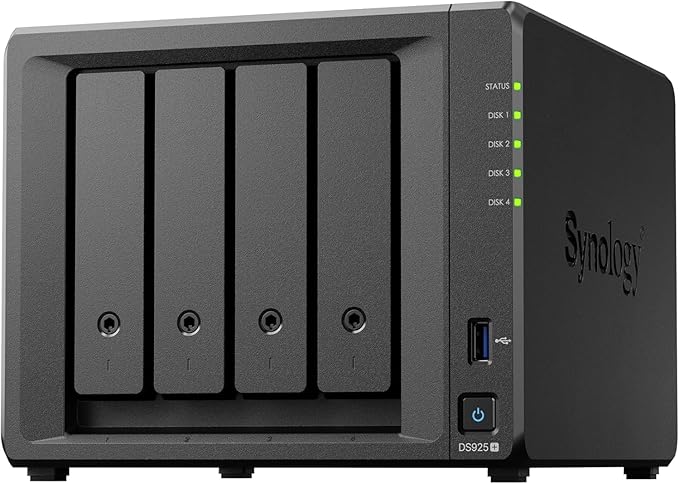 Synology DS925+
|
 Synology DS1525+
|
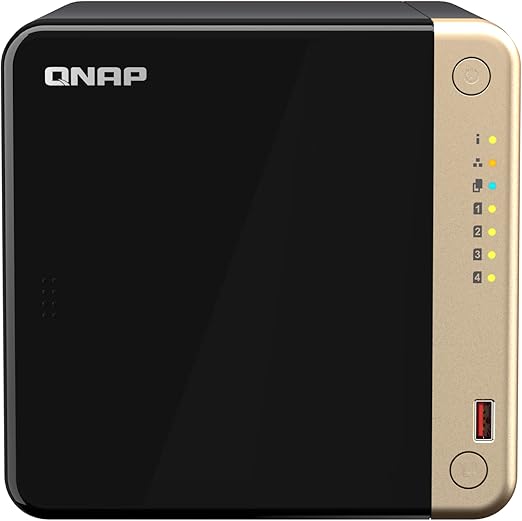 QNAP TS-464
|
|
|---|---|---|---|---|---|
| Bays | 2 | 4 | 4 (+1 eSATA) | 5 | 4 |
| CPU | Intel Celeron | Intel Celeron | AMD Ryzen | AMD Ryzen V1500B | Intel Celeron N5095 |
| Base RAM | 2GB | 2GB | 4GB | 8GB | 8GB |
| Network | 2.5GbE + 1GbE | 2.5GbE + 1GbE | 2.5GbE + 1GbE | 2.5GbE + 1GbE | Dual 2.5GbE |
| M.2 Slots | 2 | 2 | 2 | 2 | 2 |
| Expansion Support | DX525 | DX525 | DX525 | DX525 | Via USB/SATA |
| AU Price (Scorptec) | $599 (PLE Computers) | $819 | $995 | $1,285 (Mwave) | $989 (Scorptec) |
Prices last verified: 16 March 2026. Always check retailer before purchasing.
For a full comparison of the best models for different use cases, see our best NAS Australia guide. If you are deciding between brands, our Synology vs QNAP comparison covers the software and ecosystem differences that matter beyond raw specs.
How NBN Affects Your NAS Upgrade Decisions
If you use your NAS for remote access. Accessing files from outside your home, syncing with Synology Drive, or running a personal cloud. Your NBN connection is the bottleneck, not your NAS hardware. On a typical NBN 100 plan, your upload speed is capped at around 20-40 Mbps (roughly 2.5-5 MB/s). Even NBN 250 and 1000 plans have relatively modest upload speeds compared to local network performance.
This means spending $500+ on a 10GbE upgrade will not improve your remote access experience at all. That upgrade only helps devices on your local network. For remote access, the meaningful upgrades are: a better NBN plan with higher upload speeds, enabling QuickConnect or a VPN for reliable connectivity, and ensuring your ISP does not use CGNAT (Carrier-Grade NAT) which can block direct connections to your NAS. If CGNAT is active on your connection, you will need to use a relay service like Synology QuickConnect, QNAP myQNAPcloud, or a VPN-based solution like Tailscale.
Buying Upgrade Components in Australia
Most Australian retailers operate on 3-5% NAS margin, which is why pricing is remarkably uniform across the major stores. The real difference between retailers is what happens when something goes wrong. For upgrade components like RAM, expansion units, and network cards, buy from the same retailer where you purchased your NAS if possible. It simplifies any warranty or compatibility claims down the track.
Business models and expansion units are rarely held in retailer stock. Even when listed as "in stock," expect 2-3 days for the retailer to process through their distributor's dropship process. BlueChip holds the deepest NAS stock in Australia. Almost every Synology and QNAP model and accessory is available from their distribution warehouse, with air freight from Taiwan filling gaps in 2-3 weeks.
For business NAS expansion purchases, always request a formal quote rather than buying at listed retail price. Resellers can request pricing support from distributors and vendors. Discounts that never appear on the website but are routinely available for quoted deals. For a full breakdown of where to buy NAS in Australia, see our retailer guide.
Australian Consumer Law note: ACL protections apply when purchasing NAS components from Australian authorised retailers. This covers expansion units, RAM modules, and network cards. Not just the NAS itself. If an official Synology RAM module fails within a reasonable timeframe, your Australian retailer is obligated to provide a remedy regardless of Synology's own warranty terms. Grey imports and purchases from overseas sellers may not carry the same protections.
Upgrade Priority Guide: Where to Spend First
If budget is limited, prioritise upgrades in the order that delivers the most impact for your specific use case. The table below ranks common upgrade paths by cost-effectiveness for different NAS workloads.
| Upgrade | Best For | Typical AU Cost | Impact |
|---|---|---|---|
| Replace drives with larger HDDs | Running out of space | $299-$829 per drive | High. Immediate capacity increase |
| Add RAM | Docker, Plex, VMs, Surveillance | $304-$533 (Synology official) | High. Immediate performance boost |
| Add SSD cache (M.2) | Photo/video libraries, databases | $389-$499 per SSD | Medium-High. Faster reads on hot data |
| Expansion unit | All bays full, need more capacity | $429-$879 | High. Adds 2-5 bays of capacity |
| 10GbE network card | Video editing, large file transfers | $239-$649 | High if LAN bottlenecked, zero for remote |
| Full NAS replacement | Outgrown CPU/platform entirely | $549-$1,399+ | Highest. New CPU, RAM, features |
Common Mistakes When Upgrading a NAS
Buying incompatible RAM. NAS units are particular about memory specifications. Synology uses ECC SODIMM in most Plus-series models, and installing non-ECC or incorrect voltage modules can cause instability or prevent the NAS from booting. Always check your model's compatibility list.
Upgrading networking without upgrading the full chain. A 10GbE card in your NAS means nothing if your switch and computer are still on 1GbE. Budget for the complete path or the upgrade is wasted money.
Forgetting about power. Adding an expansion unit, more drives, and an NVMe cache card increases power draw. Check that your NAS power supply can handle the additional load, and if you have a UPS, verify it can sustain the increased draw for a reasonable shutdown window. See our NAS power consumption guide for real-world measurements.
Mixing drive sizes in a RAID array without understanding the penalty. In a RAID 5 or SHR array, your usable capacity per drive is limited to the size of the smallest drive. Putting one 4TB and three 16TB drives in an SHR-1 pool does not give you 36TB usable. It gives you roughly 12TB usable plus 12TB from the larger drives in a flexible arrangement. For maximum efficiency, use drives of the same capacity. See our RAID explained guide for how different RAID levels handle mixed drive sizes.
Use our free NAS Sizing Wizard to get a personalised NAS recommendation.
Can I add drives to my NAS without losing data?
Yes, if you have empty bays. Adding a drive to an existing storage pool in Synology SHR, QNAP RAID 5, or similar configurations is non-destructive. The array expands to include the new drive, and your data remains intact throughout. If all bays are full and you need to replace drives with larger ones, you replace them one at a time, letting the RAID rebuild between each swap. This is also non-destructive when done correctly. Always maintain a backup regardless.
Is third-party RAM safe to use in a Synology NAS?
Quality third-party RAM from brands like Kingston and Crucial generally works without issues in Synology NAS units. However, Synology's DSM may display a warning about unverified memory, and Synology support may decline to troubleshoot memory-related issues if unofficial RAM is installed. For home use this is a reasonable trade-off given the significant cost saving. A compatible 8GB third-party module can cost under $100 compared to $533 for the official Synology module. For business-critical deployments where vendor support matters, use official modules.
Do I need 10GbE if I mostly stream media from my NAS?
No. A single 4K HDR stream requires approximately 80-100 Mbps, and even a standard 1GbE connection supports over 900 Mbps. You would need to be streaming roughly 8-10 simultaneous 4K streams before 1GbE becomes a bottleneck. The 2.5GbE ports on newer models like the Synology DS925+ ($995 at Scorptec) or QNAP TS-464 ($999 at Scorptec) provide comfortable overhead for multi-stream households. 10GbE is primarily beneficial for video editing workflows, large file transfers, and high-throughput backup operations.
Can I use an expansion unit from one NAS brand with a different brand?
No. Expansion units are proprietary to each NAS platform. A Synology DX525 only works with compatible Synology models, a QNAP TL-series only works with compatible QNAP models, and an Asustor Xpanstor only works with compatible Asustor models. The one partial exception is QNAP's TR-series (TR-002, TR-004), which can function as standalone USB-C DAS devices with hardware RAID when disconnected from a QNAP NAS. They work as external storage with any computer via USB-C, though not as NAS expansion in that mode.
How much does it cost to upgrade a NAS to 10GbE in Australia?
Budget approximately $700-$1,200 for a complete 10GbE upgrade chain in Australia. This includes a NAS network card ($239-$289 for Synology), a 10GbE switch ($400-$600 for a basic unmanaged model like the QNAP QSW-1105-5T at $159 for 5-port 2.5GbE, or significantly more for 10GbE), and a 10GbE NIC for your computer ($100-$250). If you only need a single computer connected directly to the NAS, you can skip the switch and use a direct cable connection, reducing the total cost to roughly $400-$550.
Should I upgrade my existing NAS or buy a new one?
Upgrade if the core platform (CPU, number of bays, expansion support) meets your needs and only one or two areas need improvement. More RAM, SSD cache, or network speed. Replace if your NAS has a weak ARM CPU that cannot handle your workload, has no expansion support, has reached end-of-life for software updates, or if the total cost of upgrades approaches the price of a better unit. As a rough rule: if upgrades would cost more than 50-60% of a new NAS that solves all your problems, buy the new NAS. Use our capacity planning guide to right-size your next purchase.
Will adding SSD cache make my NAS noticeably faster?
It depends on your workload. SSD caching delivers the biggest improvement for workloads that repeatedly access the same files. Photo libraries, databases, virtual machine disk images, and frequently accessed project files. If your NAS is primarily used for sequential reads (streaming video) or write-heavy operations (backup target), SSD caching provides minimal benefit because the data is accessed once and not re-read from cache. Check your NAS storage analytics to see if your access pattern favours cached reads before investing $400-$500 in cache SSDs.
Not sure which NAS upgrade is right for your setup? Our comprehensive NAS buying guide covers every model available in Australia with current pricing and use-case recommendations.
Read the Best NAS Australia Guide →