NAS Sizing Wizard: How Many Bays & What Drive Size Do You Need?
This NAS sizing wizard recommends bay count and drive size based on your current storage needs, growth rate, use case, and RAID preference. Outputs a capacity recommendation and estimated cost range to help you decide between 2-bay, 4-bay, and larger systems.
Buying a NAS starts with two decisions: how many bays, and what size drives. Get it wrong and you'll either overspend on capacity you'll never use, or run out of space in two years. Enter your current storage, expected growth, and budget approach, then get a specific NAS configuration with AU pricing and an upgrade path. Most NAS guides skip this step entirely. Start here first.
Your storage details
We'll pick the best option based on your bay count and use case.
Your Recommended NAS Setup
Capacity Timeline
Upgrade Path
Approximate AU Drive Cost
AU drive prices based on NAS-grade drives (WD Red Plus, Seagate IronWolf) from major retailers, early 2026. Typically 10-20% higher than US prices. Ranges are estimates, check Staticice or your preferred retailer for current pricing.


How This Calculator Works
This wizard projects your total data at the end of your chosen planning horizon using a compound growth model: each year's growth is calculated on the expanded base from the previous year. It then applies a 25% headroom buffer to ensure you don't hit capacity right at the end of your timeline.
The tool evaluates every valid combination of bay count (2, 4, 5, 6, 8) and standard drive size (1-24 TB) against your RAID preference, then selects a recommendation based on your budget priority. It prefers fewer bays over more bays, common drive sizes (4, 8, 12, 16 TB) over uncommon ones, and avoids oversized configurations.
Drive pricing reflects AU NAS-grade drive retail ranges as of early 2026 and should be treated as estimates. This tool assumes all bays are filled with identical drives and does not account for NAS OS overhead (typically 2-5 GB, negligible at these scales) or non-linear growth patterns.
AU NAS Retail Pricing Reference (early 2026)
Entry-to-prosumer NAS units available from Synology AU, Mwave, PLE, and Scorptec. Prices exclude drives.
| NAS model | Bays | Processor | AU retail (approx) | Best for |
|---|---|---|---|---|
| Synology DS223J | 2-bay | ARM (Realtek) | ~$320 | Basic file storage, no transcoding |
| Synology DS223 | 2-bay | ARM (Realtek) | ~$450 | File storage + light apps |
| Synology DS423 | 4-bay | ARM (Realtek) | ~$630 | File storage, surveillance, light Docker |
| Synology DS425+ | 4-bay | Intel Celeron J6413 | ~$790 | Plex, Docker, small business |
| Synology DS925+ | 4-bay | AMD Ryzen R1600 | ~$980 | Heavy workloads, PCIe 10GbE expansion |
| Synology DS1525+ | 5-bay | AMD Ryzen R1600 | ~$1,230 | SOHO, expandable to 15 drives |
| QNAP TS-433 | 4-bay | ARM (Cortex-A55) | ~$640 | File storage, light apps |
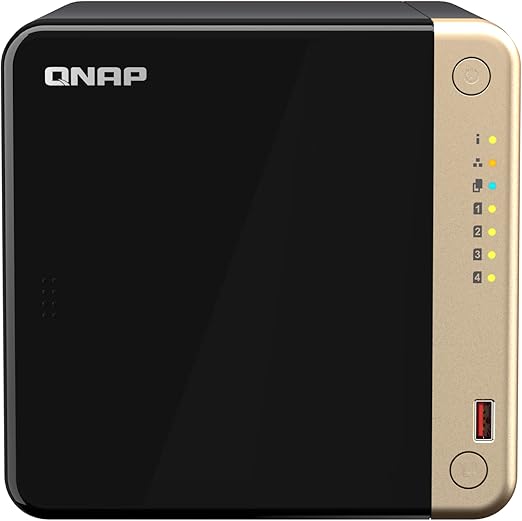
| QNAP TS-464 | 4-bay | Intel Celeron N5105 | ~$990 | Plex, Docker, 2.5GbE built-in |
Prices approximate as of early 2026. Use Staticice or check Mwave and PLE directly for current pricing.
NBN Upload Limits and Remote NAS Access
If remote access is one of your use cases, your NBN upload speed determines your effective throughput, not the NAS hardware. Most AU residential plans have asymmetric upload:
- NBN 100/20: 20 Mbps upload = ~2 MB/s max remote access speed
- NBN 250/25: 25 Mbps upload = ~2.5 MB/s, marginal improvement over NBN 100
- NBN 1000/50: 50 Mbps upload = ~5 MB/s, fastest residential NBN upload available
A faster NAS, more bays, or more drives will not improve remote access speed. The NBN upload cap is the hard ceiling.
Frequently Asked Questions
How many bays do I actually need?
It depends on how much data you have now, how fast it's growing, and what RAID level you want. A 4-bay NAS is the sweet spot for most home and small business users, it supports RAID 5, leaves room for expansion, and doesn't cost much more than a 2-bay. Only go 2-bay if your data needs are genuinely small and unlikely to grow fast, or 6-8 bay if you're running a serious media library, multi-camera surveillance, or a business file server.
Can I mix different drive sizes in a NAS?
Technically yes, but it's not ideal. Synology's SHR (Synology Hybrid RAID) handles mixed sizes better than traditional RAID, but you'll always be limited by the smallest drive in the array for standard RAID levels. For a clean setup, buy identical drives. If you're upgrading later, swap drives one at a time to the new size, the array rebuilds onto each new drive and eventually uses the full capacity.
What's the cheapest way to start with a NAS?
Buy a 4-bay NAS and populate only 2 bays with the drives you can afford. Run RAID 1 (mirror) on two drives for safety. When you need more space, add a third and fourth drive and migrate to RAID 5. This gives you a cheap starting point with a clear upgrade path, and you won't need to replace the NAS hardware when your needs grow.
When should I buy a bigger NAS versus bigger drives?
Upgrade drives first, it's cheaper and doesn't require migrating data to a new unit. A 4-bay NAS with 4× 4 TB drives (12 TB usable in RAID 5) can be upgraded to 4× 8 TB (24 TB usable) by swapping drives one at a time. Only buy a bigger NAS when you've maxed out the drive sizes your unit supports, or when you need more bays than your current chassis offers.
How much capacity does RAID actually cost me?
It depends on the RAID level. RAID 1 costs you 50% of raw capacity (half your drives are mirrors). RAID 5 costs one drive worth of capacity: 4× 8 TB = 24 TB usable, not 32 TB. RAID 6 costs two drives. RAID 10 costs 50%, same as RAID 1. For most home users, RAID 5 on a 4-bay NAS hits the right balance between protection and usable space.
Does NAS CPU and RAM matter if I'm just using it for storage?
For pure file storage and backups, almost any modern NAS CPU is fine. CPU matters when you add workloads: Plex transcoding, Docker containers, surveillance recording, or real-time virus scanning. RAM matters less for storage but more for running multiple services. If you're buying for storage today but might add Plex or Docker later, get a model with an Intel CPU (for hardware transcoding) and at least 4 GB RAM (ideally upgradeable).
What about expansion units like the Synology DX517?
Expansion units (DX517, DX513) let you add more bays to a Synology NAS via eSATA. They work, but they add significant cost ($500+ for the enclosure alone, plus drives), introduce a single point of failure, and aren't supported by all NAS models. If you're planning to expand beyond your chassis, it's usually cheaper and more reliable to buy a larger NAS from the start or migrate to a bigger unit later.
Should I buy drives from Amazon AU or a local retailer?
Check both. Amazon AU often has competitive NAS drive pricing, but local retailers like Scorptec, PLE, Umart, and MSY sometimes match or beat Amazon on specific models, especially during sales. Staticice is the best AU price comparison tool for drives. Always confirm the drive is a NAS-specific model (WD Red Plus or Seagate IronWolf, not desktop drives) regardless of where you buy.
How does NBN and CGNAT affect remote NAS access in Australia?
Most AU residential NBN plans cap upload at 20-50 Mbps regardless of download tier. Remote NAS access is upload-limited, your NAS uploads to you when accessed remotely. NBN 100, 250, and 1000 all have 20-50 Mbps upload ceilings on FTTC/FTTN connections, capping remote access at roughly 2-5 MB/s. Additionally, most AU residential ISPs use CGNAT (Carrier-Grade NAT), which blocks standard port forwarding. Synology QuickConnect and QNAP myQNAPcloud bypass CGNAT via relay servers, but relay throughput is typically 5-10 MB/s. For unrestricted remote access, ask your ISP about a static IP (usually $10-20/month extra) or run WireGuard VPN on the NAS for a direct tunnelled connection.