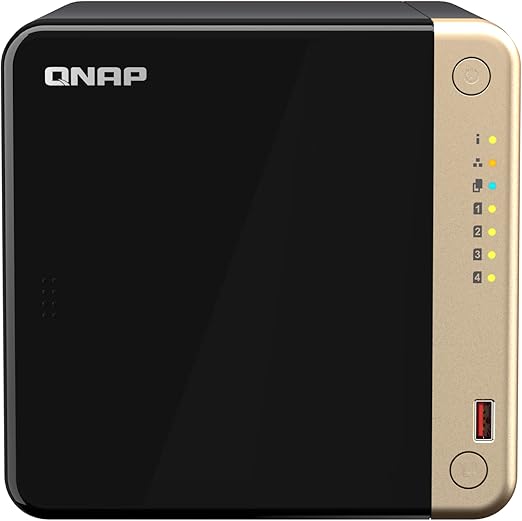
Setting up a QNAP NAS takes about 30-45 minutes from unboxing to a working file server, and the QTS operating system walks you through every critical step. QNAP's setup process is more detailed than Synology's. There are more options at every stage. But that depth is exactly why technical users choose the platform. This guide covers the full process for Australian buyers, from installing drives and connecting to your NBN router through to configuring remote access that works with CGNAT connections, locking down security with QuFirewall, running Docker containers, and setting up automated backups. Whether you have picked up a TS-464 ($1,099 at PLE, $999 at Scorptec) or an entry-level TS-233 (~$989 at PLE and Scorptec), the core setup process is the same.
For a broader overview of this topic, see our complete QNAP ecosystem guide.
In short: Install drives, connect Ethernet to your router, power on, navigate to install.qnap.com in your browser, and follow the QTS installer. Choose RAID 5 for four-bay units (one-drive fault tolerance with good capacity) or RAID 1 for two-bay units (mirrored protection). The entire process takes around 30-45 minutes. After QTS is running, create user accounts, set up shared folders, enable myQNAPcloud for remote access, and turn on QuFirewall before exposing anything to the internet.
What You Need Before You Start
Before powering on your QNAP NAS, make sure you have everything ready. Getting halfway through setup and realising you need to order drives or find a cable wastes time and leaves the NAS in a partially configured state.
Your QNAP NAS unit. All QNAP consumer and prosumer models sold in Australia ship diskless (no hard drives included). This applies to every model from the TS-133 ($259 at PLE, $299 at Scorptec) to the TS-473A ($1,489 at PLE, $1,369 at Scorptec). You need to purchase drives separately.
NAS-rated hard drives. Use NAS-specific drives like the Seagate IronWolf or WD Red Plus. Standard desktop drives lack the firmware tuning for 24/7 NAS operation (vibration tolerance, error recovery controls, longer duty cycles) and will fail earlier. For a two-bay NAS, start with two matching drives for RAID 1 mirroring. For four-bay models, four matching drives give you RAID 5 with one-drive fault tolerance. See our best NAS hard drive guide for current AU pricing and recommendations.
An Ethernet cable. One is included in the box. Your NAS must connect via Ethernet to your router or switch. Wi-Fi is not an option for the NAS itself, though all your devices can access it wirelessly through the router.
A computer or phone on the same network. You will use a web browser to complete setup. Any device connected to the same router works.
A Phillips-head screwdriver. Most QNAP desktop models use tool-free 3.5-inch drive trays with plastic clips, but 2.5-inch SSD installation requires screws. Some older tray designs also need screws for 3.5-inch drives.
Drive compatibility: QNAP does not restrict third-party drives. Unlike Synology (which historically restricted drive choices), QTS works with any standard SATA or NVMe drive. Check QNAP's compatibility list at qnap.com/compatibility if you want confirmed models, but in practice, any NAS-rated drive from Seagate or WD will work without issues.
Step 1. Install Your Hard Drives
QNAP's drive installation is straightforward. Current desktop models like the TS-464 and TS-433 use tool-free trays for 3.5-inch drives.
1. Remove the drive trays. Press the release latch on the front of the NAS and slide out each tray. On models like the TS-464 and TS-233, trays pull straight out from the front.
2. Seat the drive in the tray. For 3.5-inch drives, remove the side retention clips, place the drive into the tray with the SATA connector aligned to the back, and snap the clips back into place. For 2.5-inch SSDs, flip the tray over and use the four screw holes on the underside to secure the drive.
3. Slide the tray back in. Push firmly until you hear the latch click. The drive connects automatically to the internal SATA backplane.
4. Install all drives before powering on. If you are setting up a multi-bay NAS, install every drive now. Creating a storage pool with all drives present from the start is far simpler than expanding later.
Handle drives carefully. Hard drives are precision instruments. Do not drop them, bump them against the chassis, or touch the exposed circuit board. Hold drives by the sides only. Static discharge can damage the controller board.
Step 2. Connect to Your Network and Power On
Connect the Ethernet cable from a LAN port on the back of the NAS to a spare port on your NBN router or network switch. If your QNAP has multiple LAN ports. Models like the TS-464 have dual 2.5GbE ports. Use one port for now. You can configure link aggregation later for additional throughput or failover.
Connect the power cable and press the power button on the front panel. The NAS will boot up. Drives will spin up and the status LED will begin flashing. First boot takes 1-2 minutes.
Placement matters. Put your NAS somewhere with decent airflow. Not inside a closed cupboard or entertainment unit. Hard drives generate heat under sustained operation, and the NAS fans need clearance to exhaust warm air. A shelf near your router is ideal. QNAP's desktop models produce a low fan hum that is noticeable in a quiet room, so avoid bedrooms if you are a light sleeper. Australian summers push ambient temperatures above 35°C in many homes. Good ventilation is not optional.
Step 3. Find Your NAS and Install QTS
Once the NAS has booted (status LED turns solid green), open a web browser on any device connected to the same network and navigate to:
install.qnap.com
QNAP's web-based finder will scan your local network and detect the NAS automatically. Alternatively, download the Qfinder Pro utility from QNAP's website. It runs on Windows, macOS, and Linux and will find your NAS on the network even if the browser-based tool does not detect it. Qfinder Pro is also useful later for checking firmware versions and accessing the NAS management interface.
The installer will prompt you to choose between QTS and QuTS Hero. For most home and small business users, choose QTS. It uses the ext4 file system, works efficiently on models with 2-8 GB of RAM, and supports every app in the QNAP App Center. QuTS Hero uses ZFS for enterprise-grade data integrity and deduplication. But it needs 16 GB or more of RAM to perform well, and switching between the two later requires a full reinitialisation that erases all data. If you are unsure, QTS is the right choice.
The installer downloads and installs the latest QTS firmware. This takes 5-10 minutes depending on your internet speed. The NAS will restart automatically when installation completes.
Do not disconnect power during QTS installation. Interrupting the install can corrupt the system partition and force a manual recovery via USB. Let the process complete fully. The NAS restarts on its own when ready.
Step 4. Create Your Admin Account
After QTS installs and the NAS reboots, the browser will redirect you to the initial setup wizard. The first step is creating your administrator account.
Choose a strong, unique password. This is critical. QNAP NAS devices have been targeted by ransomware in the past. Notably the Deadbolt and QLocker attacks. And weak admin credentials were a common entry point. Use a password manager to generate a password of at least 16 characters with mixed case, numbers, and symbols. Do not reuse a password from another service.
Change the default admin username. QTS allows you to rename the default admin account or create a new admin account with a different name and then disable the default "admin" account. Do this. Automated attacks try "admin" as the username first. A different admin username adds a layer of defence. See our NAS security and ransomware protection guide for a full hardening checklist.
Step 5. Create a Storage Pool and Volume
After the initial wizard completes, QTS will prompt you to create a storage pool. This is the foundation of your NAS. How the physical drives are combined and protected. If you skip this step, you can access it later through Storage & Snapshots in the QTS control panel.
Choosing Your RAID Type
RAID determines how your data is spread across drives and how many drives can fail before data is lost. For a detailed breakdown, see our RAID explained guide. Here is the practical summary for common QNAP setups:
| RAID 1 (2 drives) | Mirrors data across both drives. One drive can fail without data loss. You lose 50% of raw capacity. Best for 2-bay NAS models. |
|---|---|
| RAID 5 (3+ drives) | Stripes data with parity. One drive can fail without data loss. You lose the equivalent of one drive's capacity. Best for 4-bay models like the TS-464. |
| RAID 6 (4+ drives) | Double parity. Two drives can fail simultaneously. You lose the equivalent of two drives' capacity. Best for 6-bay models and above where rebuild times are long. |
| RAID 10 (4 drives) | Mirrored pairs striped together. Fast performance, tolerates one drive failure per mirror pair. You lose 50% capacity. Good for VM and database workloads. |
| JBOD / RAID 0 | No protection. Any single drive failure means total data loss. Never use for important data. |
The practical recommendation: RAID 5 for a four-bay NAS is the sweet spot for most Australian home and small business users. It balances capacity, performance, and fault tolerance. With four 4 TB drives, RAID 5 gives you roughly 12 TB of usable space with one-drive fault tolerance. RAID 1 is the only sensible choice for a two-bay NAS. Without mirroring, a single drive failure means losing everything.
RAID is not a backup. RAID protects against drive failure, not against accidental deletion, ransomware, fire, theft, or filesystem corruption. You still need a separate backup. Covered in the backup section below.
Creating the Storage Pool and Volume
In the Storage & Snapshots manager:
1. Create a storage pool. Select the drives you want to include, choose your RAID type, and let QTS initialise the pool. This takes a few minutes for the initial setup, though background RAID synchronisation continues for several hours (or days for large arrays). Your NAS is usable during this time.
2. Create a volume on the pool. QTS offers three volume types: Thick (allocates all space immediately. Best for predictable workloads), Thin (allocates space on demand. Best for flexibility), and Static (fastest but no snapshots). For most users, a thick volume is the safest and simplest choice. Thin provisioning is useful if you plan to use snapshots heavily, but over-provisioning a thin volume without monitoring free space can lead to data loss when the pool fills up.
3. Set snapshot space reservation. QTS will ask you to reserve space for snapshots (typically 20% of the volume). Accept this default. Snapshots are one of your best defences against ransomware and accidental deletion. They let you roll back files or entire volumes to a previous point in time with minimal overhead.
Step 6. Create User Accounts and Shared Folders
With your storage pool and volume ready, the next step is creating the folder structure and user permissions that control who can access what on the NAS.
User Accounts
Navigate to Control Panel > Users. Create individual accounts for each person who will access the NAS. Do not share the admin account. Give each user their own login with only the permissions they need. This is basic security hygiene that also gives you an audit trail of who accessed or modified files.
For a home setup, create a standard user account for each family member. For a small business, create accounts for each staff member and consider using user groups (e.g., "Marketing", "Accounts") to manage permissions at the group level rather than per user.
Shared Folders
Navigate to Control Panel > Shared Folders. Create folders based on function rather than person. For example, "Photos", "Documents", "Backups", "Media". Then assign read/write or read-only permissions to each user or group per folder.
Enable the Recycle Bin on each shared folder. When someone accidentally deletes a file, the Recycle Bin keeps it recoverable without needing to restore from a snapshot or backup. Set a retention period (30 days is sensible) so the Recycle Bin does not consume unlimited space.
Access protocols: QTS enables SMB (Windows file sharing) by default, which works with Windows, macOS, and Linux. If you have Mac users who need Time Machine backup support, enable AFP or SMB with Time Machine support on a dedicated shared folder. For Linux-heavy environments, enable NFS.
Step 7. Set Up Remote Access with myQNAPcloud
Accessing your NAS from outside your home or office network is one of the most requested features. And one of the most frequently misconfigured. QNAP's myQNAPcloud service provides remote access, but the approach that works depends on your Australian internet connection.
NBN and CGNAT. The Australian Complication
Many Australian NBN connections use CGNAT (Carrier-Grade NAT), which means your ISP shares a single public IP address across multiple customers. If your connection uses CGNAT, you cannot set up traditional port forwarding to reach your NAS from outside your network. This affects many NBN Fixed Wireless, Satellite, and some FTTC/FTTP connections depending on the ISP.
How to check: Log into your router and look at the WAN IP address. If it starts with 100.64.x.x through 100.127.x.x, you are behind CGNAT. You can also compare your router's WAN IP against what whatismyip.com shows. If they are different, CGNAT is in play.
If you have a public IP (no CGNAT): You can set up myQNAPcloud with DDNS and configure port forwarding on your router. Navigate to myQNAPcloud in the QTS App Center, create or sign in to your QNAP ID, and enable the DDNS service. QTS can attempt to configure your router automatically via UPnP. But disable UPnP on your router for security reasons and set up manual port forwarding instead (ports 443 and 8081 by default).
If you are behind CGNAT: myQNAPcloud Link provides a relay-based connection that tunnels through QNAP's servers, bypassing CGNAT entirely. Performance is slower than a direct connection (the data routes through QNAP's relay infrastructure), but it works reliably. This is the simplest option for most Australian NBN connections affected by CGNAT.
The better option for either scenario: Set up a VPN on your router or NAS. QNAP's QVPN Service app supports WireGuard, OpenVPN, and L2TP/IPSec. WireGuard is the modern choice. Fast, lightweight, and easy to configure. A VPN gives you encrypted access to your entire home network, including the NAS, without exposing any ports or relying on relay services. If your router supports VPN server functionality (many ASUS and TP-Link routers do), configure it there instead of on the NAS for better separation.
Upload speed matters for remote access. A typical Australian NBN 100/20 connection provides roughly 15-18 Mbps real-world upload speed. That is about 2 MB/s. Accessing large files remotely will be slow. NBN 100/40 plans provide better upload at roughly 30-35 Mbps real-world. Factor in your upload speed before expecting fast remote file access. This is an NBN limitation, not a NAS limitation.
Step 8. Lock Down Security with QuFirewall
QNAP's security history includes several high-profile ransomware incidents (Deadbolt, QLocker, eCh0raix) that targeted NAS devices exposed to the internet. Do not let this scare you off the brand. Any NAS from any vendor is a target when exposed without proper security. But it does mean that hardening your QNAP NAS is not optional.
Install QuFirewall from the App Center. QuFirewall is QNAP's built-in firewall that controls inbound and outbound connections at the NAS level. After installation:
1. Start with a restrictive profile. QuFirewall includes preset profiles. Select the "Restricted Security" profile as your starting point, which blocks all incoming connections except from local network ranges and essential QNAP services. You can then add specific rules for services you need.
2. Enable IP access protection. In Control Panel > Security > IP Access Protection, enable automatic blocking for failed login attempts. Set it to block an IP after 5 failed attempts within 5 minutes, with a 24-hour block duration. This stops brute-force password attacks.
3. Disable services you do not use. Go to Control Panel > Network & File Services and disable any protocols you are not actively using (Telnet, SSH if not needed, FTP if not needed). Every open service is a potential entry point.
4. Disable UPnP on your router. UPnP automatically opens ports on your router, which is exactly how many NAS devices end up exposed to the internet without the owner realising it. Turn it off at the router level.
5. Enable two-factor authentication (2FA). Navigate to Control Panel > Security > 2-Step Verification and enable it for the admin account at minimum. Use an authenticator app (Google Authenticator, Microsoft Authenticator, or Authy).
Step 9. Docker and Container Station
One of QNAP's strongest advantages over simpler NAS platforms is Container Station. QNAP's integrated Docker and LXC container management app. This turns your NAS into a lightweight application server capable of running hundreds of self-hosted services.
Install Container Station from the App Center. It is available on Intel-based QNAP models (TS-x64 series, TS-x73A series, TVS series) and some ARM-based models with sufficient RAM. Models like the TS-233 and TS-133 with only 2 GB of RAM are not suitable for Docker workloads.
What can you run? The Docker ecosystem is massive. Common self-hosted applications for NAS users include:
- Plex or Jellyfin. Media server for streaming your video and music library to any device
- Pi-hole or AdGuard Home. Network-wide ad blocking
- Home Assistant. Smart home automation hub
- Nextcloud. Self-hosted cloud storage and collaboration
- Vaultwarden. Self-hosted Bitwarden password manager
- Surveillance Station alternative (Frigate). AI-powered security camera NVR
Container Station provides a web-based GUI for pulling images from Docker Hub, configuring ports, volumes, and environment variables, and monitoring running containers. For users comfortable with the command line, SSH access to the NAS lets you use standard Docker commands directly. The TS-464 with its Celeron N5095 and 8 GB RAM handles 5-10 lightweight containers comfortably. For heavier workloads (Plex transcoding, multiple databases, Home Assistant with many integrations), the TS-473A with its Ryzen CPU and upgradeable RAM ($1,489 at PLE, $1,369 at Scorptec) provides significantly more headroom.
Docker storage location: When Container Station asks where to store container data, point it to a shared folder on your main volume. Do not use the system partition. This keeps container data within your RAID-protected storage pool and makes backups straightforward.
Step 10. Multimedia Apps
QNAP includes several built-in multimedia applications that turn your NAS into a home media hub. These are available from the App Center:
Multimedia Console. The central management point for media indexing. It scans your shared folders and indexes photos, videos, and music for use by QNAP's multimedia apps. Enable it first, then configure which folders to index.
QuMagie. QNAP's AI-powered photo management app. It provides facial recognition, scene detection, and automatic album organisation. QuMagie is genuinely useful for managing large photo libraries. The AI tagging runs locally on the NAS (your photos do not leave your network), which is a privacy advantage over cloud services like Google Photos. Performance depends on CPU. Intel Celeron models handle it well, while ARM-based models like the TS-233 will index slowly.
Video Station. Organises and streams your video library with metadata fetching, subtitle support, and transcoding for devices that cannot play the original format. For a better streaming experience, many users install Plex or Jellyfin via Container Station instead, as these have broader device support and more active development.
Music Station. Streams your music library to web browsers and QNAP mobile apps. Functional but basic. If music streaming is a priority, consider running Navidrome or Plexamp via Docker for a more polished experience.
Step 11. Configure Backups
Your NAS is not a backup. It is a storage target. If the NAS is stolen, damaged by fire, or hit by ransomware, the data on it is at risk regardless of your RAID configuration. A proper backup strategy follows the 3-2-1 rule: three copies of your data, on two different types of media, with one copy offsite.
Backup Tools Built Into QTS
Hybrid Backup Sync (HBS 3). QNAP's all-in-one backup application. It handles local backups (to an external USB drive connected to the NAS), remote backups (to another NAS or rsync server), and cloud backups (to services like AWS S3, Azure Blob, Google Cloud, Backblaze B2, and others). HBS 3 supports scheduling, versioning, encryption, and deduplication.
The minimum viable backup plan:
- Local backup: Connect a USB hard drive to the NAS and create a scheduled HBS 3 backup job that runs nightly. QNAP supports one-touch USB copy via the front USB port. Press the button and files copy to or from the USB drive automatically. Configure this in HBS 3 > Services > USB One Touch Copy.
- Offsite/cloud backup: Set up a cloud sync job in HBS 3 to Backblaze B2 (cheapest at US$0.005/GB/month for storage) or another cloud provider. Encrypt the backup before it leaves the NAS. Remember that your NBN upload speed limits how fast data can reach the cloud. An initial backup of several terabytes will take days or weeks at typical Australian upload speeds.
Snapshots: If you set up snapshot space during volume creation, navigate to Storage & Snapshots > Snapshots and configure a snapshot schedule. Daily snapshots with a 14-day retention period provide excellent protection against ransomware and accidental deletion. Snapshots are space-efficient. They only store the changes since the last snapshot, not a full copy of your data.
Step 12. Firmware Updates
Keeping QTS up to date is one of the single most important things you can do for NAS security. QNAP releases firmware updates regularly, and these often include critical security patches.
Navigate to Control Panel > Firmware Update. QTS can check for updates automatically and notify you when one is available. You can also enable automatic firmware updates, though many experienced users prefer to wait a few days after a new release to confirm there are no issues before applying it manually. This is a reasonable approach. QNAP firmware updates have occasionally introduced regressions.
Before updating: Take a configuration backup (Control Panel > Backup/Restore > Back up System Settings) and ensure your data backups are current. Firmware updates very rarely cause data loss, but having a known-good backup before any system change is standard practice.
Do not skip firmware updates. QNAP's past security incidents were largely mitigated by firmware patches. Running outdated firmware leaves your NAS vulnerable to known exploits. If your NAS is connected to the internet in any way. Even just for cloud backup. Apply security updates promptly.
Choosing the Right QNAP NAS for Your Setup
If you have not purchased your QNAP NAS yet, here is a quick reference of the most popular models currently in stock at Australian retailers. For a comprehensive comparison, see our best QNAP NAS buying guide and the full QNAP NAS Australia overview.
Popular QNAP NAS Models. AU Pricing (February 2026)
 TS-233
|
 TS-433
|
TS-464
|
 TS-473A
|
 TS-664
|
|
|---|---|---|---|---|---|
| Bays | 2 | 4 | 4 | 4 | 6 |
| CPU | ARM Cortex-A55 2.0 GHz | ARM Cortex-A55 2.0 GHz | Celeron N5095 2.9 GHz | Ryzen V1500B 2.2 GHz | Celeron N5095 2.9 GHz |
| RAM | 2 GB | 4 GB | 8 GB | 8 GB (expandable) | 8 GB |
| Network | 1 GbE | 2.5 GbE | Dual 2.5 GbE | 2.5 GbE | Dual 2.5 GbE |
| Docker Support | No | Limited | Yes | Yes | Yes |
| PLE Price | $399 | $649 (Scorptec) | $999 (Scorptec) | $1,369 (Scorptec) | $1,549 |
| Scorptec Price | $399 | $649 | $999 | $1,369 | $1,549 (PLE Computers) |
| Best For | Basic home backup | Home media + file sharing | Power users + Docker | Virtualisation + SMB | Large media libraries |
Prices last verified: 27 February 2026. Always check retailer before purchasing.
Australian Consumer Law protections apply when purchasing from Australian retailers like PLE, Scorptec, and Mwave. This gives you statutory warranty rights that international purchases (including Amazon imports from overseas sellers) do not guarantee. For a device that stores your data, buying from an Australian authorised retailer is worth the peace of mind. QNAP has no local phone support in Australia. Support is online-only via tickets and remote sessions. So the retailer relationship matters if hardware issues arise.
Post-Setup Checklist
Once you have completed the steps above, run through this checklist to confirm everything is in order:
- Storage pool healthy? Check Storage & Snapshots. Pool status should show "Ready" or "Synchronising" (if RAID is still building in the background).
- Firmware current? Check Control Panel > Firmware Update for the latest version.
- Admin password strong? 16+ characters, unique, stored in a password manager.
- Default admin account disabled? Use a renamed or new admin account.
- QuFirewall running? Restrictive profile active, with rules added only for services you actually use.
- IP access protection enabled? Auto-block after 5 failed attempts.
- Two-factor authentication on? At least for the admin account.
- UPnP disabled on your router? Prevents accidental port exposure.
- Backup job configured? At minimum, a USB backup or cloud sync via HBS 3.
- Snapshot schedule set? Daily snapshots with 14-day retention.
- Recycle Bin enabled on shared folders? With a 30-day retention period.
- Notification settings configured? Set up email or push notifications in Control Panel > Notification Center so you are alerted to drive failures, firmware updates, and security events.
Add power protection to your setup: our UPS Sizing Calculator sizes a UPS for your specific QNAP model and drive count with AU retailer recommendations.
Related reading: our NAS buyer's guide, our Synology vs QNAP comparison, and our NAS explainer.
Use our free NAS Sizing Wizard to get a personalised NAS recommendation.
How long does it take to set up a QNAP NAS from scratch?
The initial hardware setup (installing drives, connecting cables, running through the QTS installer) takes about 30-45 minutes. Configuring shared folders, user accounts, remote access, and security settings adds another 30-60 minutes if you follow this guide step by step. RAID synchronisation runs in the background and can take several hours to complete for larger arrays, but you can use the NAS normally during this process.
Should I choose QTS or QuTS Hero?
Choose QTS for home use and general small business file sharing. It uses the ext4 file system, runs efficiently on 2-8 GB of RAM, and supports the full range of QNAP apps. QuTS Hero uses ZFS for enterprise-grade data integrity, inline deduplication, and self-healing. But it requires 16 GB or more of RAM to perform well. If you need WORM compliance, run virtualisation workloads, or prioritise data integrity above all else, QuTS Hero is worth the additional RAM investment. Switching between the two later requires a full reinitialisation that erases all data, so make your choice before storing important files.
Can I access my QNAP NAS remotely on an Australian NBN connection with CGNAT?
Yes, but not via traditional port forwarding. If your NBN connection uses CGNAT (common on Fixed Wireless and some FTTC/FTTP plans), direct port forwarding will not work because you share a public IP with other customers. Use myQNAPcloud Link, which relays your connection through QNAP's servers and bypasses CGNAT entirely. Performance is slower than a direct connection but reliable. The better long-term solution is a VPN. QNAP's QVPN Service supports WireGuard, which works through CGNAT via outbound connections and provides encrypted access to your entire network.
What RAID level should I use for a 4-bay QNAP NAS?
RAID 5 is the most common choice for a four-bay NAS. It provides one-drive fault tolerance while maximising usable capacity. With four 4 TB drives, you get roughly 12 TB of usable space. RAID 10 is an alternative if you need faster write performance (useful for virtualisation or database workloads) but you lose 50% of capacity instead of 25%. RAID 6 uses two drives for parity and tolerates two simultaneous failures, but the capacity cost is high on a four-bay unit. For a detailed breakdown, see our RAID explained guide.
Is it safe to buy a QNAP NAS given their past ransomware incidents?
Yes, provided you follow proper security practices. The Deadbolt and QLocker attacks targeted NAS devices that were directly exposed to the internet with weak credentials and outdated firmware. The same risk applies to any NAS brand. QNAP has since improved their security posture with QuFirewall, automatic firmware update options, and stronger default security settings. Follow the security steps in this guide. Strong unique password, disabled default admin, QuFirewall, 2FA, disabled UPnP, current firmware. And your NAS will be well protected. See our NAS security guide for a complete hardening checklist.
Where should I buy a QNAP NAS in Australia?
PLE and Scorptec are the most reliable options for QNAP NAS in Australia. Both stock the full consumer and prosumer range, offer genuine pre-sales advice, and source from BlueChip. QNAP's strongest distribution partner in Australia. Amazon AU has competitive pricing but provides zero technical support if something goes wrong. For a device that stores your data, the retailer relationship matters. Australian Consumer Law protections apply when purchasing from Australian authorised retailers, giving you statutory warranty rights that international purchases do not guarantee.
Can I run Docker containers on a QNAP NAS?
Yes, via Container Station. Available on Intel-based models (TS-x64 series, TS-x73A series, TVS series) and some higher-end ARM models with sufficient RAM. Models with only 2 GB of RAM (TS-133, TS-233) are not suitable for Docker workloads. The TS-464 with 8 GB RAM handles 5-10 lightweight containers comfortably. For heavier workloads, the TS-473A with its Ryzen CPU and expandable RAM provides more headroom. Container Station supports Docker Hub image pulls, port mapping, volume mounts, and environment variable configuration through a web GUI.
Not sure which QNAP model suits your needs? Our buying guide compares every current model with AU pricing, specs, and use-case recommendations.
Read the QNAP Buying Guide →