Jellyfin is the better choice for most home NAS users who want a free, private media server with no ongoing subscription costs. And the gap between Jellyfin and Plex has closed significantly in 2025 and 2026. Plex still leads on polished mobile apps, social features, and the breadth of its TV client ecosystem. This comparison covers every relevant axis: transcoding performance on NAS hardware, client app quality, hardware transcoding support, remote access setup, and the real-world cases where each platform wins. Australian NAS pricing and ACL warranty notes are in the AU section below.
In short: If you want zero ongoing costs, full privacy, and are comfortable with Docker, Jellyfin on a NAS gives you everything Plex does without paying a cent. If you want a polished out-of-the-box experience with better mobile apps and don’t mind paying for Plex Pass, Plex is more user-friendly for families. For hardware, the Synology DS225+ ($549-$599) or QNAP TS-464 ($999-$1,099) both handle either platform well. The DS225+ handles 1-2 simultaneous 1080p transcode streams; the TS-464 with its Celeron N5095 handles 3-4. If you only direct-play content on your local network (no transcoding), even a $439 Asustor Drivestor 2 Pro will do the job.
Why This Comparison Matters
Media server software is one of the top reasons people buy a NAS. Between rising streaming subscription costs and the reality that personal video libraries don't fit neatly into streaming catalogues, running a local media server has become a primary NAS use case for home users. The choice between Plex and Jellyfin is not just a technical one. It comes down to how much setup friction you are willing to tolerate, and whether you want to pay for Plex Pass ($7.99/month, $119/year, or $249 lifetime).
The decision is not purely technical. It comes down to how much setup friction you are willing to tolerate, whether you need reliable remote streaming over Australian internet connections, and whether the Plex Pass price is justified by the convenience it delivers. Both platforms run on Docker on a NAS, both support hardware transcoding on Intel-based NAS devices, and both serve media to TVs, phones, tablets, and browsers. The differences are in the details. And those details matter more than most comparison articles acknowledge.
Plex vs Jellyfin Feature Comparison
Plex vs Jellyfin. Feature Comparison for NAS Users
| Plex | Jellyfin | |
|---|---|---|
| Cost | Free (limited) / $7.99/mo / $59.99/yr / $179.99 lifetime (Plex Pass) | Free. Fully open source, no paid tier |
| Hardware Transcoding | Plex Pass required (Intel QSV, NVIDIA NVENC) | Free. Intel QSV, VAAPI, NVIDIA NVENC supported |
| Account Required | Yes. Mandatory Plex account, internet needed for auth | No. Fully self-hosted, no external accounts |
| Mobile Apps | Polished iOS/Android apps, offline sync (Plex Pass) | Functional iOS/Android apps, no offline sync |
| Smart TV Apps | Native apps on most smart TVs, Roku, Apple TV, Fire TV, Chromecast | Limited. Android TV, Fire TV; use browser or Kodi plugin for others |
| Remote Access | Built-in relay service (works through CGNAT in most cases) | Manual setup. Port forwarding, reverse proxy, or VPN required |
| Docker Support on NAS | Official Docker image, also native Synology/QNAP packages | Official Docker image only (no native NAS packages) |
| Library Management | Excellent metadata, auto-matching, watch status sync | Good metadata, improving rapidly, local-only watch status |
| Music Streaming | Plexamp. Dedicated music app (Plex Pass) | Basic music playback, no dedicated app |
| Live TV / DVR | Supported with Plex Pass + compatible tuner | Supported with compatible tuner (free) |
| Privacy | Telemetry collected, library data synced to Plex servers | Zero telemetry. Nothing leaves your network |
| Plugin / Extension Support | Limited. Official channels only since 2019 | Open plugin system, active community development |
Plex Pass vs Free Jellyfin: What You Actually Get
Plex without Plex Pass is deliberately limited. The free tier gives you a media server with software transcoding (CPU-only, which hammers your NAS processor), basic library management, and streaming to the web player. To unlock hardware transcoding (offloading to Intel Quick Sync or NVIDIA GPU), offline mobile sync, Plexamp for music, skip-intro, lyrics, and live TV/DVR support, you need Plex Pass. At $7.99/month, that is $95.88/year. The lifetime pass at $179.99 pays for itself in under two years.
Jellyfin gives you all of this for free. Hardware transcoding, live TV, plugins, multiple user profiles, parental controls. Everything. There is no paid tier, no premium features, and no corporation deciding which features to gate behind a subscription. The trade-off is that you do the work: Jellyfin’s mobile apps are less polished, smart TV support is more limited, and there is no managed relay service for remote access. You are the sysadmin.
Plex Pros and Cons
Pros
- Best-in-class mobile apps with offline sync (Plex Pass)
- Native apps on virtually every smart TV, streaming stick, and console
- Built-in remote access relay that works through CGNAT without manual config
- Plexamp is a genuinely excellent music streaming app
- Excellent automatic metadata matching and library organisation
- Native Synology and QNAP packages available (no Docker required)
Cons
- Mandatory Plex account and internet connection for authentication
- Hardware transcoding locked behind Plex Pass ($179.99 lifetime)
- Telemetry and library metadata synced to Plex servers
- Plugin ecosystem gutted since 2019
- Increasing push toward ad-supported content and non-server features
- If Plex the company shuts down, authentication breaks and your server stops working
Jellyfin Pros and Cons
Pros
- Completely free with no paid tiers or feature gating
- No account required. Fully self-hosted, zero telemetry
- Hardware transcoding (Intel QSV, VAAPI) included for free
- Open plugin system with active community development
- No vendor lock-in. If the project forks or changes direction, your data stays local
- Transparent, open-source codebase you can audit
Cons
- Mobile apps are functional but less polished than Plex
- Limited smart TV app support (no native LG webOS, Samsung Tizen, or Roku apps)
- No managed remote access relay. Must configure port forwarding, reverse proxy, or VPN
- No offline mobile sync
- Music experience significantly behind Plexamp
- Smaller community means slower bug fixes for niche issues
Hardware Transcoding on NAS: The Feature That Matters Most
Hardware transcoding is the single most important technical consideration when choosing between Plex and Jellyfin on a NAS. Transcoding converts video from one format or resolution to another in real time. For example, converting a 4K HEVC file to 1080p H.264 so it plays on an older TV or streams smoothly over a limited internet connection. Without hardware transcoding, the NAS CPU does all the work (software transcoding), which overwhelms most NAS processors after a single stream.
Intel-based NAS devices with Quick Sync Video (QSV) handle hardware transcoding efficiently. The Intel Celeron N5095 (found in the QNAP TS-464 and Asustor AS5404T) and the newer Intel processors in Synology’s Plus series both support QSV. ARM-based NAS devices (Synology DS223, QNAP TS-233) do not support hardware transcoding at all. Avoid these if transcoding is part of your use case.
Plex locks hardware transcoding behind Plex Pass. If you run Plex without Plex Pass on an Intel NAS, your server will fall back to software transcoding and struggle with even a single 4K stream. Jellyfin enables hardware transcoding for free. For budget-conscious Australian buyers, this is the single biggest cost difference between the two platforms.
Docker Installation on NAS: Setup Reality
Both Plex and Jellyfin run as Docker containers on a NAS, which is the preferred installation method for flexibility and easy updates. Synology’s Container Manager (formerly Docker), QNAP’s Container Station, and Asustor’s Portainer interface all support pulling the official images. Plex also offers native Synology and QNAP packages through their respective app stores, which avoids Docker entirely but limits configuration options.
For Jellyfin, Docker is the only option on NAS. There are no native packages. The Docker Compose setup is straightforward: pull the jellyfin/jellyfin image, map your media folders, and pass through the /dev/dri device for Intel QSV hardware transcoding. The entire process takes 10-15 minutes if you are familiar with Docker, or 30-45 minutes if you are following a guide for the first time.
For Plex on Docker, the process is nearly identical: pull linuxserver/plex or the official plexinc/pms-docker image, map media folders, and pass through /dev/dri for hardware transcoding (Plex Pass required). The key friction point with Plex is the mandatory account sign-in. During initial setup, the Plex container must be able to reach Plex’s authentication servers. If your internet drops during setup, the process stalls.
Remote Access: CGNAT, NBN Upload Limits, and the Australian Reality
Remote access is where Australian internet infrastructure creates real friction for self-hosted media servers. Two problems dominate: CGNAT and upload bandwidth. Understanding both is essential before committing to either platform for remote streaming. For a deeper dive, see our NAS remote access and VPN guide.
CGNAT: The Silent Blocker
Carrier-Grade NAT (CGNAT) is used by many Australian ISPs. Particularly on NBN Fixed Wireless, Starlink, 4G/5G home internet, and some budget FTTP/FTTC plans. Under CGNAT, you share a public IP address with other customers, which means port forwarding is impossible. You cannot open a port to reach your NAS from outside your home network.
Plex handles CGNAT reasonably well. Plex’s relay service routes remote streams through Plex’s servers when direct connections fail. The relay caps bandwidth at 2 Mbps (roughly 720p), which is watchable but not ideal for high-quality streaming. If you have a public IP, Plex establishes a direct connection and the relay is bypassed.
Jellyfin has no relay service. If you are behind CGNAT, you need a workaround: a VPN with port forwarding (Tailscale, WireGuard), a reverse proxy through a cheap VPS, or Cloudflare Tunnel. These solutions work well but require technical setup. Tailscale is the easiest option. Install it on the NAS and your mobile devices, and it creates a private mesh network that bypasses CGNAT entirely. For detailed setup options, see our remote access guide.
NBN Upload Bandwidth
Even with a public IP and port forwarding configured, Australian upload speeds limit what you can stream remotely. On NBN 100 (the most common plan), typical upload speeds are 20-40 Mbps. A single 1080p transcode stream at reasonable quality uses 8-15 Mbps. Two simultaneous streams push you toward saturation. 4K remux files (40-80 Mbps bitrate) are essentially impossible to stream remotely without transcoding them down to 1080p or lower. NBN 250 and 1000 plans offer better upload (25-50 Mbps on 250, up to 50 Mbps on 1000 depending on technology), but upload remains the bottleneck for all Australian connections. This is a platform-agnostic limitation. It affects Plex and Jellyfin equally. For more on optimising your NAS network performance, see our NAS networking guide.
Mobile Apps and Client Experience
If mobile streaming matters to your household, Plex wins decisively. The Plex iOS and Android apps are mature, fast, and well-designed. Offline sync (Plex Pass) lets you download media to your phone before a flight or commute. A feature that Jellyfin does not offer at all. Plex also has native apps on Apple TV, Roku, Samsung Tizen, LG webOS, Fire TV, Chromecast, Xbox, and PlayStation. You will not find a mainstream streaming device that Plex does not support.
Jellyfin’s mobile apps are functional but noticeably less polished. The Android app is further ahead than iOS. Smart TV support is limited to Android TV and Fire TV natively; for LG, Samsung, and Roku you rely on the web browser or the Kodi plugin with Jellyfin integration. This is workable but adds friction for less technical household members. If your partner or kids need to “just open the app and hit play,” Plex delivers that experience more reliably.
Library Management and Metadata
Plex’s metadata engine is best-in-class. It automatically identifies movies and TV shows, downloads artwork, cast information, ratings, and organises your library with minimal manual intervention. The Plex agent system handles edge cases well. Obscure films, anime, and multi-edition releases are usually matched correctly. Watch status syncs across all devices via your Plex account.
Jellyfin uses open metadata providers (TheMovieDB, TheTVDB, MusicBrainz) and does a good job with standard libraries. Matching accuracy has improved significantly since 2024, but it still requires more manual corrections than Plex for non-English content and niche releases. Watch status is tracked locally on the Jellyfin server. There is no cloud sync, which means it works the same way whether you have internet or not. For most Australian users with standard movie and TV libraries, Jellyfin’s metadata handling is more than adequate.
Which NAS Hardware Suits Each Platform
Both Plex and Jellyfin have the same hardware requirements: an Intel-based NAS with Quick Sync for hardware transcoding, enough RAM for the media server container (2GB minimum, 4GB+ preferred), and sufficient storage for your media library. The NAS choice is driven by your transcoding needs and budget, not by the software platform. For a full breakdown of NAS hardware suited to media serving, see our best NAS for Plex guide, which applies equally to Jellyfin.
Budget: 1-2 Streams, Mostly Direct Play

| Model | Synology DiskStation DS225+ |
|---|---|
| CPU | Intel Celeron (2.0GHz quad-core) |
| RAM | 2GB DDR4 (expandable) |
| Bays | 2 |
| Network | 2.5GbE + 1GbE |
| AU Price (Scorptec) | $549 |
| AU Price (PLE) | $599 |
| AU Price (Mwave) | $585 |
The DS225+ handles 1-2 simultaneous 1080p hardware transcode streams comfortably. It runs both Plex (native package or Docker) and Jellyfin (Docker) without issues. For households that mostly direct-play content on the local network (meaning the client device plays the file natively without conversion), this is the sweet spot. Synology’s Container Manager makes Docker deployment straightforward even for first-time users.
Mid-Range: 3-4 Streams, Regular Transcoding
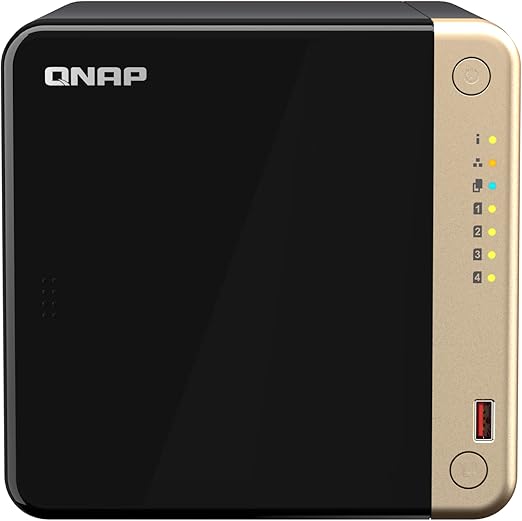
| Model | QNAP TS-464-8G |
|---|---|
| CPU | Intel Celeron N5095 (2.0GHz quad-core, burst to 2.9GHz) |
| RAM | 8GB DDR4 |
| Bays | 4 |
| Network | Dual 2.5GbE |
| AU Price (Scorptec) | $999 |
| AU Price (PLE) | $1,099 |
The TS-464 with its Celeron N5095 is a transcoding workhorse. It handles 3-4 simultaneous 1080p hardware transcode streams and can manage a single 4K-to-1080p transcode alongside local direct-play streams. The 8GB RAM gives breathing room for Docker containers, and QNAP’s Container Station makes deployment simple. The four bays allow a RAID 5 configuration with meaningful storage capacity. This is the NAS to buy if you have family members streaming remotely while others watch locally.
Value Alternative

| Model | Asustor AS5404T (Nimbustor 4 Gen2) |
|---|---|
| CPU | Intel Celeron N5105 (2.0GHz quad-core) |
| RAM | 4GB DDR4 |
| Bays | 4 |
| Network | Dual 2.5GbE |
| AU Price (Mwave) | $879 |
| AU Price (Scorptec) | $799 |
The AS5404T offers the same Celeron N5105 as the QNAP TS-464 at a lower price point. Asustor’s ADM operating system supports Docker through Portainer, and the Celeron N5105’s Quick Sync handles the same transcoding workloads. The trade-off is a smaller community and less polished software interface compared to Synology and QNAP. For buyers who are comfortable with Docker and want the best hardware-per-dollar for a media server, the AS5404T is a strong option.
Direct play vs transcoding: If every device on your local network can play your media files natively (most modern smart TVs handle H.264 and H.265/HEVC), you do not need a powerful CPU for transcoding. An ARM-based NAS like the Synology DS223 ($489 at Mwave/Scorptec) or QNAP TS-233 ($399-$487) works fine for direct play. Transcoding only matters for remote streaming, format incompatibilities, or subtitle burn-in.
The Vendor Lock-In Question
Plex requires a Plex account for authentication. Your server phones home to Plex’s servers every time it starts, and if Plex’s authentication infrastructure goes down (which has happened multiple times), your local server becomes inaccessible even on your own network. Plex the company has also been shifting focus toward ad-supported free streaming content, live TV aggregation, and features unrelated to personal media serving. The concern is not hypothetical: if Plex’s business model changes or the company folds, your server stops working.
Jellyfin has no external dependencies. It runs entirely on your NAS, authenticates locally, and will continue working identically whether the Jellyfin project thrives, stalls, or forks. Your media files remain standard formats in standard folder structures. There is nothing to migrate away from because there is no proprietary layer sitting between you and your files. For users who have invested years building a media library, this independence is Jellyfin’s most compelling long-term advantage.
Decision Framework: Which Platform Suits Which User
Plex suits you if: You want the most polished app experience across every device in your household, you value offline mobile sync for travel, you stream remotely and are behind CGNAT (Plex’s relay helps), you use Plexamp for music, or you have less technical family members who need a Netflix-like interface. The $179.99 lifetime Plex Pass is a reasonable one-time cost for what you get.
Jellyfin suits you if: You want zero ongoing costs, you value privacy and self-sovereignty over convenience, you are comfortable with Docker and basic networking, your primary use case is local network streaming, you dislike mandatory cloud accounts for local services, or you want an open platform with an active plugin ecosystem. The setup takes longer, but the long-term maintenance is minimal.
Run both: There is nothing stopping you from running Plex and Jellyfin side by side on the same NAS, pointing at the same media folders. Many users run Jellyfin as their primary server and keep Plex installed for its superior smart TV apps and relay-based remote access. Two Docker containers on a modern Intel NAS consume minimal additional resources. This is the pragmatic approach if you cannot decide.
🇦🇺 Australian Buyers: NAS Purchasing and Consumer Rights
Under Australian Consumer Law, when you purchase a NAS from an Australian retailer, the retailer is responsible for warranty claims for a "reasonable time" beyond the manufacturer's stated warranty period. For a $500-$1,000 NAS, this is typically 3-5 years. This applies regardless of the manufacturer warranty. Your rights are with the retailer.
Recommended Retailers
For Synology Plus-series NAS (best for Plex/Jellyfin hardware transcoding): Scorptec, Mwave, PLE, and DeviceDeal. For QNAP TS-464 (Intel Celeron, excellent for both platforms): same retailers. Australian NBN note: remote Plex/Jellyfin streaming requires upload bandwidth. Check the NBN Remote Access Checker to confirm your connection supports inbound connections.
Related reading: our NAS buyer's guide.
Two related guides: our Best NAS for 4K Streaming guide covers hardware requirements for smooth playback, and our Plex Hardware Transcoding guide explains native hardware transcoding support by NAS model.
Our Plex Stream Planner calculates how many simultaneous streams your NAS can handle, and our NAS Power Cost Calculator estimates annual running cost at your AU state electricity rate. Useful for comparing a always-on media server against cloud streaming.
Use our free Plex Media Planner to check if your NAS can handle your library.
Related reading: our Synology vs QNAP comparison.
Use our free NAS Sizing Wizard to get a personalised NAS recommendation.
Can I run Plex or Jellyfin on an ARM-based NAS?
You can run both on ARM-based NAS devices like the Synology DS223 or QNAP TS-233, but only for direct play. Where the client device plays the file natively without conversion. ARM processors do not support Intel Quick Sync hardware transcoding. If any client needs the server to transcode (format conversion, resolution downscaling, subtitle burn-in), an ARM NAS will struggle with even a single stream. For a media server that needs to transcode, buy an Intel-based NAS like the Synology DS225+ ($549-$599) or QNAP TS-464 ($999-$1,099).
Is Plex Pass worth it in Australia?
The lifetime Plex Pass at $179.99 AUD is worth it if you need hardware transcoding for remote streaming, want offline mobile sync, or use Plexamp for music. Without Plex Pass, Plex falls back to CPU-only software transcoding, which overwhelms most NAS processors. If you only direct-play on your local network and do not stream remotely, free Plex or Jellyfin (which includes hardware transcoding for free) covers your needs without spending anything.
How do I access Jellyfin remotely if my ISP uses CGNAT?
The easiest solution is Tailscale, a mesh VPN that works through CGNAT by creating a private network between your devices. Install Tailscale on your NAS and your phone or laptop, and you can access Jellyfin as if you were on your home network. For a browser-accessible solution, Cloudflare Tunnel routes traffic through Cloudflare’s network without opening any ports. Both are free for personal use. A reverse proxy through a cheap VPS (from $5/month) is another option that gives you a public URL with HTTPS. See our NAS remote access guide for detailed setup instructions.
Can I stream 4K content remotely over Australian NBN?
Realistically, no. Not without transcoding. A 4K remux file runs at 40-80 Mbps bitrate, while NBN 100 plans typically deliver only 20-40 Mbps upload. Even NBN 250 and 1000 plans cap upload at 25-50 Mbps depending on technology type. To stream remotely, the NAS must transcode 4K content down to 1080p or lower, which requires an Intel-based NAS with hardware transcoding enabled (free on Jellyfin, Plex Pass required on Plex). For local network streaming over gigabit or 2.5GbE, 4K direct play works perfectly.
What happens to my Plex server if Plex the company shuts down?
Your server stops authenticating and becomes inaccessible, even on your local network. Plex requires a mandatory account sign-in and periodic checks against Plex’s authentication servers. If those servers go offline permanently, your Plex installation is effectively dead. Your media files remain untouched on your NAS. You can immediately point Jellyfin at the same folders and be streaming again within 15 minutes. This is one of the core reasons users run Jellyfin as a backup or switch entirely.
Do I need a powerful NAS if I only stream on my local network?
Not if your devices support direct play. Most modern smart TVs, Apple TVs, Fire TV Sticks, and Chromecast devices can natively play H.264 and H.265/HEVC files without the server transcoding anything. In this scenario, the NAS is just serving files over the network. Even an entry-level ARM-based NAS like the QNAP TS-233 ($399-$487) handles this without breaking a sweat. You only need an Intel CPU with hardware transcoding if you stream to older devices, use subtitle burn-in, or stream remotely where bandwidth forces lower-resolution transcoding.
Can I migrate from Plex to Jellyfin without losing my library?
Yes. Your media files do not change. Both platforms read from the same folder structures. Install Jellyfin via Docker on your NAS, point it at your existing media folders, and let it scan your library. Metadata will be re-downloaded from open sources (TheMovieDB, TheTVDB). Watch history can be migrated using third-party tools like Jellyfin’s Trakt plugin or manual export/import scripts. The migration takes 30-60 minutes for a typical library of a few thousand files.
Need a NAS that handles Plex or Jellyfin? See our full hardware breakdown with AU pricing.
Best NAS for Plex Australia →