Running Ollama on a Synology NAS is practical on x86-based models. The DS425+, DS925+, DS1525+, and above. Using Container Manager (Docker) to deploy the Ollama container with a persistent volume for model storage. This is genuinely useful for private AI inference: your queries stay on your own hardware, no API keys, no usage costs, no data leaving your network. This guide covers the complete setup. Container Manager deployment, model download, Open WebUI integration for a ChatGPT-like interface, performance expectations on NAS hardware, and which models are practical at each CPU RAM tier. It also answers the honest question: is a NAS actually the right place for Ollama? Australian model pricing is in the AU section below.
In short: Ollama runs on Synology NAS units with an Intel or AMD x86 CPU via Container Manager (Docker). RAM requirements vary with the exact model build, quantisation, context length and concurrency; verify available memory for the selected model and settings. These models use ARMv8 processors and have only 1-2GB of fixed RAM. Ollama publishes an arm64 image, but practical compatibility depends on Container Manager support and sufficient memory for the selected model. CPU-only inference is slow. CPU-only speed varies substantially by processor, model build, context length, Ollama version and concurrent NAS workload; benchmark the target configuration. This is suitable for personal, private AI use, not production workloads.
What Is Ollama and Why Run It on a NAS?
Ollama is an open-source runtime that makes it straightforward to download, manage, and serve large language models locally. Instead of sending queries to OpenAI or another cloud provider, everything runs on your own hardware. For privacy-conscious users, those with sensitive data, or anyone who wants to avoid per-token API costs, local inference is appealing.
A NAS is an interesting host for Ollama because it's already on 24/7, it's connected to your local network, and it has enough CPU headroom to run inference workloads in the background. On a capable Synology model, you can expose Ollama's REST API to other devices on your LAN. So your laptop, phone, or home automation system can all make requests without anything leaving your network.
The practical use cases for Australians running this at home or in a small office include: summarising documents, drafting text, answering questions about local files, or integrating with tools like Open WebUI for a ChatGPT-style interface running entirely on local hardware.
Which Synology Models Can Run Ollama?
This is the most important question to answer before you invest time in this setup. Ollama requires an x86-64 CPU. That rules out every Synology model built on a Realtek ARM processor. Including the DS124, DS223, and DS223J, which are some of the most popular entry-level units sold in Australia.
The models that work are the Plus-series and higher, all of which use Intel Celeron or AMD Ryzen processors. RAM is the other critical constraint. Ollama needs enough free RAM to load a model into memory. If you run out, it either crashes or falls back to extremely slow behaviour. Available RAM requirements vary by model build, quantisation, context length and concurrency; leave additional headroom for DSM and other services.
Synology Models Suitable for Ollama (AU Retail, March 2026)
 DS225+
|
 DS425+
|
 DS725+
|
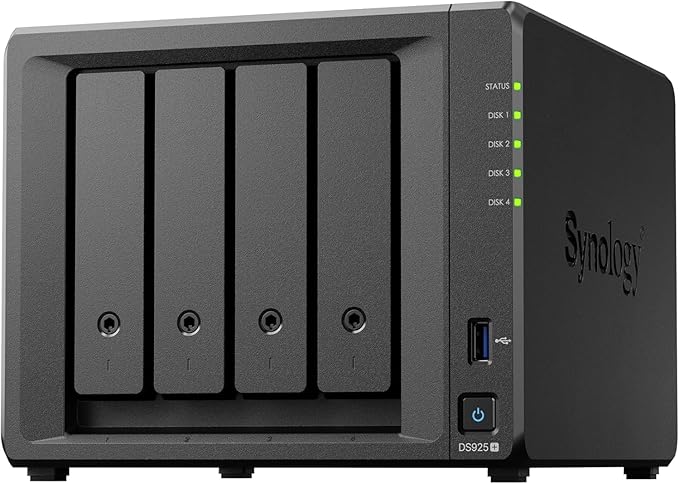 DS925+
|
 DS1525+
|
 DS1825+
|
|
|---|---|---|---|---|---|---|
| CPU | Intel Celeron J4125 (4-core) | Intel Celeron J4125 (4-core) | AMD Ryzen R1600 (2-core) | AMD Ryzen V1500B-series (4-core) | AMD Ryzen V1500B (4-core) | AMD Ryzen V1500B (4-core) |
| Base RAM | 2GB DDR4 | 2GB DDR4 | 4GB DDR4 ECC | 4GB DDR4 ECC | 8GB DDR4 ECC | 8GB DDR4 ECC |
| Max RAM | 6GB | 6GB | 32GB | 32GB | 32GB | 32GB |
| Ollama Ready (base RAM)? | No. Upgrade required | No. Upgrade required | Marginal. Upgrade recommended | Marginal. Upgrade recommended | Yes (small models) | Yes (small models) |
| AU Price from | $597 (market price) | $899 (market price) | $949 (market avg) | $1,048 (market price) | $1,739 (market price) | $1,947.75 (market avg) |
Prices last verified: 18 March 2026. Always check retailer before purchasing.
RAM upgrade required for most models: The DS225+ and DS425+ ship with only 2GB of RAM. Far too little for any useful LLM. You'll need to add a compatible SO-DIMM module before Ollama is practical. The official 4GB non-ECC SO-DIMM listed for the DS225+ and DS425+ is D4NS01-4G; check current retailer pricing before purchase. The DS725+, DS925+, and higher models come with 4GB or 8GB but benefit from an upgrade if you plan to run 7B parameter models.
Models That Will Not Work
Do not group the DS224+ with the ARM models: it uses an Intel Celeron J4125 x86-64 CPU. The DS423 and DS223j use ARMv8 processors, and their practical Ollama compatibility depends on Container Manager support and available RAM. These cannot run x86 Docker containers. Only models with an Intel or AMD x86 CPU support the Ollama container. For a full list of current models with processor types, see the Synology NAS Australia guide.
Prerequisites Before You Start
Before installing Ollama, make sure your Synology is ready:
- DSM 7.2 or later. Container Manager replaced Docker Package in DSM 7.2. If you're on an older DSM, update first.
- Container Manager installed. Open Package Center and install Container Manager if it isn't already present. It's free.
- Sufficient free RAM. Check Resource Monitor. Check current free memory in Resource Monitor. Requirements vary with the model build, context length, concurrency and other DSM services, so leave adequate system headroom.
- Sufficient storage space. LLM model files are large. A 3B parameter model in Q4 quantisation is approximately 2GB. A 7B model is 4-5GB. Make sure your NAS volume has room, and On supported models, model files can be placed on a compatible M.2 SSD storage pool. An SSD cache is not a separately addressable volume.
- A static IP or DHCP reservation for your NAS. You'll be connecting other devices to Ollama's API on port 11434. A consistent IP address makes this reliable.
Step 1. Create a Shared Folder for Ollama Data
Ollama stores downloaded models in a data directory. Rather than letting them land inside the container's ephemeral storage (which would be lost if the container is recreated), map a persistent folder on your NAS volume.
- Open File Station or Control Panel → Shared Folders.
- Create a new shared folder. For example,
dockerif you don't already have one, then inside it create a subfolder:docker/ollama. - Note the full path. It will be something like
/volume1/docker/ollama. You'll use this in the container configuration.
Step 2. Deploy Ollama via Container Manager
Synology's Container Manager provides a GUI for running Docker containers. You can deploy Ollama through it without needing to touch the command line. Though SSH gives you more control if you're comfortable with it.
Using the Container Manager GUI:
- Open Container Manager from the DSM main menu.
- Go to Registry and search for
ollama/ollama. Select the official image and click Download. Choose thelatesttag. - Once downloaded, go to Container and click Create.
- Select the
ollama/ollamaimage. - Give the container a name. E.g.,
ollama. - Under Advanced Settings → Volume, add a volume mount: map
/volume1/docker/ollama(host path) to/root/.ollama(container path). - Under Port Settings, map host port
11434to container port11434(TCP). - Under Environment, add the variable
OLLAMA_HOSTwith value0.0.0.0. This allows connections from other devices on your network, not just localhost. - Leave the network mode as bridge unless you have a specific reason to change it.
- Click Apply and start the container.
Prefer the command line? SSH into your Synology (enable SSH in Control Panel → Terminal & SNMP first) and run: docker run -d --name ollama -p 11434:11434 -v /volume1/docker/ollama:/root/.ollama -e OLLAMA_HOST=0.0.0.0 --restart unless-stopped ollama/ollama. This gives you the same result with more control over restart behaviour.
Step 3. Download a Model
With the container running, you need to pull a model. You do this by executing a command inside the running container. In Container Manager, select the ollama container, click Details, then go to the Terminal tab and open a bash session. Alternatively, use SSH and run:
docker exec -it ollama ollama pull llama3.2:3b
This downloads the Llama 3.2 3B model in Q4 quantisation. Approximately 2GB. It's a practical starting point for CPU-only inference on a Synology NAS. The download goes directly to your mapped volume at /volume1/docker/ollama, so it persists across container restarts.
Recommended models for Synology NAS hardware (CPU-only):
llama3.2:3b. Good general-purpose 3B model. RAM use varies with the exact model build, context length and concurrency; test the intended configuration. Manageable on a DS925+ or DS1525+.phi3:mini. Microsoft's Phi-3 Mini (3.8B). Efficient and capable for its size. Good on 8GB RAM systems.mistral:7b. Stronger responses but needs ~10GB RAM free. Only practical on the DS1525+, DS1825+, or units with upgraded RAM.qwen2.5:3b. Strong multilingual and coding capability at 3B scale. Practical on the same hardware as Llama 3.2 3B.
Avoid 13B models or larger. Larger models require case-by-case testing. Whether they fit depends on quantisation, context length, concurrency and available RAM, while CPU-only performance may still be slow.
Step 4. Verify Ollama Is Running
From any device on your local network, open a browser or use curl to test the Ollama API. Replace 192.168.1.x with your NAS's actual IP address:
curl http://192.168.1.x:11434/api/tags
You should see a JSON response listing the models you've downloaded. If you get a connection refused error, check that the container is running in Container Manager and that the port mapping is correct.
You can also run a quick inference test from the terminal:
docker exec -it ollama ollama run llama3.2:3b "Summarise the benefits of local AI inference in two sentences."
The first run will be slightly slower as the model loads into RAM. Subsequent queries in the same session are faster.
Step 5. Add a Web Interface with Open WebUI (Optional)
Ollama's API is useful for programmatic access, but for day-to-day use a chat interface is much more practical. Open WebUI is one available option. It gives you a ChatGPT-style interface that connects to your local Ollama instance.
Deploy it as a second container in Container Manager:
- Search the Registry for
ghcr.io/open-webui/open-webuiand download themaintag. - Create a new container with the following settings:
- Volume: map
/volume1/docker/open-webuito/app/backend/data - Port: map host port
3000to container port8080 - Environment variable:
OLLAMA_BASE_URL=http://[your-NAS-IP]:11434
- Volume: map
- Start the container and access Open WebUI at
http://[your-NAS-IP]:3000.
On first launch, Open WebUI asks you to create an admin account. All data stays local. There's no cloud component unless you explicitly add one. This is the setup that makes local AI genuinely usable for non-technical household members or staff in a small office.
Performance Expectations on Synology Hardware
Set realistic expectations. CPU-only inference is slow compared to a desktop PC with a discrete GPU. DS925+ throughput must be measured on the intended model build and workload; it varies with context length, Ollama version and concurrent NAS activity. That's readable in real-time but noticeably slower than cloud AI services. On a DS1525+ or DS1825+ with the same model, performance is similar. The V1500B is a capable processor but inference is still CPU-bound.
For most text tasks. Drafting emails, summarising documents, answering questions. This speed is entirely acceptable. Where it becomes frustrating is long-form generation: asking the model to write a 1,000-word document at 5 tokens per second means waiting several minutes. Know the use case before committing to this setup.
NVMe SSD cache can help with model load times (getting the model into RAM from storage is faster on NVMe), but once the model is loaded, inference speed is entirely CPU and RAM bandwidth. Storage speed doesn't help after that point.
Network Access and Remote Use
On your local network, Ollama is accessible at port 11434 on your NAS's IP address. For remote access. Accessing your local Ollama instance from outside your home. You have a few options, but there are important caveats for Australian users.
Many Australian NBN services, particularly those on CGNAT (Carrier Grade NAT), cannot receive inbound connections from the internet at all. CGNAT use varies by RSP and plan. Check the router's WAN address against the public IPv4 address or ask the provider directly. If your IPv4 service is behind CGNAT, ordinary port forwarding will not work. Use an outbound mesh or tunnel service such as Tailscale, or obtain a public IP from the RSP; Synology VPN Server itself requires inbound reachability.
Upload speed depends on access technology, RSP and plan: eligible FTTP/HFC Home Fast services moved to 500/50Mbps, while some 100Mbps services on other technologies remain capped at 20Mbps upload. For Ollama's REST API traffic. Which is text-based. This is more than sufficient. The bottleneck for remote access will be inference speed on the NAS, not your upload speed.
The recommended approach for remote access is Tailscale: install Tailscale on your NAS (it's available as a Synology package or can run as a Docker container) and on your remote device. This creates a private mesh network that bypasses CGNAT entirely and doesn't require port forwarding or exposing Ollama to the public internet.
Do not expose Ollama directly to the internet without authentication. Ollama's default configuration has no authentication. Anyone who can reach port 11434 can query your models and consume your NAS resources. If you must expose it beyond your LAN, put it behind a reverse proxy (Nginx Proxy Manager works well on Synology) with authentication, or use a VPN. The Tailscale approach keeps it off the public internet entirely.
Hardware Recommendations by Use Case
If you're buying a Synology NAS specifically with Ollama in mind (or want to ensure the one you're buying will support it), here's how the current AU retail lineup stacks up:
Minimum viable for Ollama (3B models only, with RAM upgrade): The DS225+ suits small households who want local AI inference alongside standard NAS duties. It needs a RAM upgrade. The base 2GB is inadequate. And at~$638 from Mwave or $599 from Scorptec, the total investment including a RAM module is roughly $750-770. Inference will be slow but functional for light use.
Better balance for mixed workloads: The DS925+ at $1,049 from Scorptec ships with 4GB RAM and an AMD Ryzen quad-core processor. A RAM upgrade provides capacity to attempt quantised 7B models, but inference speed and contention with normal NAS workloads must be tested on the intended configuration. The DS725+ uses a 2-core/4-thread Ryzen R1600, while the DS925+ uses a 4-core/8-thread Ryzen V1500B.
Best performance for Ollama on Synology: The DS1525+ at $1,750 from Mwave or $1,759 from Scorptec, or the DS1825+ at $1,799 from Scorptec, offer the AMD Ryzen V1500B with base 8GB RAM that can be expanded to 32GB. These models can host Ollama alongside other services, but resource contention depends on model size, concurrency and simultaneous Drive, Surveillance Station or backup workloads.
Note on drive compatibility: Synology reversed its controversial third-party drive restrictions with DSM 7.3 in October 2025, restoring support for Seagate and WD drives on desktop Plus series models. However, M.2 NVMe SSDs still require drives from Synology's official Hardware Compatibility List for cache or storage pool creation. If you're buying NVMe for model storage, check compatibility before purchasing. Australian Consumer Law protections apply when purchasing from Australian retailers including Mwave, Scorptec, and PLE Computers.
Troubleshooting Common Issues
Container exits immediately after starting: Check Container Manager logs. One possible cause is insufficient RAM. The model can't be loaded and the process crashes. Check Resource Monitor for available RAM before starting the container.
Slow first response, then crashes: The NAS is running out of RAM and swapping to disk. Either switch to a smaller model, add more RAM, or both. Swap on a spinning HDD will make inference effectively unusable.
Can't connect from other devices on the LAN: Confirm the OLLAMA_HOST=0.0.0.0 environment variable is set in the container. The official ollama/ollama image already sets OLLAMA_HOST=0.0.0.0:11434; an explicit override is optional for that image. Also check that port 11434 is mapped correctly in the container's port settings.
Model pull fails or times out: Ollama pulls models from the Ollama model registry over the internet. Check your NAS has internet access (test with a ping from the DSM terminal) and that DNS resolution is working. Large model files can time out on slower connections. Re-run the pull command and it will resume from where it stopped.
Open WebUI can't connect to Ollama: Verify the OLLAMA_BASE_URL environment variable in the Open WebUI container uses the NAS's LAN IP address, not localhost or 127.0.0.1. These two containers are separate processes and don't share a localhost context unless you use Docker's host networking mode.
Is a NAS the Right Place for Ollama?
This is worth answering honestly. A NAS is a reasonable host for Ollama if you already have a capable Synology unit and you want private, always-on AI access without buying additional hardware. It's a low-cost way to experiment with local LLMs if the NAS is already part of your setup.
It's not the right choice if you need fast inference, want to run larger models, or plan to use AI heavily throughout the day. A mini PC with 32GB RAM and a modern Intel or AMD processor. Or any machine with a mid-range NVIDIA GPU. Will give you significantly faster inference for less money than a comparable Synology NAS. The NAS wins on consolidation: one device doing storage, backup, media serving, and AI, rather than running separate hardware for each.
Synology's strength has always been DSM's ease of use and the reliability of its ecosystem for straightforward workloads. Container Manager makes deploying Ollama approachable for users who wouldn't want to manage a Linux server, and that's a genuine advantage. The Need to Know IT team's view is that Ollama on Synology is a solid fit for the "curious home user" segment. People who want to try local AI without building a dedicated machine. For anything more demanding, dedicated hardware is the honest recommendation.
Support for a third-party Ollama container setup is not guaranteed. Synology provides Australian users with online support tickets and LiveChat, while retailer support scope varies and should be confirmed with the seller. That's the gap this guide is designed to fill.
🇦🇺 Australian Buyers: NAS Models for Ollama
The most practical Synology models for running Ollama in Australia in 2026:
- DS425+ ($849 at Scorptec, $1,029 at Mwave). Intel Celeron J4125, 2GB RAM upgradeable to 6GB. Handles small models (Gemma 2B, Phi-3 Mini) for personal use.
- DS925+ ($1,049 at Scorptec). AMD Ryzen V1500B, 4GB ECC RAM upgradeable to 32GB. It can host small models after a suitable RAM upgrade, but multi-user performance must be benchmarked because parallel requests increase memory use and CPU contention.
- DS1525+ (~$1,750 Mwave). AMD Ryzen V1500B, 8GB ECC upgradeable to 32GB. Handles 7B quantised models for light household use.
All available from Scorptec, Mwave, and PLE. For remote API access over NBN: Use Tailscale or another authenticated private tunnel. DDNS only supplies a hostname and still requires a publicly reachable, securely authenticated service; it does not solve CGNAT. CGNAT-affected connections cannot use direct port forwarding. Use the NBN Remote Access Checker to confirm your connection supports inbound connections.
Related reading: our NAS buyer's guide, our NAS vs cloud storage comparison, and our NAS explainer.
Free tools: NAS Sizing Wizard and AI Hardware Requirements Calculator. No signup required.
See also: our complete Synology NAS Australia guide.
Can I run Ollama on a Synology DS223 or DS124?
No. The DS223 and DS124 both use Realtek ARM processors (RTD1619B). Ollama requires an x86-64 CPU. These models are not compatible. You need a Plus-series or higher Synology NAS with an Intel or AMD processor. Starting with the DS225+ (Intel Celeron J4125) at $689 from Mwave.
How much RAM does Ollama need on a Synology NAS?
At minimum, you need enough free RAM after DSM's own overhead (roughly 1-2GB) to load the model. RAM requirements vary with the exact model build, quantisation, context length and concurrency. Check available memory for the intended configuration and retain headroom for DSM and other services. The DS225+ and DS425+ ship with only 2GB RAM and need an upgrade before Ollama is practical. Synology lists D4NS01-4G as the official 4GB non-ECC SO-DIMM for the DS225+ and DS425+; verify current pricing and model compatibility before purchase.
Will Ollama slow down my NAS's normal file sharing and backup functions?
It depends on the workload. Ollama inference is CPU and RAM intensive. During an active inference request, you may see elevated CPU usage (80-100% on all cores) and reduced headroom for other tasks. In practice, for a home or small office NAS that isn't under constant heavy load, the impact is manageable. Inference requests are typically short bursts, not sustained. If you run Hyper Backup or Active Backup jobs at the same time as Ollama inference, expect both to slow down. Schedule backup jobs for off-peak hours if you plan to use Ollama regularly.
Can I access Ollama running on my Synology from outside my home network?
Yes, but not by simply opening a port on your router. First, check whether your NBN connection is behind CGNAT. This is common on some Australian RSPs and blocks inbound connections entirely. The recommended approach for remote access is Tailscale: install it on your NAS and your remote devices to create a private mesh network that works through CGNAT and doesn't expose Ollama to the public internet. Never expose port 11434 directly to the internet without authentication, as Ollama has no built-in access control.
Which Ollama models work best on Synology NAS hardware?
For CPU-only inference on most Synology prosumer units, 3B parameter models in Q4 quantisation are the practical sweet spot. These small models may be practical for experimentation, but generation speed varies by processor, model build, context and concurrent NAS workload and should be benchmarked on the target NAS. Mistral 7B is viable on units with 16GB or more RAM but is noticeably slower. Avoid anything larger than 7B. Models above 7B require case-by-case testing. Fit and stability depend on quantisation, context length, concurrency and available RAM, and CPU-only generation may be very slow.
Does Ollama on Synology support GPU acceleration?
No. Treat the configuration documented in this guide as CPU-only. Do not claim DSM categorically prevents GPU device access: current Ollama Docker images support Vulkan when devices are accessible, but acceleration on the named Synology models requires model-specific verification. If GPU acceleration is important to you, Ollama on a NAS is not the right solution. Consider a dedicated mini PC or a machine with an NVIDIA GPU running Ollama natively on Linux or Windows.
Will Ollama data survive a container update or recreation?
Yes, provided you've mapped the model storage directory correctly. When you map /volume1/docker/ollama (or your chosen path) to /root/.ollama inside the container, all downloaded models are stored on your NAS volume. Not inside the container's filesystem. If you delete and recreate the container, or pull a new Ollama image, your models remain in place and are immediately available without re-downloading. This is why the volume mapping step is critical. Skip it and all model downloads are lost when the container is updated.
Looking for the right Synology NAS for your home or office? The Need to Know IT buying guide covers every current AU-available model with real prices from Mwave, Scorptec, and PLE Computers.