Keep your Lightroom Classic catalog on a local SSD and your image files on a NAS. That is the fundamental rule for a reliable Lightroom-over-NAS workflow in Australia. Lightroom Classic was never designed to run its catalog from a network drive, and Adobe explicitly warns against it. But the image files themselves. Your RAW originals, JPEGs, and exported TIFFs. Live perfectly well on a NAS, giving you centralised storage, RAID redundancy, and access from multiple machines. The key is understanding which parts of the workflow belong on fast local storage and which parts belong on the network.
In short: Store your Lightroom Classic catalog (.lrcat) on a local SSD for speed and stability. Store your original image files on a NAS for centralised storage and redundancy. Use Smart Previews to edit when the NAS is offline or slow. A 2.5GbE network connection is the minimum for a smooth experience. 10GbE is ideal for large RAW libraries. The Synology DS425+ ($819 Scorptec) or Synology DS925+ ($995 Scorptec) are the best NAS options for this workflow.
Why Photographers Store Images on a NAS
Photography generates data at a relentless pace. A single wedding shoot on a modern mirrorless camera can produce 60-100 GB of RAW files. A year of regular shooting easily reaches 2-5 TB. That data needs to live somewhere safe, accessible, and expandable. And a NAS ticks all three boxes in a way that external hard drives and cloud storage simply do not.
A NAS gives you RAID protection against drive failure, local network access from any device in your home or studio, and the ability to scale storage by adding or upgrading drives without starting over. It also runs backup jobs automatically. Including offsite replication to a second NAS or cloud targets like Backblaze B2 or Synology C2. For photographers who have been relying on a stack of external drives and hoping for the best, a NAS is the single biggest upgrade you can make to protect your work. For a broader look at NAS versus direct-attached options, see our NAS vs DAS comparison.
Cloud-only storage is not a viable primary solution for Australian photographers. NBN upload speeds are the bottleneck. A typical NBN 100 plan delivers roughly 20 Mbps upload (and often less), which means uploading 100 GB of RAW files takes over 11 hours. Cloud is essential as a secondary backup destination, but it cannot replace fast local storage for daily editing work.
The Golden Rule: Catalog Local, Images on NAS
Lightroom Classic stores all of its editing instructions, metadata, previews, and organisational structure in a catalog file (.lrcat). This file is accessed constantly. Every time you scroll through thumbnails, apply a develop preset, search by keyword, or switch between modules. Adobe requires the catalog to be on a locally attached drive. Placing it on a network share will cause corruption, lock file conflicts, and crashes. This is not a performance suggestion. It is a hard technical requirement.
Your original image files, however, do not need the same constant random access. Lightroom reads them when generating previews, during the Develop module when you zoom to 100%, and during export. These are sequential read operations that work well over a network connection. This is where the NAS comes in. Store all your RAW files, JPEGs, and TIFFs on the NAS, organised in whatever folder structure suits your workflow (by date, by project, by client), and point Lightroom's catalog at those network paths.
Never place a Lightroom Classic catalog (.lrcat file) on a NAS or any network drive. Adobe explicitly states this causes data corruption. The catalog must always be on a local SSD or internal drive. Only image files and exported files should live on the NAS.
Smart Previews. The Key to a Smooth NAS Workflow
Smart Previews are what make a Lightroom-on-NAS workflow genuinely practical rather than merely possible. When you import images, Lightroom can generate Smart Previews. Compressed, lossy DNG files stored alongside your catalog on the local drive. Each Smart Preview is roughly 1-2 MB regardless of the original file size, and they contain enough data for Lightroom to perform full Develop module editing without touching the original file on the NAS.
With Smart Previews built, you can edit even when the NAS is disconnected or powered off. This is particularly useful for laptop users who edit on the couch or at a coffee shop and sync their work when they reconnect to the home network. All edits made on Smart Previews are stored in the catalog and applied to the full-resolution originals automatically when the NAS comes back online.
To enable Smart Previews, tick "Build Smart Previews" during import, or select images in the Library module, go to Library > Previews > Build Smart Previews. For a library of 50,000 images, Smart Previews will consume roughly 50-100 GB of local SSD space. A worthwhile trade for the performance and flexibility they provide.
Network Performance Requirements
Network speed is the single biggest factor determining whether a Lightroom-on-NAS workflow feels smooth or frustrating. Lightroom needs to read original files from the NAS during import, preview generation, 1:1 zoom in the Develop module, and export. The faster your network, the less you notice the NAS is involved at all. For a deeper dive into network setup, see our NAS networking guide.
Network Speed Impact on Lightroom NAS Workflow
| 1 GbE (Gigabit) | 2.5 GbE | 10 GbE | |
|---|---|---|---|
| Max Throughput | ~110 MB/s | ~280 MB/s | ~1,000 MB/s |
| Import 100 GB RAW Files | ~15 min | ~6 min | ~2 min |
| Export 500 JPEGs | Fast enough | Fast enough | Fast enough |
| 1:1 Zoom Lag (50 MP RAW) | Noticeable (1-3 sec) | Minor (<1 sec) | Negligible |
| Batch Preview Generation | Bottleneck at HDD read | Good. NAS CPU limited | Excellent. NAS CPU limited |
| Minimum NAS Cost (4-Bay) | $635 (DS423) | $549 (DS225+) | $995+ (DS925+ with 10G card) |
2.5GbE is the minimum for a comfortable Lightroom-on-NAS workflow in 2026. Gigabit works but you will feel it during imports and when zooming to 100% on large RAW files. The Synology DS225+, DS425+, and DS925+ all include 2.5GbE ports as standard. For professional studios handling 50+ MP files or multi-user access, 10GbE is worth the investment. But it requires a 10GbE switch and a NIC in your workstation, adding $400-800 to the setup cost. The Synology DS925+ supports a 10GbE upgrade card in its expansion slot.
Lightroom Classic vs Lightroom CC (Cloud). Which Works with a NAS?
Adobe sells two products called "Lightroom" and the distinction matters for NAS users. Lightroom Classic is the desktop-focused application with a local catalog and full control over file storage locations. This is the version that works with a NAS. Lightroom CC (also called "Lightroom" without the Classic suffix) is the cloud-first version that uploads all originals to Adobe's cloud servers and syncs across devices.
Lightroom CC is not a good fit for NAS-based workflows. It stores originals in Adobe's cloud, which means you are paying Adobe for storage (1 TB included with the Photography plan, then $14.99/month per additional TB) and relying on Australian NBN upload speeds to sync your library. For a photographer with 5 TB of originals, the ongoing Adobe storage cost alone exceeds the cost of a NAS within a year. Lightroom CC does not allow you to point it at a NAS folder as a primary storage location. The cloud is its storage layer.
Lightroom Classic is the correct choice for NAS users. It lets you store originals wherever you choose (including mapped NAS drives), keeps its catalog locally, and does not require cloud storage for full functionality. You can optionally sync selected collections to Lightroom CC on mobile devices via Adobe's cloud, but your full-resolution originals stay on your NAS under your control.
Capture One as an Alternative
Capture One handles NAS-based workflows differently from Lightroom and is worth considering if network performance is a priority. Capture One uses sessions (project-based) or catalogs (library-based) to organise images. Sessions are particularly NAS-friendly because they store everything. Adjustments, output files, and cache. In a self-contained folder alongside the image files. You can place an entire session folder on a NAS and open it from any workstation on the network.
Capture One catalogs, like Lightroom catalogs, should be stored locally for best performance. But sessions give Capture One a flexibility advantage for multi-workstation studios. Capture One also tends to handle large files more efficiently over network connections, partly because its rendering engine is different and partly because it generates high-quality previews that reduce the need to access originals during editing.
The trade-off is price and ecosystem. Capture One Pro costs $499 AUD outright or $32/month, and it does not have the mobile sync ecosystem or the sheer volume of tutorials and presets that Lightroom enjoys. For photographers already invested in the Adobe ecosystem, switching carries a real cost in time and muscle memory. But for studio environments with multiple editors accessing files over a NAS, Capture One's session model is genuinely superior.
Step-by-Step: Setting Up Lightroom Classic with a NAS
Here is how to configure a Lightroom Classic workflow with your NAS. This assumes you have a NAS already set up with a shared folder accessible from your editing machine.
Step 1. Create your catalog on a local SSD. Open Lightroom Classic, go to File > New Catalog, and save it to your local SSD (e.g., C:\Users\YourName\Lightroom on Windows or ~/Lightroom on macOS). Never put this on the NAS.
Step 2. Map your NAS share as a network drive. On Windows, map a drive letter (e.g., Z:\) to your NAS photo share. On macOS, connect via SMB (smb://your-nas-ip/photos) and add it to your login items so it reconnects automatically. Lightroom relies on consistent mount paths. If the drive letter or mount point changes, Lightroom will lose track of your files.
Step 3. Set your import destination to the NAS. When importing from a memory card, set the destination to your NAS share. Organise by date (2026/2026-02-25) or by project. Whatever suits your workflow. Under File Handling, tick "Build Smart Previews" so you can edit without the NAS being available.
Step 4. Build 1:1 Previews for active projects. After import, select your new images and go to Library > Previews > Build 1:1 Previews. This takes time (let it run overnight for large imports) but eliminates the delay when zooming to 100% during editing, because the preview is read from the local drive rather than fetching the full RAW from the NAS.
Step 5. Configure backup for the catalog AND the NAS. Lightroom's built-in backup only backs up the catalog, not your image files. Set Lightroom to back up the catalog on exit (stored locally). Separately, configure your NAS to replicate your photo share to an offsite destination. A second NAS at another location, Backblaze B2, or Synology C2. Your images need their own backup strategy independent of the catalog. For a comprehensive approach, see our best NAS for photography guide which covers backup strategies in detail.
Import and Export Speed Expectations
Understanding realistic speed expectations prevents frustration. Import and export speeds depend on your network connection, the NAS drive speed, the NAS CPU (for thumbnail generation), and whether Smart Previews are being built simultaneously.
Importing from a card reader to the NAS: On a 2.5GbE connection, expect roughly 200-250 MB/s if your card reader and NAS drives can keep up. A 64 GB memory card will transfer in about 4-5 minutes. On gigabit, the same transfer takes 10-12 minutes. The bottleneck is usually the network, not the card reader or the NAS drives.
Exporting processed JPEGs from NAS originals: Export speed is primarily limited by your workstation's CPU (Lightroom uses all available cores for export) and secondarily by network read speed. On a 2.5GbE connection, exporting 500 processed JPEGs from 45 MP RAW originals typically takes 15-25 minutes depending on your workstation's CPU. The network read of the original files is not the bottleneck here. The rendering is.
Preview generation: Building 1:1 previews for 1,000 RAW files takes 1-3 hours depending on file size, NAS CPU, and network speed. Build them overnight after a big import and you will never notice the process. Standard previews build much faster. 10-15 minutes for 1,000 images.
Backup Strategy: Catalogs and Originals
A proper backup strategy for a Lightroom-on-NAS workflow requires protecting two separate things: the catalog (on your local SSD) and the original image files (on the NAS). Losing either one is devastating. Losing the catalog means losing all your edits, keywords, collections, and organisational work; losing the originals means losing the actual photographs.
Catalog backup: Lightroom offers to back up the catalog on exit. Accept this and store the backups on a different local drive or a synced folder. Additionally, copy the catalog backup to the NAS periodically. This gives you a second location. Some photographers use Synology Drive to automatically sync their local Lightroom catalog folder to the NAS, providing near-real-time offsite copies of the catalog.
Original files backup: RAID on your NAS is not a backup. It protects against a single drive failure, but not against accidental deletion, ransomware, fire, flood, or theft. You need at least one additional copy of your originals. The standard approach is the 3-2-1 rule: three copies of your data, on two different media types, with one offsite. For example: originals on the NAS (copy 1), replicated to an external USB drive rotated offsite (copy 2), and replicated to Backblaze B2 or Synology C2 cloud storage (copy 3).
Tip: Synology Hyper Backup and QNAP Hybrid Backup Sync can both schedule automated offsite backups to cloud targets. Backblaze B2 costs roughly USD $6/TB/month for storage. Affordable even for multi-terabyte photo libraries. Set it and forget it.
NAS Photo Management: Synology Photos and Beyond
Beyond serving as storage for Lightroom, a NAS can also run its own photo management application. Giving you a second way to browse, share, and organise your library. Synology Photos is the standout here. It indexes your photo folders, generates thumbnails, performs AI-based face and scene recognition, and provides a clean web interface plus mobile apps. It operates as a self-hosted alternative to Google Photos or iCloud Photos. For a detailed comparison, see our guide on Synology Photos vs Google Photos.
Synology Photos runs independently of Lightroom. It reads the same files on the NAS but maintains its own index and thumbnail cache. This means you can use Lightroom Classic as your primary editing tool while also having Synology Photos available for quick mobile browsing, sharing albums with clients, or letting family members browse holiday photos without touching your Lightroom catalog. If you are considering replacing iCloud Photos with a NAS solution, Synology Photos is the closest equivalent in terms of user experience.
QNAP offers QuMagie, which provides similar AI-powered photo management, though the interface is less polished than Synology Photos. Both platforms handle RAW thumbnail generation, but Synology's implementation is more reliable across camera formats and handles large libraries with fewer performance issues.
Recommended NAS Models for Lightroom Workflows
Not every NAS suits a Lightroom workflow. You need adequate CPU power for thumbnail generation, 2.5GbE networking as a minimum, and enough bays to store a growing photo library with RAID redundancy. Here are the models that suit Australian photographers in 2026, with current pricing from Scorptec. Australian Consumer Law protections apply when purchasing from Australian retailers.
Synology DS225+. Budget Starting Point
The Synology DS225+ at $549 from Scorptec is the entry point for a Lightroom-compatible NAS. Two bays limit you to RAID 1 (mirrored), so with two 8 TB drives you get 8 TB usable. That is enough for photographers with libraries under 5 TB who want redundancy. It includes a 2.5GbE port, runs Synology Photos, and has enough CPU power for thumbnail generation on libraries up to around 100,000 images. The limitation is expansion. Once you fill two bays, you are buying a new NAS rather than adding drives.

| Drive Bays | 2x 3.5"/2.5" SATA |
|---|---|
| Network | 1x 2.5GbE + 1x 1GbE |
| NVMe Slots | None |
| Photo Software | Synology Photos |
| Best For | Solo photographers with <5 TB libraries |
| AU Price (Scorptec) | $549 |
Synology DS425+. Best for Most Photographers
The Synology DS425+ at $819 from Scorptec is the sweet spot for most photographers running a Lightroom-on-NAS workflow. Four bays give you SHR/RAID 5 capability. Four 8 TB drives yield roughly 24 TB usable with single-drive redundancy. The 2.5GbE port handles import and export tasks comfortably, and the Intel Celeron CPU manages Synology Photos thumbnail generation without bogging down. For most home studio and freelance photographers, this is the model to buy.

| Drive Bays | 4x 3.5"/2.5" SATA |
|---|---|
| Network | 1x 2.5GbE + 1x 1GbE |
| NVMe Slots | None |
| Photo Software | Synology Photos |
| Best For | Freelance and home studio photographers |
| AU Price (Scorptec) | $819 |
Synology DS925+. Power Users and Multi-Workstation Studios
The Synology DS925+ at $995 from Scorptec is the step up for photographers with large libraries (100,000+ images), multi-user access needs, or plans to add 10GbE. It includes two M.2 NVMe slots for SSD caching, which dramatically improves thumbnail browsing speed in Synology Photos for large libraries. It also has an expansion slot for a 10GbE network card. Critical for studios where multiple editors access the NAS simultaneously. The faster AMD Ryzen CPU handles AI-powered face recognition and scene tagging in Synology Photos noticeably faster than the DS425+.
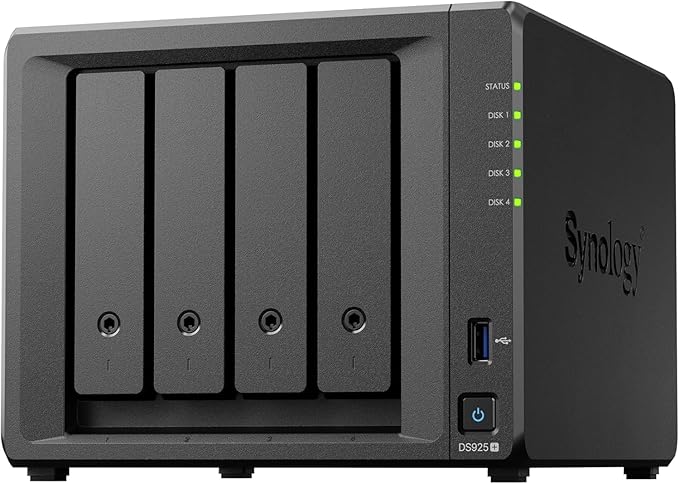
| Drive Bays | 4x 3.5"/2.5" SATA |
|---|---|
| Network | 2x 2.5GbE (with 10GbE expansion) |
| NVMe Slots | 2x M.2 2280 (SSD cache) |
| Photo Software | Synology Photos (faster AI processing) |
| Best For | Large libraries, multi-editor studios |
| AU Price (Scorptec) | $995 |
QNAP TS-464. Best for Mixed Photo and Video Workflows
The QNAP TS-464 at $999 from Scorptec suits photographers who also shoot video. It includes an Intel Celeron N5095 with hardware transcoding, two M.2 NVMe slots, and dual 2.5GbE ports. QNAP's QuMagie handles photo management with AI tagging, and the hardware transcoding engine means video thumbnails and previews generate much faster than on ARM-based competitors. The QNAP software ecosystem is broader but less polished than Synology's. Expect more configuration options but also more rough edges. HDMI output is a bonus for studio environments that want a dedicated photo display.
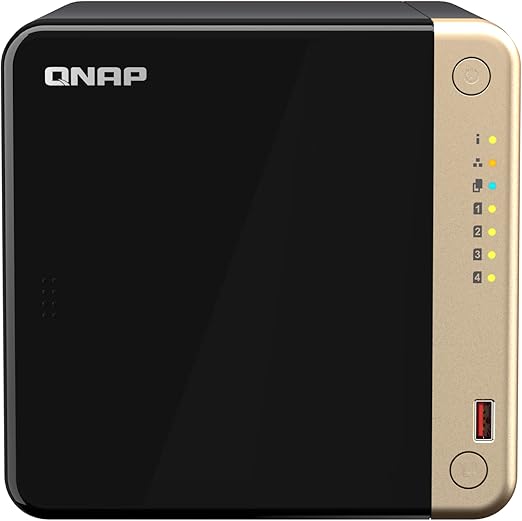
| Drive Bays | 4x 3.5"/2.5" SATA |
|---|---|
| Network | 2x 2.5GbE |
| NVMe Slots | 2x M.2 2280 |
| Photo Software | QNAP QuMagie (AI-powered) |
| Best For | Photographers who also edit video |
| AU Price (Scorptec) | $999 |
Common Mistakes to Avoid
Putting the catalog on the NAS: This is the most common mistake and the most damaging. It leads to catalog corruption, lost edits, and crashes. The catalog must always be on a local drive. Ideally an SSD for speed.
Editing on gigabit without Smart Previews: If you are on a 1 GbE network and have not built Smart Previews, every action in the Develop module requires reading from the NAS. The lag will drive you to abandon the workflow. Always build Smart Previews, and upgrade to at least 2.5GbE when budget allows.
Treating RAID as backup: RAID protects against a single drive failure. It does not protect against accidental deletion, ransomware, fire, theft, or NAS hardware failure. You need a separate backup. Ideally offsite. Photographers who lose their entire library because they assumed RAID was enough learn this lesson the hardest way possible.
Inconsistent mount paths: If your NAS share mounts as Z:\ one day and Y:\ the next, Lightroom will report all your images as missing. On Windows, use a mapped drive letter that reconnects at login. On macOS, add the NAS share to your login items. Consistency is non-negotiable.
Ignoring NAS CPU for photo apps: If you plan to use Synology Photos or QuMagie alongside Lightroom, the NAS CPU matters. ARM-based budget models (DS223j, TS-133) will take days to index a large photo library. Intel or AMD-based Plus-series models (DS225+, DS425+, DS925+) handle it in hours.
Related reading: our NAS buyer's guide.
Our File Transfer Speed Estimator calculates LAN throughput for large RAW file transfers, and our NAS Sizing Wizard helps size storage for your photo library and Lightroom catalogue.
Can I run the Lightroom Classic catalog directly from a NAS?
No. Adobe explicitly states that Lightroom Classic catalogs must be stored on a locally attached drive. Placing the catalog on a NAS or network share causes database corruption, lock file conflicts, and data loss. Store the catalog on a local SSD and only keep image files on the NAS.
What network speed do I need for Lightroom on a NAS?
2.5GbE is the practical minimum for a smooth experience. Gigabit (1 GbE) works but you will notice delays during imports, 1:1 zoom in the Develop module, and batch exports. 10GbE is ideal for large RAW libraries or studios with multiple editors accessing the NAS simultaneously. All current Synology Plus-series models (DS225+, DS425+, DS925+) include at least one 2.5GbE port. For detailed setup guidance, see our NAS networking guide.
Do Smart Previews reduce image quality when editing?
Smart Previews are lossy DNG files at approximately 2540 pixels on the long edge, so they are lower resolution than your originals. However, all edits made on Smart Previews are non-destructive adjustments stored in the catalog. When you export, Lightroom applies those edits to the full-resolution original file from the NAS. There is no quality loss in your final output.
Is Capture One better than Lightroom for NAS workflows?
Capture One's session-based workflow is more NAS-friendly than Lightroom's catalog model, because entire sessions (including adjustments and cache) can live on the NAS and be opened from multiple workstations. For multi-editor studio environments, Capture One has a genuine advantage. For solo photographers already in the Adobe ecosystem, Lightroom Classic with Smart Previews is perfectly capable. And Synology Photos adds a layer of photo management that Capture One does not provide.
How much NAS storage do I need for photography?
A rough guide: 1 TB holds approximately 20,000-25,000 RAW files from a 45 MP camera. Most serious amateur photographers accumulate 2-5 TB over several years, while working professionals can reach 10-20 TB. A 4-bay NAS with 8 TB drives in SHR gives you roughly 24 TB usable. Enough for most photographers for 5+ years. Start with the capacity you need now plus 50% headroom, and remember you can upgrade to larger drives later without losing data (in SHR or RAID 5).
Can I access my NAS photos remotely when travelling?
Yes, but Australian NBN upload speeds limit the experience. Synology QuickConnect and QNAP myQNAPcloud both provide remote access without port forwarding, though CGNAT on some NBN connections (particularly fixed wireless and satellite) can block direct remote access entirely. For browsing thumbnails and downloading individual files, remote access works well. For editing RAW files remotely, the bandwidth is insufficient. Use Smart Previews on your laptop instead and sync edits when you return to the local network.
Should I use Lightroom CC (cloud) or Lightroom Classic with a NAS?
Lightroom Classic. Lightroom CC stores originals in Adobe's cloud and does not let you designate a NAS as primary storage. For an Australian photographer with a multi-terabyte library, the ongoing Adobe cloud storage costs would exceed $150/month. Far more than the one-time cost of a NAS. Lightroom Classic keeps your originals on local storage (your NAS), gives you full control over file organisation, and does not depend on upload speeds for daily use.
Looking for the right NAS hardware to pair with your Lightroom workflow? Our detailed comparison covers models, pricing, and photo management features.
Read: Best NAS for Photography Australia →