Every Mac user needs a backup strategy, and a NAS running Time Machine over your local network is the most reliable way to protect multiple Macs automatically without paying monthly cloud fees. The challenge is choosing the right NAS. Not every model handles Time Machine equally well, and the setup process varies significantly between brands. This guide covers the best NAS options for Time Machine in Australia in 2026, with current AU pricing from Mwave, Scorptec, and PLE.
For a broader overview of this topic, see our complete home backup guide.
In short: The Synology DS225+ ($549-$599) is the best NAS for Time Machine for most Australian Mac users. Synology's DSM operating system has the most mature, reliable Time Machine integration of any NAS brand. It works out of the box with minimal configuration. If you need four bays for more storage or to back up more Macs, step up to the Synology DS425+ ($819-$999). QNAP models also support Time Machine but require more manual setup.
Why Use a NAS for Time Machine Instead of a USB Drive?
Apple's Time Machine was originally designed to work with a directly connected USB drive. It still works that way, but a NAS offers significant advantages for households and small offices with multiple Macs:
- Back up every Mac automatically. A NAS sits on your network and accepts Time Machine backups from every Mac in the house. No need to plug in a drive to each machine.
- Always-on protection. A NAS runs 24/7, so backups happen on schedule without requiring you to remember to connect a drive.
- Centralised storage. One device holds all your Time Machine backups, shared files, photos, and media.
- Drive redundancy. A 2-bay or 4-bay NAS with RAID mirroring means a single drive failure does not destroy your backups. A USB drive offers no redundancy at all.
- Remote access. Some NAS brands allow you to access files remotely, giving you options beyond just backup. Though be aware that CGNAT on many Australian NBN connections can block remote access without a VPN or relay service.
The trade-off is cost. A 4TB USB drive costs around $150, while a 2-bay NAS with two drives will run $800-$1,200 all-in. But for anyone with more than one Mac, or anyone who values automated, redundant backups, a NAS is the better investment.
How Time Machine Works Over a Network
Time Machine over a network uses Apple's SMB (Server Message Block) protocol. When you set up a NAS as a Time Machine destination, the NAS advertises itself on your local network via Bonjour/mDNS, and your Mac discovers it automatically in System Settings > General > Time Machine. Each Mac creates its own sparse bundle disk image on the NAS, containing its incremental backup history.
The key technical requirement is that the NAS must support SMB with Apple-compatible extensions. Specifically, the ability to advertise as a Time Machine target via Bonjour. All modern Synology and QNAP NAS devices support this, but the quality of implementation varies. Synology has invested heavily in macOS compatibility, and it shows in the setup experience.
Performance note: Your first Time Machine backup will be large. Potentially 200GB-1TB depending on your Mac's storage. Over a 1GbE connection (standard on most NAS devices), expect roughly 100MB/s. On a typical home Wi-Fi connection, expect 30-60MB/s. Subsequent incremental backups are much smaller and complete in minutes. If speed matters, connect your Mac directly to the NAS via Ethernet for the initial backup.
What to Look for in a Time Machine NAS
Not every NAS feature matters for Time Machine. Here is what actually makes a difference:
- Native Time Machine support. The NAS operating system should have a built-in option to enable Time Machine. Synology DSM has this in the control panel under File Services. QNAP QTS requires enabling the Time Machine service under Network & File Services. Asustor ADM also supports it through SMB settings.
- Per-user quotas. Essential if multiple Macs back up to the same NAS. Without quotas, one Mac can consume the entire volume. Synology handles this well. You can set individual Time Machine storage quotas per user in DSM.
- Btrfs file system. Synology Plus-series models use Btrfs, which provides data integrity checks and snapshot support. This is valuable for a backup target because Btrfs can detect and repair silent data corruption. Important when you are storing backups you may not access for months or years.
- At least 2 drive bays. A single-bay NAS provides no redundancy. A 2-bay NAS in RAID 1 (mirror) means a drive failure does not destroy your backups. For a device specifically used to protect your data, redundancy is not optional.
- Low noise and power consumption. A NAS running Time Machine backups will be on 24/7 but idle most of the time. Look for models that support HDD hibernation. For more on placement and noise, see our NAS noise and placement guide.
Best NAS for Time Machine: Our Picks
Best Overall: Synology DS225+
The Synology DS225+ is the clear standout for Time Machine users in Australia. Synology's DSM operating system has the most polished, reliable Time Machine integration of any NAS brand. You enable Time Machine in the DSM control panel, set a storage quota, create a user account for each Mac, and you are done. Your Macs discover the NAS automatically. No command-line work, no troubleshooting SMB protocols, no fiddling with settings.
The DS225+ is a 2-bay model with an Intel Celeron processor, 2GB RAM (expandable), 2.5GbE and 1GbE Ethernet ports, and support for Btrfs. Two bays in SHR (Synology Hybrid RAID) give you one-drive redundancy. If a drive fails, your Time Machine backups survive while you replace it. For a deeper look at this model, see our Synology DS225+ review.

| Model | Synology DiskStation DS225+ |
|---|---|
| Drive Bays | 2x 3.5" SATA |
| CPU | Intel Celeron (quad-core, 2.0GHz) |
| RAM | 2GB DDR4 (expandable to 6GB) |
| Network | 1x 2.5GbE + 1x 1GbE |
| File System | Btrfs / ext4 |
| Time Machine Support | Native, with per-user quotas |
| AU Price (Scorptec) | $549 |
| AU Price (Mwave) | $585 |
| AU Price (PLE) | $599 |
Pros
- Best-in-class Time Machine integration. Works out of the box
- Per-user quotas prevent one Mac from consuming all storage
- Btrfs file system with data integrity checks
- 2.5GbE port for faster initial backups
- Widely available at Australian retailers with strong stock levels
- Extensive ecosystem. Also handles photos, media, file sharing, Docker
Cons
- Only 2GB RAM out of the box. Adequate for Time Machine but limiting for heavy multitasking
- 2 bays limits total usable capacity to one drive's worth in RAID 1
- Not the cheapest 2-bay option if Time Machine is your only use case
Best 4-Bay: Synology DS425+
If you have more than three or four Macs backing up, or you want the NAS to handle file storage and media alongside Time Machine, the DS425+ gives you four bays. In SHR with four drives, you get roughly three drives' worth of usable space with single-drive redundancy. This is ideal for households or small offices where the NAS serves multiple roles. For more on what else a NAS can do, see our best NAS for home guide.
The DS425+ shares the same Intel Celeron platform and DSM operating system as the DS225+, so Time Machine setup is identical. The additional bays mean more capacity and more flexibility with your RAID configuration. If you are unsure how much storage you need, our capacity planning guide walks through the calculations.

| Model | Synology DiskStation DS425+ |
|---|---|
| Drive Bays | 4x 3.5" SATA |
| CPU | Intel Celeron (quad-core, 2.0GHz) |
| RAM | 2GB DDR4 (expandable to 6GB) |
| Network | 1x 2.5GbE + 1x 1GbE |
| File System | Btrfs / ext4 |
| Time Machine Support | Native, with per-user quotas |
| AU Price (Scorptec) | $819 |
| AU Price (Mwave) | $899 |
| AU Price (PLE) | $999 |
Pros
- Four bays provide more capacity and RAID flexibility
- Same excellent DSM Time Machine integration as the DS225+
- Room to grow. Add drives as your backup needs increase
- Can handle Time Machine, file sharing, Synology Photos, and more simultaneously
Cons
- Significantly more expensive than the 2-bay model. The NAS itself is $819+ before drives
- Four drives means higher power consumption and more noise
- Overkill if you only have one or two Macs to back up
Best Budget Option: Synology DS223
If your primary use case is Time Machine and you want to keep costs down, the Synology DS223 delivers the same reliable DSM Time Machine integration at a lower price point. The DS223 uses a Realtek ARM processor instead of the Intel Celeron in the Plus series, which means it lacks Btrfs support (ext4 only) and has less processing power for multitasking. But for Time Machine backups specifically, the DS223 performs identically to the more expensive models. The bottleneck is network speed, not CPU.
The trade-off is that the DS223 only has 1GbE networking (no 2.5GbE) and cannot run Docker or some of the more advanced Synology packages. If you plan to use the NAS exclusively or primarily for Time Machine, this does not matter. If you want a NAS that does everything, spend the extra on the DS225+. For a broader look at value options, see our best NAS under $500 guide.

| Model | Synology DiskStation DS223 |
|---|---|
| Drive Bays | 2x 3.5" SATA |
| CPU | Realtek RTD1619B (quad-core, 1.47GHz) |
| RAM | 2GB DDR4 (not expandable) |
| Network | 1x 1GbE |
| File System | ext4 only |
| Time Machine Support | Native, with per-user quotas |
| AU Price (Scorptec) | $489 |
| AU Price (Mwave) | $489 |
| AU Price (PLE) | $479 |
Pros
- Most affordable Synology 2-bay with full Time Machine support
- Same DSM interface and Time Machine setup as Plus-series models
- Low power consumption and quiet operation
- Widely available in Australia
Cons
- No Btrfs. Ext4 only means no data integrity checks or snapshots
- 1GbE only. No 2.5GbE option for faster transfers
- ARM processor limits multitasking and rules out Docker
- 2GB RAM is not expandable
Best QNAP Alternative: QNAP TS-264
If you prefer QNAP or already own QNAP hardware, the TS-264 is a strong 2-bay option for Time Machine. QNAP's QTS operating system supports Time Machine through its Network & File Services settings, and the TS-264 has an Intel Celeron N5095 processor with 8GB RAM. Significantly more powerful than the Synology DS225+ on paper. It also includes dual 2.5GbE ports, HDMI output, and two M.2 NVMe SSD slots for caching.
The downside is that QNAP's Time Machine implementation requires slightly more configuration than Synology's. You need to enable the service, configure SMB settings, and in some cases manually set the Bonjour advertisement. It works well once configured, but the out-of-the-box experience is not as seamless. For a detailed comparison between the two brands, see our Synology vs QNAP guide.

| Model | QNAP TS-264-8G |
|---|---|
| Drive Bays | 2x 3.5" SATA + 2x M.2 NVMe |
| CPU | Intel Celeron N5095 (quad-core, 2.9GHz) |
| RAM | 8GB DDR4 (expandable to 16GB) |
| Network | 2x 2.5GbE |
| File System | ext4 / ZFS (via QuTS hero) |
| Time Machine Support | Supported via QTS Network & File Services |
| AU Price (PLE) | $819 |
| AU Price (Mwave) | $917 |
| AU Price (Scorptec) | $949 |
Pros
- Powerful Intel Celeron N5095 with 8GB RAM. Handles heavy multitasking
- Dual 2.5GbE ports with link aggregation support
- Two M.2 NVMe SSD slots for caching
- HDMI output for direct media playback
- ZFS option via QuTS hero for advanced data integrity
Cons
- Time Machine setup is more involved than Synology's
- QNAP's QTS interface has a steeper learning curve for Mac users
- More expensive than the Synology DS225+ at most retailers
- Higher power consumption due to more powerful hardware
Best for Power Users: Synology DS925+
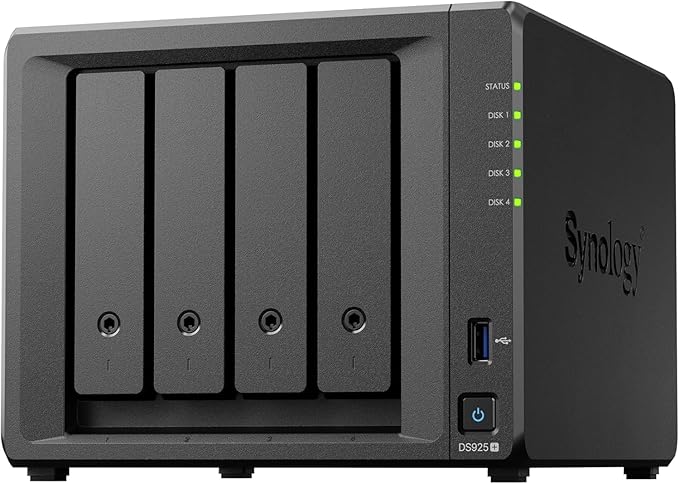
The DS925+ is for Mac users who want a NAS that handles Time Machine alongside serious workloads. Synology Photos for an entire family, Docker containers, surveillance cameras, or Plex media streaming. It is a 4-bay model with an AMD Ryzen quad-core processor, 4GB RAM (expandable to 16GB with unofficial modules), dual 2.5GbE, and two M.2 NVMe slots for SSD caching.
For Time Machine specifically, the DS925+ is more than you need. But if the NAS will be the central hub of your home network. Handling backups, files, photos, and containers. The extra processing power and RAM headroom make a meaningful difference. Read our full DS925+ review for performance benchmarks.
| Model | Synology DiskStation DS925+ |
|---|---|
| Drive Bays | 4x 3.5" SATA + 2x M.2 NVMe |
| CPU | AMD Ryzen (quad-core) |
| RAM | 4GB DDR4 (expandable) |
| Network | 2x 2.5GbE |
| File System | Btrfs / ext4 |
| Time Machine Support | Native, with per-user quotas |
| AU Price (Scorptec) | $995 |
| AU Price (Mwave) | $1,029 |
| AU Price (PLE) | Check availability |
Pros
- AMD Ryzen processor handles Time Machine plus demanding workloads simultaneously
- 4GB RAM with expansion options. Future-proof for growing needs
- Dual 2.5GbE and M.2 NVMe SSD caching slots
- Expandable to 9 bays with a DX525 expansion unit
- Btrfs with advanced snapshot and data integrity features
Cons
- Overkill and expensive if Time Machine is your primary use case
- At ~$1,000 before drives, the total cost with 4 NAS drives exceeds $2,000
- Higher power draw than the DS225+ or DS223
Comparison Table
Best NAS for Time Machine. Quick Comparison
|
DS225+
|
DS425+
|
DS223
|
TS-264
|
DS925+
|
|
|---|---|---|---|---|---|
| Brand | Synology | Synology | Synology | QNAP | Synology |
| Bays | 2 | 4 | 2 | 2 + 2x M.2 | 4 + 2x M.2 |
| CPU | Intel Celeron | Intel Celeron | Realtek ARM | Intel Celeron N5095 | AMD Ryzen |
| RAM | 2GB | 2GB | 2GB | 8GB | 4GB |
| Network | 2.5GbE + 1GbE | 2.5GbE + 1GbE | 1GbE | 2x 2.5GbE | 2x 2.5GbE |
| Btrfs Support | Yes | Yes | No | No (ZFS via QuTS) | Yes |
| TM Setup Ease | Excellent | Excellent | Excellent | Good | Excellent |
| Starting AU Price | $599 (PLE Computers) | $819 | $479 | $819 | $995 |
| Best For | Most Mac users | Multiple Macs / mixed use | Budget TM only | QNAP users / power users | Heavy multitasking |
Prices last verified: 16 March 2026. Always check retailer before purchasing.
How to Set Up Time Machine on a Synology NAS
Setting up Time Machine on a Synology NAS takes about 10 minutes. Here is the process:
- Create a shared folder. In DSM, go to Control Panel > Shared Folder and create a dedicated folder for Time Machine backups (e.g., "TimeMachine"). Use Btrfs if available.
- Create user accounts. Create a separate DSM user for each Mac. Assign each user read/write access to the Time Machine shared folder only.
- Enable Time Machine. Go to Control Panel > File Services > SMB > Advanced. Tick "Enable Bonjour Time Machine broadcast over SMB." Select the shared folder you created.
- Set quotas. In the Time Machine settings, set a storage quota per user. A good rule of thumb is 2-3x the Mac's internal storage. For a 512GB Mac, set a 1TB-1.5TB quota.
- Connect from your Mac. Open System Settings > General > Time Machine on your Mac. Click the + button to add a backup disk. Your Synology NAS will appear in the list. Select it, enter the user credentials, and Time Machine begins its first backup.
For a complete walkthrough including network settings and troubleshooting, see our Synology NAS setup guide.
How Much Storage Do You Need for Time Machine?
Time Machine keeps hourly backups for the past 24 hours, daily backups for the past month, and weekly backups until the disk is full. The initial backup is roughly the size of your Mac's used storage. After that, incremental backups add only what has changed.
As a practical guideline:
- 1 Mac with 256GB-512GB storage: Allocate 1TB on the NAS (in RAID 1, you need 2x 1TB drives or larger).
- 2-3 Macs: Allocate 1TB per Mac. A 2-bay NAS with 2x 4TB drives in RAID 1 gives you ~4TB usable. Enough for 3-4 Macs.
- 4+ Macs or mixed use: Consider a 4-bay NAS. Four 4TB drives in SHR give you ~12TB usable, with plenty of room for Time Machine plus file storage.
For a detailed breakdown of storage calculations including RAID overhead, see our NAS capacity planning guide. For drive recommendations, our best NAS hard drive guide covers the current options and AU pricing.
What About UGREEN, Asustor, and TerraMaster?
Asustor supports Time Machine through its ADM operating system via SMB. The setup process is straightforward, and models like the Asustor Drivestor 2 Pro Gen2 (AS3302T V2) at $389-$439 offer good value. However, Asustor's Time Machine quota management is less refined than Synology's, and the user base is smaller. Meaning fewer community guides if you run into issues. Asustor is a valid choice, particularly at the lower price points, but Synology remains the safer bet for Mac-focused households.
TerraMaster supports Time Machine through TOS (TerraMaster Operating System). The F2-425 at $459 (Scorptec) is competitively priced, but TerraMaster's software maturity lags behind Synology and QNAP. Time Machine works, but the setup experience and long-term reliability of the software stack are less proven. TerraMaster has limited presence in the Australian market through DSTech distribution. For more detail, see our TerraMaster NAS Australia guide.
UGREEN is the newest entrant to the NAS market with its NASync range. UGREEN's UGOS operating system does support Time Machine, but the software is still maturing. More importantly, UGREEN does not yet have an official Australian distributor, which means warranty claims currently go through international channels. Until UGREEN establishes local distribution. Expected sometime in 2026. The support risk is higher than buying from an established brand through an Australian retailer. See our UGREEN NAS Australia guide for the latest.
Time Machine Is Not a Complete Backup Strategy
This is critical to understand: backing up your Mac to a NAS with Time Machine is one copy of your data on one device in one location. If your NAS is stolen, damaged by fire or flood, or suffers a catastrophic multi-drive failure, your Time Machine backups are gone along with it.
A proper backup strategy follows the 3-2-1 rule: three copies of your data, on two different types of media, with one copy offsite. Your Mac's internal storage is copy one. The NAS is copy two. Copy three should be offsite. Either a cloud backup service (Synology C2, Backblaze B2, or similar) or a second NAS at another location. Synology's Hyper Backup makes this easy to automate.
A NAS is not a backup. It is one layer of a backup strategy. Hardware failure is a matter of when, not if. Plan for a 2-3 week replacement window if your NAS fails under warranty in Australia, and ensure your critical data exists in at least one other location. ACL protects your hardware purchase, not your data.
Buying a NAS in Australia: Pricing and Retailer Tips
Australian NAS pricing is currently running 10-20% above US levels, driven by lower stock allocations, higher freight costs, and smaller market volumes. The good news is that pricing is remarkably uniform across the major Australian retailers. Most operate on 3-5% NAS margin, so you will not find dramatic price differences between Scorptec, Mwave, and PLE. The real difference between retailers is what happens when something goes wrong.
For first-time NAS buyers, purchasing from a specialist like Scorptec or PLE is worthwhile. These retailers carry a full range, hold stock locally, and can provide genuine pre-sales guidance. Amazon AU has started holding NAS stock directly and sometimes undercuts local pricing, but their support model means you are on your own if a unit fails with your data inside it. For a comprehensive rundown, see our where to buy NAS in Australia guide.
Australian Consumer Law note: ACL protections apply when purchasing from Australian retailers. Your warranty claim goes to the retailer, not the manufacturer. Synology, QNAP, and Asustor do not have service centres in Australia. Before buying, ask your retailer: "If this unit fails, what is your process? Is an advanced replacement available?" The answer tells you more about the value of buying from that retailer than the price on the website. For official information on your consumer rights, visit accc.gov.au.
Don't Forget the Drives
All NAS devices recommended here are sold diskless. You need to buy hard drives separately. For Time Machine use, NAS-rated drives like the Seagate IronWolf or WD Red Plus are the standard choices. These drives are designed for 24/7 operation in multi-bay enclosures with vibration tolerance and error recovery firmware tuned for RAID environments. Our Seagate IronWolf vs WD Red comparison covers the differences in detail.
NAS-grade drive prices have risen significantly from early 2025 levels. A 4TB NAS drive that was comfortably under $160 in early 2025 now sits above $200 in most Australian stores. Factor drive costs into your total budget. A DS225+ at $549 plus two 4TB IronWolf drives at approximately~$538 each brings your total to around $950.
NBN Considerations for Remote Time Machine Access
Time Machine is designed for local network backups. It runs over your home or office LAN. You do not need fast internet for Time Machine to work. However, if you also want to access your NAS remotely (to retrieve files while travelling, for example), your NBN connection matters.
On a typical NBN 100 plan, upload speeds max out around 20-40Mbps (2.5-5MB/s). This is fine for grabbing a few files remotely but far too slow for running Time Machine backups over the internet. Time Machine should always run on the local network.
Be aware that CGNAT (Carrier-Grade NAT), used by some Australian ISPs on NBN fixed wireless and satellite connections, blocks incoming connections entirely. If your ISP uses CGNAT, you cannot access your NAS remotely without a relay service (like Synology's QuickConnect or QNAP's myQNAPcloud) or a VPN with a relay endpoint. For a full breakdown of remote access options, see our NAS remote access and VPN guide.
Use our free NAS Sizing Wizard to get a personalised NAS recommendation.
Related reading: our NAS buyer's guide.
Can I use any NAS for Time Machine, or does it need to be Synology?
Any NAS that supports SMB with Bonjour Time Machine advertising will work. Synology, QNAP, Asustor, TerraMaster, and UGREEN all support Time Machine. However, Synology has the most polished and reliable implementation. If you specifically want the easiest Time Machine experience, Synology is the safest choice. If you already own a QNAP or Asustor NAS, it will work. Just expect a bit more manual configuration.
How many Macs can back up to one NAS?
There is no hard limit on the number of Macs. It depends on storage capacity and available quotas. A 2-bay NAS with 2x 4TB drives in RAID 1 (~4TB usable) can comfortably handle 3-4 Macs with 512GB internal storage each, assuming 1TB quotas. The NAS processes backups sequentially, so if multiple Macs back up simultaneously, it takes longer but does not cause issues. For larger households or offices, a 4-bay NAS provides more headroom.
Is Time Machine over Wi-Fi reliable, or should I use Ethernet?
Time Machine over Wi-Fi is reliable for ongoing incremental backups, which are typically small (a few hundred MB to a few GB). The initial full backup is where Wi-Fi can be frustrating. Backing up 500GB over Wi-Fi at 30-50MB/s can take several hours. For the first backup, connecting your Mac to the NAS via Ethernet (or at minimum, ensuring both devices are on the same 5GHz Wi-Fi band with a strong signal) significantly speeds things up. After that, Wi-Fi is fine for daily use.
Do I need a NAS with 2.5GbE for Time Machine?
Not strictly. Standard 1GbE (~110MB/s theoretical, ~100MB/s real-world) is more than adequate for incremental Time Machine backups. Where 2.5GbE helps is the initial full backup and any large file transfers you do alongside Time Machine. If your Mac has a Thunderbolt port, a USB-C to 2.5GbE adapter (around $30-$50) lets you take advantage of the faster connection. For most home users, 1GbE is perfectly fine.
What happens if my NAS fails. Are my Time Machine backups lost?
If the NAS unit fails but the drives are intact, your data is usually recoverable. You can install the drives in a replacement NAS of the same model (or compatible model) and the RAID array will be recognised. If the drives themselves fail, the data is gone. Which is why RAID 1 (mirroring) is strongly recommended for a backup NAS. With RAID 1, one drive can fail completely and your data remains accessible on the surviving drive. However, RAID is not a backup. It protects against a single drive failure, not theft, fire, or multi-drive failure. Always maintain an offsite copy of critical data.
Can I use a single-bay NAS for Time Machine?
Technically yes. Models like the Synology DS124 ($269-$289) support Time Machine. However, a single-bay NAS offers zero drive redundancy. If the one drive fails, all your backups are lost. For a device whose entire purpose is protecting your data, this defeats the point. A 2-bay NAS in RAID 1 is the minimum sensible configuration for any backup use case. The small price difference between a 1-bay and 2-bay NAS is well worth the added protection.
Will Time Machine work with a QNAP or Asustor NAS running Btrfs or ZFS?
Yes. Time Machine does not care about the underlying file system on the NAS. It communicates via SMB. Whether the NAS volume is formatted as ext4, Btrfs, or ZFS, Time Machine will work the same way. The file system choice affects the NAS's data integrity features and snapshot capabilities, not Time Machine compatibility. QNAP's QuTS hero with ZFS and Synology's DSM with Btrfs both work fine as Time Machine targets.
Looking for the best NAS for your Mac setup? Browse our complete buying guides for more recommendations tailored to Australian buyers.
Read Best NAS for Mac Australia →