A NAS-based surveillance system gives you local storage, no monthly cloud fees, and full control over your footage. But the real cost in Australia goes beyond the NAS hardware. Camera licenses, hard drive costs, and NBN upload limitations all factor into the total price. Synology Surveillance Station and QNAP QVR Pro are the two dominant platforms, and both work well. But they take fundamentally different approaches to licensing that will affect your budget from day one. This guide breaks down the best NAS options for surveillance in Australia with current AU pricing, explains what actually matters when choosing a surveillance NAS, and highlights the pitfalls that catch first-time buyers off guard.
For a broader overview of this topic, see our NAS buying guide hub.
In short: The Synology DS425+ ($819 at Scorptec) suits most Australian homes running 2-8 cameras. Surveillance Station is polished and reliable, and you get 2 free camera licenses. For larger deployments or tighter budgets on camera licenses, the QNAP TS-464 ($999 at Scorptec) includes 8 free camera channels via QVR Pro. If you're already in the Ubiquiti UniFi ecosystem, the UNVR-Instant ($429 at PLE) or UNAS-2 ($479 at PLE) are purpose-built alternatives worth considering.
Why Use a NAS for Surveillance Instead of a Cloud NVR?
Cloud-based surveillance services like Ring, Arlo, and Google Nest charge ongoing monthly fees. Typically $10-$20 per camera per month in Australia. Over a few years, those subscriptions easily exceed the one-time cost of a NAS. A NAS stores all footage locally on your own drives, with no subscription required. You own the hardware, you own the footage, and you control retention periods and access.
The trade-off is that a NAS requires more upfront investment and some technical setup. You need the NAS hardware, surveillance-rated hard drives, compatible IP cameras, and in some cases additional camera licenses. But for anyone running 4 or more cameras, the NAS approach typically pays for itself within 18-24 months compared to cloud subscriptions. For a deeper look at this comparison, see our NAS vs cloud storage guide.
What to Look for in a Surveillance NAS
CPU and RAM. More Important Than You Think
Surveillance recording is CPU-intensive, especially when multiple cameras stream simultaneously. Each 4K camera can generate 8-15 Mbps of continuous data. Motion detection, thumbnail generation, and especially any AI-based analytics (person detection, vehicle recognition) all add load. A NAS that handles file storage comfortably may struggle under continuous surveillance workloads.
For 1-4 cameras at 1080p, most modern NAS devices with a quad-core CPU and 2GB RAM will cope. For 4-8 cameras or 4K streams, you need a Celeron-class or better CPU with at least 4GB RAM. Above 8 cameras, look at Ryzen-powered NAS units or dedicated NVR appliances. Hardware transcoding support (Intel Quick Sync) helps significantly if you plan to view live feeds remotely through a web browser.
Camera Licenses. The Hidden Cost
This is where many Australian buyers get surprised. Synology includes just 2 free camera licenses with every NAS. Additional licenses cost $99 per camera or $349 for a 4-pack at Mwave. A home system with 6 cameras means the NAS plus 4 extra licenses. That is an extra $349 on top of the hardware cost. QNAP takes a different approach: QVR Pro includes 8 free camera channels on most models, with additional channels available at lower per-camera pricing. For larger deployments, the license cost difference between Synology and QNAP can be substantial.
Camera License Costs. Synology vs QNAP
| Synology Surveillance Station | QNAP QVR Pro | |
|---|---|---|
| Free camera licenses | 2 per NAS | 8 per NAS (most models) |
| Additional license cost (1 camera) | $99 (Mwave AU) | ~$50-70 (varies) |
| Additional license cost (4 cameras) | $349 (Mwave AU) | ~$150-200 (varies) |
| Cost for 8-camera system | NAS + $549 in licenses | NAS + $0 (included) |
| Cost for 16-camera system | NAS + $1,197+ in licenses | NAS + ~$400-560 in licenses |
| AI analytics available | DVA series only | QVR Pro AI add-on |
Hard Drives. Use Surveillance-Rated Drives
Surveillance workloads differ from standard NAS file storage. Cameras write continuously, 24/7, with minimal read operations. Standard NAS drives (Seagate IronWolf, WD Red Plus) are optimised for mixed read/write. They work in a surveillance NAS, but dedicated surveillance drives are better suited to the workload pattern.
Seagate SkyHawk and WD Purple are the two surveillance-specific drive lines. They are designed for continuous sequential writes, support higher camera counts per drive, and include firmware optimisations that reduce dropped frames under heavy write loads. For most home systems (4-8 cameras), standard NAS drives like IronWolf or WD Red will perform adequately. For larger deployments or business use, surveillance-rated drives are worth the modest premium.
Storage calculation: A single 4K camera recording continuously at 10 Mbps generates roughly 100 GB per day, or about 3 TB per month. A 4-camera 1080p system at 4 Mbps generates around 170 GB per day. For motion-triggered recording, expect 30-50% of continuous recording volumes. Plan your drive capacity around your retention requirements. 30 days is a common minimum for home systems.
Not sure how much storage your cameras need? Our free NVR Storage Calculator gives you a realistic estimate based on camera count, resolution, codec, and retention. Plus a drive configuration suggestion.
Calculate Storage NeedsRemote Access. NBN Upload Speeds and CGNAT
Viewing surveillance footage remotely relies on your home internet upload speed. On a typical NBN 100/20 plan, you have roughly 20 Mbps upload. Enough for one or two 1080p streams viewed remotely, but not enough for multiple simultaneous 4K streams. Most surveillance apps (Synology Surveillance Station, QNAP QVR Pro) will transcode to a lower resolution for remote viewing, which helps, but expect some quality reduction when viewing away from home.
A bigger issue for Australian users is CGNAT (Carrier-Grade NAT). Some NBN providers. Particularly those on mobile-based or fixed wireless connections. Use CGNAT, which blocks direct inbound connections to your NAS. This means standard port forwarding for remote access will not work. Both Synology (via QuickConnect) and QNAP (via myQNAPcloud) offer relay services that work around CGNAT, but they route traffic through the vendor's servers, which adds latency and may reduce throughput. If remote viewing is a priority, check whether your ISP uses CGNAT before committing to a NAS-based surveillance setup, or consider an ISP that offers a static IP or does not use CGNAT.
Best NAS for Home Surveillance (2-4 Cameras)
Synology DS225+. Best for Most Homes
The Synology DS225+ is the entry point for a proper Synology surveillance setup. It includes 2 free Surveillance Station camera licenses, which is enough for a front door and driveway camera at no extra cost beyond the hardware. The Intel Celeron CPU handles 1080p recording from a handful of cameras without breaking a sweat, and the 2.5GbE port ensures your surveillance traffic does not bottleneck on a busy home network.
The DS225+ suits homes that want a combined NAS and basic surveillance system. File storage, photo backup, and 2-4 cameras running side by side. If surveillance is your primary use case and you need more than 2 cameras, factor in the license costs: a 4-camera setup means adding a $349 license pack. For a more detailed look at this model, see our Synology NAS Australia guide.

| CPU | Intel Celeron (quad-core, 2.0 GHz) |
|---|---|
| RAM | 2 GB DDR4 (expandable) |
| Drive Bays | 2x 3.5" SATA |
| Network | 1x 2.5GbE + 1x 1GbE |
| Included Camera Licenses | 2 |
| Max Supported Cameras | Up to 15 (with additional licenses) |
| AU Price (Scorptec) | $549 |
| AU Price (Mwave) | $585 |
| AU Price (PLE) | $599 |
Pros
- Synology Surveillance Station is the most polished NAS surveillance platform available
- 2 free camera licenses cover a basic home setup
- Compact 2-bay form factor. Easy to tuck into a cupboard or shelf
- QuickConnect relay works around CGNAT for remote viewing
- Strong dual-purpose: file storage and surveillance on one device
Cons
- Only 2 free camera licenses. Expanding to 4+ cameras gets expensive fast
- 2 drive bays limits total storage capacity and RAID options (RAID 1 halves usable space)
- 2 GB RAM is tight if running surveillance alongside other heavy workloads
Synology DS425+. Best All-Round Surveillance NAS
The DS425+ is the surveillance sweet spot in the Synology lineup. Four drive bays give you the capacity for proper RAID 5 protection (one drive of redundancy) while maintaining enough usable storage for weeks of multi-camera footage. The Intel Celeron CPU with Quick Sync handles recording and remote transcoding for 4-8 cameras comfortably. It is the NAS that suits a home with a full perimeter camera setup. Front, back, side, driveway, garage.
The main consideration is still Synology's licensing model. You get 2 free cameras, and anything beyond that costs $99-$349 depending on how many you add. For a 6-camera home system, budget the DS425+ plus a 4-camera license pack (~$785 at Mwave). Roughly $1,168-$1,248 total before drives.

| CPU | Intel Celeron (quad-core, 2.0 GHz) |
|---|---|
| RAM | 2 GB DDR4 (expandable) |
| Drive Bays | 4x 3.5" SATA |
| Network | 1x 2.5GbE + 1x 1GbE |
| Included Camera Licenses | 2 |
| Max Supported Cameras | Up to 25 (with additional licenses) |
| AU Price (Scorptec) | $819 |
| AU Price (Mwave) | $899 |
| AU Price (PLE) | $999 |
Pros
- 4 bays allow RAID 5. Good balance of redundancy and usable storage
- Handles 4-8 cameras recording simultaneously with headroom to spare
- Surveillance Station's mobile app for live viewing is excellent
- Can run file storage, backup, and surveillance all on one device
- 2.5GbE networking for faster local access to footage
Cons
- Still only 2 free camera licenses. Plan for license costs
- 2 GB base RAM may need upgrading for heavy surveillance workloads
- Synology license pricing adds up quickly on larger camera counts
Best NAS for Larger Surveillance Systems (8+ Cameras)
QNAP TS-464. Best Value for 8+ Cameras
The QNAP TS-464 is the strongest value proposition for surveillance in Australia when camera count matters. QVR Pro includes 8 free camera channels. Four times what Synology offers. Which means a full 8-camera home or small business system runs with no additional license fees. The Celeron N5095 CPU with 8 GB RAM handles concurrent recording and live viewing across all 8 channels comfortably, and dual 2.5GbE ports provide bandwidth headroom.
QNAP's QVR Pro is a capable surveillance platform, though it is not as visually polished as Synology Surveillance Station. The mobile app works well for live viewing and playback, and QVR Pro supports ONVIF cameras broadly. For a deeper comparison of the two brands, see our Synology vs QNAP guide.
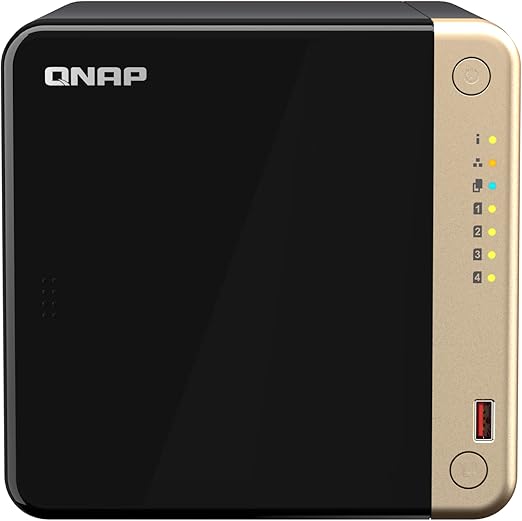
| CPU | Intel Celeron N5095 (quad-core, 2.9 GHz) |
|---|---|
| RAM | 8 GB DDR4 (expandable to 16 GB) |
| Drive Bays | 4x 3.5" SATA + 2x M.2 NVMe |
| Network | 2x 2.5GbE |
| Included Camera Licenses | 8 (QVR Pro) |
| Max Supported Cameras | Up to 40+ (with additional licenses) |
| AU Price (Scorptec) | $999 |
| AU Price (PLE) | $1,099 |
| AU Price (Mwave) | Check availability |
Pros
- 8 free camera licenses. An 8-camera system costs nothing extra
- 8 GB RAM out of the box handles surveillance plus other NAS duties
- Dual 2.5GbE ports with link aggregation for high-bandwidth camera networks
- Two M.2 NVMe slots can be used as SSD cache for faster scrubbing through footage
- HDMI output for direct monitor connection. Useful for a dedicated surveillance display
Cons
- QVR Pro's interface is less intuitive than Synology Surveillance Station
- QNAP's security track record has historically been weaker than Synology's. Keep firmware updated
- QTS operating system has a steeper learning curve for first-time NAS users
Synology DS925+. Premium Surveillance for Business
The DS925+ is the Synology option for buyers who want the best surveillance software in a NAS with enough grunt for a serious multi-camera deployment. The AMD Ryzen CPU and 4 GB RAM (expandable) handle 8-12 cameras comfortably, even alongside Active Backup, file sharing, and other workloads. For small businesses needing both surveillance and proper data backup on one box, the DS925+ is the NAS to build on. See our best NAS for small business guide for more on this model in a business context.
The license cost stings more at this level. An 8-camera business deployment on a DS925+ requires 6 additional licenses (2 included), adding roughly~$980 in license fees. The total system cost. NAS plus licenses, before drives. Approaches $1,544-$1,578. That is more than a QNAP TS-464 with 8 free channels, but you are paying for Synology's superior surveillance software, tighter security posture, and the DSM ecosystem.
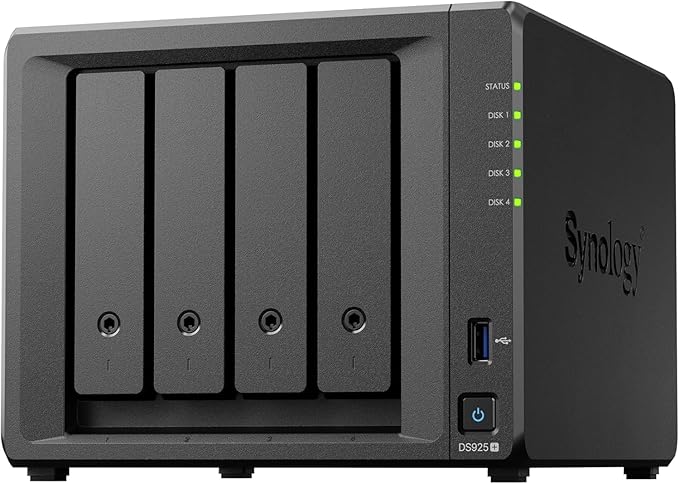
| CPU | AMD Ryzen (quad-core) |
|---|---|
| RAM | 4 GB DDR4 ECC (expandable) |
| Drive Bays | 4x 3.5" SATA + 2x M.2 NVMe |
| Network | 2x 2.5GbE |
| Expansion | DX525 expansion unit support (up to 2) |
| Included Camera Licenses | 2 |
| AU Price (Scorptec) | $995 |
| AU Price (Mwave) | $1,029 |
Pros
- Ryzen CPU handles 8-12 cameras alongside other workloads
- ECC RAM option adds reliability for 24/7 surveillance operation
- Synology Surveillance Station is best-in-class for usability
- Expansion unit support allows scaling storage without replacing the NAS
- Synology's security track record is strong. Critical for internet-connected surveillance
Cons
- Only 2 free camera licenses. An 8-camera system adds $549 in license costs
- Premium pricing compared to QNAP equivalents
- Total system cost (NAS + licenses + drives) is significant for small businesses
Alternative: QNAP TS-473A. Ryzen Power for Heavy Surveillance
For deployments approaching 12-16 cameras, the QNAP TS-473A brings an AMD Ryzen V1500B CPU and 8 GB RAM to the table. This is a genuinely powerful NAS that handles heavy concurrent recording, AI-based motion detection, and remote viewing without throttling. Combined with 8 free QVR Pro camera channels, this is the most cost-effective option for larger installations. It suits small businesses, warehouses, and multi-site retail setups where camera count justifies a more capable NAS.

| CPU | AMD Ryzen V1500B (quad-core, 2.2 GHz) |
|---|---|
| RAM | 8 GB DDR4 (expandable to 64 GB) |
| Drive Bays | 4x 3.5" SATA + 2x M.2 NVMe |
| Network | 2x 2.5GbE |
| Included Camera Licenses | 8 (QVR Pro) |
| AU Price (Scorptec) | $1,369 |
| AU Price (PLE) | $1,489 |
Budget Option: Synology DS423 or QNAP TS-433
If budget is tight and you only need 2-4 cameras, value-tier models can work. The Synology DS423 ($635 at Scorptec, $699 at Mwave) runs Surveillance Station with 2 free licenses and an ARM-based CPU that handles basic 1080p recording. The QNAP TS-433 ($649 at Scorptec, $699 at PLE) offers 8 QVR Pro channels on similar ARM hardware.
These are not powerhouses. They will struggle with 4K cameras, concurrent live viewing, and heavy motion detection processing. But for a basic home setup with 2-4 cameras recording at 1080p with motion-triggered recording, they get the job done at a lower price point. Don't expect to run them as a combined file server and surveillance system under heavy load. For a broader look at affordable NAS options, see our best NAS under $500 guide.
Ubiquiti UniFi. The Ecosystem Alternative
Ubiquiti's UniFi Protect is not a traditional NAS surveillance platform. It is a purpose-built NVR (Network Video Recorder) ecosystem. If you are already running UniFi networking gear (routers, switches, access points), UniFi Protect integrates natively with no camera licenses, no subscription fees, and a single-pane management interface across your entire network and camera system.
The UNVR-Instant ($429 at PLE) is a compact single-bay NVR that supports up to 8 cameras. The UNAS-2 ($479 at PLE in both black and white) is a 2-bay device running UniFi OS that can host UniFi Protect alongside UniFi Network. For larger deployments, the UDM-Pro ($869 at PLE) combines a router, switch, and NVR in one device with a built-in hard drive bay.
The catch: UniFi Protect only works with Ubiquiti cameras. You cannot use third-party ONVIF or RTSP cameras. Ubiquiti cameras are solid. The G5 Dome is $299 at PLE and the new G6 Bullet is $429-$439 at PLE. But you are locked into the ecosystem. If you want flexibility to mix camera brands, a Synology or QNAP NAS is a better choice.
Total System Cost Comparison
The true cost of a NAS surveillance system includes the NAS, drives, and camera licenses. Below is a realistic breakdown for a 4-camera and 8-camera home system in Australia, using current AU retail pricing. Drive costs are based on 4 TB Seagate IronWolf or equivalent NAS-grade drives.
Total System Cost. 4-Camera Home Setup (1080p)
|
Synology DS425+
|
QNAP TS-464
|
Ubiquiti UNVR-Instant | |
|---|---|---|---|
| NAS/NVR unit | $819 (Scorptec) | $999 (Scorptec) | $429 (PLE) |
| Additional camera licenses | $349 (4-pack minus 2 free = 2 extra needed; buy 1x $99 x2 = $198) | $0 (8 free) | $0 (no licenses) |
| 2x 4TB NAS drives (est.) | ~$400 | ~$400 | ~$200 (1 drive) |
| Approx. total (before cameras) | ~$1,417 | ~$1,399 | ~$629 |
| Camera flexibility | Any ONVIF camera | Any ONVIF camera | Ubiquiti cameras only |
For the 4-camera scenario, QNAP and Synology land at similar total costs. The QNAP saves on licenses but costs more for the hardware. Ubiquiti is significantly cheaper upfront but locks you into their camera ecosystem. And Ubiquiti cameras themselves cost more than many third-party ONVIF options.
Camera Compatibility. ONVIF Is Your Friend
Both Synology Surveillance Station and QNAP QVR Pro support the ONVIF standard, which means they work with the vast majority of IP cameras available in Australia. Brands like Hikvision, Dahua, Reolink, Axis, and TP-Link all produce ONVIF-compatible cameras at various price points. You are not locked into any specific camera brand when using a NAS-based surveillance system. Unlike Ubiquiti's closed ecosystem.
Synology maintains an official camera compatibility list on their website, which is worth checking before buying cameras. Not every camera model is tested, and some advanced features (PTZ control, two-way audio, fisheye dewarping) may only work with specific camera models. QNAP's compatibility list is less comprehensive, but ONVIF support generally ensures basic recording and live viewing work with most cameras.
Camera security note: Some budget IP cameras from lesser-known brands have well-documented security vulnerabilities. Cloud callbacks to overseas servers, default credentials that cannot be changed, and unpatched firmware. When connecting cameras to your home network, buy from reputable brands with a track record of firmware updates. Isolating cameras on a separate VLAN from your main network is strongly recommended for any surveillance setup.
Surveillance NAS Setup Tips for Australian Buyers
Network Design
IP cameras generate constant network traffic. Four 4K cameras can saturate a standard Gigabit connection. The best practice is to run cameras on a dedicated PoE switch connected directly to the NAS, keeping surveillance traffic off your main home network. A basic PoE switch. Like the Ubiquiti USW-Lite-8-PoE ($249 at PLE). Powers cameras over Ethernet and eliminates the need for separate power adapters at each camera location.
RAID and Storage Strategy
For surveillance-only NAS systems, some users skip RAID entirely and run single drives (JBOD) to maximise usable storage. The logic is that surveillance footage is not irreplaceable. If a drive fails, you lose some historical footage but the system continues recording on remaining drives. This is a valid approach for home surveillance where the footage is not legally critical.
For business surveillance. Retail, warehouse, construction site. Where footage may be needed for insurance claims, workplace incidents, or legal proceedings, RAID 5 or SHR (Synology Hybrid RAID) is worth the reduced capacity. Losing footage during a drive failure at the exact time of an incident is a risk most businesses should not accept. Our 3-2-1 backup strategy guide covers this in more detail.
Recording Settings. Continuous vs Motion-Triggered
Continuous recording captures everything but consumes significantly more storage. Motion-triggered recording is far more storage-efficient. Typically using 30-50% of the space. And is sufficient for most residential surveillance. Both Synology and QNAP support motion detection built into the NAS software (in addition to camera-side motion detection), so even basic cameras without built-in analytics can use motion-triggered recording effectively.
A practical middle-ground approach: run critical cameras (front door, driveway) on continuous recording and secondary cameras (side of house, backyard) on motion-triggered. This balances coverage with storage efficiency and is easy to configure in both Surveillance Station and QVR Pro.
Buying Advice. Where to Buy in Australia
NAS pricing in Australia is remarkably uniform across major retailers. Most operate on 3-5% margins, so the difference between Scorptec, PLE, and Mwave is usually $10-$30 on a given model. The meaningful differences are stock availability, pre-sales knowledge, and after-sales support when something goes wrong.
For surveillance NAS purchases, buying from a specialist retailer like Scorptec or PLE is worth it. They stock the full Synology and QNAP range, their staff generally understand NAS at a technical level, and they have the distributor relationships to handle warranty claims properly. Amazon AU often undercuts on price, but their support model means you are on your own if the NAS fails with months of surveillance footage on it. They will push a refund or credit rather than working through a replacement process.
Australian Consumer Law note: ACL protections apply when purchasing from Australian retailers. Your warranty claim goes to the retailer, not the manufacturer. Synology, QNAP, and Asustor do not have service centres in Australia. The standard warranty process runs through the full chain: retailer to distributor to vendor in Taiwan. Expect 2-3 weeks for a resolution. Before buying, ask your retailer: "If this fails, what is your process? Is an advanced replacement available?" The answer tells you more about the value of buying from that retailer than the price on the website. For official consumer rights information, visit accc.gov.au.
For business or government surveillance deployments, always request a formal quote rather than buying at listed retail price. Resellers can request pricing support from distributors and vendors, and these discounts. Which never appear on the website. Are routinely available for quoted deals. The savings on a multi-NAS, multi-camera deployment can be substantial.
Which Surveillance NAS Should You Buy?
The right NAS depends on your camera count, budget, and whether you value software polish over license cost savings.
Quick Recommendation Guide
| Model | Best For | AU Price (from) | Free Cameras | |
|---|---|---|---|---|
| Synology DS225+ | 2-4 cameras, combined home NAS | $549 | 2 | |
| Synology DS425+ | 4-8 cameras, best software | $819 | 2 | |
| Synology DS925+ | 8-12 cameras, business use | $995 | 2 | |
| QNAP TS-464 | 8 cameras, best value on licenses | $999 | 8 | |
| QNAP TS-473A | 12-16 cameras, heavy workloads | $1,369 | 8 | |
| Synology DS423 | Budget 2-4 cameras | $635 | 2 | |
| QNAP TS-433 | Budget 4-8 cameras | $649 | 8 | |
| Ubiquiti UNVR-Instant | UniFi ecosystem, no license fees | $429 | Unlimited (UniFi cameras only) |
If you want the best surveillance software experience and are running 4 or fewer cameras, the Synology DS425+ is the strongest choice. Surveillance Station is genuinely excellent. If camera count pushes above 4 and license costs become a factor, the QNAP TS-464 delivers more value with 8 free camera channels. If you are already in the Ubiquiti ecosystem, the UNVR-Instant is the simplest and cheapest path to surveillance. But you are locked into Ubiquiti cameras. For a broader NAS buying overview, see our best NAS Australia guide.
Our Drive Failure Risk Estimator calculates the failure probability for surveillance-grade drive arrays. Useful for sizing RAID levels in always-on recording deployments.
Use our free NAS Sizing Wizard to get a personalised NAS recommendation.
How many cameras can a NAS handle for surveillance?
It depends on the NAS CPU, RAM, and camera resolution. A mid-range NAS like the Synology DS425+ or QNAP TS-464 comfortably handles 4-8 cameras recording at 1080p-4K. Entry-level ARM-based NAS devices (DS423, TS-433) should be limited to 2-4 cameras at 1080p. For 12+ cameras, look at Ryzen-powered models like the QNAP TS-473A ($1,369 at Scorptec) or the Synology DS925+ ($995 at Scorptec). The surveillance software itself may support more cameras than the hardware can realistically handle. Check the vendor's recommended camera count for your specific NAS model, not just the maximum supported number.
Do I need special hard drives for surveillance recording?
Dedicated surveillance drives (Seagate SkyHawk, WD Purple) are optimised for the continuous sequential write pattern of surveillance workloads. They reduce dropped frames under heavy write loads and support higher camera counts per drive. For a basic home system with 2-4 cameras, standard NAS drives like Seagate IronWolf or WD Red Plus work fine. For business deployments or systems with 8+ cameras recording continuously, surveillance-rated drives are worth the modest premium. Never use desktop drives (Seagate Barracuda, WD Blue) in a surveillance NAS. They are not rated for 24/7 operation and will fail prematurely.
Can I view my surveillance cameras remotely on my phone?
Yes. Synology offers the DS Cam mobile app and QNAP offers the QVR Pro Client app. Both allow live viewing and recorded footage playback from anywhere. However, remote viewing depends on your internet upload speed. A typical Australian NBN 100/20 plan provides about 20 Mbps upload, which supports 1-2 simultaneous 1080p remote streams. Both Synology QuickConnect and QNAP myQNAPcloud offer relay services that work around CGNAT restrictions common on some Australian ISPs, though these relay connections add latency. For the best remote viewing experience, use an ISP that does not use CGNAT and consider upgrading to an NBN plan with higher upload speeds.
How much storage do I need for surveillance recording?
Storage needs depend on the number of cameras, recording resolution, and retention period. A single 1080p camera recording continuously at 4 Mbps generates roughly 42 GB per day (about 1.3 TB per month). A 4K camera at 10 Mbps generates around 100 GB per day (3 TB per month). Motion-triggered recording typically uses 30-50% of continuous recording volumes. For a 4-camera 1080p system with 30-day retention using motion-triggered recording, plan for approximately 2-3 TB of storage. For continuous 4K recording with 30-day retention across 4 cameras, you will need 8-12 TB. Two 4 TB drives in RAID 1 (mirrored) provide about 4 TB usable. Enough for a basic motion-triggered setup.
Is a NAS better than a dedicated NVR for home security cameras?
A NAS is more versatile. It runs surveillance alongside file storage, photo backup, media streaming, and other services. A dedicated NVR (like the Ubiquiti UNVR-Instant at $429 from PLE) is simpler to set up and optimised purely for camera recording, but it does only one thing. For most Australian homes, a NAS is the better investment because you get a multi-purpose device. The exception is if you are already in the Ubiquiti UniFi ecosystem. In that case, a UniFi NVR integrates seamlessly with your existing network management and is the simpler option. Dedicated NVRs also tend to be more reliable for surveillance-only workloads since they are not sharing CPU and RAM with other services.
Do Synology camera licenses transfer if I upgrade my NAS?
Yes. Synology camera licenses are tied to your Synology account, not to the specific NAS hardware. If you upgrade from a DS225+ to a DS425+, your purchased licenses transfer to the new unit. You will need to deactivate the licenses on the old NAS and reactivate them on the new one through Surveillance Station. This is an important consideration when budgeting: the license investment carries forward across NAS upgrades, making the initial license cost less painful over the long term. QNAP's QVR Pro licenses work similarly and are transferable between QNAP NAS units.
Can I use wireless cameras with a NAS surveillance system?
Technically yes, but it is not recommended for reliable surveillance. Wi-Fi cameras introduce latency, are susceptible to interference, and are less reliable than wired PoE cameras for 24/7 recording. A single dropped Wi-Fi connection at the wrong moment means missed footage. For any serious surveillance setup, use wired PoE (Power over Ethernet) cameras connected through a PoE switch. PoE delivers both power and data over a single Ethernet cable, simplifying installation. Wi-Fi cameras are acceptable as supplementary cameras in locations where running Ethernet is impractical (detached garages, garden areas), but should not be relied on for primary security coverage.
Planning a NAS-based surveillance setup? Our overall buying guide covers every NAS use case with live AU pricing.
Read the Full NAS Buying Guide →