The best NAS for most small businesses in 2026 is the Synology DS925+. A 4-bay AMD Ryzen unit with enough processing power for simultaneous file sharing, backup, and remote access across a team of up to 15 staff. This guide covers what separates business-grade NAS from home NAS, how to size storage correctly for growing businesses, the Synology vs QNAP decision, and the backup strategy that most small businesses skip. And later regret. Australian pricing, recommended retailers, and ACL warranty notes are in the AU section below.
For a broader overview of this topic, see our NAS for Australian business guide.
In short: The Synology DS925+ ($995-$1,029) is the best NAS for most small businesses in Australia. It runs Active Backup for Business at no extra cost, supports ECC RAM, has dual 2.5GbE ports and NVMe caching, and sits in the sweet spot for 1-15 person offices. If you need more capacity, step up to the DS1525+ ($1,285-$1,399). If you want more hardware for the money and don’t mind a steeper learning curve, the QNAP TS-464 ($999-$1,099) is worth considering.
Why a NAS Makes Sense for Small Businesses
A NAS replaces the scattered mess of USB hard drives, Dropbox accounts, and email attachments that most small Australian offices rely on. It puts shared files in one place on the local network, backs up every workstation automatically, and gives you control over your own data. No monthly per-user cloud fees that scale with headcount.
For a 5-15 person office, the maths is straightforward. Microsoft 365 Business Basic costs $9/user/month for 1TB of OneDrive storage. At 10 users, that’s $1,080/year. And you’re renting the storage, not owning it. A DS925+ with four 8TB drives in RAID 5 gives you roughly 24TB of usable space, costs around $3,000 all-in (NAS plus drives), and has no ongoing fees. By year two, it’s cheaper than cloud-only storage. And your data stays in your office, on your network, under your control.
A NAS also handles things that cloud storage can’t: centralised backup of every PC in the office via Active Backup for Business, local surveillance recording via Surveillance Station, and fast local file access that doesn’t depend on your internet connection. For a deeper comparison of all NAS options available in Australia, see our main NAS buying guide.
Top Picks at a Glance
Best NAS for Small Business Australia 2026
 DS425+
|
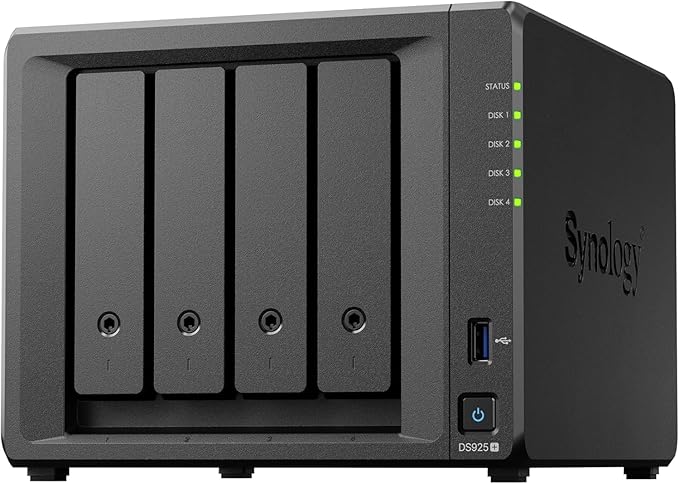 DS925+
|
 DS1525+
|
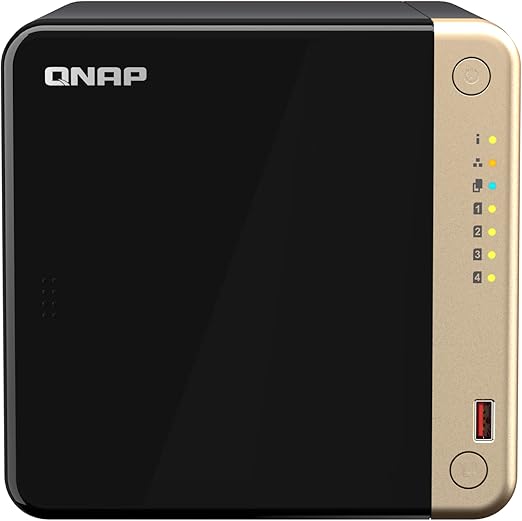 TS-464-8G
|
|
|---|---|---|---|---|
| Bays | 4 | 4 | 5 | 4 |
| CPU | Intel Celeron | AMD Ryzen R1600 | AMD Ryzen V1500B | Celeron N5095 |
| RAM | 2GB DDR4 | 4GB ECC DDR4 | 8GB ECC DDR4 | 8GB DDR4 |
| 2.5GbE Ports | 1 + 1GbE | 2 | 2 | 2 |
| M.2 NVMe Slots | No | 2 | 2 | 2 |
| HDMI Output | No | No | No | Yes |
| Active Backup | Yes | Yes | Yes | No (HBS 3) |
| AU Price Range | $819-$999 | $995-$1,029 | $1,285-$1,399 | $989 (Scorptec) |
| Best For | Micro business / 1-5 staff | SMB sweet spot / 5-15 staff | Growing business / 10-25 staff | Hardware-first buyers |
Prices last verified: 10 March 2026. Always check retailer before purchasing.
Best Overall: Synology DS925+
The Synology DS925+ is the NAS that suits most Australian small businesses because it balances price, performance, and software in a way nothing else in this price bracket does. At $995 from Scorptec or $1,029 from Mwave, it sits right in the SMB sweet spot.
The headline feature for business buyers is Active Backup for Business. Synology’s free backup suite that runs directly on the NAS. It backs up Windows PCs, file servers, VMware/Hyper-V virtual machines, and Microsoft 365 accounts (including Exchange, OneDrive, SharePoint, and Teams). All without per-seat licensing. For a 10-person office, that replaces $50-$100/month in third-party backup licensing from tools like Veeam or Acronis. This is genuinely the DS925+’s killer feature and the single biggest reason to choose Synology over QNAP for business use.
Hardware is solid for the price: an AMD Ryzen R1600 quad-core CPU, 4GB of ECC DDR4 RAM (expandable to 32GB), dual 2.5GbE LAN ports for link aggregation or failover, and two M.2 NVMe slots for SSD caching. ECC memory matters in a business context. It detects and corrects single-bit memory errors that can silently corrupt data over time. Non-ECC consumer NAS devices don’t catch these errors. For a device storing years of business files, ECC is not optional.
The DS925+ also supports expansion via the DX525 unit ($879 at Mwave), adding five more bays for a total of nine. That’s enough capacity for most businesses to scale over several years without replacing the NAS itself. For a broader look at Synology’s full range in Australia, see our Synology NAS Australia guide.
| Model | Synology DiskStation DS925+ |
|---|---|
| Bays | 4 x 3.5-inch SATA (expandable to 9 with DX525) |
| CPU | AMD Ryzen R1600 Quad-Core |
| RAM | 4GB ECC DDR4 (expandable to 32GB) |
| Network | 2 x 2.5GbE RJ-45 |
| M.2 Slots | 2 x NVMe (SSD cache / storage pool) |
| USB | 2 x USB 3.2 Gen 1 |
| Key Software | Active Backup for Business, Synology Drive, Surveillance Station (2 licences included) |
| AU Price. Scorptec | $995 |
| AU Price. Mwave | $1,029 |
Pros
- Active Backup for Business included free. Backs up PCs, servers, and Microsoft 365 with no per-seat fees
- ECC RAM as standard protects against silent data corruption
- Dual 2.5GbE ports with link aggregation for faster multi-user access
- Two M.2 NVMe slots for SSD caching accelerate random read/write workloads
- Expandable to 9 bays with DX525. Room to grow
- DSM is the most polished NAS operating system, with genuine IT admin features
Cons
- No 10GbE option without a PCIe card (not available on DS925+)
- 2GB base RAM on the DS425+ predecessor was limiting. The DS925+ fixes this at 4GB, but 8GB+ is recommended for Active Backup workloads
- Synology drives (HAT3300/HAT5300) are rebranded. Standard Seagate IronWolf or WD Red Plus drives work fine and are often cheaper
- No HDMI output. All management is via web browser or Synology mobile apps
Active Backup for Business: Why It Matters
Active Backup for Business deserves its own section because it’s the single biggest differentiator between Synology and every other NAS vendor for SMB use. Here’s what it does:
PC Backup: Installs a lightweight agent on each Windows PC. Backs up the entire system. OS, applications, files. Automatically on a schedule. If a PC dies, you can restore the full image to new hardware, or restore individual files. No per-PC licensing.
Server Backup: Backs up Windows file servers, including bare-metal recovery. For offices running a single Windows Server box, this eliminates the need for separate server backup software.
Microsoft 365 Backup: Backs up Exchange Online mailboxes, OneDrive files, SharePoint sites, and Teams data directly to the NAS. Microsoft’s own retention policies are not true backups. They’re designed for compliance, not recovery. Active Backup gives you a local, restorable copy of your cloud data.
VM Backup: Backs up VMware vSphere and Microsoft Hyper-V virtual machines with changed-block tracking for efficient incremental backups.
QNAP offers HBS 3 (Hybrid Backup Sync) which handles file-level backups and cloud sync, but it lacks the agent-based PC imaging and Microsoft 365 backup that Active Backup provides. For a business that needs to back up workstations and cloud services, this gap is significant.
Best for Growing Businesses: Synology DS1525+
The Synology DS1525+ steps up to five bays and 8GB of ECC RAM for offices that need more raw capacity or plan to run heavier workloads. Virtualisation via Virtual Machine Manager, multiple Active Backup jobs, or Surveillance Station with more than a handful of cameras.
At $1,285 from Mwave or $1,399 from Scorptec, it costs roughly 30% more than the DS925+ but doubles the base RAM and adds a fifth bay. Five bays in RAID 5 with 8TB drives gives you 32TB of usable space. Meaningful headroom for businesses generating large files (design, video, photography) or running backups for 10-25 workstations.
The DS1525+ shares the same AMD Ryzen V1500B CPU as the previous-generation DS1525+, and supports the same DX525 expansion unit for a total of 10 bays. It also supports 10GbE via an optional E10G22-T1-Mini adapter in the PCIe slot. Useful if you’re running a 10GbE switch in the office for fast local transfers.
For businesses where the four-bay DS925+ feels tight but a full rackmount solution is overkill, the DS1525+ is the natural middle ground. For a direct comparison of Synology’s full Plus series lineup, see our Best Synology NAS guide.
| Model | Synology DiskStation DS1525+ |
|---|---|
| Bays | 5 x 3.5-inch SATA (expandable to 10 with DX525) |
| CPU | AMD Ryzen V1500B Quad-Core 2.2GHz |
| RAM | 8GB ECC DDR4 (expandable to 32GB) |
| Network | 2 x 2.5GbE RJ-45 |
| M.2 Slots | 2 x NVMe (SSD cache / storage pool) |
| Expansion | 1 x eSATA (DX525 support) |
| AU Price. Mwave | $1,285 |
| AU Price. Scorptec | $1,399 |
Pros
- Five bays gives meaningful extra capacity over four-bay models
- 8GB ECC RAM out of the box. Enough for Active Backup, Surveillance Station, and light VM workloads simultaneously
- 10GbE capable via PCIe expansion slot
- Same DSM software suite and Active Backup for Business as the DS925+
- Expandable to 10 bays with DX525
Cons
- Significant price jump over the DS925+ for one extra bay
- E10G22-T1-Mini adapter is an additional cost ($239+ at Mwave)
- Five-bay RAID configurations are less common than four-bay. May need research on optimal RAID setup
- No redundant PSU. For mission-critical deployments, pair with a UPS
Budget SMB Option: Synology DS425+
The Synology DS425+ suits micro-businesses and sole traders who need shared file access and basic backup without the full business feature set. At $819 from Scorptec or $999 from PLE, it’s the most affordable way into Synology’s Plus series with four bays.
It still runs Active Backup for Business and the full DSM suite, so the software experience is identical to the DS925+. The trade-off is in the hardware: 2GB of RAM (expandable), a Celeron CPU instead of Ryzen, and no M.2 NVMe slots for SSD caching. For a 1-5 person office doing file sharing and PC backup, these limitations rarely matter in practice. If you’re backing up more than five PCs simultaneously or running multiple packages, upgrade the RAM to at least 4GB.
Don’t buy the DS425+ if you need NVMe caching (for databases or random I/O workloads), 10GbE networking, or plan to run virtual machines. Those workloads belong on the DS925+ or DS1525+.
| Model | Synology DiskStation DS425+ |
|---|---|
| Bays | 4 x 3.5-inch SATA |
| CPU | Intel Celeron Quad-Core 2.0GHz |
| RAM | 2GB DDR4 (expandable) |
| Network | 1 x 2.5GbE + 1 x 1GbE |
| USB | 2 x USB 3.2 Gen 1 |
| AU Price. Scorptec | $819 |
| AU Price. PLE | $999 |
| AU Price. Mwave | $899 |
Pros
- Most affordable four-bay Synology Plus model in Australia
- Full DSM software suite including Active Backup for Business
- 2.5GbE port for faster local transfers than 1GbE models
- Compact and quiet. Suitable for open-plan offices
Cons
- Only 2GB RAM out of the box. Upgrade recommended for Active Backup workloads
- No M.2 NVMe slots for SSD caching
- No 10GbE expansion option
- Celeron CPU is adequate but not fast for heavy multitasking
QNAP Alternative: TS-464-8G
The QNAP TS-464-8G is the QNAP model that competes most directly with the DS925+ in the Australian market. At $999 from Scorptec or $1,099 from PLE, it offers more hardware for similar money. 8GB of RAM, a Celeron N5095 quad-core CPU, dual 2.5GbE ports, two M.2 NVMe slots, and an HDMI 2.0 output.
The HDMI output is a genuine differentiator if your business has a reception TV or presentation display. QNAP’s HD Station can output media directly to a connected screen without needing a separate streaming device. Synology dropped HDMI from all current Plus models.
Where QNAP falls short compared to Synology for business use is software. QNAP’s QTS is capable but less polished than DSM, and the backup story is weaker. HBS 3 (Hybrid Backup Sync) handles file-level backups and cloud sync well, but it doesn’t match Active Backup for Business’s agent-based PC imaging or Microsoft 365 backup. If centralised workstation and cloud backup is a priority, Synology is the stronger choice. If you want more raw hardware and HDMI, the TS-464 delivers.
For a detailed comparison of the two ecosystems, see our Synology vs QNAP Australia guide.
| Model | QNAP TS-464-8G |
|---|---|
| Bays | 4 x 3.5-inch SATA |
| CPU | Intel Celeron N5095 Quad-Core 2.9GHz |
| RAM | 8GB DDR4 (expandable to 16GB) |
| Network | 2 x 2.5GbE RJ-45 |
| M.2 Slots | 2 x NVMe |
| HDMI | 1 x HDMI 2.0 (4K output) |
| AU Price. Scorptec | $999 |
| AU Price. PLE | $1,099 |
Pros
- 8GB RAM out of the box. Double the DS925+
- HDMI 2.0 output for direct media playback or digital signage
- Dual 2.5GbE and two M.2 NVMe slots at a competitive price
- PCIe expansion slot for 10GbE or additional M.2 storage
Cons
- No equivalent to Active Backup for Business. HBS 3 is file-level only
- Non-ECC RAM. No protection against silent memory errors
- QTS is functional but has a steeper learning curve than DSM for non-technical users
- QNAP has had more publicised security incidents than Synology. Keep firmware updated
What to Consider Before Buying
Storage Capacity Planning
Don’t buy based on current needs. Buy for where you’ll be in three years. A typical small business grows storage usage by 20-30% per year through documents, email archives, backups, and scans. If you’re at 4TB now, plan for 8-10TB within three years.
For a four-bay NAS like the DS925+ running RAID 5 (one drive for parity), four 8TB drives give you roughly 24TB usable. That’s enough for most 5-15 person offices for several years. Using four 16TB drives gives 48TB usable, but note that a 16TB NAS drive (Synology HAT3310-16T) costs $829 at Scorptec compared to $499 for an 8TB (HAT3320-8T). The cost per TB improves at larger drive sizes, but the upfront investment is significant.
Budget for drives separately from the NAS unit. All NAS models listed in this guide ship diskless. Drive costs in 2026 are elevated across the board, with a 4TB NAS-class drive that was $149 in early 2025 now pushing $200-$220. Shop around and check Mwave, Scorptec, and PLE pricing for drives on the same day you buy the NAS.
NBN Upload and Remote Access
If your business needs remote access to NAS files. Staff working from home, accessing documents on the road, or syncing between offices. Your NBN plan matters more than the NAS hardware.
On a standard NBN 100 plan, typical upload speeds are 15-20Mbps. That’s enough for one or two people accessing small documents remotely, but it will choke on large file transfers or multiple simultaneous remote users. If remote access is a core requirement, upgrade to NBN 250 (25Mbps upload) or NBN 1000 (50Mbps upload) to get meaningful headroom.
Both Synology (QuickConnect) and QNAP (myQNAPcloud) offer relay services that punch through NAT without port forwarding. However, if your NBN connection uses CGNAT (Carrier-Grade NAT). Common on some Fixed Wireless and Satellite connections. Direct remote access may not work at all. Check with your ISP whether you have a public IP address. If you’re on CGNAT, you’ll need to request a static IP (often an extra $10-20/month) or use the vendor’s relay service, which is slower than a direct connection.
Drives: What to Buy
Stick with NAS-class drives: Seagate IronWolf, WD Red Plus, or Synology’s own HAT3300/HAT3310 series. These drives are rated for 24/7 operation, handle the vibration of multi-bay enclosures, and come with 3-year warranties that align with the NAS warranty period.
Avoid desktop drives (WD Blue, Seagate Barracuda) in a business NAS. They’re cheaper, but they’re not rated for always-on use and their vibration tolerance is lower. The $30-50 saving per drive is not worth the increased failure risk in a device that runs 24/7 with your business data on it.
For businesses running Active Backup for Business with more than five PCs, consider adding NVMe SSDs in the M.2 slots for read caching. This accelerates random I/O from backup and restore operations without replacing your bulk HDD storage. Synology’s SNV3410 400GB NVMe is $499 at Scorptec. A significant cost, but noticeable for backup-heavy workloads.
Backup Strategy: The NAS Is Not Your Backup
This is the most important section in this guide. A NAS is a storage and file-sharing device. RAID protects against individual drive failure. It does not protect against ransomware, theft, fire, flood, accidental deletion, or a catastrophic multi-drive failure. A NAS alone is not a backup.
Every business deploying a NAS should implement a 3-2-1 backup strategy as a minimum:
- 3 copies of important data
- 2 different storage types (e.g., NAS + external drive, NAS + cloud)
- 1 offsite copy (cloud backup, or an external drive stored off-premises)
Synology makes this straightforward with Hyper Backup, which can replicate NAS data to an external USB drive, a remote Synology NAS, or cloud storage (Backblaze B2, Synology C2, AWS S3). QNAP’s HBS 3 offers similar cloud sync and backup capabilities.
Plan for the reality that NAS hardware will eventually fail. The standard warranty process in Australia runs through the full chain. Retailer to distributor to vendor in Taiwan, then back again. Expect 2-3 weeks minimum for a resolution. If your business cannot afford 2-3 weeks without its file server, you need either a spare NAS, a cloud-based failover, or a business continuity plan that doesn’t depend on a single device.
Warranty reality check: NAS vendors (Synology, QNAP) do not have service centres in Australia. Warranty claims go through your retailer, to their distributor, to the vendor in Taiwan. The typical turnaround is 2-3 weeks. Advanced replacements are generally not available through standard warranty channels. Before buying, ask your retailer: “If this unit fails, what is your process? Can I get an advanced replacement?” The answer tells you more about the value of buying from that retailer than the price on the website.
🇦🇺 Australian Buyers: Where to Buy, Pricing, and Consumer Rights
NAS pricing in Australia is remarkably uniform across the major retailers. Most operate on 3-5% margin for NAS products, leaving little room for price differentiation. The real difference between retailers is stock depth, pre-sales knowledge, and post-sales support. Not price.
Full-range specialists like Scorptec and PLE list most NAS models, carry stock, and have staff with reasonable product knowledge. They’re the best option for most business buyers. Mwave sits between specialist and generalist. Good pricing, solid stock levels, but less NAS-specific expertise.
For business and government buyers, always request a formal quote rather than buying at the listed retail price. Resellers can request pricing support from distributors and vendors, and these discounts are routinely available for quoted deals but never appear on the website. At the DS925+ and DS1525+ price points, a quote may save $50-$150 on the NAS alone, and more when bundled with drives and accessories.
Australian Consumer Law: Under ACL, your retailer is your primary warranty path. Not the manufacturer. Synology and QNAP do not have service centres in Australia. If your NAS has a fault, your claim is with the store you bought it from. Always buy from an Australian-authorised retailer for full ACL coverage. For official information on your consumer rights, visit accc.gov.au. Grey imports may be cheaper but warranty claims go through international channels with no guaranteed Australian support.
Synology vs QNAP for Small Business
This comes down to what you value most. Here’s the honest assessment:
Choose Synology if: You want the best backup software (Active Backup for Business), the most polished user experience (DSM), and an ecosystem designed for set-and-forget reliability. Synology suits offices where no one wants to be the IT person. DSM’s interface is clean enough that a non-technical office manager can handle day-to-day operations after initial setup.
Choose QNAP if: You want more hardware for the money (more RAM, HDMI, PCIe expansion), plan to run containers or VMs as a core workload, or need the flexibility of QNAP’s more open approach to third-party apps. QNAP suits offices with a dedicated IT person who can manage QTS and handle the occasional firmware update or security patch. QNAP has had more publicised security incidents than Synology in recent years. Not because the hardware is less secure, but because QTS’s wider attack surface and slower patch cadence have been exploited. Keep firmware updated and disable services you don’t use.
For most Australian small businesses without dedicated IT staff, Synology is the safer recommendation. The software gap. Particularly Active Backup for Business. Is the deciding factor, not the hardware.
Network Setup Tips for Business NAS
A NAS is only as fast as your network. Always use a wired Ethernet connection. Never Wi-Fi for a business NAS. The DS925+ and TS-464 both have dual 2.5GbE ports, so connect both to a 2.5GbE-capable switch for link aggregation or failover. If your office is still on 1GbE, a 2.5GbE unmanaged switch like QNAP’s QSW-1105-5T ($159 at Scorptec) is a worthwhile upgrade.
For larger offices (10+ users), consider isolating NAS traffic on a dedicated VLAN to prevent Active Backup jobs from saturating the network during business hours.
UPS is non-negotiable. A power outage during a write operation can corrupt your RAID array. Every business NAS should be connected to a UPS via USB for graceful shutdown. A basic 600VA-900VA UPS costs $100-$200 and protects thousands of dollars of data.
Use our free NAS Sizing Wizard to get a personalised NAS recommendation.
How many staff can a single NAS support?
A four-bay NAS like the DS925+ comfortably handles 5-15 concurrent users for standard file sharing and backup. Performance depends on workload. 15 people opening Word documents is very different from 15 people editing 4K video simultaneously. For file sharing, document storage, and Active Backup, the DS925+ handles a 15-person office without issue. Beyond 20-25 users, consider the DS1525+ or a rackmount model for headroom.
Is Active Backup for Business really free?
Yes. Active Backup for Business is included with every Synology Plus, Value, and XS series NAS at no additional cost. There are no per-seat licences, no annual fees, and no feature limitations. You install it from Synology’s Package Center and deploy agents to your PCs and servers. The only limit is the hardware capacity of your NAS. More simultaneous backup jobs require more RAM and CPU resources. This is a significant cost saving compared to third-party backup solutions like Veeam, Acronis, or Datto that charge per endpoint or per year.
Can I access my NAS remotely when working from home?
Yes, but your experience depends heavily on your NBN plan. Synology’s QuickConnect and QNAP’s myQNAPcloud provide relay-based remote access without port forwarding. On a standard NBN 100 plan with 15-20Mbps upload, one or two remote users can access documents, but large file transfers will be slow. For meaningful remote access, upgrade to NBN 250 (25Mbps upload) or NBN 1000 (50Mbps upload). If your connection uses CGNAT, direct connections may not work. Check with your ISP whether you have a public IP address.
Should I buy Synology or QNAP for my business?
For most small businesses without dedicated IT staff, Synology is the better choice. Active Backup for Business, DSM’s clean interface, and Synology’s more conservative security approach make it easier to deploy and maintain. QNAP offers more hardware per dollar. More RAM, HDMI output, PCIe expansion. And suits businesses with someone technical managing the system. If centralised backup of PCs and Microsoft 365 is important, Synology wins on software alone. For a detailed comparison, see our Synology vs QNAP Australia guide.
What happens if my NAS fails under warranty in Australia?
Your warranty claim goes to the retailer you purchased from, not the manufacturer. The retailer escalates to their distributor (typically BlueChip or Dicker Data), who escalates to the vendor (Synology or QNAP) in Taiwan. The standard resolution is replacement rather than repair. There are no NAS service centres in Australia. Expect 2-3 weeks minimum for the full process. Advanced replacements (receiving a new unit before returning the faulty one) are generally not available through standard warranty. Some resellers will arrange for you to purchase a replacement at full price and refund you when the faulty unit is returned. Under Australian Consumer Law, your retailer is your primary warranty path. Visit accc.gov.au for official guidance on your rights.
Do I need a UPS for my business NAS?
Yes, without exception. A power outage during a write operation can corrupt your RAID array or damage drives, potentially causing data loss. Every business NAS should be connected to an uninterruptible power supply (UPS) via USB so the NAS can detect a power failure and shut down gracefully. A basic 600VA-900VA UPS from APC or CyberPower costs $100-$200 from Australian retailers and provides 10-15 minutes of runtime. Enough time for a clean shutdown. Both Synology and QNAP support USB-connected UPS units natively.
How much does a complete NAS setup cost for a small business?
Budget approximately $2,500-$4,000 all-in for a typical small business NAS deployment. For example: a DS925+ ($995-$1,029) with four 8TB Synology HAT3320-8T drives ($499 each at Scorptec) comes to roughly $3,000. Add a UPS ($100-$200) and optionally a 2.5GbE switch ($150-$200) and NVMe cache SSDs ($400-$500), and a fully equipped setup runs $3,500-$4,000. This is a one-time capital expense with no ongoing licence fees. By comparison, cloud storage for 10 users typically costs $1,000-$1,500/year in subscription fees alone.
Can a NAS replace a Windows Server for a small office?
For file sharing, backup, and VPN. Yes. DSM supports Active Directory integration, SMB shares with user/group permissions, and VPN Server. It will not replace Windows Server for AD domain services, Group Policy, or line-of-business apps that require Windows. For a 5-15 person office that primarily needs shared storage and centralised backup, a Synology NAS is a practical and much cheaper alternative.
Need help choosing between the DS925+ and DS1525+ for your business? Our NAS buying guide covers every option available in Australia with live pricing.
Read the Full NAS Guide →