The Synology DS425+ is the best NAS for most photographers in Australia in 2026, offering four bays, reliable Synology Photos software, and enough processing power to handle RAW thumbnail generation without breaking the bank at $819 from Scorptec. For photographers with larger libraries or multi-user studio environments, the Synology DS925+ at $995 from Scorptec adds NVMe cache slots and a faster CPU that makes a real difference when browsing large catalogues. Budget-conscious shooters who just need reliable storage can start with the Synology DS225+ from $549, while professionals managing video alongside stills should look at the QNAP TS-464 from $999 at Scorptec for its superior hardware transcoding capabilities.
For a broader overview of this topic, see our complete home backup guide.
In short: The Synology DS425+ ($819 Scorptec) is the best all-round NAS for photographers in Australia. Four bays give you room to grow, Synology Photos is the best built-in photo management app on any NAS platform, and the 2.5GbE port means faster transfers than older gigabit models. If you need more power for large RAW libraries or AI-assisted photo tagging, step up to the Synology DS925+ ($995 Scorptec).
Why Photographers Need a NAS
Photography generates enormous volumes of data. A single day of shooting with a modern mirrorless camera can produce 50-100 GB of RAW files, and that adds up fast across years of work. Cloud storage gets expensive at scale. Storing 10 TB on Google One costs over $130/month. And uploading large batches of RAW files over Australian NBN connections is painfully slow. On a typical NBN 100 plan, you get roughly 20 Mbps upload (and that is optimistic), which means uploading 100 GB takes over 11 hours. For a deeper comparison, see our guide on NAS vs cloud storage in Australia.
A NAS keeps your photo library on your local network where access is instant, gives you RAID protection against drive failure, and lets you share files across multiple devices. Your editing workstation, laptop, tablet, or even your phone. The best NAS units for photography also include built-in photo management apps that generate thumbnails, support face recognition, and provide a private alternative to Google Photos or iCloud. If you have been thinking about replacing iCloud Photos with a NAS, 2026 is a good time to make the switch.
What to Look for in a Photography NAS
Not every NAS is equally suited to photography workflows. Here is what matters most when choosing a NAS for photo storage and editing support:
Bay count and storage capacity: Two bays is the minimum for RAID 1 (mirrored) protection, but four bays gives you the flexibility to run RAID 5 or SHR, which balances redundancy with usable capacity. A 4-bay NAS with 8 TB drives gives you roughly 24 TB of usable space in SHR. Enough for most photographers for several years. If your library is already over 10 TB or you shoot commercial video alongside stills, look at 5+ bay models. For more on choosing the right drives, see our best NAS hard drive guide.
CPU and RAM: Photo management apps like Synology Photos and QNAP QuMagie need to generate thumbnails for every image you upload, and higher-end apps perform AI-based face and object recognition. These tasks are CPU-intensive, especially with large RAW files (40-80 MB each from modern cameras). ARM-based budget NAS models will choke on these tasks. Look for an Intel or AMD CPU with at least 2 GB RAM, ideally 4 GB or more.
Network speed: Gigabit Ethernet (1 GbE) tops out at roughly 110 MB/s in practice. That is adequate for browsing and editing individual files, but painful when transferring a full shoot of 50-100 GB. Models with 2.5 GbE ports (like the Synology DS225+, DS425+, and DS925+) more than double your transfer speeds. A meaningful improvement for photographers who regularly import large batches of files.
Photo management software: This is where Synology has a significant edge. Synology Photos is genuinely good. Clean interface, fast thumbnail generation, face recognition, shared spaces for client work, and mobile apps that work well. QNAP's QuMagie is improving but still less polished. Asustor's Photo Gallery is functional but basic. If photo management is a priority, Synology is the strongest platform.
NVMe cache support: For large photo libraries (50,000+ images), NVMe SSD cache slots make a noticeable difference when browsing thumbnails and searching your catalogue. Models like the Synology DS925+ and QNAP TS-464 include M.2 NVMe slots specifically for this purpose, and the performance improvement is immediately apparent in daily use.
Best NAS for Photography Australia. Our Picks
Best Overall: Synology DS425+
The Synology DS425+ hits the sweet spot for most photographers in Australia. Four bays, a capable Intel Celeron processor, 2 GB of DDR4 RAM (expandable), one 2.5 GbE port plus one 1 GbE port, and access to the full Synology DSM ecosystem including Synology Photos. It replaces the popular DS423 and brings meaningful improvements to networking and processing performance.
Synology Photos is the real selling point here. It handles RAW files natively (including CR3, ARW, NEF, and RAF formats), generates thumbnails in the background, performs AI-based face and scene recognition, and provides a clean web interface and mobile apps for browsing your library from anywhere. The shared spaces feature is useful for wedding and event photographers who need to share galleries with clients without giving access to the entire NAS.
At $819 from Scorptec, $899 from Mwave, or $999 from PLE, the DS425+ is priced competitively for a 4-bay Plus-series Synology. Remember, this is a diskless unit. You will need to budget for drives separately. Two 8 TB NAS-grade drives in SHR give you 8 TB usable with redundancy, or four drives give you roughly 24 TB. For drive recommendations, see our Seagate IronWolf vs WD Red comparison.

| CPU | Intel Celeron (Quad-Core, 2.0 GHz) |
|---|---|
| RAM | 2 GB DDR4 (expandable) |
| Drive Bays | 4x 3.5"/2.5" SATA |
| Network | 1x 2.5GbE + 1x 1GbE |
| USB | 2x USB 3.2 Gen 1 |
| Photo Software | Synology Photos (AI face/scene recognition) |
| AU Price (Scorptec) | $819 |
| AU Price (Mwave) | $899 |
| AU Price (PLE) | $999 |
Pros
- Synology Photos is the best NAS photo management app available
- Four bays support SHR/RAID 5 for flexible, redundant storage
- 2.5GbE port significantly speeds up bulk file transfers
- Quiet and compact enough for a home office or studio
- Expandable with DX525 expansion unit if you outgrow 4 bays
Cons
- Only 2 GB RAM out of the box. Budget for a RAM upgrade if using AI photo features heavily
- No built-in NVMe cache slots. Step up to DS925+ if you need SSD caching
- Diskless pricing means total cost rises significantly once you add drives
Best for Large Libraries: Synology DS925+
The Synology DS925+ is the step-up pick for photographers with large, established libraries. The kind where you have 100,000+ images, shoot both stills and video, or run a multi-user studio where several people need simultaneous access. It shares the same 4-bay form factor as the DS425+ but upgrades to a faster AMD Ryzen processor, 4 GB of RAM (expandable to 16 GB), and adds two M.2 NVMe slots for SSD caching.
The NVMe cache makes a tangible difference when browsing large photo libraries through Synology Photos. Without cache, each folder load can take a few seconds as the NAS reads thumbnails from spinning drives. With an NVMe cache populated, thumbnail browsing becomes nearly instantaneous. For photographers who spend hours each week culling and organising in their browser, this quality-of-life improvement justifies the price premium.
Available at $995 from Scorptec or $1,029 from Mwave, the DS925+ sits above the DS425+. That premium buys you double the base RAM, NVMe cache capability, and a stronger CPU that handles AI-based photo indexing and thumbnail generation significantly faster. For a detailed breakdown of this model, see our Synology DS925+ review.
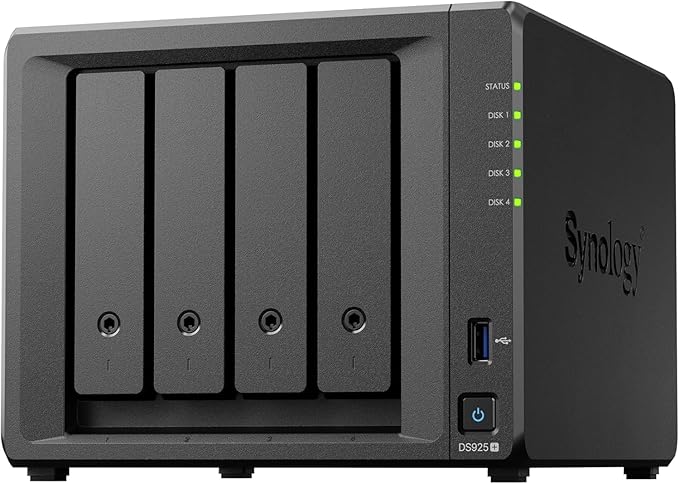
| CPU | AMD Ryzen R1600 (Dual-Core, 2.6 GHz burst 3.1 GHz) |
|---|---|
| RAM | 4 GB DDR4 ECC (expandable to 16 GB) |
| Drive Bays | 4x 3.5"/2.5" SATA + 2x M.2 NVMe |
| Network | 2x 1GbE (Link Aggregation support) |
| USB | 2x USB 3.2 Gen 1 |
| Photo Software | Synology Photos (AI face/scene recognition) |
| Expandable | Yes. Up to 2x DX525 expansion units (10 additional bays) |
| AU Price (Scorptec) | $995 |
| AU Price (Mwave) | $1,029 |
Pros
- NVMe SSD cache slots dramatically improve thumbnail browsing speed
- 4 GB base RAM handles heavy Synology Photos indexing better than DS425+
- Expandable to 14 bays total with two DX525 expansion units
- ECC RAM support adds reliability for long-running operations
- Strong CPU handles AI photo tagging and face recognition efficiently
Cons
- 1GbE networking only. No 2.5GbE without an add-in card (DS425+ has 2.5GbE built in)
- Higher cost makes it harder to justify for casual or hobbyist photographers
- NVMe SSDs for cache are an additional expense on top of the NAS and drives
Best Budget Option: Synology DS225+
The Synology DS225+ is the entry point into Synology's Plus series and the most affordable way to get access to Synology Photos with a processor that can actually handle RAW thumbnail generation. At $549 from Scorptec, $585 from Mwave, or $599 from PLE, it offers two bays, an Intel Celeron CPU, 2 GB RAM, and a 2.5 GbE network port.
Two bays limits you to RAID 1 (mirrored), which means half your raw drive capacity goes to redundancy. Two 8 TB drives give you 8 TB usable, or two 16 TB drives give you 16 TB. For many hobbyist and enthusiast photographers, that is more than enough. The 2.5 GbE port is a welcome inclusion at this price point, making file transfers noticeably faster than older 1 GbE models.
The DS225+ suits photographers who are starting their first NAS, have libraries under 10 TB, and want a reliable local storage solution with excellent software. If you are currently running an older Synology 2-bay (DS225+, DS223), this is the natural upgrade path. Don't buy this if your library is already large and growing fast. You will outgrow two bays sooner than you think, and migrating to a larger NAS later means downtime and hassle.

| CPU | Intel Celeron (Quad-Core, 2.0 GHz) |
|---|---|
| RAM | 2 GB DDR4 (expandable) |
| Drive Bays | 2x 3.5"/2.5" SATA |
| Network | 1x 2.5GbE + 1x 1GbE |
| USB | 2x USB 3.2 Gen 1 |
| Photo Software | Synology Photos (AI face/scene recognition) |
| AU Price (Scorptec) | $549 |
| AU Price (Mwave) | $585 |
| AU Price (PLE) | $599 |
Pros
- Most affordable way to access Synology Photos with a capable CPU
- 2.5GbE port is a strong inclusion at this price
- Compact two-bay form factor suits small desks and home offices
- Full DSM ecosystem including Hyper Backup, Drive, and Surveillance Station
Cons
- Two bays limits you to RAID 1. Less efficient use of drive capacity
- No NVMe cache slots
- Will feel limiting if your library grows beyond 10-15 TB
- No expansion options. To grow, you need to buy a larger NAS
Best for Video and Photo Hybrid Workflows: QNAP TS-464
The QNAP TS-464 suits photographers who also shoot video and need a NAS that can handle both workflows. Its Intel Celeron N5095 processor includes an integrated GPU capable of hardware-accelerated video transcoding, which matters if you use Plex or need to transcode footage for client delivery. The 8 GB of RAM out of the box (versus 2 GB on the Synology DS425+) gives it more headroom for running multiple apps simultaneously.
QNAP's photo management app, QuMagie, uses AI for face and scene recognition similar to Synology Photos, but it is less polished in practice. The interface is not as clean, thumbnail generation is slower, and the mobile app experience lags behind Synology's. However, QNAP's broader app ecosystem includes things like a full Linux Station VM, Plex Media Server integration, and HDMI output for direct display. Useful in studio environments where you might want to show photos on a screen connected directly to the NAS. For a broader comparison of the two platforms, see our Synology vs QNAP guide.
At $999 from Scorptec or $1,099 from PLE, the TS-464 is priced between the DS425+ and DS925+. It includes two M.2 NVMe slots for SSD caching, dual 2.5 GbE ports, and HDMI 2.0 output. If photo management software is your top priority, the Synology models are stronger. If you need a more versatile machine that handles video editing support, media serving, and photo storage, the TS-464 is the better choice. For more on QNAP options available in Australia, see our QNAP NAS Australia guide.

| CPU | Intel Celeron N5095 (Quad-Core, 2.0 GHz burst 2.9 GHz) |
|---|---|
| RAM | 8 GB DDR4 (expandable to 16 GB) |
| Drive Bays | 4x 3.5"/2.5" SATA + 2x M.2 NVMe |
| Network | 2x 2.5GbE |
| HDMI | 1x HDMI 2.0 (4K output) |
| USB | 2x USB 3.2 Gen 2 |
| Photo Software | QNAP QuMagie (AI face/scene recognition) |
| AU Price (Scorptec) | $999 |
| AU Price (PLE) | $1,099 |
Pros
- 8 GB RAM out of the box. No immediate upgrade needed
- Dual 2.5GbE ports with link aggregation support
- M.2 NVMe slots for SSD caching included
- HDMI output for direct display in studios
- Hardware-accelerated video transcoding for hybrid photo/video workflows
Cons
- QuMagie photo management is less polished than Synology Photos
- QTS interface has a steeper learning curve for first-time NAS users
- QNAP has had more publicised security vulnerabilities than Synology. Keep firmware updated
Best for M.2 SSD Speed: Asustor Flashstor 6 FS6706T
The Asustor Flashstor 6 FS6706T takes a completely different approach: six M.2 NVMe SSD bays instead of traditional 3.5-inch drive bays. This makes it compact, silent (no spinning drives, no drive vibration), and significantly faster for random read/write operations. Exactly the kind of access pattern that photo browsing and thumbnail generation relies on.
For photographers working with high-resolution files who value speed above raw capacity, the Flashstor 6 is compelling. Six 2 TB NVMe SSDs in RAID 5 give you roughly 10 TB usable. Less than what spinning drives offer, but the speed difference is dramatic. Browsing a folder of 500 RAW thumbnails that takes several seconds on an HDD-based NAS loads almost instantly on all-SSD storage. The dual 2.5 GbE ports keep the network side fast too.
The catch is cost. M.2 NVMe SSDs are significantly more expensive per terabyte than NAS HDDs, and in 2026 SSD prices have risen sharply due to NAND supply constraints and AI-related demand. Budget around $200-300 per 2 TB NVMe drive in Australia currently, making a full 6-drive setup a $1,200-1,800 investment on top of the NAS itself. At $575 from Scorptec, $599 from PLE, or $757 from Mwave for the NAS unit, the Flashstor 6 suits photographers who prioritise speed and silence over maximum capacity. For more on Asustor options, see our Asustor NAS Australia guide.

| CPU | Intel Celeron N5105 (Quad-Core, 2.0 GHz burst 2.9 GHz) |
|---|---|
| RAM | 4 GB DDR4 (expandable to 16 GB) |
| Drive Bays | 6x M.2 2280 NVMe SSD |
| Network | 2x 2.5GbE |
| USB | 2x USB 3.2 Gen 2, 1x USB-C 3.2 Gen 2 |
| Photo Software | Asustor Photo Gallery |
| AU Price (Scorptec) | $575 |
| AU Price (PLE) | $599 |
| AU Price (Mwave) | $757 |
Pros
- All-SSD design delivers dramatically faster thumbnail browsing and file access
- Completely silent operation. Ideal for quiet studios and home offices
- Very compact form factor
- Dual 2.5GbE networking
- Affordable NAS unit price (drives are the expensive part)
Cons
- M.2 NVMe SSDs cost significantly more per TB than spinning drives
- Maximum capacity limited compared to HDD-based NAS models
- Asustor Photo Gallery is basic compared to Synology Photos
- Asustor's Australian distributor (Dicker Data) is new. Support ecosystem still maturing
Best for High-Capacity Studios: Synology DS1525+
The Synology DS1525+ is designed for professional studios and photographers with massive archives. Five bays provide substantial starting capacity, and with two DX525 expansion units, you can scale to 15 bays total. If you are a commercial photographer, a wedding studio managing years of client work, or simply someone who has been shooting for two decades and has outgrown a 4-bay NAS, this is the model to consider.
Five bays in SHR with 16 TB drives gives you roughly 64 TB usable. Enough to store hundreds of thousands of RAW files with room to spare. The AMD Ryzen V1500B processor and 8 GB base RAM handle Synology Photos indexing across large libraries without struggle, and two M.2 NVMe cache slots keep the browsing experience responsive even at scale.
At $1,285 from Mwave or $1,399 from Scorptec, the DS1525+ is a serious investment. And that is before drives. But for professional deployments where capacity, reliability, and expandability matter, it is hard to beat. Business buyers should request a formal quote from their preferred reseller, as NAS pricing for business purchases is often sharper than the listed retail price. Resellers can request pricing support from their distributors and vendors. Discounts that never appear on the website but are routinely available for quoted deals.

| CPU | AMD Ryzen V1500B (Quad-Core, 2.2 GHz) |
|---|---|
| RAM | 8 GB DDR4 ECC (expandable to 32 GB) |
| Drive Bays | 5x 3.5"/2.5" SATA + 2x M.2 NVMe |
| Network | 4x 1GbE (Link Aggregation support) |
| USB | 2x USB 3.2 Gen 1 |
| Expandable | Yes. Up to 2x DX525 (15 bays total) |
| AU Price (Mwave) | $1,285 |
| AU Price (Scorptec) | $1,399 |
Pros
- Five bays plus expansion capability for massive archives
- 8 GB ECC RAM base handles large-scale Synology Photos indexing
- NVMe SSD cache for responsive browsing at scale
- Four Gigabit Ethernet ports with link aggregation for multi-user environments
- 5-year warranty on Plus series (with extended warranty option)
Cons
- No 2.5GbE or 10GbE built in. Requires add-in card for faster networking
- Significant total cost when populated with five high-capacity drives
- Overkill for hobbyist photographers. Only justified for professionals or large archives
Comparison Table
Best NAS for Photography. Quick Comparison
|
Synology DS425+
|
Synology DS925+
|
Synology DS225+
|
QNAP TS-464
|
Asustor Flashstor 6 |
Synology DS1525+
|
|
|---|---|---|---|---|---|---|
| Best For | Most photographers | Large libraries | Budget/starter | Video + photo hybrid | SSD speed/silence | High-capacity studios |
| Bays | 4 | 4 + 2x NVMe | 2 | 4 + 2x NVMe | 6x M.2 NVMe | 5 + 2x NVMe |
| CPU | Intel Celeron | AMD Ryzen R1600 | Intel Celeron | Intel Celeron N5095 | Intel Celeron N5105 | AMD Ryzen V1500B |
| Base RAM | 2 GB | 4 GB ECC | 2 GB | 8 GB | 4 GB | 8 GB ECC |
| Network | 2.5GbE + 1GbE | 2x 1GbE | 2.5GbE + 1GbE | 2x 2.5GbE | 2x 2.5GbE | 4x 1GbE |
| Photo App | Synology Photos | Synology Photos | Synology Photos | QNAP QuMagie | Asustor Photo Gallery | Synology Photos |
| AU Price From | $819 | $995 | $599 (PLE Computers) | $989 (Scorptec) | $575 | $1,285 |
Prices last verified: 16 March 2026. Always check retailer before purchasing.
How Much Storage Do Photographers Actually Need?
This depends on how much you shoot, how long you have been shooting, and whether you keep everything. Here are some rough numbers to help you plan:
A 45-megapixel camera (Sony A7R IV, Nikon Z7 II, Canon R5) produces RAW files around 50-80 MB each. Shoot 500 images in a session and that is 25-40 GB. Do that twice a week and you are generating 200-300 GB per month, or roughly 3 TB per year of RAW files alone. Before JPEGs, edited exports, or video clips.
A 24-megapixel camera (Sony A7 III, Nikon Z5, Fujifilm X-T5) produces RAW files around 25-50 MB. At the same shooting pace, expect roughly 1.5-2 TB per year.
Add a safety margin. Storage needs always grow faster than expected. If your calculation says 8 TB is enough, buy capacity for 16 TB. NAS drives are cheaper to add now than to migrate later. For current drive pricing and recommendations, see our best NAS hard drive guide.
Tip: NAS-grade drive prices have risen significantly from early 2025 levels. Distributors are securing stock allocations further forward than usual, reflecting global supply chain uncertainty. If you see a good deal on drives at an Australian retailer, buy now rather than waiting. Prices are unlikely to drop in the near term.
Synology Photos vs QNAP QuMagie for Photographers
The built-in photo management app is one of the biggest differentiators between NAS platforms for photographers, so it is worth comparing them directly.
Synology Photos is the clear leader. It supports RAW formats from every major camera manufacturer, generates thumbnails efficiently, performs AI-based face recognition that actually works (it learns and improves over time), offers timeline and folder-based browsing, includes shared spaces for client galleries, and has solid mobile apps on iOS and Android. It also integrates with Synology Drive for seamless file sync. For photographers coming from Google Photos or iCloud, the transition feels natural.
QNAP QuMagie offers similar AI-based recognition features but the execution is less refined. Thumbnail generation is slower (especially for large RAW files), the web interface feels cluttered, and the mobile apps are functional but not enjoyable to use. QuMagie has improved significantly in recent firmware updates, but it still trails Synology Photos in day-to-day usability. Where QNAP compensates is in hardware versatility. HDMI output, broader third-party app support, and more flexible virtualisation options.
Asustor Photo Gallery is basic. It handles browsing and simple album creation but lacks the AI features and polish of either competitor. If photo management is your primary NAS use case, Asustor is not the strongest choice. Where Asustor models like the Flashstor excel is raw performance for direct file access. Using Lightroom or Capture One with files stored on the NAS.
Using a NAS with Lightroom and Capture One
Many photographers wonder if they can edit directly from a NAS using Lightroom or Capture One. The short answer: yes, but with caveats.
Lightroom Classic: Keep your Lightroom catalogue file on your local SSD for best performance. Store your actual image files (the RAW library) on the NAS. Lightroom reads files from the NAS as needed but the catalogue itself needs fast local storage for responsive performance. Smart Previews can help when you are away from the NAS. Generate them before disconnecting and you can cull and rate images on a laptop without needing NAS access. Over a 2.5 GbE connection, editing individual files from the NAS feels responsive. Over standard 1 GbE, it is workable but noticeably slower when switching between images.
Capture One: Similar approach. Catalogue on local SSD, image files on NAS. Capture One tends to be slightly more demanding on network throughput than Lightroom, so a 2.5 GbE connection is more beneficial here. Tethered shooting directly to a NAS is not recommended due to latency; instead, tether to your local drive and batch-transfer to the NAS at the end of the session.
For either application, an all-SSD NAS like the Asustor Flashstor 6 or a NAS with NVMe caching (DS925+, TS-464) provides a noticeably smoother editing experience compared to HDD-only storage. The random I/O performance of SSDs makes a measurable difference when an editing application is constantly reading and writing small preview files.
Remote Access and NBN Considerations
If you want to access your photo library remotely. Browsing from a phone while travelling, sharing galleries with clients, or syncing between a studio and home office. There are a few Australian-specific factors to consider.
NBN upload speeds are the bottleneck. A typical NBN 100 plan delivers roughly 20 Mbps upload (some report up to 40 Mbps, but 20 is realistic for many connections). That is about 2.5 MB/s. Usable for browsing thumbnails remotely, but painful for downloading full-resolution RAW files. NBN 250 and 1000 plans offer faster uploads (up to 50 Mbps on NBN 250), but availability varies by connection type and area. If remote access to full-resolution files is important to your workflow, check your actual upload speed before committing to a NAS-based remote access strategy.
CGNAT can block remote access. Some ISPs use Carrier-Grade NAT (CGNAT), which prevents direct incoming connections to your NAS. Synology's QuickConnect and QNAP's myQNAPcloud work around CGNAT by routing through relay servers, but performance is slower than a direct connection. If you are on a CGNAT connection and remote access is critical, check with your ISP. Some offer a static IP or CGNAT bypass on request (sometimes for a small fee).
Backup reminder: A NAS is not a backup. It protects against individual drive failure through RAID, but it does not protect against theft, fire, ransomware, or NAS hardware failure. Photographers should follow a 3-2-1 backup strategy: three copies of your data, on two different types of storage, with one copy offsite. Use Synology Hyper Backup or QNAP Hybrid Backup Sync to replicate your library to an external drive or cloud storage. See our 3-2-1 backup strategy guide for a full walkthrough.
Warranty and Buying Advice for Australian Photographers
Buying a NAS in Australia comes with some specific considerations that matter more for photographers than most users. Because a NAS failure with years of irreplaceable images is a very different proposition to losing a media library you can re-download.
Australian Consumer Law protections apply when purchasing from Australian retailers. Your warranty claim goes to the retailer, not the manufacturer. Synology, QNAP, and Asustor do not have service centres in Australia. Warranty claims go through the retailer to the distributor to the vendor in Taiwan, then back again. Expect 2-3 weeks minimum for a warranty resolution. For official information on your consumer rights, visit accc.gov.au.
In Australia, your warranty claim is against the place of purchase, not the manufacturer. This is why where you buy matters. A specialist retailer like Scorptec or PLE has access to distributor stock through their distribution partners and can work with you through the warranty process. Amazon AU has better pricing in some cases, but if your NAS fails, they will typically push to issue a credit or refund. They do not have the distribution chain relationships to source direct replacements the way specialist resellers can.
Most Australian retailers operate on 3-5% NAS margin, which is why pricing is remarkably uniform across the major stores. The real difference between retailers is what happens when something goes wrong. Before buying, have the "what if" conversation: ask the retailer what their warranty process is, how long a typical claim takes, and whether advanced replacements are available. The answers will tell you more about the value of buying from that retailer than the price on the website.
Advanced replacements (receiving a replacement unit before returning the faulty one) are generally not officially supported by NAS vendors in Australia. Some resellers will allow you to purchase a replacement at full price and refund you when the faulty unit is returned. But ask about this before you need it, not after. For photographers who rely on their NAS for daily work, plan for a 2-3 week replacement window and have a backup strategy that can tolerate being without the NAS during that period.
Where to Buy in Australia
Australian NAS pricing is currently running 10-20% above US levels, driven by lower stock allocations, higher freight costs, and smaller market volumes. Don't waste time hunting for a dramatically cheaper deal. The margins are tight and prices are consistent across retailers. Focus on buying from a retailer that will support you if something goes wrong.
Recommended retailers for photographers:
- Scorptec. Full range of Synology, QNAP, and Asustor. Generally competitive pricing and knowledgeable staff. Wide stock availability across all major models.
- PLE Computers. Strong range, clear stock indicators, reliable shipping. Good option for WA-based buyers especially.
- Mwave. Good Synology and QNAP range. Consumer and entry-SMB focused but carries most models photographers would consider.
Gone are the days of waiting for Black Friday to buy tech. Australian retailers run rolling sale events throughout the year. If you need a NAS now, buy it now. The price will not be dramatically different in six months, and in 2026, the stock might not be there. For our broader buying guide covering all use cases, see best NAS Australia.
Use our free NAS Sizing Wizard to get a personalised NAS recommendation.
For a direct comparison with direct-attached storage, see our guide to NAS vs DAS.Can I edit RAW photos directly from a NAS in Lightroom?
Yes. Keep your Lightroom catalogue on a local SSD for best performance and store your image library on the NAS. Lightroom will read files from the NAS as needed. Over a 2.5 GbE connection, editing individual files feels responsive. Over 1 GbE, it works but is noticeably slower when switching between large RAW files. Generate Smart Previews before disconnecting for laptop editing away from your NAS.
Is Synology Photos a genuine replacement for Google Photos or iCloud?
For local and remote photo browsing, yes. Synology Photos offers face recognition, timeline browsing, shared albums, and solid mobile apps. The main trade-off is that it runs on your hardware rather than Google or Apple infrastructure, so performance depends on your NAS model and internet connection for remote access. Upload speed on Australian NBN connections (typically 20-40 Mbps) limits the experience when browsing remotely compared to cloud-native services, but for local network use it is excellent. See our guide to replacing iCloud Photos with a NAS for a detailed comparison.
How many bays do I need for photography storage?
Two bays is the minimum for RAID 1 redundancy, but four bays is the sweet spot for most photographers. Four bays in SHR or RAID 5 give you three drives of usable space plus one drive of redundancy. Roughly 24 TB usable with 8 TB drives. If your library is already over 15 TB or you also shoot video, consider a 5-bay or larger model. Buy more capacity than you think you need; storage needs always grow faster than expected.
Do I need 10GbE networking for a photography NAS?
For most photographers, no. A 2.5 GbE connection (available on the DS225+, DS425+, and TS-464) provides up to 280 MB/s throughput, which is more than sufficient for editing individual files and transferring shoots. 10GbE becomes worthwhile in multi-user studio environments where several editors are accessing large files simultaneously, or if you are regularly transferring 500+ GB in a single session. At that point, look at models like the Synology DS1525+ with a 10GbE add-in card, or the Asustor Flashstor 12 Pro FS6712X which includes 10GbE built in at $999 from Scorptec.
Should I choose HDD or SSD storage for my photography NAS?
HDDs offer far more capacity per dollar and are the right choice for most photographers. A 4-bay NAS with four 8 TB NAS-grade HDDs gives you roughly 24 TB in SHR for around $1,600-2,000 in drives. The equivalent capacity in NVMe SSDs would cost several times more. SSDs shine when speed is the priority over capacity. Faster thumbnail loading, smoother browsing, and silent operation. An all-SSD NAS like the Asustor Flashstor 6 suits photographers with smaller, curated libraries who value performance. A hybrid approach (HDD NAS with NVMe cache) offers a practical middle ground.
What happens if my NAS fails while under warranty in Australia?
Your warranty claim goes to the retailer you purchased from. Not the manufacturer. NAS vendors do not have service centres in Australia. The process runs through the chain: retailer to distributor to vendor (typically in Taiwan), then back again. Expect a minimum of 2-3 weeks for resolution. Advanced replacements are generally not officially supported, though some resellers will let you purchase a new unit at full price and refund you when the faulty one is returned. Always ask about this process before you buy, and always maintain offsite backups so a NAS failure does not mean data loss. For more details on your consumer rights, visit accc.gov.au.
Is UGREEN NASync a good option for photographers in 2026?
UGREEN's NASync range (DXP2800, DXP4800, DXP6800 Pro) offers competitive hardware specs at attractive prices, but there are two concerns for Australian buyers in 2026. First, UGREEN does not yet have an official Australian distributor, which means warranty claims currently go through international channels. A significant risk for a device storing irreplaceable photos. Second, UGREEN's NAS software is still maturing compared to Synology DSM or QNAP QTS, and the photo management capabilities are less developed. For photographers who prioritise software reliability and local warranty support, Synology remains the safer choice. For more details, see our UGREEN NAS Australia guide.
Looking for the best all-round NAS in Australia, not just for photography? Our comprehensive buying guide covers every budget and use case.
Read Best NAS Australia 2026 →