The best NAS for creatives in Australia in 2026 is the Synology DS925+ ($995-$1,029) for photographers and solo creatives who value Synology Photos and Drive, the QNAP TS-473A ($1,369-$1,489) for videographers and multi-discipline studios needing 10GbE upgrade potential, and the Synology DS1525+ ($1,285-$1,399) for collaborative teams across photography, video, and music production. But here is what most NAS guides for creatives get wrong: they treat all creative work as a single category. A photographer cataloguing 500,000 RAW files has completely different storage needs from a videographer editing 4K ProRes timelines, and both differ from a music producer running multi-track sessions from networked storage. The NAS that suits one workflow may be entirely wrong for another.
In short: Photographers should prioritise Synology for its built-in Photos app and Drive sync. Videographers need 10GbE networking (budget $250-$650 extra per endpoint) or should consider a DAS instead. Musicians can work comfortably over 2.5GbE for audio files but need low-latency SSD caching for sample libraries. Budget $900-$1,500 for a capable diskless NAS, plus $600-$2,000 for NAS-grade drives depending on capacity. If your budget is tight, a Thunderbolt DAS like the TerraMaster D4-320 ($329 at Scorptec) gives better single-user performance for less money. You just lose the collaboration and remote access capabilities that make a NAS valuable for studio environments.
Why Creative Workflows Need Different NAS Specs
Creative professionals generate enormous amounts of data, but the type of data and how it is accessed varies dramatically between disciplines. A photographer importing a 45-megapixel RAW file from a Sony A7R V creates a 90 MB file that gets read once during import, accessed intermittently during editing in Lightroom or Capture One, and then mostly sits in cold storage. A videographer working with 4K Apple ProRes 422 HQ generates 110-150 MB/s of sustained sequential reads during timeline playback. Every second, continuously. A music producer running a session with 100+ tracks of 24-bit/96 kHz audio needs consistent low-latency access, but the actual bandwidth is modest compared to video.
These differences mean that the network connection, software ecosystem, and caching configuration matter as much as the NAS hardware itself. A $3,000 NAS on a 1GbE connection will perform identically to a $500 NAS on 1GbE for sustained transfers. Roughly 110 MB/s in both cases. Understanding your workflow is the first step to choosing the right NAS. For a deeper look at networking, see our NAS networking guide.
Creative Workflows vs NAS Requirements
| Photography (Lightroom/Capture One) | Video Editing (DaVinci Resolve/Premiere Pro) | Music Production (Logic Pro/Ableton) | Graphic Design (Photoshop/Illustrator) | |
|---|---|---|---|---|
| Typical File Sizes | 40-100 MB per RAW | 500 MB-50 GB per clip | 5-50 MB per track | 50-500 MB per project |
| Access Pattern | Random reads (browsing catalogues) | Sustained sequential reads | Random reads (sample libraries) | Mixed random/sequential |
| Minimum Network | 1GbE (2.5GbE preferred) | 10GbE (essential for real-time) | 2.5GbE | 2.5GbE |
| SSD Cache Benefit | High (thumbnail/preview generation) | Moderate (metadata) | Very High (sample libraries) | Moderate |
| Key Software Feature | Synology Photos / Drive | SMB multi-channel, large file handling | Low latency, iSCSI option | Drive sync, version control |
| Recommended Min. Capacity | 8-16 TB | 20-40 TB | 4-12 TB | 4-12 TB |
Best NAS for Creatives. Top Picks at a Glance
Best NAS for Creatives Australia 2026. Quick Comparison
| Synology DS925+ | QNAP TS-473A | Synology DS1525+ | QNAP TS-664 | TerraMaster F4-424 Pro | |
|---|---|---|---|---|---|
| Bays | 4 | 4 | 5 | 6 | 4 |
| CPU | AMD Ryzen R1600 | AMD Ryzen V1500B | AMD Ryzen R1600 | Intel Celeron N5095 | Intel Core i3-N305 |
| RAM | 4 GB (expandable) | 8 GB (expandable to 32 GB) | 8 GB (expandable) | 8 GB | 32 GB |
| Network | 2x 2.5GbE | 2x 2.5GbE | 2x 2.5GbE | 2x 2.5GbE | 2x 2.5GbE |
| 10GbE Upgrade | Yes (PCIe) | Yes (PCIe) | Yes (PCIe) | No | Yes (PCIe) |
| Best For | Photographers, solo creatives | Videographers, multi-discipline | Studio teams, collaboration | Budget video/photo hybrid | Raw CPU power, transcoding |
| AU Price (Diskless) | $995-$1,029 | $1,489 (PLE Computers) | $1,285-$1,399 | $1,549-$1,649 | $760 (Mwave) |
Prices last verified: 28 March 2026. Always check retailer before purchasing.
Best NAS for Photographers. Synology DS925+
The Synology DS925+ suits photographers because Synology's software ecosystem is purpose-built for photo management. Synology Photos provides AI-powered face recognition, location tagging, and album organisation directly on the NAS. No cloud subscription required. Synology Drive gives you Dropbox-like sync across devices, so your Lightroom catalogue and smart previews stay synchronised between your desktop and laptop without cloud storage fees. For photographers managing libraries of 100,000+ images, this combination is difficult to replicate on any other NAS platform.
The DS925+ runs an AMD Ryzen R1600 quad-core CPU with 4 GB of DDR4 RAM (expandable), and includes two M.2 NVMe slots for SSD caching. SSD caching is particularly valuable for photography workflows: it dramatically speeds up thumbnail generation, preview rendering, and catalogue browsing. The operations that feel sluggish when browsing large Lightroom libraries stored on spinning disks. Two 2.5GbE ports with link aggregation provide up to 5 Gbps theoretical throughput, which is more than adequate for importing and editing RAW files. For a deeper look at photo workflows on NAS, see our best NAS for photography guide.
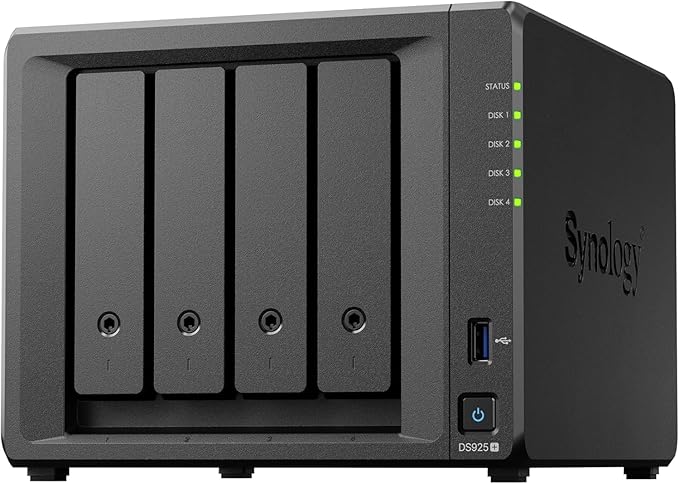
| CPU | AMD Ryzen R1600 Quad-Core |
|---|---|
| RAM | 4 GB DDR4 ECC (expandable) |
| Drive Bays | 4x 3.5"/2.5" SATA + 2x M.2 NVMe |
| Network | 2x 2.5GbE RJ45 |
| USB | 2x USB 3.2 Gen 1 |
| Expansion | 1x PCIe Gen 3 x1 (for 10GbE or M.2) |
| AU Price (Mwave) | $1,029 |
| AU Price (Scorptec) | $995 |
| AU Price (PLE) | $999 |
Pros
- Synology Photos and Drive are the best photo management tools on any NAS platform
- M.2 NVMe cache slots dramatically improve catalogue browsing speeds
- PCIe slot allows 10GbE upgrade if workflows grow into video
- Excellent DSM 7 interface with Active Backup for backing up workstations
- Strong Australian retailer support. Stocked by Mwave, Scorptec, and PLE
Cons
- 4 GB base RAM. Should be upgraded to at least 8 GB for photo indexing workloads
- 4 bays may feel limiting for videographers generating 50+ TB of footage
- No built-in 10GbE. Requires add-in card ($239-$289) for video editing use cases
- Synology RAM upgrades are expensive ($304 for 4 GB, $533 for 8 GB official)
Best NAS for Videographers. QNAP TS-473A
The QNAP TS-473A suits videographers because it combines the AMD Ryzen V1500B quad-core CPU with two PCIe Gen 3 slots, allowing both a 10GbE network card and an M.2 NVMe SSD caching card to be installed simultaneously. This is critical for video editing workflows where you need high-bandwidth network access and metadata caching at the same time. Synology's comparable models force you to choose one or the other with a single PCIe slot.
For editing directly from a NAS, 10GbE networking is not optional. It is essential. A single stream of 4K ProRes 422 HQ runs at 110-150 MB/s, which saturates a 1GbE link immediately and pushes 2.5GbE to its limits. With 10GbE, you get roughly 1,000 MB/s of sustained throughput. Enough for multiple 4K streams or a single 6K/8K workflow. Budget $250-$650 per endpoint for 10GbE (NAS card + workstation card + switch). See our video editing NAS guide for the full 10GbE setup breakdown, and our NAS networking guide for switch recommendations.
The proxy workflow alternative: If you edit using proxy files (low-resolution copies for the timeline, with full-res swapped in at export), 2.5GbE or even 1GbE is perfectly adequate. DaVinci Resolve, Premiere Pro, and Final Cut Pro all support proxy workflows. This lets you skip the 10GbE investment and use a cheaper NAS. Only editors who scrub full-resolution footage in real time need 10GbE.

| CPU | AMD Ryzen V1500B Quad-Core 2.2 GHz |
|---|---|
| RAM | 8 GB DDR4 (expandable to 32 GB) |
| Drive Bays | 4x 3.5"/2.5" SATA |
| Network | 2x 2.5GbE RJ45 |
| USB | 2x USB 3.2 Gen 2 |
| Expansion | 2x PCIe Gen 3 (10GbE + M.2 NVMe simultaneously) |
| AU Price (Scorptec) | $1,369 |
| AU Price (PLE) | $1,489 |
| 10GbE Card (QNAP) | $649 (dual-port, Scorptec) or Synology E10G18-T1 $239-$289 |
Pros
- Two PCIe slots. Install 10GbE and NVMe cache simultaneously
- 8 GB RAM standard, expandable to 32 GB for heavy workloads
- HDMI 2.0 output for direct media playback
- Strong hardware transcoding for video previews
- QNAP QTS supports SMB multi-channel for better multi-user throughput
Cons
- QNAP's software ecosystem is less polished than Synology's for photo management
- 4 bays may be insufficient for large video projects. Consider the 6-bay TS-664 ($1,549-$1,649) or add a QNAP expansion unit
- QTS security track record is weaker than DSM. Keep firmware updated and avoid exposing to the internet
- Dual-port 10GbE QNAP card at $649 is expensive; third-party cards work but require compatibility checking
Best NAS for Studio Teams. Synology DS1525+
The Synology DS1525+ suits creative studios and collaborative teams because it offers five bays (expandable to 15 with two DX525 units), 8 GB of ECC RAM, and Synology's collaboration-focused software stack. Synology Drive Server turns the NAS into a private cloud with real-time file sync, version history, and selective sync. Replacing services like Dropbox or Google Drive without the recurring subscription cost. For studios with multiple creatives working on shared projects, this is a significant advantage.
Five bays in RAID 5 with 16 TB drives gives approximately 56 TB of usable storage, which is a comfortable starting point for a small studio handling photography, video, and design assets. The single PCIe Gen 3 slot can accept a 10GbE card (Synology E10G18-T1 at $239-$289 from Mwave/Scorptec) for high-bandwidth video workflows, though this means sacrificing the M.2 NVMe adapter option unless using the combo Synology E10M20-T1 card (10GbE + M.2 in one slot).

| CPU | AMD Ryzen R1600 Quad-Core |
|---|---|
| RAM | 8 GB DDR4 ECC (expandable) |
| Drive Bays | 5x 3.5"/2.5" SATA + 2x M.2 NVMe |
| Network | 2x 2.5GbE RJ45 |
| Expansion | 1x PCIe Gen 3, supports DX525 expansion (up to 15 total bays) |
| AU Price (Mwave) | $1,285 |
| AU Price (Scorptec) | $1,399 |
Pros
- 5 bays expandable to 15. Grows with your studio's storage needs
- Synology Drive Server replaces Dropbox/Google Drive with no recurring fees
- ECC RAM provides data integrity protection for critical creative assets
- Snapshot Replication for versioned backups of project folders
- Synology Active Backup backs up all studio workstations to the NAS automatically
Cons
- Single PCIe slot. Must choose between 10GbE card or NVMe adapter (unless using combo E10M20-T1)
- More expensive than 4-bay alternatives when storage needs are modest
- DX525 expansion units add $879 each (Scorptec), increasing total system cost significantly
- No HDMI output. Purely a headless network device
NAS vs DAS. Which Storage Approach Suits Your Creative Workflow?
Before committing to a NAS, consider whether a DAS (direct-attached storage) better fits your workflow. A DAS connects directly to your workstation via USB-C or Thunderbolt, delivering raw storage performance without the complexity and cost of networking. For a single creative working solo, a DAS is often the better choice. For studios, teams, or anyone who needs remote access, a NAS is the right tool. For a detailed comparison, see our NAS vs DAS guide.
NAS vs DAS for Creative Workflows
| NAS (Networked) | DAS (Direct-Attached) | |
|---|---|---|
| Multi-user Access | Yes. Simultaneous users over network | No. Single workstation only |
| Remote Access | Yes. Via VPN, QuickConnect, or myQNAPcloud | No (unless workstation is always on) |
| Max Throughput | ~280 MB/s (2.5GbE) to ~1,000 MB/s (10GbE) | ~500 MB/s (USB 3.2) to ~2,500 MB/s (Thunderbolt 3) |
| Setup Complexity | Moderate (networking knowledge helpful) | Low (plug in and go) |
| Entry Cost (AU) | $900-$1,500 (NAS) + $600-$2,000 (drives) | $250-$500 (DAS) + $400-$1,500 (drives) |
| Best For | Teams, remote access, backup automation | Solo editors needing maximum speed |
The TerraMaster D4-320 at $329 from Scorptec is the standout DAS option for solo creatives. It supports four 3.5" SATA drives via USB 3.2 Gen 2 (up to 10 Gbps), which is adequate for 4K video editing from a single workstation. For Thunderbolt users, the TerraMaster D8-330 ($2,599 at Scorptec, often out of stock) provides Thunderbolt 3 connectivity with eight bays. But availability is inconsistent in Australia. A practical hybrid approach: use a DAS for active editing (speed) and a NAS for archival storage, backup, and collaboration (access).
Music Production on NAS. What You Need to Know
Music producers running Logic Pro, Ableton Live, or Pro Tools have a unique storage challenge: individual audio files are small (a stereo 24-bit/96 kHz WAV track is roughly 35 MB per minute), but sample libraries can be massive (Kontakt libraries alone can reach 500 GB- 1 TB), and DAW sessions access dozens of files simultaneously with latency sensitivity. A buffer underrun during playback causes an audible glitch. Unacceptable during recording or mixing.
For sample libraries, SSD caching on the NAS makes a significant difference. Spinning disks have random read latencies of 5-15 ms, which adds up across 50+ simultaneous sample streams. NVMe SSD caching brings those reads down to microseconds. The Synology DS925+ with two M.2 NVMe cache drives is a strong option here. For active session recording, keep your recording drive local (internal SSD on your workstation) and use the NAS for project archival, collaboration, and sample library hosting. A 2.5GbE connection is sufficient for streaming sample libraries, which rarely exceed 200 MB/s aggregate even under heavy load.
NBN upload reality: If you plan to collaborate remotely with other musicians or clients by sharing sessions from your NAS, be aware that typical NBN 100 plans deliver only about 20 Mbps upload (roughly 2.5 MB/s). Uploading a 2 GB session takes approximately 13 minutes. NBN 250 or 1000 plans improve this significantly, but CGNAT (Carrier-Grade NAT) on some connections may block direct remote access entirely. Check our NAS networking guide for VPN and remote access solutions.
Networking for Creative NAS. 10GbE, 2.5GbE, and Link Aggregation
Networking is where creative NAS setups succeed or fail. Every NAS recommended in this guide ships with at least 2x 2.5GbE ports, which provide roughly 280 MB/s per link. Adequate for photography, music production, and graphic design workflows. Video editing is the exception: it demands 10GbE for real-time playback of high-bitrate footage. Here is the realistic cost of each tier in Australia:
Network Tier Costs for Creative NAS (Australia 2026)
| 2.5GbE (Built-in) | 10GbE (Upgrade) | Thunderbolt DAS (Alternative) | |
|---|---|---|---|
| NAS Cost | Included in NAS price | $239-$289 (Synology E10G18-T1 card) | N/A (DAS, not NAS) |
| Workstation Card | Often built-in on modern PCs | $100-$250 (third-party 10GbE NIC) | Built-in on Macs, PCIe card on PCs |
| Switch | $0 (direct connect or existing switch) | $300-$800 (managed 10GbE switch) | N/A |
| Total Additional Cost | $0 | $640-$1,340 | $329-$2,599 (DAS unit only) |
| Max Throughput | ~280 MB/s | ~1,000 MB/s | ~500-2,500 MB/s |
Link aggregation (bonding two 2.5GbE ports) does not double the speed of a single file transfer. It distributes connections across both links, which benefits multi-user environments (two users each getting 280 MB/s) but does not help a single user editing a single video timeline. For single-user video workflows, 10GbE or DAS is the only path to sufficient bandwidth.
Storage Capacity Planning for Creative Workflows
Creative files are large and accumulate fast. Here are realistic capacity estimates based on common Australian creative workflows:
Storage Consumption by Creative Discipline
| Wedding Photographer | Freelance Videographer | Music Producer | Small Design Studio | |
|---|---|---|---|---|
| Files per Project | 2,000-5,000 RAW images | 50-500 GB raw footage | 2-10 GB per session | 500 MB-5 GB per project |
| Projects per Year | 30-50 weddings | 20-40 projects | 50-200 sessions | 100-500 projects |
| Annual Storage Growth | 3-6 TB | 5-20 TB | 1-3 TB | 1-4 TB |
| Recommended Starting Capacity | 12-16 TB usable | 20-40 TB usable | 8-12 TB usable | 8-16 TB usable |
NAS-grade drive prices have risen significantly from early 2025 levels. Budget roughly $299 per 4 TB (Synology HAT3300-4T at Scorptec) or $499 per 8 TB (Synology HAT3320-8T). For cost-effective bulk capacity, the Synology Plus Series 12 TB at $599 and 16 TB at $829 offer the best per-terabyte value currently available from Australian retailers. Always buy NAS-grade drives (Seagate IronWolf, WD Red Plus, or Synology HAT series). Desktop drives are not designed for 24/7 multi-bay operation and void some NAS warranties.
Synology Drive and Photos for Creative Asset Management
Synology's software stack provides two tools that are particularly relevant for creatives. Synology Drive provides selective folder sync, file versioning (up to 32 versions), and on-demand file access. Functionally replacing Dropbox or Google Drive. For a studio, this means every workstation can have synchronised access to project folders with automatic version history. If someone accidentally overwrites a Photoshop file, the previous version is one click away. For a full walkthrough of photo workflows on NAS, see our photography NAS guide.
Synology Photos indexes images by face, location, and date, creating a searchable visual catalogue of every photo on the NAS. For photographers, this turns your NAS into a private Google Photos with no storage limits and no subscription fees. The trade-off: initial indexing of a large library (100,000+ images) can take days and heavily loads the CPU. Plan to run the initial index overnight or over a weekend. For more detail on how Synology Photos compares to cloud alternatives, see our Lightroom on NAS workflow guide.
Budget Option. QNAP TS-464
If the models above exceed your budget, the QNAP TS-464 at $999-$1,099 is a capable entry point for creatives. It runs an Intel Celeron N5095 quad-core CPU with 8 GB RAM, includes two 2.5GbE ports, two M.2 NVMe slots, and one PCIe Gen 3 slot for a 10GbE upgrade. The Intel CPU provides hardware-accelerated video transcoding, which is useful for generating video previews and thumbnails. The main limitation is four bays. Adequate for photographers and musicians but potentially tight for videographers generating large volumes of footage.
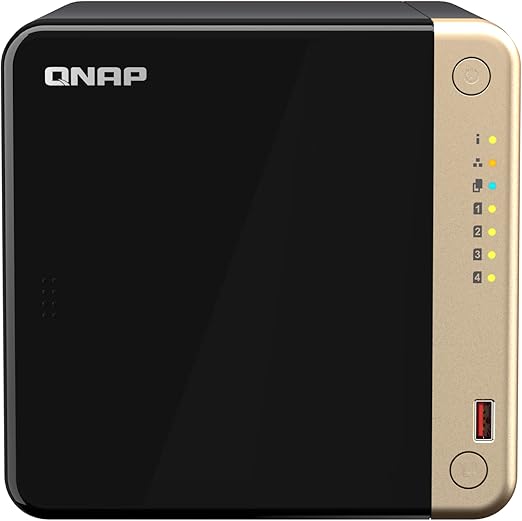
| CPU | Intel Celeron N5095 Quad-Core 2.0/2.9 GHz |
|---|---|
| RAM | 8 GB DDR4 (expandable) |
| Drive Bays | 4x 3.5"/2.5" SATA + 2x M.2 NVMe |
| Network | 2x 2.5GbE RJ45 |
| Expansion | 1x PCIe Gen 3 |
| AU Price (Scorptec) | $999 |
| AU Price (PLE) | $1,099 |
What to Buy. Recommended Configurations by Creative Discipline
Photographer (Solo)
Synology DS925+ ($995-$1,029) with two 8 TB Synology HAT3320-8T drives (~$980 each) in SHR (Synology Hybrid RAID) for approximately 8 TB usable with single-drive redundancy. Add two NVMe SSDs for caching to speed up Lightroom catalogue browsing. Total estimated cost: $2,000-$2,100 before NVMe cache drives. This gives you Synology Photos for catalogue management, Drive for sync across devices, and room to expand to four drives as your library grows.
Videographer (Solo, 4K Editing)
QNAP TS-473A ($1,369-$1,489) with four 16 TB drives in RAID 5 for approximately 42 TB usable. Add a Synology E10G18-T1 10GbE card ($239-$289) in one PCIe slot and a QNAP QM2 NVMe card ($299-$399) in the second. Budget a 10GbE NIC for your workstation ($100-$250) and a managed 10GbE switch ($300-$800). Total system cost: $4,000-$6,000 all-in. If this exceeds your budget, use the proxy editing workflow on 2.5GbE instead.
Music Producer
Synology DS925+ ($995-$1,029) with two 4 TB Synology HAT3300-4T drives ($299 each) in SHR for approximately 4 TB usable. Invest in two M.2 NVMe SSDs for read caching. This is where the real performance gain comes from for sample library streaming. Total estimated cost: $1,700-$1,800 before NVMe drives. Keep recording drives local on your workstation; use the NAS for sample libraries, session archival, and collaboration.
Multi-Discipline Studio (2-4 Users)
Synology DS1525+ ($1,285-$1,399) with five 12 TB Synology HAT3310-12T drives (~$1199 each) in SHR for approximately 42 TB usable. Add a 10GbE card if video editing is part of the workflow. Total estimated cost: $4,500-$5,500 before networking upgrades. Synology Drive Server handles collaboration, Active Backup protects workstations, and the DX525 expansion path means you can grow to 15 bays without replacing the NAS.
Buying in Australia. Retailer and Warranty Considerations
Most Australian NAS retailers operate on 3-5% margins, which means pricing is remarkably uniform across the major stores. The real difference between retailers is what happens when something goes wrong. For a device storing your creative assets, the retailer relationship matters when you need a warranty claim processed quickly.
In Australia, your warranty claim goes to the retailer, not the manufacturer. Synology, QNAP, and TerraMaster do not have service centres here. Your place of purchase is your first and only point of contact. The standard process runs through the chain: retailer to distributor to vendor in Taiwan, then back again. Expect 2-3 weeks minimum for a resolution. For production environments, ask your retailer about advanced replacement options before you need them.
Australian Consumer Law: ACL protections apply when purchasing from Australian retailers. A dead NAS is classified as a minor failure under ACL. The retailer can offer repair or replacement and is not obligated to provide an immediate refund. Buy from a specialist like Scorptec or PLE where you can get genuine pre-sales guidance and established warranty processes. For official information on your consumer rights, visit accc.gov.au.
Amazon AU has started holding NAS stock directly in 2026, often at competitive prices. Their return and refund process is excellent, but if your NAS fails and you need a direct like-for-like replacement, Amazon may not have stock. Especially for less common models. They will typically push to issue a credit rather than manage the warranty process. For creative professionals whose livelihoods depend on storage access, a specialist retailer with a known warranty process is worth the small price premium.
A NAS is not a backup. Plan for hardware failure, plan for a 2-3 week replacement window, and build your data protection strategy around the assumption that your NAS will eventually fail. At minimum, follow a 3-2-1 backup strategy: three copies of your data, on two different media types, with one copy offsite. Synology's Active Backup and Hyper Backup make this straightforward to automate.
Related reading: our NAS buyer's guide.
Use our free NAS Sizing Wizard to get a personalised NAS recommendation.
Can I edit Lightroom catalogues directly from a NAS?
Adobe Lightroom Classic requires the catalogue file (.lrcat) to be stored on a local drive. It cannot be opened from a network location. However, you can store all your RAW images on the NAS and reference them from a local catalogue. Lightroom's Smart Previews feature generates low-resolution copies locally, allowing you to edit without the NAS connected, then sync changes when reconnected. Capture One does support network-located catalogues, making it more NAS-friendly for fully networked photo workflows.
Is a NAS fast enough for real-time 4K video editing?
Yes, but only with 10GbE networking. A 4K ProRes 422 HQ stream requires 110-150 MB/s sustained throughput, which exceeds 1GbE capacity (~110 MB/s) and pushes 2.5GbE (~280 MB/s) to its limits with no headroom for other traffic. With 10GbE (~1,000 MB/s), you can comfortably edit single or multiple 4K streams directly from the NAS. Without 10GbE, use proxy editing workflows or consider a DAS for active editing. See our video editing NAS guide for detailed setup instructions.
Should I choose Synology or QNAP for creative work?
Synology is the better choice for photographers and teams who value software polish, Synology Photos, and Drive sync. QNAP is the better choice for videographers who need dual PCIe slots (10GbE + NVMe simultaneously) and more expandable RAM. For music production, either platform works, but Synology's ecosystem is generally easier to set up and maintain. Both platforms support SMB, AFP, and NFS file sharing for Mac and Windows workstations.
How much storage do I need for a photography business?
A typical wedding photographer shooting 2,000-5,000 RAW images per event generates 100-250 GB per wedding. At 40 weddings per year, that is 4-10 TB of new data annually. Start with at least 12-16 TB of usable NAS storage (e.g., four 8 TB drives in RAID 5 on a 4-bay NAS) and plan to expand or archive to cold storage as your library grows. Remember that RAID is not a backup. You still need a separate backup destination for your archive.
Can I use a NAS for sample library streaming in Logic Pro or Ableton?
Yes, with caveats. Sample libraries accessed over a NAS require consistent low-latency reads. A 2.5GbE connection with NVMe SSD read caching on the NAS handles this well for most libraries. However, very large orchestral libraries (Vienna Symphonic Library, Spitfire Audio) with hundreds of simultaneous articulations may still benefit from local SSD storage. Start by hosting your most-used libraries on the NAS and keep the most demanding ones local. Record always to a local drive. Never record audio directly to a NAS.
Do I need ECC RAM in a NAS for creative work?
ECC (Error-Correcting Code) RAM detects and corrects single-bit memory errors that can cause silent data corruption. For creative professionals whose livelihoods depend on file integrity, ECC RAM is a worthwhile safeguard. The Synology DS925+ and DS1525+ both support ECC RAM. The risk of non-ECC corruption is statistically small, but when you have 500,000 irreplaceable RAW files on a NAS, even a tiny risk of silent corruption is worth mitigating.
Is the UGREEN NASync a good option for creatives in Australia?
UGREEN's NASync range (DXP2800, DXP4800, DXP4800 Plus, DXP6800 Pro, DXP8800 Plus) offers competitive hardware specs at attractive prices, but there are important caveats for Australian buyers. UGREEN does not yet have an official Australian distributor, which means warranty claims currently go through international channels. The software ecosystem is new and lacks the mature creative tools that Synology (Photos, Drive) and QNAP offer. For creative professionals who depend on their storage daily, the proven ecosystems and local warranty support of Synology and QNAP are safer choices in 2026.
Need help choosing between a NAS and DAS for your creative workflow? Read our detailed comparison.
NAS vs DAS Guide →