The best NAS for most beginners in 2026 is the Synology DS225+ ($549 at Scorptec). Not because it's the cheapest, but because DSM is the most approachable NAS operating system available, and the DS225+ runs it with enough hardware to grow into. This guide explains what makes a NAS genuinely beginner-friendly, recommends the best options by budget and use case, and covers the decisions first-time buyers consistently get wrong. Bay count, drive selection, and total cost. AU pricing, retailer guidance, and warranty notes are in the AU section below.
For a broader overview of this topic, see our NAS buying guide hub.
In short: The Synology DS225+ ($549) is the best beginner NAS for most Australians. Easy setup, excellent software, and 2.5GbE networking. On a tighter budget, the Synology DS223j ($319) handles basic file storage and backups well. If you want 2.5GbE without paying Plus-series prices, the Asustor Drivestor 2 Pro Gen2 ($389) is the value pick. For four bays and future expansion, the QNAP TS-433 ($649 at Scorptec) or Synology DS425+ ($819 at Scorptec) are strong choices depending on budget.
What Makes a NAS "Beginner-Friendly"?
Not every NAS is suitable for a first-time buyer. The difference between a good beginner NAS and a frustrating one comes down to three things: software quality, guided setup, and community support. A beginner NAS should walk you through initial configuration, make common tasks like file sharing and photo backup straightforward, and have enough online guides and forums that you can troubleshoot issues without needing to contact support.
Synology leads here by a wide margin. Their DiskStation Manager (DSM) operating system is browser-based, visually clean, and genuinely intuitive. QNAP's QTS is more powerful in some areas but has a steeper learning curve and a busier interface. Asustor's ADM sits somewhere in between. Capable and improving, but with a smaller community. TerraMaster's TOS has come a long way but still lacks the polish and app ecosystem of the major three. For a deeper comparison, see our Synology vs QNAP guide.
Hardware specs matter less than you might think for a first NAS. Most beginners are storing files, backing up phones and laptops, and maybe streaming a few videos. Even an entry-level ARM-based NAS handles these tasks comfortably. Where hardware becomes important is if you plan to run Docker containers, transcode video for Plex, or use the NAS as a surveillance station. If those are on your radar, step up to an Intel-powered model.
How Many Bays Do You Actually Need?
This is the first decision every beginner faces, and the answer is simpler than the internet makes it sound. For most home users starting out, a 2-bay NAS is plenty. Two bays let you run a mirrored RAID (where both drives contain the same data), which protects you if one drive fails. With current NAS-class drives, a 2-bay setup with two 4TB drives gives you roughly 4TB of usable, protected storage. Enough for years of photos, documents, and home videos.
A 4-bay NAS makes sense if you already know you will need more than 8TB of storage, want to run RAID 5 for a balance of protection and capacity, or simply want the flexibility to add drives later without replacing the unit. The cost difference between a 2-bay and 4-bay unit is typically $150-$300 for the enclosure. But remember, you also need to buy the additional drives. Two extra NAS-class drives add another $400-$600 to your total cost. For a full breakdown of bay counts, see our best 2-bay NAS and best 4-bay NAS guides.
Best Beginner NAS Picks for 2026
Best Overall: Synology DS225+
The DS225+ is Synology's latest 2-bay Plus-series NAS and the best all-round choice for beginners who want a NAS that will grow with them. It runs DiskStation Manager 7, which is the most user-friendly NAS operating system available. Period. The guided setup wizard walks you through everything from creating a storage pool to setting up shared folders, and Synology's mobile apps (DS File, Synology Photos, DS Video) are polished enough to replace basic cloud services.
The DS225+ includes one 2.5GbE port and one 1GbE port, which means you get faster-than-gigabit transfers without needing to upgrade your entire network. The Intel Celeron CPU handles Plex transcoding for a household, runs Docker containers, and supports Synology's built-in surveillance station (two camera licences included). For a detailed look at this unit, see our Synology DS225+ review.

| Model | Synology DiskStation DS225+ |
|---|---|
| Bays | 2x 3.5" SATA (hot-swappable) |
| CPU | Intel Celeron (quad-core, 2.0GHz) |
| RAM | 2GB DDR4 (expandable) |
| Network | 1x 2.5GbE + 1x 1GbE |
| M.2 Slots | 2x NVMe (for SSD cache) |
| USB | 2x USB 3.2 Gen 1 |
| AU Price (Scorptec) | $549 |
| AU Price (PLE) | $599 |
| AU Price (Mwave) | $585 |
| Warranty | 3 years (extendable to 5) |
Pros
- Best-in-class setup experience and software (DSM 7)
- 2.5GbE networking included. Faster transfers out of the box
- Strong Docker and Plex support for future tinkering
- Huge community and online support resources
- Synology Photos is a genuine Google Photos replacement
Cons
- Only 2GB RAM. Adequate for beginners but limits heavy multitasking
- No HDMI output for direct TV playback
- More expensive than ARM-based alternatives that handle basic tasks equally well
- Synology locks some features to their own branded drives (SSD cache requires Synology SSDs on newer firmware)
Best Budget Pick: Synology DS223j
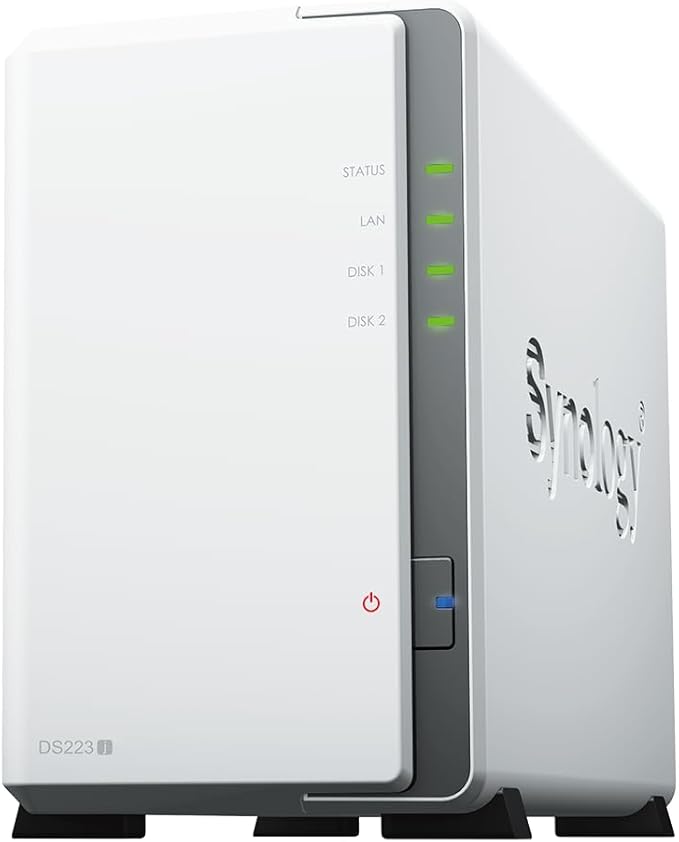
If $549 is more than you want to spend on a first NAS, the DS223j strips out the extras and focuses on the fundamentals. It runs the same DiskStation Manager software as the DS225+, which means the setup experience is identical. Where it differs is hardware: the DS223j uses a Realtek ARM processor instead of Intel, has 1GB of RAM (non-expandable), and connects via standard 1GbE only. For file storage, phone backups, and basic media streaming, these limitations genuinely do not matter.
Don't buy this if you want to run Docker, transcode video with Plex, or plan to expand beyond basic file serving. The ARM processor and 1GB RAM simply cannot handle those workloads. But for someone who wants to back up their family's photos, share files across the house, and have a local copy of their important documents. The DS223j does all of that for $319 at Scorptec. That is hard to beat.
| Model | Synology DiskStation DS223j |
|---|---|
| Bays | 2x 3.5" SATA |
| CPU | Realtek RTD1619B (quad-core, 1.7GHz ARM) |
| RAM | 1GB DDR4 (non-expandable) |
| Network | 1x 1GbE |
| USB | 2x USB 3.2 Gen 1 |
| AU Price (Scorptec) | $319 |
| AU Price (PLE) | $339 |
| Warranty | 2 years |
Pros
- Cheapest way to get Synology's excellent DSM software
- Simple, quiet, and low power consumption
- Perfect for basic file storage and backup tasks
- Same mobile app ecosystem as higher-end Synology models
Cons
- 1GB RAM limits multitasking. One heavy task at a time
- No Docker or virtualisation support
- 1GbE only. No faster networking option
- Cannot transcode video for Plex
- Non-expandable RAM
Best Value with 2.5GbE: Asustor Drivestor 2 Pro Gen2 (AS3302T V2)
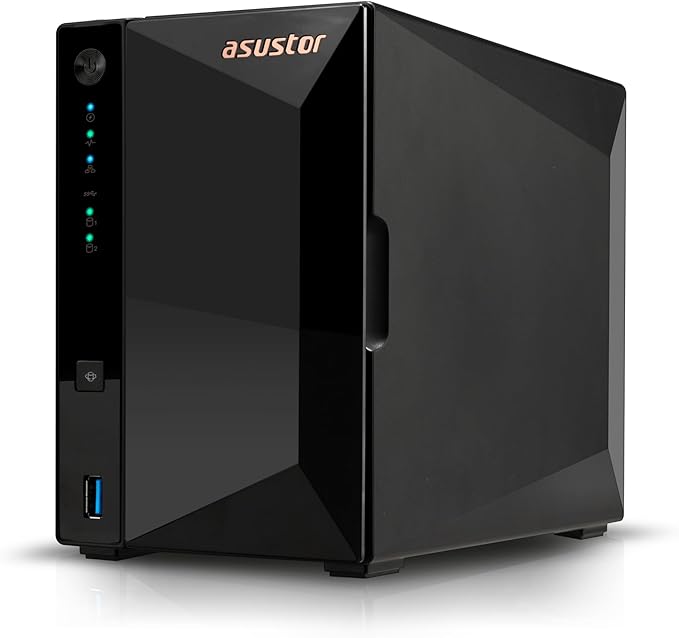
The Asustor Drivestor 2 Pro Gen2 is the pick for beginners who want 2.5GbE networking without stepping up to Synology Plus-series pricing. At $389 from PLE ($439 at Scorptec and Mwave), it undercuts the DS225+ by $160 while offering 2GB RAM, a 2.5GbE port, and Asustor's ADM operating system. Which, while not quite as polished as DSM, is perfectly capable and improving with each update.
Asustor's strength for beginners is its media focus. The unit supports HDMI output for direct playback on a TV (something Synology dropped years ago), and Asustor's Looksgood media app is straightforward. The hardware transcoding on this Realtek RTD1619B chip is limited compared to Intel, but for direct-play scenarios it handles most common formats without issue. For more on Asustor's range, see our Asustor NAS Australia hub.
| Model | Asustor Drivestor 2 Pro Gen2 (AS3302T V2) |
|---|---|
| Bays | 2x 3.5" SATA |
| CPU | Realtek RTD1619B (quad-core, 1.7GHz ARM) |
| RAM | 2GB DDR4 |
| Network | 1x 2.5GbE |
| USB | 3x USB 3.2 Gen 1 (1x Type-C) |
| HDMI | 1x HDMI 2.0b |
| AU Price (PLE) | $389 |
| AU Price (Scorptec) | $439 |
| AU Price (Mwave) | $439 |
| Warranty | 3 years |
Pros
- 2.5GbE networking at a price well below Synology's Plus series
- HDMI output for direct media playback on a TV
- 2GB RAM. Double the DS223j
- Good value for money at $389 (PLE)
Cons
- ADM software is less polished than Synology DSM
- Smaller community means fewer online guides and tutorials
- ARM processor. No Docker or hardware Plex transcoding
- Asustor has less brand recognition in Australia and a smaller distributor network (Dicker Data only)
Best 4-Bay for Beginners: QNAP TS-433
If you know you will need more than two bays. Or you simply want room to grow without replacing the unit. The QNAP TS-433 is the most affordable 4-bay NAS with 2.5GbE networking in Australia at $649 from Scorptec. It includes 4GB of RAM (double the DS225+), a 2.5GbE port, and QNAP's QTS operating system, which offers more configurability than DSM at the cost of a busier interface.
The TS-433 uses an ARM processor, so Docker and Plex transcoding are off the table. Same limitation as the budget Synology models. But for file storage, backup, and media serving via direct play, four bays in a RAID 5 configuration give you roughly 75% of your total drive capacity as usable storage, with single-drive fault tolerance. That is a meaningful step up from a 2-bay mirror where you lose half your capacity to redundancy. For the full QNAP range, see our QNAP NAS Australia hub.

| Model | QNAP TS-433-4G |
|---|---|
| Bays | 4x 3.5" SATA |
| CPU | ARM Cortex-A55 (quad-core, 2.0GHz) |
| RAM | 4GB DDR4 |
| Network | 1x 2.5GbE |
| USB | 2x USB 3.2 Gen 1 |
| AU Price (Scorptec) | $649 |
| AU Price (PLE) | $699 |
| Warranty | 2 years |
Pros
- Most affordable 4-bay NAS with 2.5GbE in Australia
- 4GB RAM. Handles multiple users and tasks comfortably
- Room to grow with four drive bays
- QNAP's QTS offers deep configurability
Cons
- QTS has a steeper learning curve than Synology DSM
- ARM processor. No Docker or Plex transcoding
- QNAP's security track record has had some high-profile incidents (Deadbolt ransomware in 2022)
- No M.2 SSD cache slots
Step-Up Pick: Synology DS425+
The DS425+ is the 4-bay version of the DS225+ and the natural choice for beginners who want four bays with Synology's software and Intel hardware. At $819 from Scorptec ($999 at PLE), it costs more than the TS-433 but adds Intel Celeron processing power, M.2 NVMe slots for SSD caching, and the full DSM ecosystem including Docker and Plex transcoding support. If you can stretch the budget, this is the 4-bay NAS that will serve you well for five or more years without feeling limited.

| Model | Synology DiskStation DS425+ |
|---|---|
| Bays | 4x 3.5" SATA (hot-swappable) |
| CPU | Intel Celeron (quad-core, 2.0GHz) |
| RAM | 2GB DDR4 (expandable) |
| Network | 1x 2.5GbE + 1x 1GbE |
| M.2 Slots | 2x NVMe (for SSD cache) |
| AU Price (Scorptec) | $819 |
| AU Price (PLE) | $999 |
| AU Price (Mwave) | $899 |
| Warranty | 3 years (extendable to 5) |
Pros
- Full Synology DSM experience with Docker and Plex transcoding
- Intel CPU opens up advanced features as you learn
- Four bays with hot-swap and M.2 SSD cache support
- 2.5GbE + 1GbE dual networking
Cons
- Significantly more expensive than ARM-based 4-bay alternatives
- 2GB base RAM feels tight for Docker workloads. Budget for a RAM upgrade
- Still no HDMI output
Honourable Mention: TerraMaster F2-425
TerraMaster has improved significantly in the last two years, and the F2-425 at $459 from Scorptec offers Intel Celeron N5095 processing at a price below the Synology DS225+. It runs TOS (TerraMaster Operating System), which now supports Docker and has a cleaner interface than earlier versions. The catch: TOS is still maturing, the app ecosystem is smaller, and TerraMaster's Australian distribution is limited (DSTech only), which can affect warranty turnaround times. This suits technically confident beginners who are comfortable troubleshooting on their own. For the full picture, see our TerraMaster NAS Australia hub.

| Model | TerraMaster F2-425 |
|---|---|
| Bays | 2x 3.5" SATA |
| CPU | Intel Celeron N5095 (quad-core) |
| RAM | 8GB DDR4 |
| Network | 2x 2.5GbE |
| AU Price (Scorptec) | $459 |
| Warranty | 2 years |
What About UGREEN NAS?
UGREEN entered the NAS market in 2024 with the NASync range (DXP2800, DXP4800, DXP4800 Plus, DXP6800 Pro, and DXP8800 Plus). The hardware specifications are competitive and the pricing appears aggressive. However, UGREEN does not yet have an official Australian distributor, which means warranty claims currently go through international channels. Purchasing through Amazon AU is the primary option for Australian buyers, but Amazon's NAS support model. Credit or refund rather than direct replacement. Compounds the risk for a brand with no local distribution.
UGREEN's NAS software (UGOS) is still in its early stages compared to DSM or QTS, and the community is small. For a first-time NAS buyer in Australia, the combination of immature software, no local distributor, and limited warranty support makes UGREEN a harder recommendation in 2026. Even though the hardware looks good on paper. This is expected to change as UGREEN establishes Australian distribution, likely later in 2026. For more details, see our UGREEN NAS Australia guide.
Comparison: Best Beginner NAS Models at a Glance
Best Beginner NAS Comparison. Australia 2026
|
DS223j
|
AS3302T V2
|
DS225+
|
TS-433
|
DS425+
|
|
|---|---|---|---|---|---|
| Bays | 2 | 2 | 2 | 4 | 4 |
| CPU Type | ARM | ARM | Intel | ARM | Intel |
| RAM | 1GB | 2GB | 2GB | 4GB | 2GB |
| 2.5GbE | No | Yes | Yes | Yes | Yes |
| Docker Support | No | No | Yes | No | Yes |
| Plex Transcoding | No | No | Yes | No | Yes |
| HDMI Output | No | Yes | No | No | No |
| Best AU Price | $319 | $439 (Mwave) | $599 (PLE Computers) | $639 (Scorptec) | $819 |
| Best For | Pure budget | Value + 2.5GbE | Best all-round | 4-bay on a budget | 4-bay future-proof |
Prices last verified: 16 March 2026. Always check retailer before purchasing.
Total Cost: NAS + Drives
A NAS enclosure is sold without hard drives ("diskless"), so you need to budget for drives separately. NAS-class drives. Seagate IronWolf and WD Red Plus are the two main options in Australia. Are specifically designed for always-on, multi-drive environments. Using desktop drives in a NAS voids most drive warranties and risks premature failure. For a full comparison, see our best NAS hard drive Australia guide.
As of February 2026, NAS-class HDD prices have risen significantly from early 2025 levels. Budget approximately $200-$250 per 4TB NAS drive and $300-$350 per 8TB drive at current Australian pricing. This means a complete 2-bay setup with mirrored 4TB drives will cost around $750-$850 all-in, while a 4-bay RAID 5 setup with four 4TB drives lands in the $1,500-$1,800 range depending on the enclosure. For guidance on protecting that data properly, see our 3-2-1 backup strategy guide.
Tip: Don't buy the biggest drives you can find for a first NAS. Start with 4TB or 8TB drives and expand later. You will learn more about your actual storage needs in the first six months than any guide can predict. Overspending on storage capacity you don't use yet ties up money that could go toward a better enclosure or a proper backup solution.
🇦🇺 Australian Buyers: What You Need to Know
If you are buying a NAS for the first time, buy from a specialist retailer where you can get genuine pre-sales guidance. Not from Amazon where the price might be better but the support is nonexistent. Scorptec, PLE, and DeviceDeal are full-range specialists that list most NAS models and have staff with at least basic product knowledge. For a complete breakdown of retailer options, see our where to buy NAS in Australia guide.
Most Australian NAS retailers operate on 3-5% margin, which is why pricing is remarkably uniform across the major stores. The real difference between retailers is what happens when something goes wrong. Before buying, ask your retailer: "If this unit fails, what is your process? Can I get an advanced replacement?" The answer tells you more about the value of buying from that retailer than the price on the website.
Amazon AU has started holding NAS stock directly in 2026, often at prices that undercut local retailers. Their returns policy is excellent if you want your money back. But if your NAS fails and you need a direct replacement, Amazon may not have stock. Especially for older or less common models. They will push to give you a credit and leave you to source an alternative yourself. When you buy from a specialist reseller, they can access distributor and vendor stock to find you a replacement. Amazon can only offer what is in their warehouse.
Networking Basics: Will Your NAS Be Slow?
The number one complaint from first-time NAS owners is transfer speed. In most cases, the NAS is not the bottleneck. The home network is. A standard 1GbE connection maxes out at roughly 110-115 MB/s, which is fine for document access, photo browsing, and video streaming but feels sluggish when copying large folders. If you have an NBN 100 plan, keep in mind that the typical upload speed is only around 20-40 Mbps. So remote access to your NAS over the internet will always be slower than local access. CGNAT (Carrier-Grade NAT), used by some internet providers, can also block direct remote access entirely, requiring a VPN or relay service. For more on this, see our NAS remote access and VPN guide.
If you are buying a NAS with 2.5GbE (like the DS225+ or AS3302T V2), you will need a 2.5GbE switch and a 2.5GbE adapter or compatible router to take advantage of the faster port. A basic 2.5GbE switch costs~$352-$300 in Australia. Without it, the NAS will fall back to standard gigabit speeds. For a deeper dive, see our NAS networking guide.
Australian Consumer Law and NAS Warranty
ACL note: Australian Consumer Law protections apply when purchasing from Australian retailers. Your warranty claim goes to the retailer, not the manufacturer. Synology, QNAP, and Asustor do not have service centres in Australia. Your place of purchase is your first and only point of contact. A dead NAS is considered a minor failure under ACL, meaning the retailer chooses the remedy (repair, replacement, or refund). Not you. The standard warranty process runs retailer to distributor to vendor (Taiwan) and back, taking a minimum of 2-3 weeks. Plan accordingly and always maintain offsite backups. For official information on your consumer rights, visit accc.gov.au.
Standard warranty for consumer NAS devices (sub-$1,000) is 3 years, aligning with NAS-class HDD warranty periods. Plus-series and mid-range models can typically be extended to 5 years. Advanced replacements (receiving a new unit before returning the faulty one) are generally not available through standard warranty processes, but some resellers will allow you to purchase an advanced replacement at full price and refund you when the faulty unit comes back. Have this conversation with your retailer before you need it, not after.
A NAS Is Not a Backup
This is the most important thing any beginner needs to understand: a NAS is not a backup. RAID protects against a single drive failure. It does not protect against theft, fire, flood, ransomware, accidental deletion, or the NAS unit itself failing. If your NAS is the only place your important data exists, you are one bad event away from losing everything.
The industry-standard approach is the 3-2-1 backup strategy: three copies of your data, on two different types of media, with one copy offsite. In practice, that might look like: files on your NAS (copy one), synced to a cloud service like Backblaze B2 or Synology C2 (copy two. Offsite), with critical files also on an external USB drive stored at a relative's house (copy three). Every Synology, QNAP, and Asustor NAS supports automated cloud backup out of the box. Set it up on day one. For details on NAS security, see our NAS security and ransomware protection guide.
Use our free NAS Sizing Wizard to get a personalised NAS recommendation.
Related reading: our NAS explainer.
Is a NAS worth it if I already use Google Drive or iCloud?
Yes, but for different reasons. Cloud storage is convenient for access anywhere, but you pay monthly and your data lives on someone else's servers. A NAS gives you a one-time hardware cost (plus electricity), local-speed access to your files, and full control over your data. Many people use both. The NAS as the primary store and cloud as a backup destination. The NAS pays for itself within 2-3 years compared to paying for large cloud storage tiers. For a detailed comparison, see our NAS vs cloud storage guide.
Do I need to leave my NAS running 24/7?
NAS devices are designed for continuous operation, but every major brand includes power scheduling and hard drive hibernation features. You can set the NAS to sleep or shut down overnight and wake on a schedule or on network access. In practice, most home NAS units consume 15-30 watts during active use and 5-10 watts in hibernation. Costing roughly $30-$70 per year in electricity at Australian power rates. For a deeper look at running costs, see our NAS power consumption guide.
Can I use regular desktop hard drives in a NAS?
Technically yes, but it is not recommended. Desktop drives (like WD Blue or Seagate Barracuda) are not designed for continuous 24/7 operation or multi-drive vibration environments. Using them in a NAS may void the drive warranty and increases the risk of premature failure. NAS-class drives like the Seagate IronWolf and WD Red Plus are specifically engineered for this workload and include features like rotational vibration sensors and error recovery controls. The price premium over desktop drives is typically $20-$40 per drive. Well worth it for a device storing your important data.
How hard is it to set up a NAS for the first time?
With Synology, very straightforward. You install the drives (a screwdriver and 10 minutes), plug the NAS into your router, open a browser, and follow the on-screen wizard. The setup process walks you through creating a storage pool, setting up shared folders, creating user accounts, and installing apps. Most people are up and running within 30-60 minutes. QNAP and Asustor have similar guided setups, though Synology's is the most polished. Our Synology NAS setup guide covers the full process step by step.
Should I buy a 2-bay or 4-bay NAS as a beginner?
Start with 2 bays unless you already know you need significant storage capacity (more than 8TB usable). A 2-bay NAS with mirrored drives gives you simple, reliable protection at the lowest entry cost. If you outgrow it in a few years, you can migrate your drives to a larger unit. Both Synology and QNAP support drive migration between compatible models. A 4-bay NAS costs more upfront (both the enclosure and two additional drives) but offers more flexible RAID options and more room to grow.
Can I access my NAS remotely when I'm not at home?
Yes. Synology (QuickConnect), QNAP (myQNAPcloud), and Asustor (EZ-Connect) all offer free relay services that let you access your NAS from anywhere via a web browser or mobile app without configuring port forwarding. Performance depends on your home internet upload speed. On a typical Australian NBN 100 plan, expect 20-40 Mbps upload, which is enough for streaming photos and documents but not fast enough for large file transfers. Some NBN providers use CGNAT, which blocks direct connections; the relay services work around this. For more control and better security, consider setting up a VPN on your NAS.
What happens if a hard drive fails in my NAS?
If you are running a RAID configuration (which you should be), a single drive failure does not cause data loss. The NAS will alert you. Via email, push notification, or a beeping alarm. That a drive has failed. You then replace the failed drive with a new one and the NAS automatically rebuilds the array. This process can take several hours to a couple of days depending on drive size. During the rebuild, your data remains accessible but performance may be reduced. This is why RAID matters and why NAS-class drives with longer warranties are worth the small premium. For more on RAID options, see our RAID explained guide.
Ready to choose your first NAS? Our comprehensive buying guide covers every price bracket and use case for Australian buyers.
Read the Full NAS Buying Guide →